
Meeting Minutes Voice to Text
Meeting Minutes Voice to Text with WriteVoice turns a recorded meeting into minutes you can send. You get a summary, the main decisions, and a list of action items.
You can also dictate the minutes yourself right after the meeting, while it is fresh, and WriteVoice formats them.
It runs as an iOS keyboard, a Mac app, and a web app, all synced.
Start Creating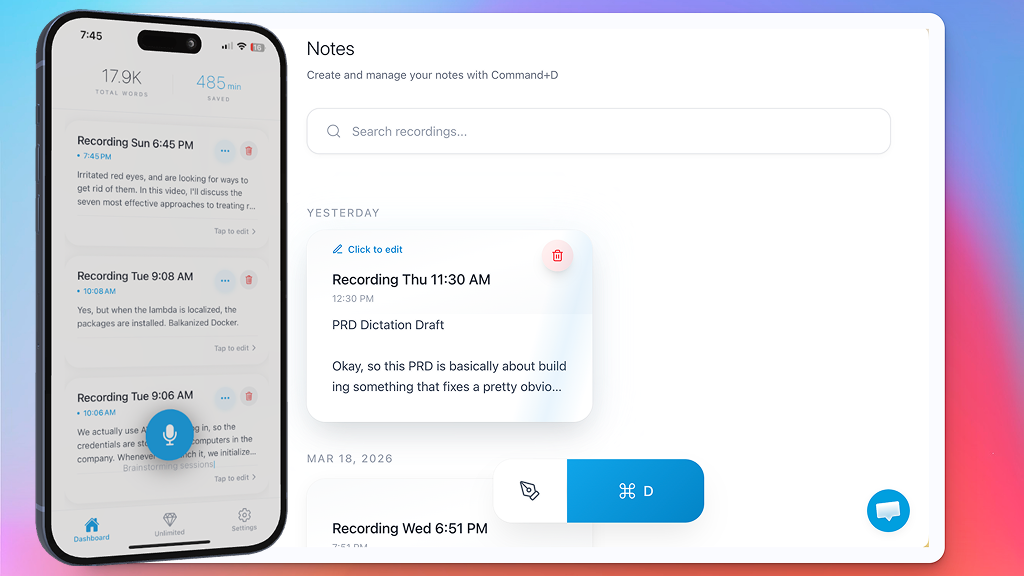
Minutes without a note-taker
Someone usually has to choose between taking part in the meeting and writing it down.
Record the meeting instead, and WriteVoice drafts the minutes from what was said.
Read them through, fix any names, and send them before people forget what they agreed.
56% of workers say it is hard to summarize what happened in a meeting. See the meeting statistics
Ideal for every meeting you need on paper
Use it for:
- Team standups captured as shareable minutes
- Client meetings turned into summaries you can send
- Action items pulled into a task list
- Committee and board meeting drafts
- One-on-ones logged so nothing gets lost
- Project kickoffs with decisions written down
- Meetings in 50+ languages, switching mid-sentence
- And so much more...
See WriteVoice in action
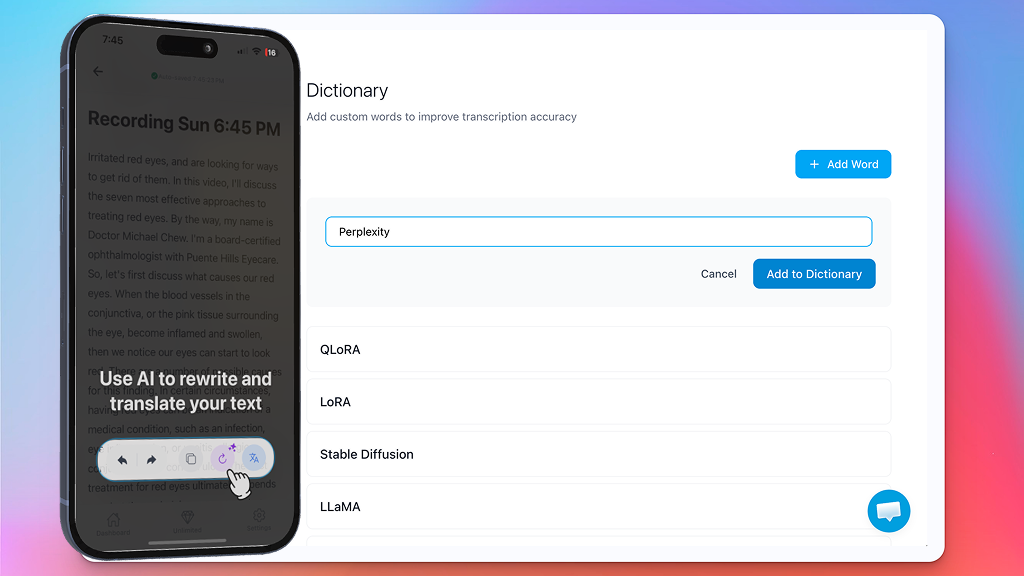
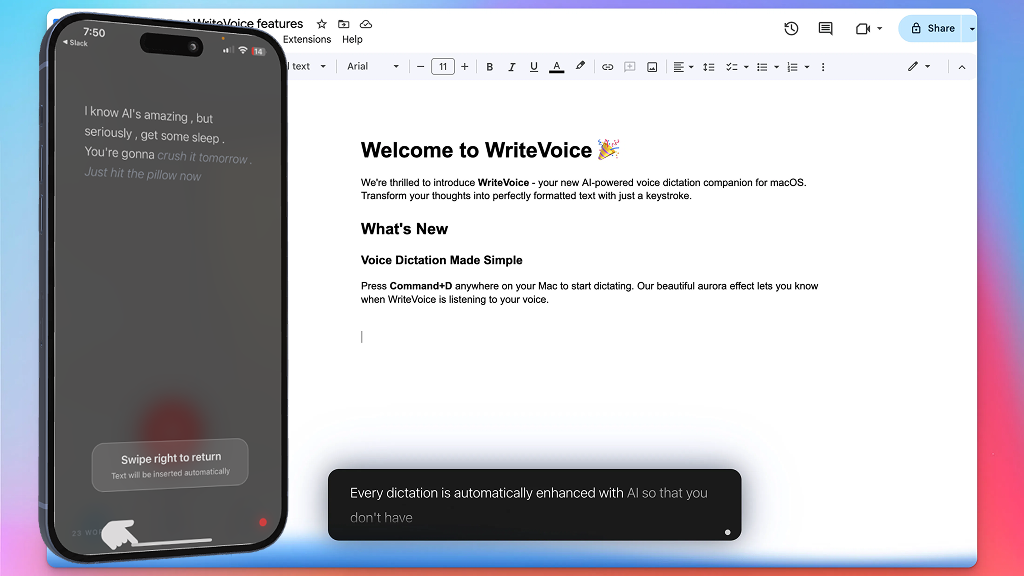
Talk, and watch your words come out clean. The same way on your phone and on your Mac, with no typing and no messy transcript to fix.
Rewrite anything with one tap
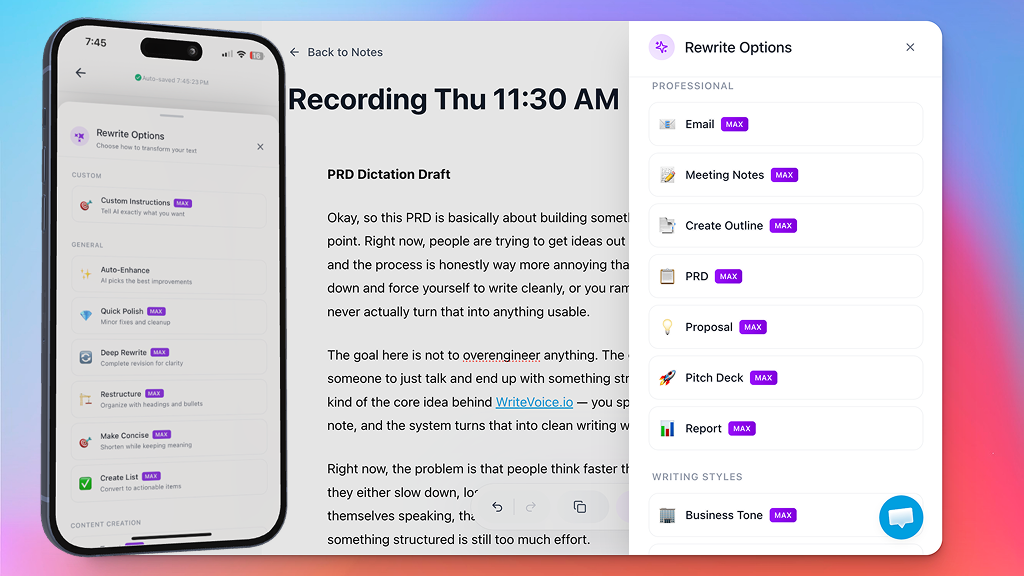
A clean transcript is just the start, because WriteVoice can also reshape what you said.
Open Rewrite Options and pick how to transform the text, from a quick polish to a full rewrite.
The same words can become an email, a tidy list, or a short post in seconds.
- Auto-Enhance picks the best improvements for you
- Quick Polish fixes the small stuff and cleans it up
- Make Concise shortens it while keeping your meaning
- Create List turns a ramble into clear, actionable items
Use your voice everywhere you write
WriteVoice runs as a keyboard on your phone, so you can dictate into:
- Email and messages
- Notes and to-do lists
- Docs and reports
- Chat and social apps
- Search bars
- Anywhere you can type
A simple tool that does the typing for you
Good voice to text tools are hard to find.
WriteVoice is built to be fast, accurate, and easy for anyone.
Every dictation is saved in Notes
Nothing you say gets lost, since every dictation and recording is saved as a note.
Your notes are organized by date, so the one you need is easy to find.
Search any word, tap to edit or retitle, and pick up right where you left off.
- A searchable library of everything you dictate
- Recordings and imported audio transcribed into notes
- Edit, retitle, and organize with a tap
- Translate a note into dozens of languages
Your notes follow you across devices
Sign in once and your notes sync everywhere, so you can start on one device and finish on another:
- Start a note on your iPhone or iPad
- Pick it up in the Mac desktop app
- Open it in any browser on the web
- Everything stays in sync, automatically
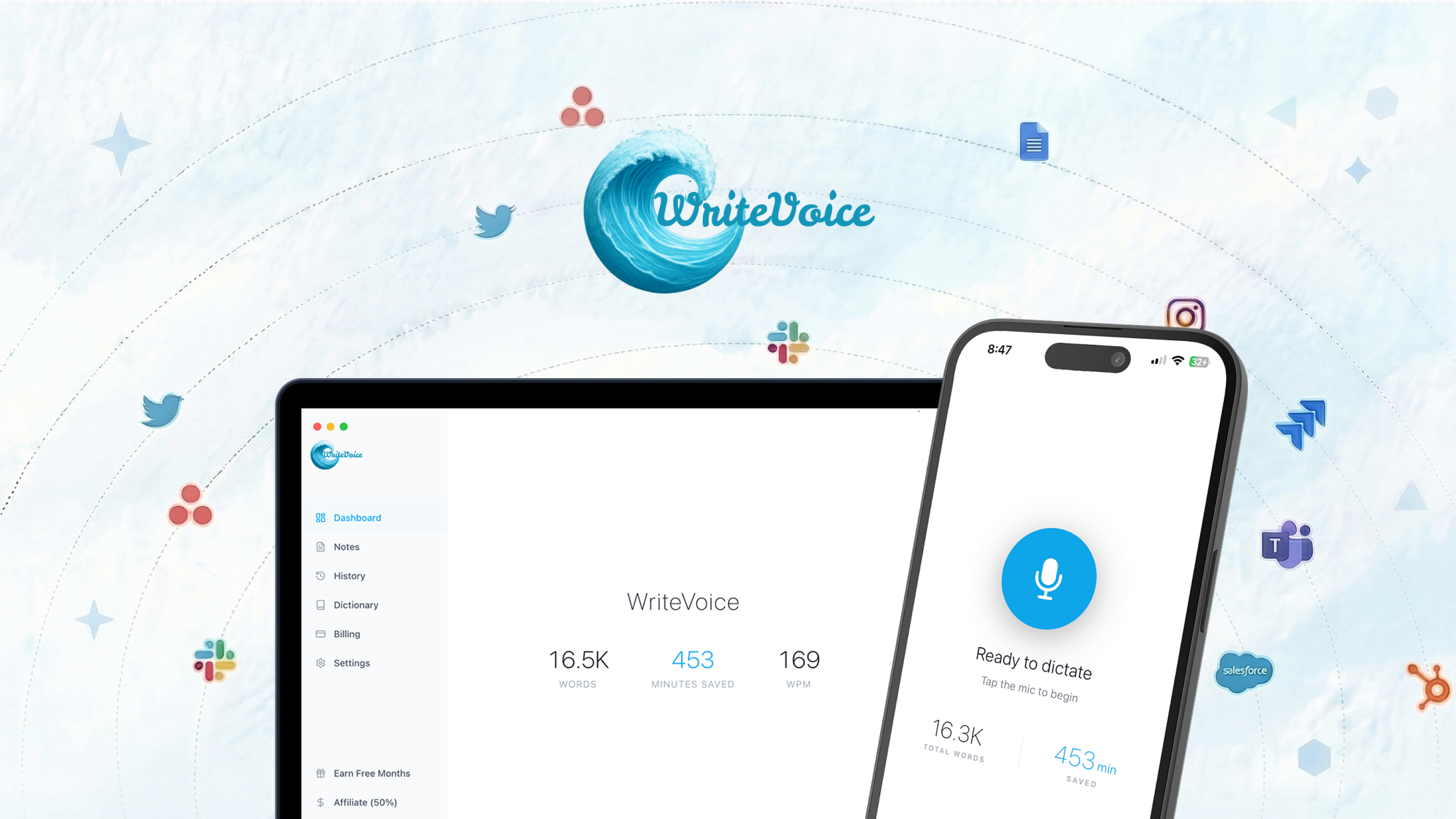
Speak it instead of typing it
Typing slows you down, and speaking is up to 4x faster. Open any app, talk, and WriteVoice gives you finished text. Start Creating for free and let your voice do the writing.
Start CreatingFrequently asked questions
What should meeting minutes include?
The date and attendees, the topics covered, decisions made, and action items with an owner and a due date. WriteVoice drafts the summary and action items, and you add owners and dates where nobody said them out loud.
Can I dictate the minutes after the meeting?
Yes. Open WriteVoice and talk through what happened. The AI turns it into structured notes, and Create List turns the next steps into a task list.
Does it work for formal board minutes?
Yes, for the draft. Board minutes usually follow a set format and need approval, so paste the WriteVoice summary into your template and have the secretary review it.
How does WriteVoice work?
You speak, and WriteVoice turns your voice into text. The AI removes filler words, fixes grammar and punctuation, and formats the result for you.
Do I need to clean up the text after?
Usually not. WriteVoice returns clean, formatted text with up to 99% accuracy, so most of the time it is ready to use as is.
Which apps does it work in?
It works in any app on your phone through the WriteVoice keyboard. Dictate into email, messages, notes, docs, and chat.
How accurate is it?
WriteVoice reaches up to 99% accuracy. It handles accents and natural speech, and custom vocabulary keeps names and jargon spelled right.
What languages are supported?
WriteVoice supports dozens of languages. It can transcribe and translate between them.
Is it free?
Yes, WriteVoice is free to start. You can begin dictating right away on iPhone and iPad.