
Voice Typing for Google Docs

Google Docs has a free, built-in voice typing tool – and if you just need to dictate a draft and don’t mind cleaning it up yourself, it works fine. But if you’re spending more time editing the raw transcript than you saved by speaking, there’s a faster path.
WriteVoice transcribes your speech AND rewrites it into polished, send-ready text in under one second – and it works inside every app you use, not just Docs. Slack, Gmail, WhatsApp, LinkedIn – one voice, every app, no copy-pasting.
Users like Yan R., a founder, put it simply: “I hate writing, so I dump my thoughts & get linkedin posts. Chef’s kiss.”
How WriteVoice Does Voice Typing – Across Every App
Google Docs Voice Typing transcribes what you say and drops raw text into the document. You then fix the grammar, remove the filler words, adjust the tone, and format the output yourself. For a quick internal note, that’s fine. For 20 messages a day across Slack, email, and LinkedIn, it’s a second job.
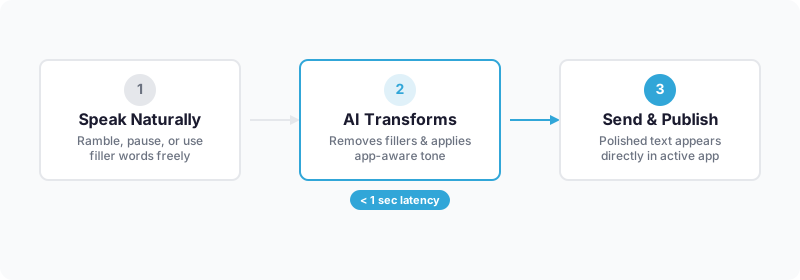
WriteVoice runs two steps back-to-back: real-time transcription with sub-1-second latency, then instant AI rewriting. You speak naturally, rambling, pausing, using filler words, and WriteVoice transforms that into polished, context-aware text before you send it. No separate editing step.
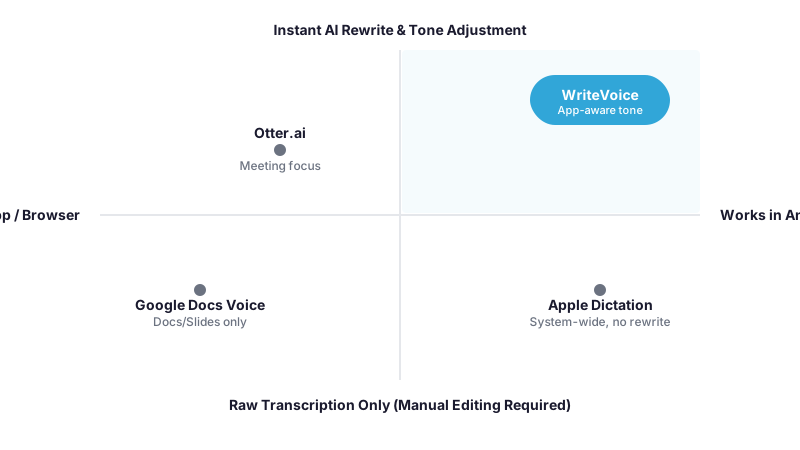
What makes WriteVoice different is the app-aware tone adjustment. When you dictate inside LinkedIn, WriteVoice detects the context and applies a professional tone automatically. Dictate inside WhatsApp and the output is casual and short. Dictate inside Gmail and it’s formal. You don’t configure this – it happens based on where you’re typing. That capability doesn’t exist in Google Docs Voice Typing, Apple Dictation, or any other free tool.
On iOS, WriteVoice replaces your keyboard entirely. The microphone is right there inside WhatsApp, iMessage, Slack, Notion – any app. On Mac, you trigger it via a hotkey from any active application. On the web app, you can record full meetings and get structured summaries, action items, and translated notes in 30+ languages. All dictations sync across devices and save to a history you can refine later.
For Google Docs users specifically: the web app version of WriteVoice is a more capable alternative to the native Docs voice feature, with AI rewrite built in, 120+ language support, and output that’s ready to send rather than ready to edit.
Key Benefits
Your words arrive polished, not raw
Google Docs Voice Typing gives you a transcript. WriteVoice gives you edited, tone-adjusted prose. The 98%+ transcription accuracy (self-reported) handles accents, technical jargon, and whispered input – then the AI layer removes filler words, fixes structure, and formats for the destination.
One tool for every app, not just Docs
The built-in Google Docs feature only works in Docs (and Slides speaker notes) inside Chrome or Edge. WriteVoice works inside every text field on iOS via the keyboard replacement, every app on Mac via hotkey, and any browser via the web app. If you move between Slack, Gmail, WhatsApp, and Docs in a single workday, WriteVoice stays with you.
Tone that matches the platform automatically
Dictating the same idea for LinkedIn vs. a Slack DM requires completely different output. WriteVoice detects the active app and adjusts tone accordingly: professional for LinkedIn, casual for WhatsApp, formal for Gmail. No manual selection required.
Sub-1-second turnaround keeps you in flow
Context-switching to edit or copy-paste breaks focus. WriteVoice’s transcription and AI rewrite complete in under one second (self-reported), fast enough that you stay in the same headspace you were in when you started speaking.
One-time payment option vs. endless subscriptions
Google Docs Voice Typing is free. Most AI dictation tools that offer rewriting are not – and they charge monthly. WriteVoice offers a lifetime deal at €119 one-time (30-day money-back guarantee), or a $15/month Unlimited plan if you prefer subscription. The Starter plan is free with 2,000 words in the first month.
How It Works
Step 1: Install WriteVoice for your platform
On iOS, add WriteVoice as a custom keyboard replacement – it shows up inside any app’s keyboard, no app switching needed. On Mac, download the native desktop app (Apple Silicon M1–M4 or Intel x86) and set your trigger hotkey. For browser-based work including Google Docs, open the web app directly.
Step 2: Speak naturally inside the app
Tap the microphone in the keyboard (iOS), press your hotkey (Mac), or click record (web). Speak the way you’d talk to a colleague – ramble, pause, backtrack. WriteVoice doesn’t need structured input. It handles filler words, incomplete sentences, and natural speech patterns without any special phrasing.
Step 3: AI rewrites in under one second
WriteVoice removes filler words, fixes grammar, structures your content, and adjusts tone for the active app context – all before you’ve looked up from your screen. The output appears in the text field you were already using.
Step 4: Apply a rewrite style if needed
Choose from 25+ AI rewrite styles – Professional, Email, Casual, Tweet, Shorten, Expand, Fix Grammar, Emojify, and more. For most messages, the automatic output is ready to send. For longer content or specific formats, style selection takes one tap.
Step 5: Send directly from the active app
Text is inserted into the field you were working in. No copy-pasting, no app switching, no second window. For meeting recordings on the web app, WriteVoice generates a structured summary with action items that you can export or translate into 30+ languages.
Who This Is For
If you’re dictating a personal journal or a single document per week, Google Docs Voice Typing is probably enough. WriteVoice is built for a different situation.
Mobile-heavy professionals who send 20+ messages daily across Slack, WhatsApp, email, and LinkedIn – and lose real time to manual editing, copy-pasting between apps, or rewriting the casual ramble their voice note produced. These are the users who describe WriteVoice as a “game changer” – because the friction they were tolerating was invisible until it disappeared.
Founders, executives, and knowledge workers who dictate ideas, posts, and emails throughout the day and need the output to be professional without spending time cleaning it up. Yan R. (Founder) put it plainly: “I hate writing, so I dump my thoughts & get LinkedIn posts.” That’s the use case – not document drafting, but getting polished communication out fast across Slack, email, and LinkedIn.
Students and non-English speakers who need reliable transcription in 120+ languages with AI rewrite. Nargiza, a law student, called it a “Game changer for class notes” – and pointed specifically to the keyboard microphone. For non-native English writers, the rewrite layer does more than clean up grammar; it brings the output up to fluent, natural prose.
Privacy-conscious professionals in healthcare or legal fields who need voice dictation without their audio being stored or used for model training. WriteVoice processes audio in real time and immediately discards it – no recordings stored, no training on user data.
Common Use Cases
Composing Slack messages on the go
You’re between meetings, phone in hand, needing to send a clear, professional update to your team. Typing fast enough to keep up with your thoughts isn’t possible on a glass keyboard. You tap the WriteVoice mic inside Slack, speak your update naturally, and the AI rewrites it into a clean, appropriately casual team message – without leaving the Slack keyboard.
Drafting LinkedIn posts from voice notes
You have an idea during your commute. Instead of voice-noting a two-minute ramble and then spending 15 minutes turning it into a LinkedIn post later, you speak directly into WriteVoice, select the Professional or LinkedIn rewrite style, and have a ready-to-post piece before you reach your destination.
Replying to long email threads
You know what you want to say, but writing it formally takes time. Dictate your response conversationally – the AI restructures it into a well-formed, appropriately formal email reply. For Gmail, WriteVoice auto-adjusts the tone toward formal without you selecting a style manually.
Taking class or meeting notes
Speak continuously during a lecture, meeting, or 1-on-1. WriteVoice transcribes in real time and, in meeting recording mode, generates a structured summary with action items. No manual note-taking, no memory required, no post-meeting cleanup.
Repurposing long-form content
Podcast hosts and YouTubers who dictate or record long-form content can use WriteVoice’s creator tools – the web app includes a YouTube Description Writer, Title & Hook Generator, and Social Thread Creator that extract and restructure existing recordings into distribution-ready short-form content.
Dictating in a language other than English
With support for 120+ languages (per the LTD feature list), WriteVoice handles dictation and AI rewrite for non-English speakers in a way that Google Docs Voice Typing – which restricts voice commands to English – cannot match.
What Is Voice Typing for Google Docs?
Google Docs Voice Typing is a free, browser-based feature built into Google Docs and accessible via Tools > Voice Typing in Chrome or Microsoft Edge. It converts spoken words into text directly inside the document with no installation required. It supports 100+ languages for transcription, and English users can use voice commands to format documents – though those commands only work when both the account and document language are set to English.
The core limitation is what it doesn’t do: Google Docs Voice Typing is a transcription tool, not a rewriting tool. What you say is what you get, filler words and all. It requires Chrome or Edge, works only within Docs and Slides speaker notes, and produces output that typically needs manual editing before it’s ready to share.
The broader voice typing category has moved well past transcription. AI-powered tools now apply rewriting, tone adjustment, and formatting at the point of dictation, so there’s no editing step afterward. That difference matters most if you dictate frequently: a 2-minute editing tax per message adds up fast when you’re sending 20+ messages a day across multiple platforms.
WriteVoice is built for users who’ve outgrown free transcription tools like Google Docs Voice Typing, not to replace them for everyone.
Try WriteVoice
If Google Docs Voice Typing leaves you spending more time editing than speaking, WriteVoice closes that gap. Across every app, in under one second, with tone that matches where you’re sending.
The Starter plan is free with no credit card required. The Unlimited plan is $15/month with a 30-day money-back guarantee. A one-time lifetime deal is available at €119 for access across iOS, Mac, and Web.
Frequently Asked Questions
What is voice typing for Google Docs?
Google Docs Voice Typing is a free, built-in transcription tool accessible via Tools > Voice Typing in Chrome or Edge that converts spoken words directly into a document with support for 100+ languages. It produces raw transcripts of what you say, filler words included, which typically requires manual editing before the text is ready to share. Unlike AI-powered voice tools, it’s a transcription-only feature – it doesn’t rewrite, adjust tone, or polish output automatically. If you dictate occasionally and don’t mind spending a few minutes editing, it’s sufficient; if you send 20+ polished messages daily across Slack, email, and LinkedIn, the editing overhead becomes a productivity drain.
How does AI dictation differ from Google Docs Voice Typing?
Google Docs Voice Typing captures what you say as-is; AI dictation tools like WriteVoice add a second layer that rewrites, removes filler words, fixes grammar, and adjusts tone automatically before you send. WriteVoice’s AI rewrite completes in under one second, so the polished text appears in your message field without a separate editing step. Google Docs requires manual cleanup after transcription, while WriteVoice’s design eliminates that friction. This matters most for frequent dictators – the time savings compound when you’re composing dozens of messages, emails, or posts per day.
What is a speech to text iOS app, and how does WriteVoice work as one?
A speech-to-text iOS app is software that converts spoken words into written text on iPhone and can function as a custom keyboard replacement to work inside any app without switching contexts. WriteVoice replaces your standard iOS keyboard, so the microphone appears directly inside WhatsApp, Slack, Gmail, iMessage, Notion, and every other text field – you speak, the AI rewrites into polished text, and the output stays inside the app you were already using. Unlike standalone voice apps that require copy-pasting back to your message or email, WriteVoice keeps you in flow by inserting the final text directly where you need it. The keyboard replacement design means zero app-switching friction for mobile professionals who compose across multiple platforms throughout the day.
How can I use AI to rewrite voice notes?
WriteVoice transforms voice notes into polished, edited text by running transcription and AI rewriting back-to-back in under one second, with automatic tone adjustment based on where you’re sending (LinkedIn gets professional tone, WhatsApp gets casual). You speak naturally – rambling, pausing, using filler words – and the AI removes those imperfections, restructures the content, and adjusts the language register without manual intervention. For longer recordings like meetings or podcasts, WriteVoice’s web app also generates structured summaries with action items and can translate the output into 30+ languages. The key difference from manual voice-note editing is that the cleanup happens during transcription, not after – so your output is ready to send immediately rather than requiring a separate editing pass.
What is a dictation keyboard iOS, and why use WriteVoice instead of Apple Dictation?
A dictation keyboard on iOS is a custom keyboard replacement that adds voice input directly into any app’s text field without requiring manual app-switching or copy-pasting. WriteVoice is a dictation keyboard that goes beyond Apple’s native dictation by adding AI-powered rewriting, automatic tone adjustment per app, and 120+ language support with intelligent punctuation – while Apple Dictation is transcription-only and requires you to manually edit the raw output. WriteVoice also works seamlessly across iOS, Mac, and Web with cross-device sync, whereas Apple Dictation is more fragmented across platforms. For professionals sending frequent messages, WriteVoice’s sub-one-second rewrite means you skip the editing step entirely, while Apple Dictation outputs raw text that still needs cleanup.
Can I use voice typing across apps without copy-pasting?
Yes – WriteVoice is designed specifically for in-app dictation without copying text between applications. On iOS, the custom keyboard replaces your standard keyboard and lives inside WhatsApp, Slack, Gmail, Notion, LinkedIn, and any app with a text field; on Mac, a hotkey trigger lets you dictate from any active application without switching windows. Google Docs Voice Typing only works within Google Docs and Slides speaker notes, so using its output in Slack or email requires manual copy-pasting – a friction point WriteVoice eliminates. This seamless, no-switching workflow is one of WriteVoice’s core differentiators for mobile professionals who need to compose across multiple platforms throughout the day.
Is there a voice dictation app with no subscription required?
Yes – WriteVoice offers a free Starter plan with 2,000 words in the first month and no credit card required, plus a one-time lifetime deal at €119 that includes unlimited dictation across iOS, Mac, and Web forever. Most competing AI dictation tools like Otter.ai charge monthly subscriptions with no one-time payment option, and Google Docs Voice Typing, while free, only works within Docs and produces raw transcripts without rewriting. WriteVoice’s lifetime deal pricing aligns with indie professionals and founders who prefer a single upfront investment over recurring charges, and the 30-day money-back guarantee reduces switching risk. For users who want unlimited, unrestricted voice-to-text with AI rewriting and no subscription trap, WriteVoice is the rare tool offering that combination.
How can I send a voice to LinkedIn post directly from my phone?
WriteVoice lets you speak directly inside LinkedIn’s text field via its custom iOS keyboard, then apply the Professional rewrite style to transform your raw dictation into polished, publish-ready prose in under one second – no switching apps or copy-pasting required. Founder Yan R. described the workflow simply: ‘I hate writing, so I dump my thoughts & get LinkedIn posts.’ You tap the WriteVoice microphone, speak your idea conversationally, and the AI structures it into a professional tone appropriate for LinkedIn’s audience automatically. Unlike recording a voice note and manually transcribing and editing it later, or dictating into Google Docs and copying the result into LinkedIn, WriteVoice keeps you in the LinkedIn composer the entire time, turning a rambling 90-second voice dump into a ready-to-post thought-leader piece in seconds.
What does privacy first voice to text mean?
Privacy-first voice-to-text architecture means audio is processed in real time and immediately discarded – nothing is stored on servers, and user recordings are never used to train AI models. WriteVoice explicitly positions this capability for healthcare providers, lawyers, and executives who handle confidential information and require HIPAA or GDPR compliance; competing tools like Otter.ai retain audio for model improvement, making them unsuitable for privacy-sensitive use cases. This approach requires more computational power (processing must happen instantly rather than batching recordings), but it aligns with the professional and legal use cases where data retention risk is unacceptable. For anyone handling sensitive client information, patient data, or confidential business strategy, WriteVoice’s zero-retention model removes a major barrier to adopting AI dictation tools.
How does voice typing work across different apps with the right tone automatically?
WriteVoice detects which app you’re active in – LinkedIn, WhatsApp, Gmail, Slack – and automatically applies the appropriate tone to your AI-rewritten output without you selecting a style manually. Professional formality for LinkedIn, casual brevity for WhatsApp, formal structure for Gmail – the tone adjustment happens in the background based on the application context. This app-aware intelligence is unique among voice dictation tools; Google Docs Voice Typing, Apple Dictation, and most competitors apply a single neutral tone regardless of destination. For professionals composing across multiple platforms daily, this automation saves the cognitive load of thinking about tone for each message and ensures consistency with platform norms without requiring configuration or manual intervention.