
Speech to Text for Google Docs
Google Docs Voice Typing is free and built-in – but it stops at transcription. Raw speech, filler words, and a tone that doesn’t adjust for your audience land in your document exactly as spoken, and they stay there until you fix them manually.

WriteVoice takes a different approach: it transcribes your voice in under one second and instantly rewrites the output into polished, context-aware text – inside any app you’re already using, not just Google Docs. WhatsApp, Slack, Gmail, LinkedIn, and Notion all get the same AI-powered voice dictation your documents do.
25+ rewrite styles, 120+ languages, and a lifetime deal starting at €119 mean you can replace a stack of recurring subscriptions with one tool that works everywhere.
How WriteVoice Does Speech to Text
Native Google Docs Voice Typing converts speech to text and stops there. WriteVoice adds a second step: the moment your voice lands as text, an AI rewrite engine transforms it, removing filler words, fixing grammar, and applying the right tone for wherever you’re writing.
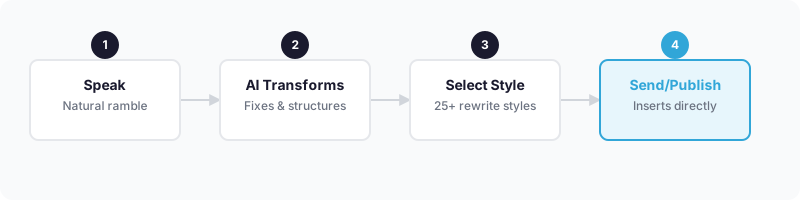
The mechanism is a two-step pipeline with sub-1-second latency. You speak naturally – ramble, pause, repeat yourself – and the raw transcription never touches your final output. What lands in your document, message, or email is already polished. On Mac, a single hotkey triggers dictation from any active application. On iOS, WriteVoice installs as a custom keyboard replacement, so the microphone lives inside WhatsApp, Slack, Gmail, and iMessage. No switching apps, no copy-pasting.
What you actually get when you’re done: a clean, structured sentence or paragraph that matches the register of whatever you’re writing. Dictate into LinkedIn and WriteVoice auto-detects it and applies a thought-leadership tone. Dictate into Slack and it shifts to casual brevity. Dictate into Gmail and it defaults to formal. You don’t configure any of this. The app-aware tone adjustment happens automatically.
For longer sessions – team meetings, client calls, hour-long brain dumps – WriteVoice records the full audio, transcribes it, and generates a structured summary with action items. Google Docs Voice Typing doesn’t do any of that, and it replaces tools like Otter.ai ($16/month) for individual users who want both quick dictation and meeting notes in a single subscription.
Key Benefits
Dictate in any app – not just Google Docs
The iOS keyboard puts a microphone inside every text field on your phone. The Mac hotkey triggers in any desktop application. Your voice-to-text workflow isn’t locked to one browser tab.
AI rewrites your ramble into polished text automatically
Filler words, incomplete thoughts, and awkward phrasing are cleaned up before text lands anywhere. You don’t edit after the fact – you speak and it’s done.
App-aware tone means LinkedIn sounds different from Slack
WriteVoice detects the active application and adjusts tone without any manual selection. Thought-leader for LinkedIn, casual for messaging apps, formal for email. No configuration required.
Lifetime pricing beats monthly subscriptions
At €119 one-time (covers iOS + Mac + Web, all future updates), WriteVoice is cheaper than eight months of VoiceToNotes.ai at $10/month or ten months of Wispr Flow at $12–15/month. No recurring bill, ever.
Privacy-first processing for sensitive use cases
Audio is processed in real-time and immediately deleted. No recordings stored, no training on your data. Built for the use cases where that matters: healthcare, legal, executive communication.
How It Works
Step 1: Install and set up in minutes
On iOS, install WriteVoice as a custom keyboard replacement – it becomes available inside every app that uses the keyboard. On Mac, download the native desktop app (supports Apple Silicon M1–M4 and Intel x86) and set a hotkey. On web, open the app directly in your browser to access meeting recording and document-length dictation.
Step 2: Speak naturally inside your active app
Tap the microphone on the WriteVoice keyboard or press your Mac hotkey. Speak at your normal pace – filler words, pauses, and unfinished sentences are expected. The transcription engine handles accents, technical vocabulary, and quiet environments (a Whisper Mode lets you dictate barely above a breath).
Step 3: AI transforms the raw transcription
In under one second, the AI removes filler words, corrects grammar, and structures your content. If you’re in a recognized app (LinkedIn, WhatsApp, Gmail, Slack), tone adjusts automatically. If you want manual control, 25+ rewrite styles are available: Professional, Tweet, Email, Casual, Shorten, Expand, Fix Grammar, Emojify, and more.
Step 4: Refine with additional AI commands if needed
Apply a second rewrite style, translate into one of 30+ supported languages, or ask the AI to expand or shorten the output. All dictations are saved to your history for later retrieval and refinement.
Step 5: Text inserts directly – no copy-pasting
On iOS, the rewritten text lands in the active text field automatically. On Mac, it inserts into the focused window. No switching to a separate app, no clipboard step. You speak, it rewrites, it sends.
Who This Is For
WriteVoice fits best if Google Docs is one stop on a longer daily journey through messaging apps, email clients, and social platforms. If your morning involves Slack messages, LinkedIn drafts, client emails, and the occasional meeting recording across both mobile and desktop, the cross-app keyboard plus AI rewriting is where WriteVoice earns its keep.
Mobile-heavy professionals who send dozens of messages per day and can’t afford to type slowly on glass will feel the difference immediately. Speaking at 150 words per minute versus typing at 30 WPM is a real productivity gap, and WriteVoice closes it without requiring you to put down your phone to fix autocorrect errors.
Founders, knowledge workers, and content creators who use voice memos to capture ideas but end up with unusable rambles will find the AI rewriting step the actual payoff. Dump your thoughts, select a style, get a LinkedIn post or an email draft – without sitting down at a computer. Law students, managers, and executives who’ve mentioned WriteVoice specifically call out the keyboard as the feature that changed their workflow.
If you dictate once a week strictly inside Google Docs and nowhere else, native Google Docs Voice Typing is free and works well for that use case. WriteVoice is built for the people who outgrow that constraint.
Common Use Cases
Drafting a client email on the go
You’re between meetings with 90 seconds to respond to a client. You speak the message naturally into your iPhone – context, ask, and next steps all jumbled together. WriteVoice rewrites it into a structured, formal email and inserts it directly into Gmail. The client receives a polished response; you never opened your laptop.
Posting on LinkedIn without sitting at a desk
You have an insight you want to share but the idea will be gone by the time you get home. You open LinkedIn on your phone, tap the WriteVoice keyboard, and speak the thought out loud. WriteVoice detects LinkedIn and applies a thought-leadership rewrite automatically. The draft is ready to review in under five seconds.
Recording a team meeting and getting action items
You start the web app before a one-hour planning session. WriteVoice records the full meeting, transcribes it, and generates a structured summary – topics covered, decisions made, action items assigned. You share it with the team in the same app. No manual note-taking, no separate transcription service.
Replying to Slack threads without breaking flow
A long Slack thread needs a thoughtful response, but typing the full thing on mobile would take three minutes. You speak it in 20 seconds, WriteVoice shortens and formats it for Slack’s casual register, and it lands as a clean, readable reply without you ever switching applications.
Turning a brain dump into a Google Docs draft
You open the WriteVoice web app, hit record, and speak every idea you have about an upcoming project – unstructured, repetitive, messy. WriteVoice transcribes and structures the output into a document with clear sections. You paste it into Google Docs and spend ten minutes editing rather than an hour drafting.
What Is Speech to Text for Google Docs?
Speech to text for Google Docs refers to converting spoken words into written text directly inside a Google Docs document. Google’s built-in Voice Typing feature (accessible via Tools > Voice Typing, or Ctrl+Shift+S on Windows / Command+Shift+S on macOS) is the most common implementation – it’s free, requires only Chrome or Edge, and supports 100+ languages. Users speak naturally, and Google transcribes in real time with support for basic punctuation commands in English.
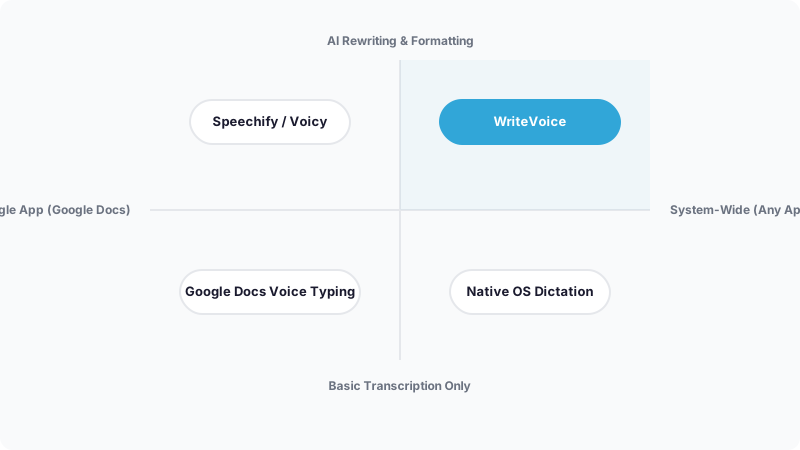
The native feature has real limitations that have driven demand for third-party alternatives. There’s no AI rewriting, no filler word removal, and no grammar correction – what you say is what you get. Voice commands for text navigation and formatting work only in English. And the feature is browser-only, which means it doesn’t extend to Slack, WhatsApp, email clients, or any desktop application outside the browser tab.
Third-party tools – from Speechify Voice Typing to Voicy to WriteVoice – address these gaps with varying approaches. Some add AI cleanup on top of Google Docs specifically; others extend dictation system-wide to every text field on the internet, with AI rewriting that goes beyond simple transcription. The market has moved from
Frequently Asked Questions
Can I use voice typing in Google Docs on my iPhone?
Google’s native Voice Typing is available only in the Chrome or Edge browser on mobile-not in the standalone Google Docs app. WriteVoice bypasses this limitation by installing as a custom iOS keyboard, so you can dictate directly inside any app, including Google Docs web, Gmail, Slack, WhatsApp, and iMessage without switching applications. This keyboard integration works in any text field on your phone, not just Docs, giving you voice dictation everywhere native Voice Typing doesn’t reach.
What is an AI dictation app?
An AI dictation app converts speech to text and then uses artificial intelligence to clean up, rewrite, and format the output automatically. Unlike simple voice-to-text transcription, AI dictation removes filler words, corrects grammar, and applies tone matching-so your ramble becomes polished text without manual editing. WriteVoice takes this further by detecting which app you’re writing in (LinkedIn, Slack, Gmail) and adjusting tone automatically, so your thought-leadership voice on LinkedIn sounds different from your casual Slack messages, all without user configuration.
How do I dictate text into any app, not just Google Docs?
On iOS, install WriteVoice as a custom keyboard replacement-the microphone then appears in every text field across WhatsApp, Slack, Gmail, iMessage, Notion, and any other app that uses the keyboard. On Mac, set a hotkey to trigger dictation from any active application without requiring app-specific integrations. The web app works in your browser for longer-form content. This system-wide approach means you speak into the app you’re already in rather than recording in a separate tool and copying text back.
What does app-aware tone adjustment mean?
App-aware tone adjustment means WriteVoice automatically detects which application you’re writing in and shifts the AI rewrite style to match that context-without any manual selection from you. Dictate into LinkedIn and it applies a thought-leadership tone; Slack gets casual brevity; Gmail gets formal professionalism. This automatic detection eliminates the friction of manually choosing a rewrite style for every message and ensures your voice matches the platform’s register naturally, making WriteVoice feel intuitive rather than configurable.
Is speech-to-text worth it if I already use Google Docs Voice Typing?
Google Docs Voice Typing is free and excellent for single-document dictation, so if you dictate once a week strictly inside Docs, it’s worth keeping. But if you send 20+ messages daily across Slack, WhatsApp, Gmail, and LinkedIn-or if you record meetings and need automatic summaries-the context-switching and manual editing overhead grows quickly. WriteVoice’s €119 lifetime deal covers iOS, Mac, and Web across all apps, making it cheaper than eight months of competing subscription tools and solving the friction that native Voice Typing doesn’t address.
What’s the difference between voice to text and meeting transcription apps?
Voice-to-text apps (like Google Docs Voice Typing or WriteVoice) are designed for real-time, sub-second dictation of short messages, emails, and quick notes-you speak and text inserts immediately. Meeting transcription apps (like Otter.ai) focus on long-form audio recording, capturing full conversations, then generating summaries and action items after the fact. WriteVoice bridges both: it handles instant dictation for quick messages and also supports hour-long meeting recording with automatic summaries, action items, and translation, combining two use cases in one tool so you don’t need separate subscriptions.
How does WriteVoice handle privacy compared to cloud-based dictation?
WriteVoice processes audio in real-time and immediately deletes the recording-nothing is stored on servers or used to train AI models. Cloud-based dictation tools (including Google’s Voice Typing and most competitors) process audio in the cloud, which means recordings pass through external servers and are subject to those companies’ data-retention policies. WriteVoice’s zero-retention approach was built specifically for healthcare professionals, lawyers, and executives handling confidential information, making it compliant with privacy-sensitive workflows without requiring a separate privacy-first tool.
Can I get a lifetime deal for voice-typing software?
WriteVoice offers a lifetime deal starting at €119 one-time, covering iOS keyboard, Mac desktop app, and web platform with all future updates included-no recurring subscription ever. This one-time payment model is rare in the voice-typing market; most competitors (VoiceToNotes.ai, Wispr Flow, Speechify) charge $10–$15 per month, which totals $120–$180 per year. For professionals who dictate regularly, the WriteVoice lifetime deal pays for itself within 8–12 months and provides permanent access without bills, making it particularly appealing to freelancers, founders, and indie professionals.
How accurate is AI voice-to-text transcription?
WriteVoice achieves 98%+ transcription accuracy and handles accents, whispers (via Whisper Mode), technical jargon, and 120+ languages with accuracy that improves with each sentence you speak as the AI learns your voice patterns. For comparison, Google’s Voice Typing offers solid transcription but doesn’t handle specialized vocabulary or filler-word removal automatically. Most accuracy claims in the voice-typing market are within 1–2% of each other, so the real differentiator isn’t transcription accuracy-it’s the AI rewriting step that transforms raw speech into polished, context-aware text without manual editing.
Should I use voice typing for LinkedIn posts?
Voice typing is ideal for LinkedIn if you struggle to find time to write or want to capture ideas immediately without sitting down at a desk. WriteVoice detects LinkedIn automatically and applies a thought-leadership tone-removing filler words and structuring your ramble into a polished post ready to publish in under one second. Unlike Google Docs Voice Typing (which works only in a browser), WriteVoice’s iPhone keyboard means you can compose a LinkedIn post while walking, on the train, or between meetings, making it practical for busy professionals and founders who think faster than they type.