Why Isn’t My Talk-to-Text Working? A Simple Fix-It Guide
It is not fun when you talk to your computer or phone, and it does not type what you say. Or it types silly words that make no sense. When your voice to text stops working, it is usually not a big deal. The fix is often very easy.
First, we need to be a detective. Ask yourself this one big question:
Is my screen showing nothing when I talk, or is it showing the wrong words?
If you see nothing, it is a connection problem. Your microphone might not be working right, or a setting is turned off. But if you see weird words, it is an accuracy problem. The computer can hear you, but it cannot understand you.
This picture shows you how to think about it.

Knowing if it is a connection or an accuracy problem helps you find the right fix fast.
Quick Fix Checklist For Voice To Text Problems
I made this list to help you find the problem fast. Look for what is happening to you, and it will tell you where to go in this guide.
| What You Are Seeing | What Is Likely Wrong | Where to Find the Fix |
|---|---|---|
| The little microphone picture is gray and will not turn on. | It needs permission | Check App & OS Permissions |
| I talk, but no words ever show up. | Another app is using the mic or the Wi-Fi is weak | Close Background Apps / Check Network Connection |
| It types a few words, then it stops. | The internet is not working well | Troubleshoot Your Network Connection |
| The words are all wrong and not what I said. | It is noisy or the wrong language is picked | Reduce Noise / Check App Settings |
| It works in some apps, but not the one I need. | The app has its own special settings | Check Third-Party App Integrations |
| I am using my headset, but the computer is not listening to it. | The wrong microphone is picked | Check Microphone Input in OS Settings |
Just find what is happening to you in the first box. Then you will know what to do.
The Usual Suspects: Common Hidden Problems
I have seen the same few problems happen over and over. These are the tricky things that cause trouble, but they are easy to fix.
- Microphone Access: This is the biggest one. An app needs you to say "yes" before it can use the microphone. Sometimes, when an app updates, it forgets you said yes.
- Another App is Listening: Only one app can use the microphone at a time. If a video call app like Zoom or Microsoft Teams is open, it might be hogging the mic.
- A Shaky Wi-Fi Signal: Many talk-to-text tools send your voice to a big computer brain over the internet. If your internet is slow, your words get lost.
- The Wrong Language or Dialect: The tool might be listening for someone from England when you are from America. This small mix-up can make the words come out all wrong.
My number one tip? First, check for other apps using the mic. Before you look at all the settings, just close any other apps that might be listening. It is the fastest way to solve this very common problem.
Finding the real problem fast means you do not waste time trying things that will not work. If you want to know more about the different tools, you can read about the best speech to text software in our other guide.
Now, let's learn how to fix each of these problems.
Checking Your Microphone and App Permissions
When talk-to-text stops working, it is easy to think your computer is broken. But it is usually something much smaller. The problem is often with the microphone or a permission setting.
Think of it this way: your computer needs "ears" (the microphone) to hear you. And it needs permission to use its ears.
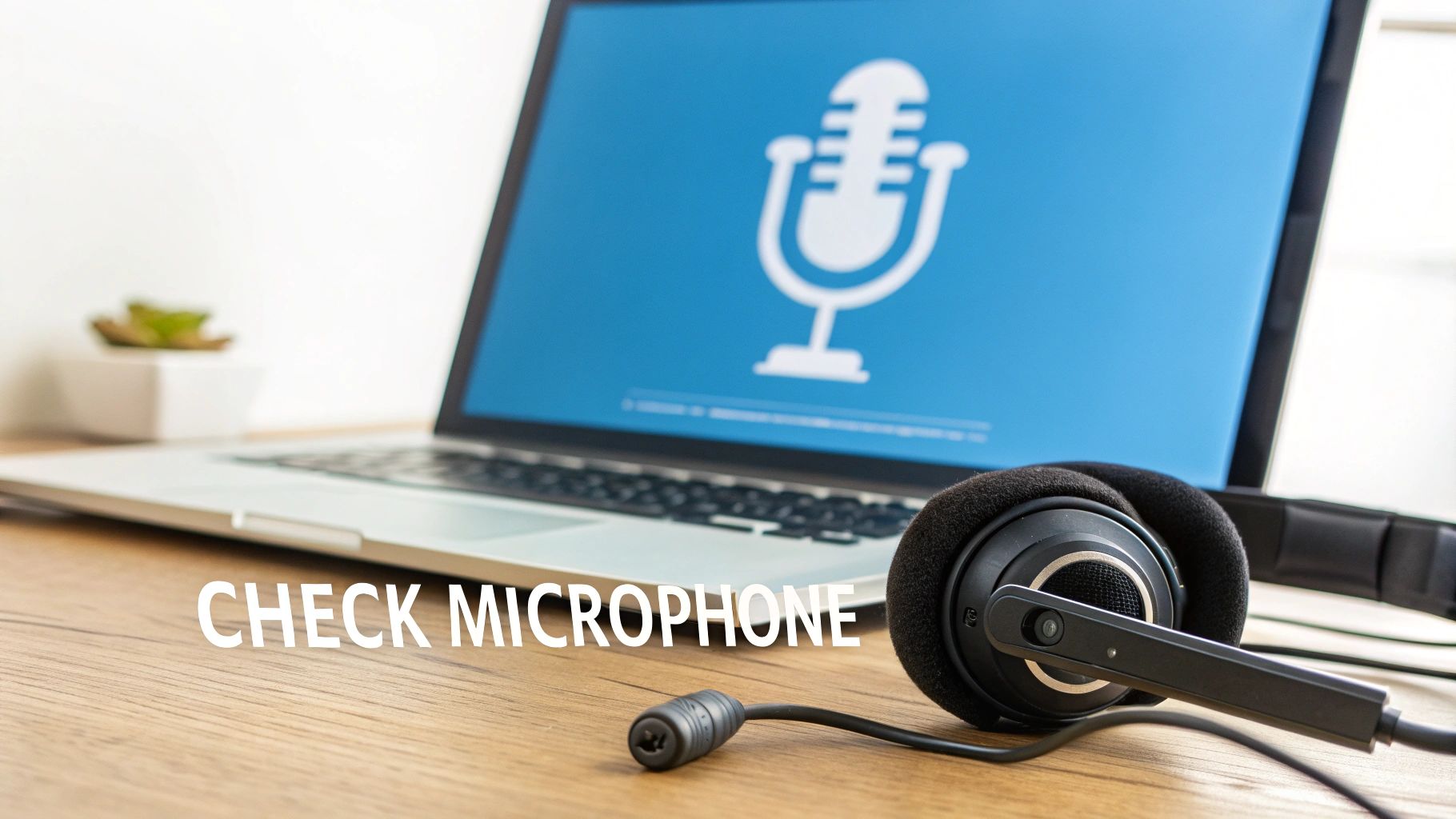
Let's check the simple things first. This is the fastest way to get it working again.
Is Your Microphone the Real Problem?
First, let's make sure your microphone is plugged in right. If it has a wire, give it a little push to make sure it is all the way in. If it is a Bluetooth one, check your settings to see if it is connected.
Next, you need to tell your computer which microphone to use. Your laptop has a tiny microphone built in. But if you plug in a headset, the computer might get confused. It could be listening to the wrong one.
How to Choose Your Main Microphone:
- On Windows: Go to your Sound settings. Under "Input," you will see your microphones. Talk into the one you want to use. A blue bar next to its name will jump up and down. Click on that one to make it the main one.
- On a Mac: Open System Settings and click "Sound." In the "Input" tab, you will see a list. Talk into your mic and pick the one that shows sound bars moving.
A great way to test this is to open a voice recording app, like Voice Memos. Say something and play it back. If you can hear yourself, the mic is working! The problem is probably a permission setting.
Giving Your Apps Permission to Listen
This is where many people get stuck. Your microphone can be working great, but an app still cannot use it unless you say it is okay. Think of it like a key. The app needs the key to open the door to the microphone. Sometimes, an update takes the key away.
This is a big reason why "voice to text not working" happens. The app is not broken; it is just locked out.
A big mistake is not checking app permissions. A study found that lots of app problems happen because the permissions are wrong, and people do not even know it. The app is not broken; it just does not have the key.
You just need to go into your settings and give the app its key back.
- On a Phone (iOS or Android): Go to Settings, then "Privacy & Security," and then "Microphone." You will see a list of all the apps that want to listen. Find the app you are using and make sure the switch next to it is turned on.
- On a Computer (Windows or Mac): Open Settings or System Settings and find "Privacy & Security." Look for "Microphone." You will see a list of apps there too. Turn on the one you need.
If you checked and are still having trouble, our guide on how do I turn on talk to text has more steps to help.
The Hidden Conflict: The Microphone "Hog"
Here is a secret tip that fixes this problem a lot: check if another app is "hogging" the microphone. Only one app can use your mic at a time. If you just finished a Zoom call, that app might still be holding onto the mic.
Your talk-to-text tool is trying to listen, but the line is busy.
It is like two people trying to use the same phone at once. It does not work! The fix is easy: close any video call apps that are still open. Do not just make them small; quit the app all the way. This lets the microphone go, so your other app can use it.
Taming Hidden Software Settings and Background Noise
Sometimes, the problem is not with your computer. The problem is hidden inside the app you are using. Apps like Google Docs or Microsoft Word have their own special rules for listening that can mess things up.
This is why talk-to-text might work in one app but not another. The tool is not broken. It was just told to listen for the wrong thing.
Checking the App's "Secret" Language Setting
Here is something I see all the time: your talk-to-text tool is set to listen for someone from England, but you are from America. This is a big, secret reason for mistakes. The computer hears you, but it is trying to match your words to the wrong list of sounds.
Think of it like this: you ask a friend from another country to write down "I saw a car's trunk." They might write down "I saw a car's boot." The meaning is the same, but the word is different. That is what the computer is doing.
To fix this, look for the settings right next to the microphone picture inside your app.
- In Google Docs: Go to
Tools>Voice typing. A little microphone box will show up. Above the microphone, you will see the language. Click it and pick your exact one, like English (US), not just "English." - In Microsoft Word: Click the
Dictatebutton. A small bar will show up. Find the little gear for settings on that bar. From there, you can pick your "Spoken Language."
Changing this one little thing can make a huge difference.
The computer is not judging you; it is just trying to match sounds to a word list. Giving it the right word list is the best way to stop errors from different ways of speaking.
Why Your Room's Ambient Noise Is a Bigger Deal Than You Think
Now, let's talk about noise. I do not just mean a dog barking. The quiet hum of a fan, a TV in another room, or even the echo in a big, empty room can mess up your talk-to-text.
These quiet sounds make a "wall of noise." Your voice has to get through that wall to reach the microphone. The computer has to guess which sounds are your words and which are just noise. This guessing leads to mistakes.
It is like trying to hear someone whisper at a loud party. But if they whisper right in your ear, you hear everything. A headset with a microphone does the same thing for your computer. It puts the mic right by your mouth and blocks out the other sounds.
Even a cheap headset can help a lot.
The Science of Why Accents and Noise Matter
These small things cause big problems because the computer brains for talk-to-text can be easily confused. A big reason talk-to-text fails is that it is not good at handling real life, like different accents, noise, and different phones or computers.
Tests show that how well it works can change a lot. For one person, it might make almost no mistakes. For another person, more than half the words could be wrong. You can read more about this on ACM.org.
This gets even worse if you use special words, like for a doctor or a lawyer. Most simple talk-to-text tools were not taught these words, so they get them wrong.
Practical Steps for a Clear Sound Environment
You do not need a fancy recording room. A few simple changes can fix most noise problems.
Simple Environmental Fixes:
- Create Distance: If a fan is noisy, move to the other side of the room. Putting space between the mic and the noise helps a lot.
- Soften Your Space: Hard things like empty walls and wood floors make echoes. A rug, curtains, or even some pillows can soak up the sound and make your voice clearer for the computer.
- Use a Directional Mic: Some microphones are made to only hear what is right in front of them. These are called "cardioid" mics. They are great at ignoring noise from the sides and back.
These small changes, plus checking your app's language, will fix many of the stubborn problems that make it feel like your voice to text is not working.
Tackling the Voice-to-Text Accuracy Problem
Have you ever talked, the microphone is on, but the words on the screen are a mess? This is a huge reason people think their voice-to-text is not working. The computer is listening, but it is not understanding.
This happens a lot, and it is not your fault. The free tools that come with your phone or computer have limits. Think of a busy person trying to talk-to-text an important email. If they have to keep stopping to fix words, it is slower than typing.
Why Generic Tools Get It Wrong
Most talk-to-text tools are made to be okay at everything but not great at one thing. They are good for a short text message but not for special work. They were not built to understand hard words or the way you talk.
For someone at work, this is a big problem. If you are a lawyer talking about a case or a doctor talking about a patient, these simple tools will mess up the special words you use. They pick the closest normal word, which is often wrong.
Even now, these free tools are not good enough for work. Studies shown by CXToday.com show that some of the best tools still get about 1 in every 6 words wrong. For someone trying to work fast, that is too many mistakes.
The Specialized Tool Difference
When getting the words right is the biggest problem, it is best to switch to a tool made for important work. It is like trying to cut vegetables with a butter knife instead of a chef's knife. Both can cut, but only one does the job right.
Special talk-to-text software, like WriteVoice, is made to be an expert at understanding you.
The secret is that tools for work are taught with giant lists of words for different jobs. This is how they can get over 99% of the words right. They feel like they "just work" because they were built for what you do.
These better tools also learn how you talk. Over time, they get used to your voice and the special words you use, which makes even fewer mistakes. To learn more, our guide on improving speech to text accuracy can help.
How Pinpoint Accuracy Transforms Your Workflow
When your talk-to-text tool gets almost every word right, it changes how you work. The annoying pattern of talking and then fixing disappears. You just talk, and your words show up on the screen correctly.
Here is what that is like:
- Create Documents Faster: Talk out your reports and emails up to four times faster than typing, without stopping to fix things.
- Maintain Your Focus: When you are not busy fixing mistakes, you can stay focused on your ideas, not the tool.
- Lower Your Stress: A tool that works well takes away the frustration of fighting with technology.
So, if your voice to text not working problem is really about getting the words wrong, do not blame your microphone. You might just need a better tool made for your work.
A Simple Workflow to Confirm Everything Works
You tried some fixes. How do you know if you really fixed it? Let's do a quick test to be sure your talk-to-text is ready to go.
We will use a very simple app for this test. This helps us know that nothing else is causing a problem.
First, open a basic text app.
- On Windows, use Notepad.
- On a Mac, open TextEdit.
These apps are great because they have no fancy settings. They are like a quiet, empty room where you can easily tell if your microphone is working.
Your First Confidence Test
The goal is not to write a long story. We just need a simple test to get a "yes" or "no" answer.
With Notepad or TextEdit open, turn on your talk-to-text tool. Now, say this sentence clearly:
"The quick brown fox jumps over the lazy dog."
Why this sentence? It has every letter in the alphabet. This makes it a great test for how well the tool is working. If the words show up right, great! This means the microphone and computer are talking to each other correctly.
But wait. There is a big difference between "working" and "working well." This is where many people still feel their voice to text is not working—it types something, but the mistakes make it useless.
The whole point is to save time. But you lose that time if you have to keep fixing words. This is very true at work. One study showed that notes from doctors had about 7 mistakes for every 100 words. For a boss writing an important email, that many mistakes is a big problem. You can read more about how dictation errors impact productivity on jamanetwork.com.
Next Steps After a Successful Test
If the test in Notepad or TextEdit worked, you are halfway there. You know your main setup is good: the mic is on, it has permission, and the computer can hear you.
Now it is time to go back to the app where you first had the problem.
Go Back to the Original App: Close Notepad or TextEdit. Open the app where it did not work before, like Gmail, Slack, or Microsoft Word.
Repeat the Test: Once you are in that app, do the same test. Turn on talk-to-text and say, "The quick brown fox jumps over the lazy dog."
Analyze the Result:
- If it works perfectly: You fixed it! The problem was probably a small glitch or one of the settings you changed.
- If it still doesn't work: This is very helpful. It tells you the problem is not your whole computer. It is just with that one app. Now you can look at that app's own settings for microphone or language choices.
This simple two-part test is the best way to find out what is wrong. It stops the guesswork and shows you the real problem.
Frequently Asked Questions
Even after trying all the fixes, you might still have questions. That is okay. Let's look at some common questions people have when their talk-to-text is not working right.
Why Does Voice To Text Work In Some Apps But Not Others?
This is almost always about permissions. Think of your computer like a security guard for your microphone. Every app has to ask the guard for a "pass" to use the mic.
You might have given a pass to one app a long time ago but never gave one to another app. Your computer does this for each app to keep you safe. If an app does not have a pass, the security guard will not let it listen. The fix is to go into your settings and give a pass to the app that is not working.
Can A Slow Internet Connection Stop Voice To Text From Working?
Yes! A bad internet connection is a big reason talk-to-text fails. Most tools do not figure out your words on your computer. They send a recording of your voice over the internet to a big computer brain.
If your Wi-Fi is weak, that recording gets lost. It is like talking on a phone that keeps cutting out. The computer brain on the other end gets mixed-up words or nothing at all. Sometimes, just moving closer to your Wi-Fi box will fix it.
A weak connection is like a phone call that keeps breaking up. The person on the other end can't understand you, and the software brain can't either. It's not broken; it just can't get the full message.
What’s The Fix When It Types The Wrong Words?
When the computer types words, but they are the wrong words, it is an accuracy problem, not a connection problem. The microphone is working, but the computer brain is getting confused.
First, try two simple things: speak a little more clearly and move the microphone closer to your mouth. This gives the computer a better, clearer sound to work with.
Next, check the language setting inside the talk-to-text tool. I have seen this trick so many people. If it is set to ‘English (UK)’ but you are from America, it will have a hard time understanding you. Changing that one setting can make a huge difference. If you use special work words, like for a doctor, simple tools will often get them wrong. For that, you might need a better tool that can learn your special words.
How Can I Tell If I Need A New Microphone?
Before you buy a new microphone, let's test your old one. Every computer and phone has a simple voice recorder app (like Voice Memos).
Open the app and record yourself talking for about 10 seconds. Then, listen to it.
- Does your voice sound far away?
- Is the sound fuzzy, like you are talking through a pillow?
- Do you hear a hissing or buzzing sound?
If you said yes to any of these, your microphone might be the problem. You do not need a fancy, expensive mic. Even a basic headset you use for your phone can work much better than the tiny mic built into a laptop. That is because it puts the microphone right next to your mouth.
For professionals who can't afford constant transcription errors, WriteVoice offers a more reliable solution. It uses advanced AI to achieve over 99% accuracy, letting you dictate emails, reports, and notes up to four times faster than typing—without the endless cycle of stopping to make corrections. It integrates seamlessly where you work, from Slack to Jira. Experience the difference with a free trial of WriteVoice.