How to Talk to Your Phone So It Types for You
Did you ever wish you could just talk to your phone and have it write down your words? That's what voice text on Android does. It listens to you speak and turns your words into text. This is way easier than typing with your thumbs.
Talk, Don't Type Your Texts
Trying to type a message while walking your dog is hard. You make mistakes and it takes a long time. Voice text helps by writing down what you say. It's like having a helper who types for you.
You can use it for more than just short texts. You can talk to write long emails, take notes, or make a shopping list without using the keyboard. It's a much faster way to write.
Why More People Are Talking to Their Phones
Using your voice to tell your phone what to do is becoming normal. Lots of people are doing it. In the future, almost everyone will talk to their phones instead of typing.
Why? Because it works really well now. It understands almost every word you say. People like it because it's easy.
This guide will show you how to use the tool already on your phone. It's called Google Voice Typing. We'll also look at a stronger tool called WriteVoice. It's for people who need perfect typing for their jobs.
What to Remember: Voice text is a useful tool. It makes your phone easier and faster to use. It saves you time, even when your hands are busy.
If you use apps like Slack, Gmail, or Jira for work, a special app can help a lot. To learn more, you can read our guide on voice-to-text messaging on Android.
After reading this, you'll know how to make your Android phone listen and type for you.
Picking the Best Voice Text Tool for You
Should you use the tool that came with your phone or a special app? It depends on what you need to do. The Google tool is good for simple things. An app like WriteVoice is better for work.
This table shows you the main differences.
| What it does | Google Voice Typing (On your phone) | WriteVoice (Special App) |
|---|---|---|
| Best for | Quick, simple texts and notes | Work emails, long reports |
| How well it hears | Good, but can get mixed up by accents | Hears special work words really well |
| Works with apps | Works where you can type | Works great with Slack, Gmail, Jira |
| Punctuation | You have to say "period" or "comma" | Puts in periods and commas for you |
| Special words | Can't add many | You can teach it your own special words |
| Keeps words private | Your words are sent to Google | Keeps your words extra private |
Google Voice Typing is a great way to start. But if you need to do more, like for a job, an app like WriteVoice is a smart choice.
Getting Your Phone Ready to Listen
Guess what? Your Android phone already knows how to listen and type. The tools are already on it. You just have to turn them on. It's easy, but you need to know where to look in your phone's settings.
After you set it up, a little microphone picture will show up on your keyboard. That microphone is how you use voice text on Android. You can talk to write messages or emails in any app. It only takes a minute to get ready.
Lots of smart people work on making phones understand us better. This is a big business. Big companies like Google are always making it better so your phone can understand you perfectly. You can learn more about this at Grand View Research.
Finding the Right Buttons
To start, you need to go into your phone's settings. The tool you are looking for is called Google Voice Typing. It works with your keyboard, which is probably Gboard. The names sound tricky, but it's just tapping a few buttons.
The idea is simple: you talk, your phone hears you, and then it writes your words down.
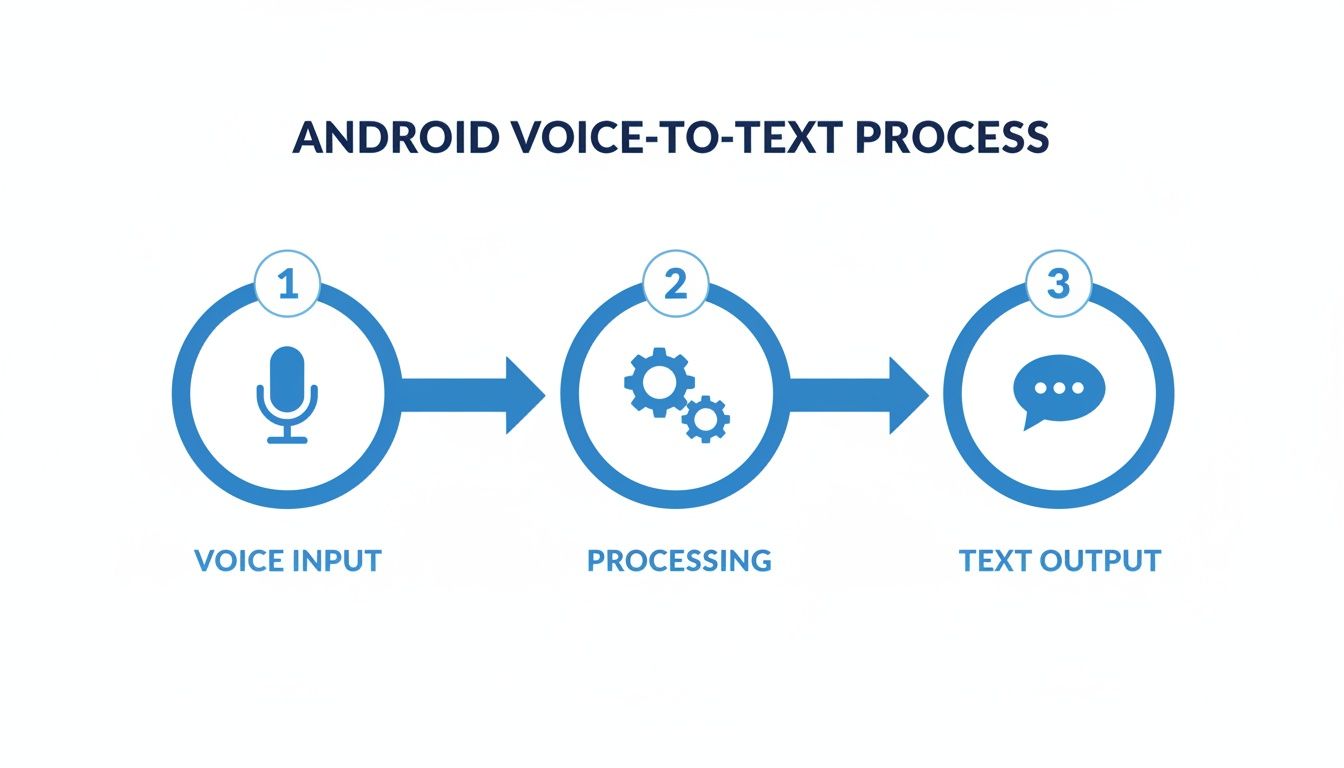
As you can see, your phone turns your talking into writing in three quick steps.
First, find your keyboard settings. Here is how you usually do it:
- Open your phone's main Settings app.
- Look for System or General Management.
- Find Language & Input.
- Tap on On-screen keyboard.
Secret Tip: If you can't find it, use the search bar at the top of your Settings. Just type "keyboard," and it will take you right there.
Turning On Voice Typing
Now that you are in your keyboard settings, you just need to turn on the voice part. This makes the microphone picture show up on your keyboard.
Just flip the Use voice typing switch to "on." That's it! You're ready to start talking instead of typing.
Tips for Perfect Talking-to-Text
Does your phone ever write something silly when you talk to it? It's a common problem. But you can teach your phone to be a better listener. A few simple tricks can make voice text on Android work much better.
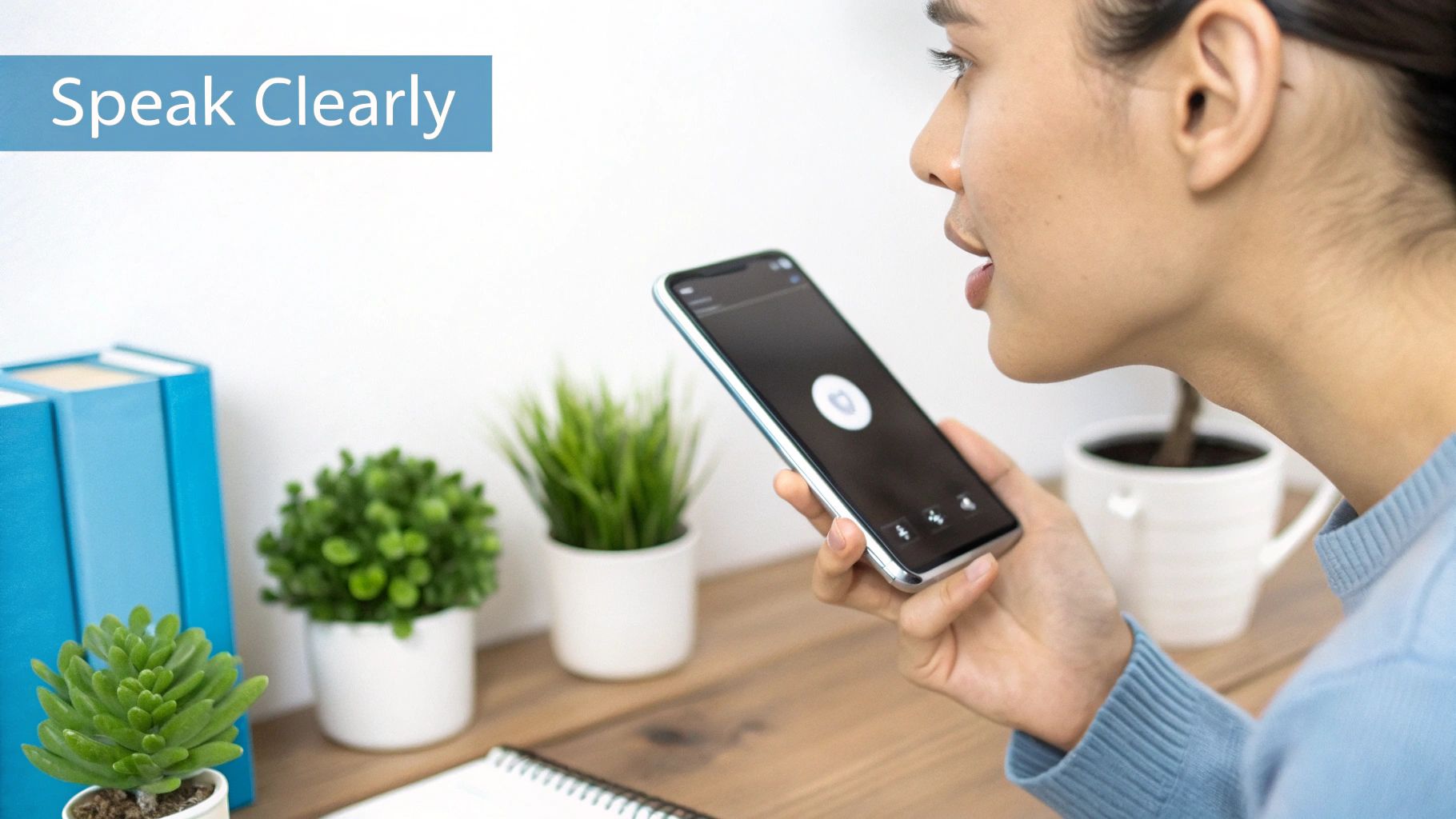
The trick is not just to talk clearly. You need to talk at the right speed. I tell people to talk like a news reporter: steady and clear. If you talk too fast, your words get jumbled. If you talk too slow, the phone might think you are done.
It takes a little practice, but once you find the right speed, you'll see fewer mistakes.
Where to Hold Your Phone
Think of your phone's microphone as an ear. If you hold it too far away, it hears everything else in the room, like the TV. All that noise makes it hard for the phone to hear you.
But holding it too close to your mouth is bad, too. Your breath makes popping sounds that confuse the phone.
- The Best Spot: I've found that about six inches from your mouth is perfect. It hears your voice clearly without picking up other sounds.
- Find a Quiet Spot: Before you start talking, look around. Turning away from a fan or a loud TV can help a lot.
Pro Tip: Watch how you hold your phone! A lot of people rest their pinky finger on the bottom. But that's where the microphone is! Make sure your hand isn't covering it up.
Tell Your Phone Where to Put Periods and Commas
This is a really cool trick. You don't have to go back and add periods and commas after you're done talking. You can do it while you talk by just saying the words. This makes your messages look neat and easy to read.
Get used to saying these words:
- Period: Say "period" to end a sentence.
- Comma: Say "comma" where you want a little pause.
- Question Mark: Say "question mark" at the end of a question.
- Exclamation Point: Say "exclamation point" to show excitement.
- New Line: Say "new line" to start a new paragraph.
For example, you would say a message like this: "Hi Mom comma I'm running a little late period Can you save me some dinner question mark"
It feels a little weird at first, but learning these words is the fastest way to get better at talking to your phone. To learn more, our guide on improving speech-to-text accuracy has more tricks. These little changes make voice typing a super helpful tool.
Fixing Common Voice-to-Text Problems
It happens to everyone. You're talking to your phone, and suddenly it just stops working. The microphone picture might disappear, or it just won't listen to you. Don't worry—this is usually easy to fix.
It's probably not a big problem with your phone. It's usually just a setting that got turned off by mistake. It's like a cord came unplugged. You just need to check a few things to plug it back in.
The Missing Microphone Picture
The main reason the microphone disappears is because the voice typing setting got turned off. This can happen after your phone gets an update.
Another thing that can cause this is another keyboard app. If you tried a new keyboard, your phone might be confused about which one to use.
Here's how to get the microphone back:
- Check Your Main Keyboard: Go to your phone's settings, find the keyboard part, and make sure Gboard is chosen as the main one.
- Flip the Switch: Go into your main keyboard's settings. Find "Voice typing" and make sure the switch is on. Sometimes, just turning it off and then on again fixes it.
Don't forget to try restarting your phone. It's the oldest trick in the book because it works! It clears out little bugs that cause weird problems.
When Your Phone Won't Listen
What if the microphone picture is there, but nothing happens when you tap it? When your phone stops writing what you say, it's usually one of two things: permissions or a messy app cache.
First, your keyboard app needs your permission to use the microphone. Sometimes an update can turn this permission off. Second, an app has a short-term memory called a cache. If it gets too full of old stuff, the app can act funny.
Let's check those two things:
- Check Microphone Permission: Go to Settings > Apps. Find your keyboard app (like Gboard), tap it, and go to Permissions. Make sure Microphone is set to Allow.
- Clear the Keyboard's Memory: In that same screen for your keyboard, find Storage & cache. Tap Clear Cache. Don't worry, this is safe. It won't delete your words or settings.
Doing these steps will fix most voice text problems. When the app has permission to listen and a clean memory, your phone will start hearing you again.
Get More Done with WriteVoice
The voice typing that comes with your Android phone is great for sending a quick text. But if your job needs you to talk and type a lot, you might find it's not enough. When you need to write reports in Jira, important emails in Gmail, or clear messages in Slack, you need a stronger tool. This is where an app like WriteVoice is a big help.
Think of it like a small pocketknife versus a power drill. Both can work, but the power drill is much faster and better for big jobs. For people who need to write fast and right for their work, a better tool is a must-have.
Why Speed Is Important for Work
At a busy job, every second counts. The normal voice typing on your phone is pretty fast, but you can feel it pause to think. WriteVoice, however, writes your words almost the moment you say them. It feels like it happens in less than one second.
This changes how you work. Imagine a manager walking to a meeting who needs to update a project. Instead of stopping to type on their tiny keyboard, they can just talk.
A Real-Life Example: A manager says, "Update ticket JIRA-123 colon new line The client wants us to change the test date by two days period Please change the plan and tell the team period" That whole message shows up, looking perfect, before they even get to their next meeting.
This kind of speed lets you keep your thoughts flowing. You don't have to stop and start all the time to type and fix mistakes. It helps you get work done up to four times faster than typing.
Here is a picture of someone working and talking at the same time. This is common today, and fast tools like these are a big help.

This is how people work now. Tools like WriteVoice give you an edge by letting you talk and write so quickly.
Typing You Can Trust to Be Right and Private
At work, "mostly right" isn't good enough. An email with mistakes can make you look bad. WriteVoice was made with smart computers that are right over 99% of the time, even with special work words.
Even better, you can teach it your own words. You can add client names, project codes, or company words so it always gets them right. You can see how this works by learning to set up dictation for Gmail.
Most importantly, WriteVoice keeps your words private. Work talk is often secret, and you need to know it's safe. WriteVoice was made to be very private:
- It Doesn't Keep Your Voice: Your talking is turned into words and then erased.
- It Doesn't Keep Your Words: The writing is never saved on company computers.
- It's All Your Secret: What you say stays yours, and no one else sees it.
This makes it safe for people in jobs like law or medicine, where keeping secrets is the law. By being super fast, super correct, and super private, WriteVoice turns voice text on Android into a powerful tool for your job.
Your Top Questions About Talking to Your Phone, Answered
When you start talking to your phone to write messages, you might have some questions. It's a great tool, but some parts aren't clear at first. Here are the answers to the questions we hear the most.
You might be wondering if it costs money or if it works without the internet. Let's answer those now.
Does Voice-to-Text on Android Cost Money?
So, do you have to pay to talk to your phone instead of typing? The short answer is no, it’s free.
Google’s voice typing is part of the Gboard keyboard that is already on most Android phones. You don't have to pay for it. You can use it as much as you want.
The tool on your phone is free. But for people who need more power for their job, there are special apps. A powerful tool like WriteVoice might cost money after you try it for free. But for everyday texting, the tool you have is free.
Can I Talk to My Phone Without an Internet Connection?
What if you are somewhere with bad internet, like on a subway train? Good news—you can still use voice text on Android even when you're offline.
Most new Android phones let you download languages to use when you're not online. This is very helpful because you can keep talking and typing anywhere.
Here’s how you set it up:
- Open your keyboard’s settings.
- Look for "Offline dictation" or "Download language."
- Pick the language you speak and tap to download it.
Once the language is saved on your phone, it can understand you without the internet. But it might not be quite as good at hearing you as when you are online.
How Can I Teach It My Special Words and Names?
It's annoying when your phone keeps messing up a person's name or a special word you use all the time. Luckily, there's an easy way to teach your phone how to spell these words.
Your keyboard learns from what you type. But for words it just can't get right, you can use your Personal Dictionary. You can find this in your keyboard's settings menu.
If you add a tricky word—like your friend's name—you are telling your phone, "This is a real word. Spell it like this." After that, it should get it right every time you say it.
Ready to stop typing? WriteVoice turns your speech into correct text in less than a second. It helps you get your work done up to 4x faster. Try it for free and see how much time you save. Learn more and get started with WriteVoice.