How to Talk-to-Type on Your Android Phone
Do you ever wish you could write a message without using your hands? Like when you're eating a snack or walking your dog? With your Android phone, you can! It's called voice typing. You just talk, and your phone writes down the words for you. It's like magic!
Why Talking Is Faster Than Typing

Tapping on a little screen can be slow. It's easy to make mistakes and have to go back and fix them. But when you talk, the words come out fast! You can say what you're thinking right away.
This is super helpful when your hands are busy. You can be cooking, carrying bags, or playing a game. Instead of stopping what you're doing, you can send a message just by talking to your phone. You don't even have to touch the keyboard.
Talking vs. Tapping: What's the Difference?
Let's see why talking to your phone is often better than tapping with your thumbs. It's a lot easier and faster.
| What it is | Talking to Type | Tapping with Thumbs |
|---|---|---|
| How fast? | As fast as you can talk | As fast as your thumbs can move |
| How good? | The phone is smart and gets it right | You can make a lot of typos |
| How easy? | You don't need your hands | You need your hands and eyes |
| For you? | Easy on your hands and fingers | Can make your thumbs sore |
As you can see, talking to your phone is a more natural way to write. It's great when you're busy or just want to get your ideas down fast.
It's a Lot Faster in Real Life
Many, many people have Android phones. And lots of them are starting to talk to their phones instead of typing. Why? Because we make a lot of mistakes on tiny keyboards. In fact, people make almost twice as many mistakes when they type compared to when they speak. To see how many people are using their voice, you can check out these voice-to-text market trends.
People are switching because it's just easier. It helps you use your phone in a smarter way.
The best part is the freedom. You can save your ideas right when you think of them. You don't have to worry about how to type. You can just focus on what you want to say.
It's a small change that makes a big difference. You can talk clearly and quickly, and your phone does all the hard work. This lets you do other things while still getting messages sent.
How to Turn On Voice Typing on Your Phone
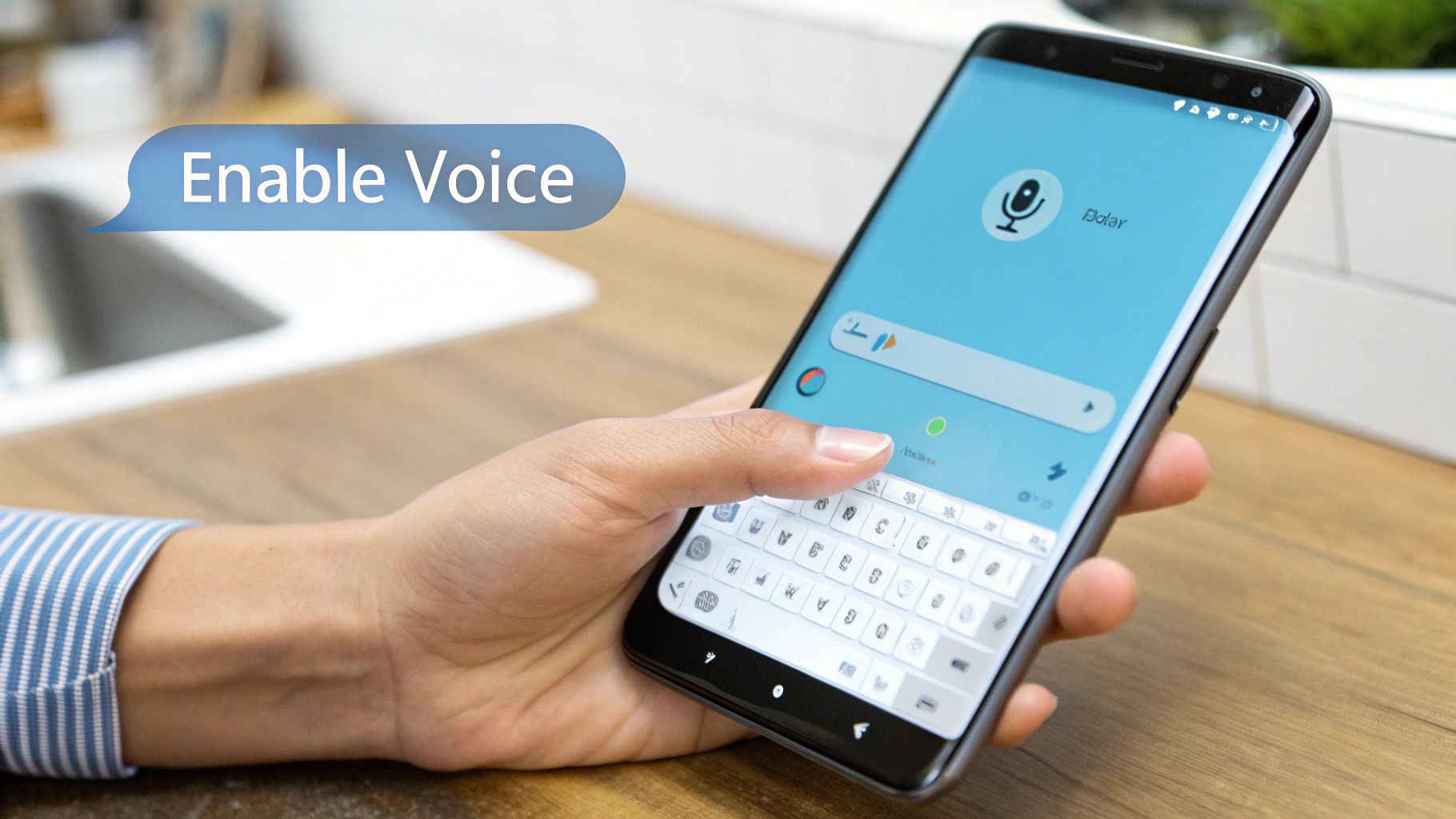
Before you can talk to your phone, you have to make sure it's listening. Good news! Most Android phones are already set up to do this with the Google keyboard, called Gboard.
Look at your keyboard. Do you see a little microphone button? That's your button for talking instead of typing. If you don't see it, don't worry. We just need to turn it on in your phone's settings. It only takes a minute.
Going Into Your Phone's Settings
First, we need to go to your phone's control center. That's the Settings app. It's where you change your Wi-Fi or your background picture. It's also where you'll get your phone ready to type with voice on Android.
Open your list of apps and look for the little gear picture. That's Settings.
Once you're in Settings, you'll look for the keyboard part. What it's called can be a little different on each phone (like a Samsung or a Google phone), but the steps are mostly the same.
Here is what you usually do:
- Go to System and then Languages & input. (Sometimes this is called General Management.)
- Tap on On-screen keyboard or Virtual keyboard.
- Choose Gboard (or the keyboard you like to use).
- In the Gboard settings, find Voice typing and make sure the little switch is turned on.
That's it! Now your keyboard will show the microphone button so you can talk-to-type in any app.
Giving Your Keyboard Permission to Hear You
The first time you tap the new microphone button, your phone will ask for permission. It's like your phone is asking, "Is it okay if I use the microphone to listen?"
You should say yes. This is important so your phone doesn't listen when you don't want it to.
When you give permission, the keyboard can only use your microphone when you tap the microphone button. It is not always listening or recording you.
Think of it like a stoplight. Your phone will wait for you to give it the green light. Once you say okay, the microphone button will be ready to go, and you can start talking.
If you find that the built-in microphone isn't enough, there are other special tools. You might want to try a cool voice to text app for Android that has more features for work or school.
With these quick steps, you have turned on one of your phone's coolest tricks. It's like having a helper in your pocket who can write down anything you say.
How to Get the Best Typing When You Talk
Talking to your phone is not like talking to a friend. To get the best results when you type with voice on Android, you need to talk so the phone can understand you. This means speaking clearly and not too fast or too slow.
Imagine you are giving directions to a robot. If you mumble or talk too fast, the robot will get confused. The good news is, the more you use it, the more your phone learns how you talk. It gets better at listening to you over time.
Talking with Dots and Commas
One new thing to learn is how to add punctuation, like periods and commas. Your phone doesn't know when a sentence ends. You have to tell it by saying the word.
It might feel a little funny at first, but you'll get used to it fast.
- To end a sentence, say "period".
- To add a little pause, say "comma".
- When you ask something, say "question mark".
- To start a new line, say "new paragraph".
Let's pretend you are sending a text. You would say: "Do you want to get pizza tonight question mark". Your phone will write, "Do you want to get pizza tonight?" It's an easy trick to make your messages easy to read.
Fixing Mistakes Without Your Thumbs
Everyone makes mistakes. But you don't have to stop talking to fix them. You can use your voice to change the text. This is what makes voice typing so great for when you can't use your hands.
The real magic is that you can fix mistakes with your voice. Learning a few simple commands saves you from having to switch back and forth between talking and tapping.
Imagine you say the wrong word. No big deal. Instead of tapping the backspace button, you can just say, "delete the last word" or "delete that". This tells your phone to erase what you just said so you can try again.
It’s no surprise that people love using their voice to do things on their phones. Some experts think that soon, half of all searches on the internet will be done by talking. That’s because most people would rather speak than type.
This is why learning to talk to your phone is a great skill. To learn more, you can read about what makes speech-to-text accuracy good and understand the process of transcribing spoken audio into text.
By using these simple tips, your Android phone will understand you almost perfectly every time.
Fixing Problems with Voice Typing
Sometimes, technology doesn't work right. If you try to type with voice on Android and it's not working, don't worry. Most of the time, the problem is easy to fix.
We've all been there. The little microphone button is gone, or your phone keeps writing the wrong word. These are common problems, and a quick check in your settings or a simple phone restart usually fixes it.
What to Do If the Microphone Button is Gone
It's annoying when the microphone button disappears right when you want to use it. This usually happens because the voice typing setting got turned off by accident. The first thing to do is go back to your keyboard settings and make sure Gboard's voice typing is still on.
Another thing that can cause this is if a different app is using your phone's microphone. A quick fix is to close all the apps you have open and then try again. This simple reset often makes the button come back.
How to Make the Words More Accurate
Is your phone hearing "two" when you said "too"? This kind of mistake often happens when there is a lot of noise around you. Your phone's microphone is very good at hearing everything, including the TV or other people talking.
The easiest way to get better words is to find a quiet spot. You will be surprised at how much better it works if you just move away from noise.
If you are in a quiet place and still have trouble, the problem might be your language settings. Your phone needs to know which language you are speaking.
- Check Your Language: Go into your Gboard settings and make sure you have the right language downloaded so it can work without the internet.
- Speak Clearly: Try to say your words a little more carefully than you normally would. This little change helps the phone tell the difference between words that sound the same.
Think of these tips as teaching your phone to understand your voice better.
Easy Fixes for Common Problems
Sometimes you just need a quick answer. Before you spend a lot of time in your settings, here are some easy fixes for common voice typing problems.
| The Problem | The Easy Fix |
|---|---|
| The words show up very slowly | Check your internet. If your Wi-Fi or data is slow, it can take longer. |
| It stops listening after a short time | Try not to pause for too long when you talk. The phone might think you're done. |
| It puts stars (***) for some words | Go to Gboard settings and turn off the "Block offensive words" switch. |
Knowing these simple tricks can help you fix most problems quickly, so you can keep talking instead of typing.
Using Voice Typing in Your Favorite Apps
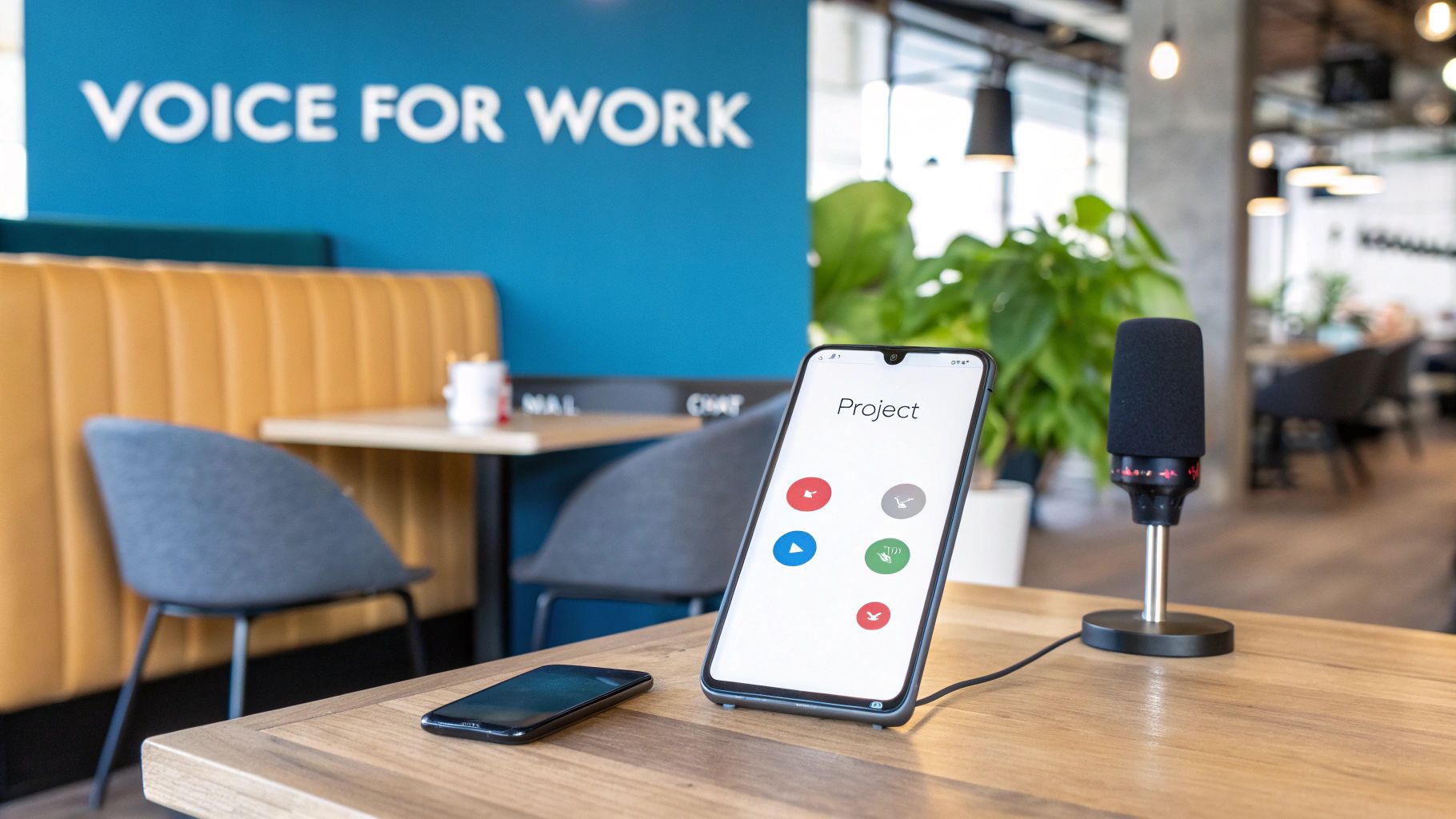
Your phone's built-in voice typing is great for sending texts. But if you use apps like Gmail or Slack for work, you might want something even better. Special voice tools can make you much faster, especially when you're busy.
Imagine you get a work message while walking. Instead of stopping to type, you just speak your answer. A tool like WriteVoice can turn your words into text and put it right in the chat for you. This is a whole new way to get work done.
Doing More Than Just Talking to Type
Special voice apps are made for work, where you need to be fast and right. They do more than just turn your words into text. They help you use your voice to get things done in your other apps without using your hands.
Here is how it can work:
- Update Your Work: Walking to get lunch? You can talk about what you've finished, and the app will put your words right into a work ticket in an app like Jira.
- Write Emails in Gmail: You can speak a long, thought-out email to a client while you're getting ready in the morning, without ever touching your keyboard.
- Send Quick Slack Messages: Keep up with your team by talking your replies as soon as messages come in, even if your hands are busy with something else.
The best part is how easy it feels. The best tools make talking to type feel so normal that you forget you're using technology. Your words just show up where you want them.
This makes your work flow better and faster. You don't have to be stuck at a desk to get things done. To make an app this easy to use, you need a good mobile app interface design and user experience.
How to Set Up a Special Voice Tool
It's usually very easy to connect a voice app like WriteVoice to your other tools. It only takes a couple of minutes to get started.
First, you'll get the app from the Google Play Store. After you install it, it will show you how to give it permission to work with your other apps.
The most important step is to let it be an accessibility service. This sounds complicated, but it's just a way for one app to help you use another app. This is what lets the voice tool "paste" your spoken words into Gmail or Slack for you. Once you turn that on, you're ready to go. The next time you open a work app, your new voice tool will be there to help.
Is Your Voice Data Kept Private?
When you start talking to your phone, it's smart to ask, "Who is listening?" The good news is, your phone is made to keep your words private.
Think of it like telling your phone a secret. Many new Android phones turn your talking into text right on the phone itself. This is called on-device processing. It means your words don't get sent over the internet to a faraway computer.
Keeping Your Words on Your Phone
Doing the work on your phone is great for privacy. Because it all happens right there, your private talks and secret ideas stay where they should be: with you.
But not every app is the same. That's why it's important to check permissions. When a new app asks to use your microphone, think about it. Does that fun game really need to listen to you? Probably not.
A good rule to follow is to only give microphone access to apps you trust. These are usually apps that need it to work, like a voice recorder or your keyboard.
You Are in Charge of Your Information
You have all the control. You can go into your phone's settings at any time and look at "App permissions." There, you will see a list of every app that wants to use your microphone. You can say yes or no with just a tap.
This control lets you decide what is private and what is not. By paying attention to these settings, you can type with your voice on Android and know that your information is safe. If you want to learn more, you can read about if voice AI is safe and what to look for in a good app.
Common Questions About Voice Typing on Android
As you start using your voice to type, you might have some questions. Here are some simple answers to the most common ones.
Can I Talk to Type Without the Internet?
Yes, you can! This is a great question if you travel a lot. Keyboards like Gboard let you download languages to use when you're not online.
Just go into your keyboard settings, find the offline voice typing menu, and download the language you speak. Once it's on your phone, you can type with voice on Android anywhere, like on an airplane or a subway.
How Do I Add Emojis With My Voice?
This is a fun and easy trick. You can put an emoji in your text just by saying its name and then the word "emoji."
For example, saying "winking face emoji" or "rocket emoji" will put the real picture right in your message. It's a fast way to make your messages more fun without having to search for the right emoji.
Think of the word "emoji" as a magic word. Saying it after the name tells your phone which picture to add.
Does Talking to Type Use a Lot of Battery?
It's true that using your voice takes a little more battery than typing. That's because the microphone has to be on and listening.
But it's not a lot more. In fact, since talking is so much faster than typing, your screen might be on for less time. For most people, you won't even notice the extra battery it uses.
Ready to make your work life easier? WriteVoice turns your spoken words into perfectly formatted text in any app, four times faster than typing. Try WriteVoice for free and see how much time you can save.