12 Easy Ways to Turn Talking into Writing for Free
Do you want to turn what people say into words you can read? This is called "transcribing." It's like magic! It's great for many jobs. If you are in a meeting, you can get all the words written down. If you have an idea, you can speak it and save it as text. This saves a lot of time from typing. It helps you keep track of what was said in talks, interviews, and classes.
But how do you find a good tool that is also free?
Good news! There are many cool tools that let you transcribe audio to text free. This guide will show you the best ones. We found 12 simple ways to do it without paying money. Some are websites, some are on your phone, and some are special computer programs.
In this list, you will find:
- 12 Great Free Tools: We picked the best websites and apps for you.
- Easy Steps: We show you how to use each one with pictures.
- What's Good and Bad: We tell you what each tool does well and what it can't do.
- Fun Ideas: We give you ideas for when to use each tool, like for school or for fun projects.
Our goal is to help you find the best free tool for you. We will show you how each one works so you can turn talking into writing fast!
1. WriteVoice
WriteVoice is a super smart tool that turns your talking into clean, ready-to-use writing. It does more than just listen. It uses a smart helper (AI) to fix your words as you speak. This is great if you want to transcribe audio to text free from mistakes. It helps you write letters, emails, and notes much faster than typing.
This tool is special because it cleans up your talking. It takes out words like "um" and "uh." It can even make your writing sound more serious for an email or more friendly for a message. For meetings, it writes down everything said and makes a short summary. It even lists out the important jobs to do next.
What it Does
WriteVoice is made for people who want to work fast and be right.
- Smart Fixer: It cleans up messy talking and turns it into nice writing. This is great for making reports or notes without stopping to fix mistakes.
- Makes Lists for You: If you list things out loud, it will make a neat bullet point list for you.
- Meeting Helper: It can listen to your meetings and give you all the words, a short summary, and a list of things to do. This is a big help for team leaders.
- Whisper Mode: Need to talk in a quiet place, like a library? This lets you whisper and still get good writing.
- Keeps Secrets: It does not save what you say. This is good for secret work, like for lawyers or doctors.
How to Start
You can try it for free by signing up on their website. It has a special keyboard for your phone so you can use it in any app, like WhatsApp or Notes. The computer app makes sure all your work is saved everywhere.
- Website: https://www.writevoice.io
- Price: You can try it for free.
- Best For: Grown-ups at work, like managers, lawyers, and people who want to type less and talk more.
2. Otter.ai
Otter.ai is a great helper for meetings. It can join your online calls on Zoom, Google Meet, or Microsoft Teams. It listens and writes down everything that is said, right as it happens. This is why many students and reporters love it.
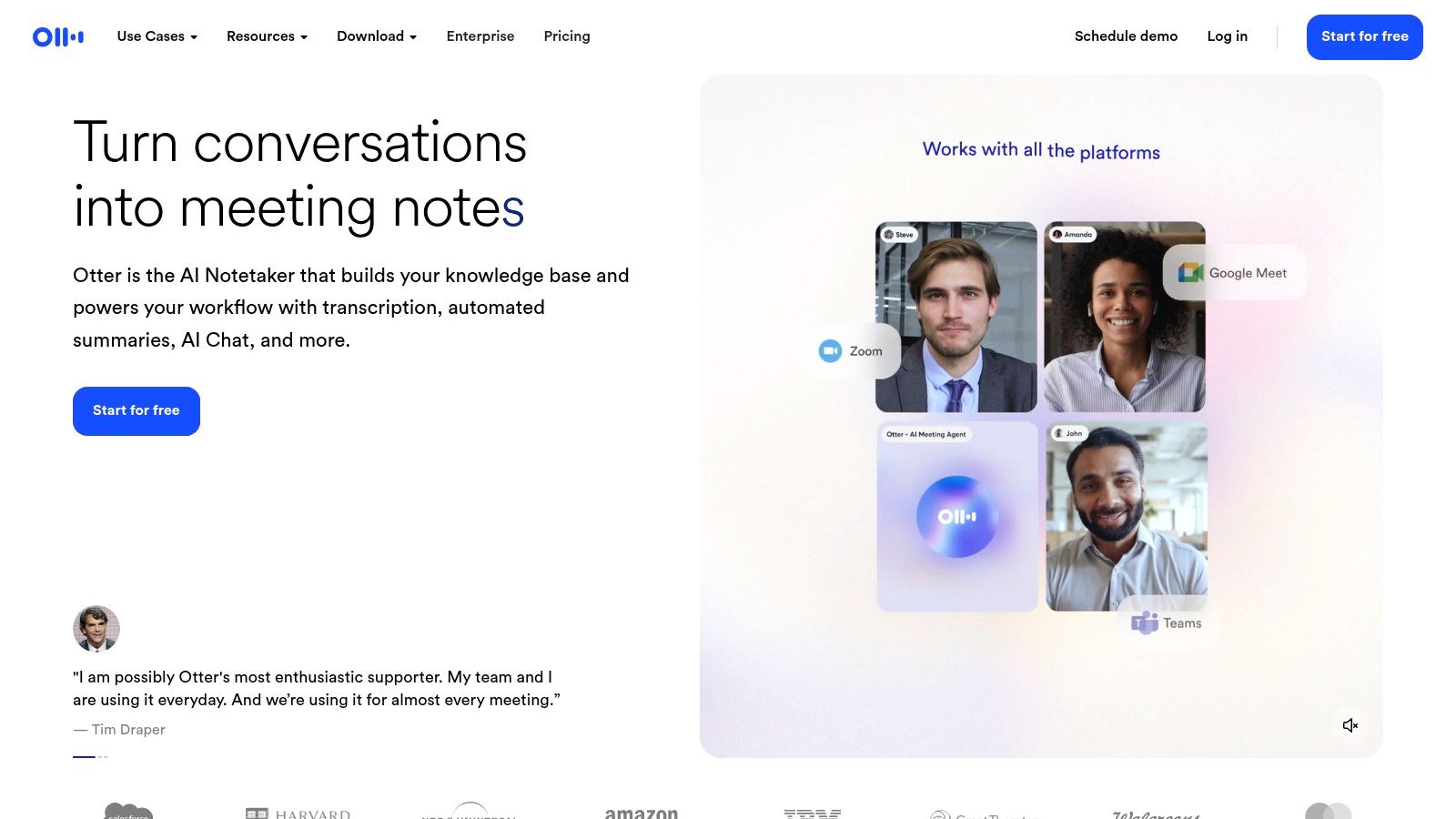
Otter.ai knows when a new person starts talking. After the meeting, its smart helper makes a summary of what was talked about. It also makes a list of important things to do. This saves you from having to write notes yourself. The free plan is a good way to start if you have a few meetings you want to record.
What You Get and What You Don't
The free part of Otter.ai is good, but it has some rules.
What you get for free:
- Listening Time: It listens for 30 minutes in each meeting. You get 300 minutes total each month.
- Uploading Files: You can upload and turn three audio or video files into text. But that’s it, only three forever.
- Smart Summaries: You get the short summaries and notes.
- Works with Others: It connects to Zoom, Google Meet, and Teams.
What are the rules:
- You can only listen for 30 minutes at a time. This is not good for long meetings.
- You only get to upload three files ever. If you have old recordings, you can't use it for them.
If you want to see other tools, you can look at this list of audio to text transcription software.
Best For: People who have lots of online meetings and want a robot to take notes for them.
3. Notta
Notta is another great choice to turn your talking into writing for free. It is easy to use and gives you a lot of free time. You can use it for live meetings or for sound files you already have. It has a special button for your computer's web browser that can listen to meetings on Zoom or Google Meet.
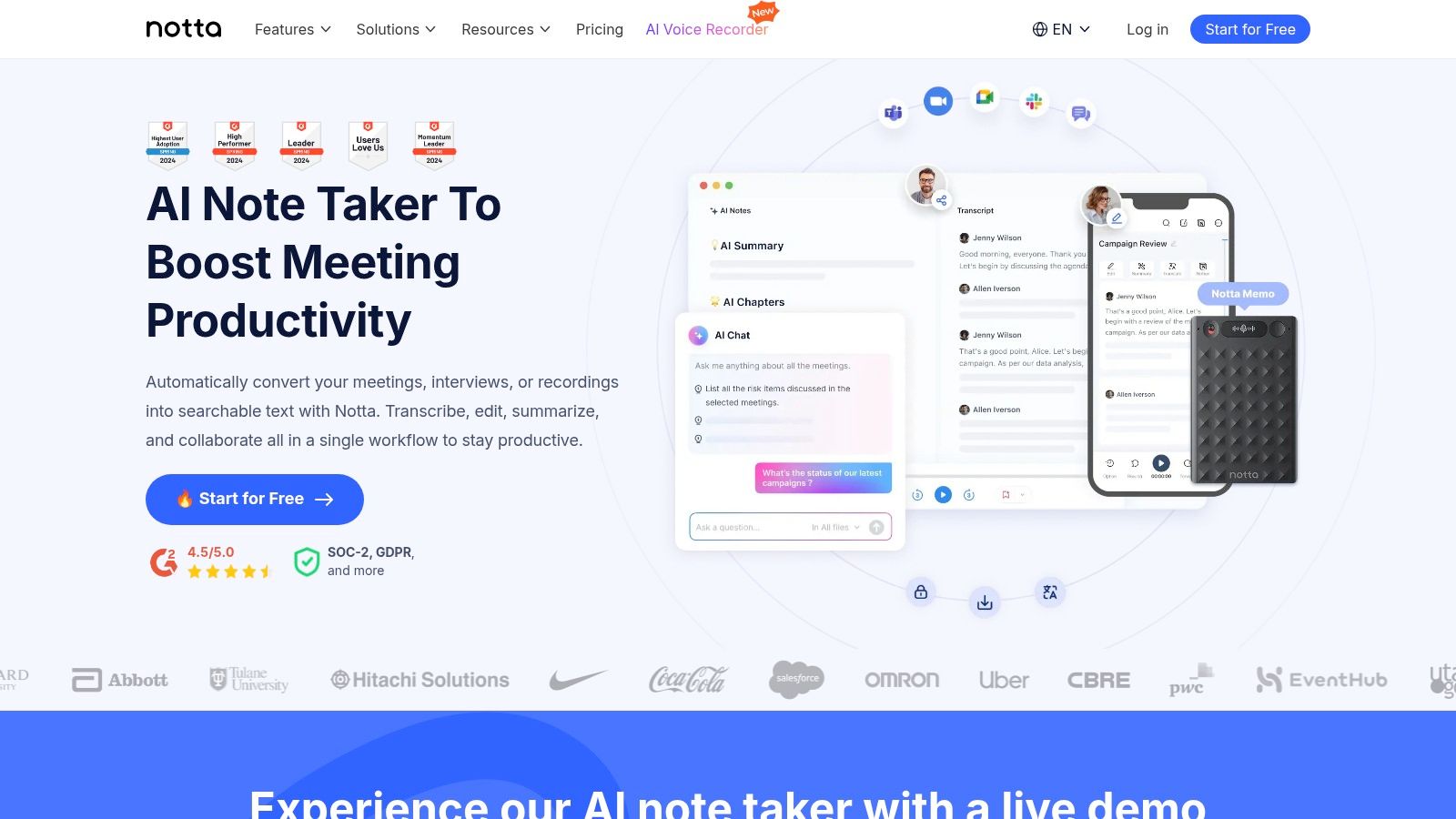
Like other tools, Notta knows who is talking and makes a short summary for you. You can see your written words on your phone or computer. This makes it a good first choice if other free tools don't give you enough free time.
What You Get and What You Don't
Notta's free plan is very useful for short talks.
What you get for free:
- Free Time: You get 120 minutes each month.
- File Uploads: You can upload files that are up to 3 minutes long.
- Live Listening: It can listen to live talks for 5 minutes at a time.
- Works on All Devices: Your notes are saved on your phone and computer.
- Save as Text: You can save the words as a simple text file.
What are the rules:
- You can only upload short files (3 minutes).
- It only listens to live talks for 5 minutes. This is not good for long meetings.
- To do fancy things like change the language, you have to pay.
Best For: People who have many short recordings to turn into text and want more free minutes each month.
4. Descript
Descript is a special tool for making podcasts and videos. It changes how you work with sound and video. First, it turns all the talking into writing. Then, you can edit the sound or video by just changing the written words. It’s like editing a school paper! This makes it easy to fix mistakes or move parts around.
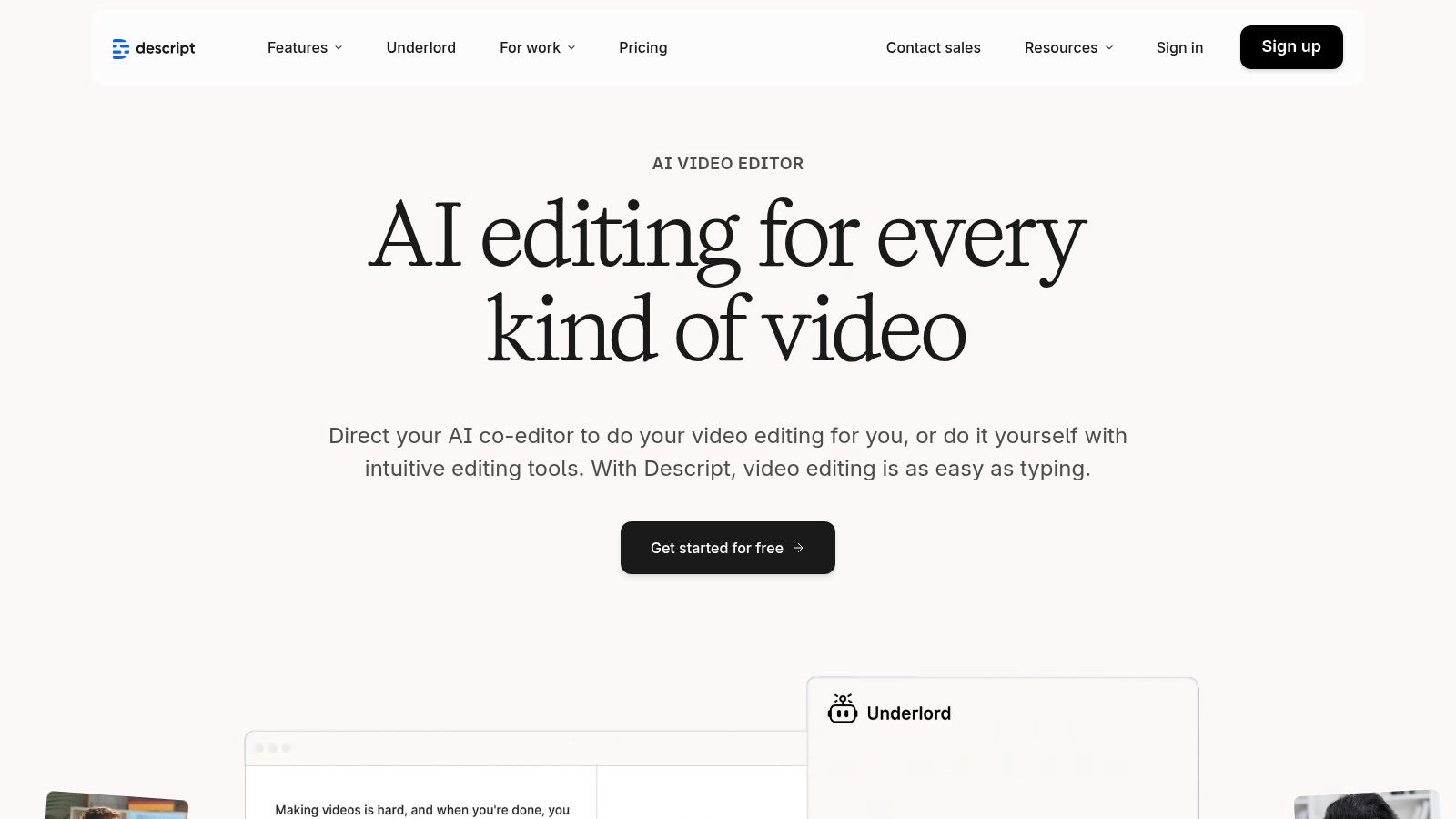
Descript can do more than just turn talking to text. With one click, it can find and remove filler words like "um" and "uh." It also knows when different people are talking. The free plan is a great way to try this new way of editing.
What You Get and What You Don't
Descript's free plan lets you try its magic, but it has limits.
What you get for free:
- Free Time: You get 1 hour of transcription each month.
- Editing by Text: You can use the cool text-based editor.
- Removes "Ums": It takes out filler words for you.
- Screen Recording: You can record your computer screen for as long as you want.
- Watermark: Videos you make will have the Descript name on them.
What are the rules:
- One hour a month is not much for people who make long shows.
- The Descript name on videos is not good for work projects.
- It can be a little tricky to learn compared to simple transcription tools.
Best For: People who make podcasts or videos and want to edit them by changing the written words.
5. VEED
VEED is a video editor you use in your web browser. It's really good at adding words (subtitles) to videos. You can upload a video or sound file, and it will automatically turn the talking into text. Then you can put the words on your video or just download the text file. This is perfect for people who make videos for social media.
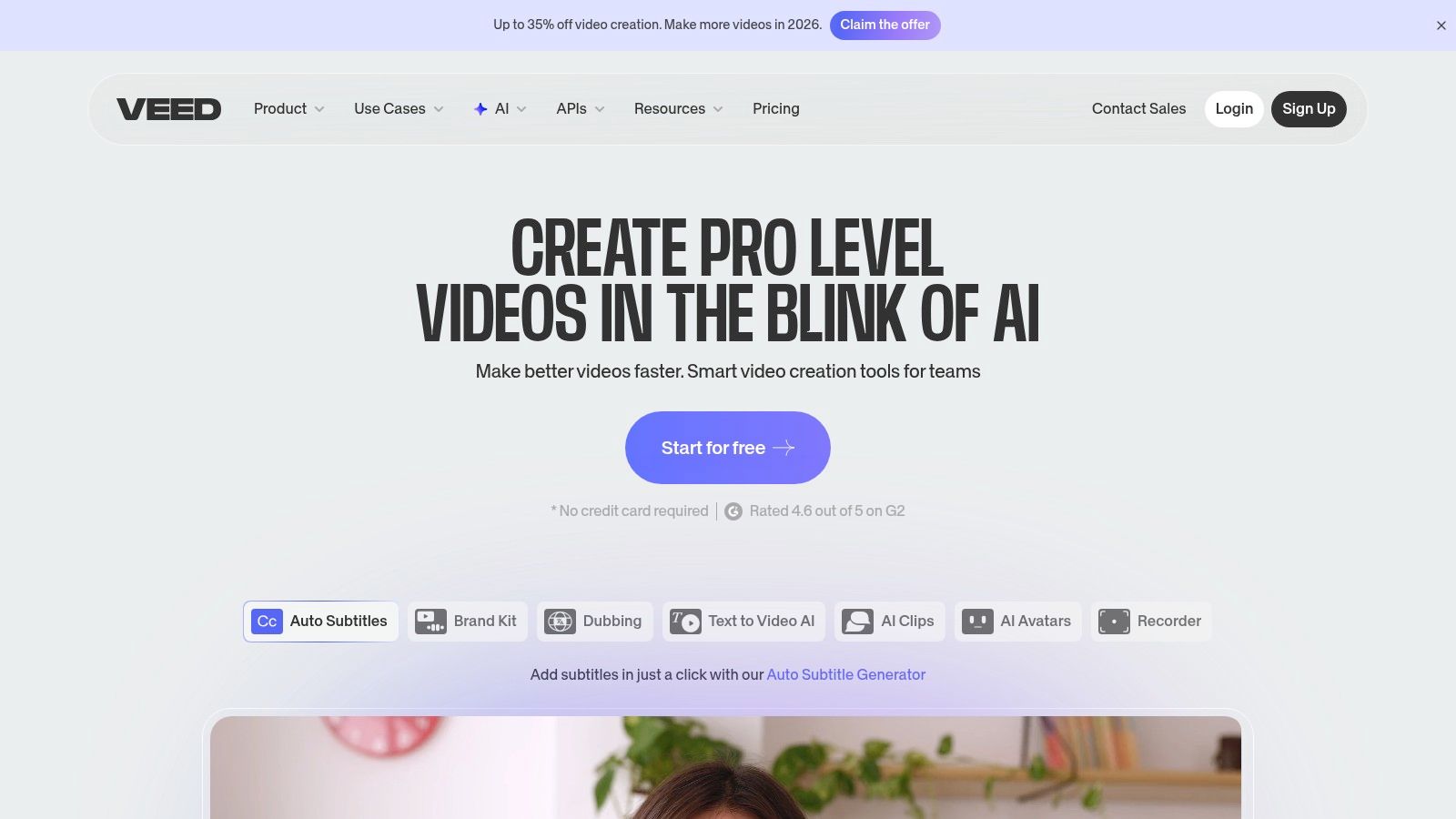
The website is easy to use. You don't have to download any software. After it makes the text, you can fix any mistakes right there. You can save the text in different ways, which is very helpful. The free plan is great for short videos.
What You Get and What You Don't
VEED's free plan is for small, quick jobs.
What you get for free:
- Free Time: You can turn 10 minutes of audio or video into text each month.
- Download Words: You can save the text as a subtitle file or a simple text file.
- Simple Video Editing: You can trim and change your video.
- Change Language: It can translate your words into other languages.
What are the rules:
- Videos you make will have the VEED name on them.
- 10 minutes a month is not very much time.
- To use all the cool tools, you have to pay.
Best For: People who make short videos for social media and need to add words to them fast.
6. Kapwing
Kapwing is another video editor you use in your web browser. It's great for making videos for social media. One of its best tricks is automatically adding words (subtitles) to your videos. This is great for people who need both a written copy and words on their video. You don't need to install anything.
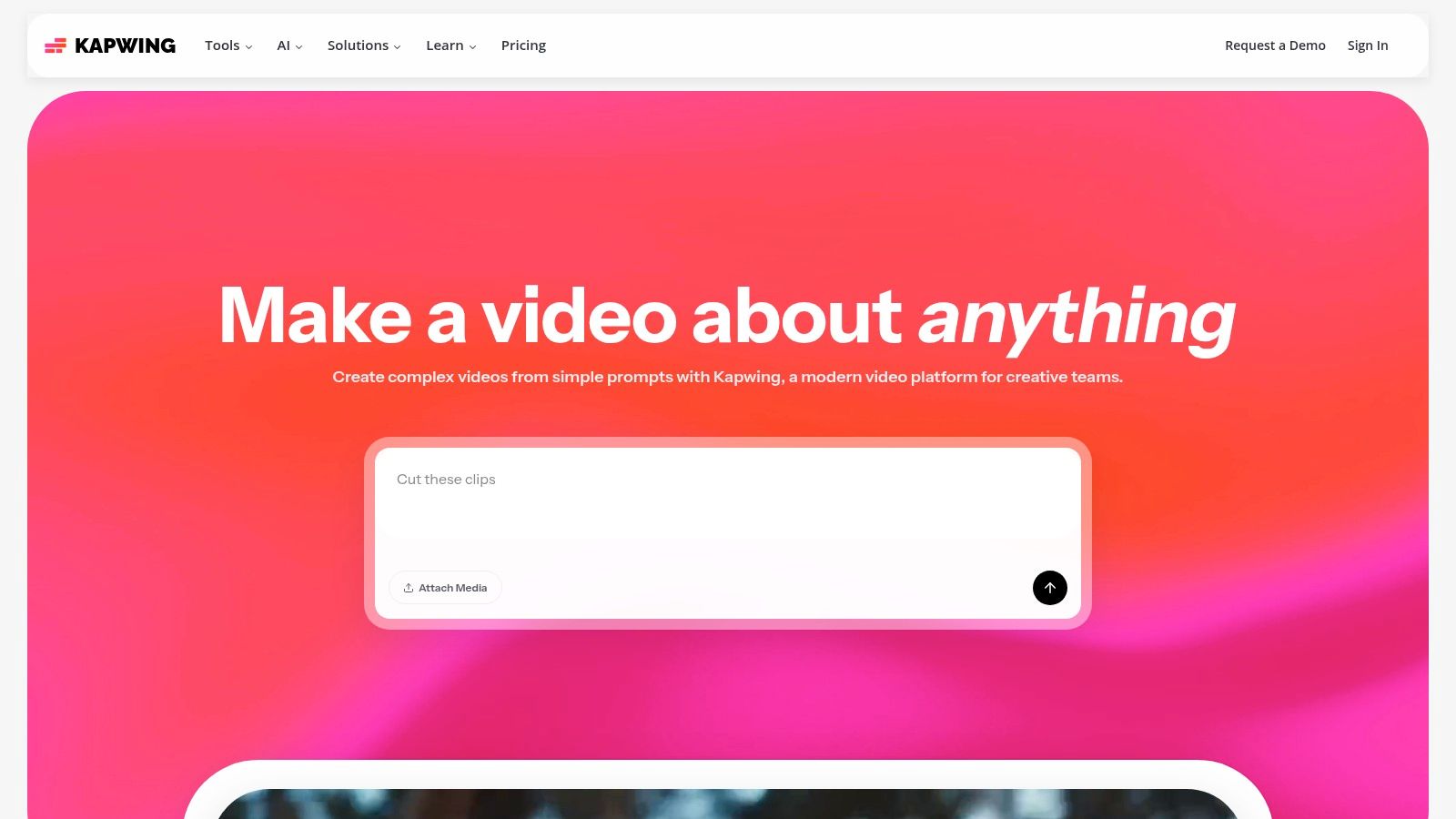
Kapwing is made to be fast and simple. It has lots of ready-made designs. You can even edit your video by changing the written words, just like in Descript. Even though it's a video tool, it's a good way to turn talking into text for free for video projects.
What You Get and What You Don't
Kapwing's free plan is for fun, small projects.
What you get for free:
- Free Time: You get 10 free minutes of transcription each month.
- Video Editing: You can use all the video editing tools and designs.
- Making Videos: You can make videos that are up to 4 minutes long.
- Subtitles: You can make and change subtitles on your video.
What are the rules:
- A Kapwing logo is put on all videos you make with the free plan.
- 10 minutes a month is very little time.
- It doesn't tell you who is talking as well as other tools.
Best For: People who manage social media pages and need to add words to short videos quickly.
7. YouTube (auto captions + transcript)
Did you know YouTube can turn talking into writing for free? It's a clever trick! First, you turn your sound file into a simple video. Then, you upload it to YouTube as a "private" video that only you can see. YouTube will automatically make a written copy with timestamps. This is a great way to transcribe long talks, like school lessons, for free.
After YouTube is done, you can see all the words in a box next to your video. You can copy all the text and paste it somewhere else to edit. The writing is usually very good if the sound is clear. It's an easy and free choice if you have a Google account.
What You Get and What You Don't
Using YouTube is easy, but it has some downsides.
What you get for free:
- Unlimited Uploads: You can upload as many and as long videos as you want.
- Automatic Words: A smart helper writes down the words for you.
- Word Box: You get a list of all the words with times next to them. You can click a word to jump to that part of the video.
- No Cost: It is totally free with a Google account.
What are the rules:
- You have to turn your sound into a video first. This is an extra step.
- It is not for secret talks, because you are putting it on Google's computers.
- There is no "download" button. You have to copy and paste the text by hand.
If you want other easy online options, check out this guide to convert audio to text online free.
Best For: Students who want to get notes from a long class, or anyone with long recordings that are not private.
8. Apple Voice Memos (iPhone built‑in transcription)
If you have an iPhone, you already have a tool to turn talking into text for free! The Voice Memos app can write down what you record. This is perfect for quick notes, reminders, or interviews. The best part is that it's easy and private. It works right on your phone without needing another app.
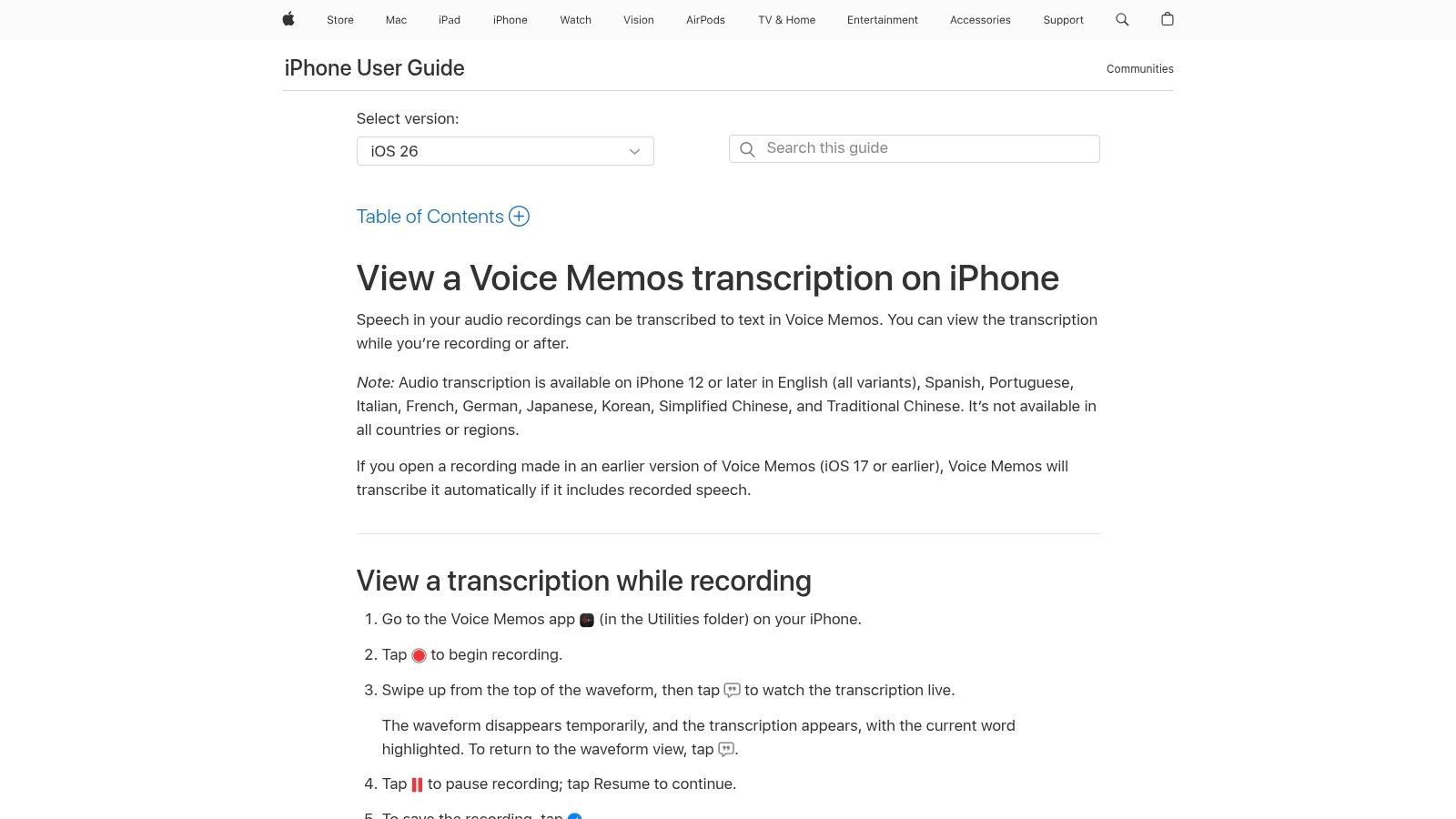
The app shows the written words right under the sound waves, so you can read along as you listen. You can search for words to find a certain spot in the recording. You can also copy all the words to use in another app like Notes or Mail. It’s a super fast way to save your thoughts when you're out and about.
What You Get and What You Don't
Apple's tool is great for simple things, but it's not for big projects.
What you get for free:
- Automatic Writing: It turns your new and old recordings into text inside the app.
- Search Your Words: You can search the text to find important parts.
- Private: For many languages, it works right on your iPhone, so your recordings stay secret.
- No Cost: It is part of the iPhone, so it is completely free.
What are the rules:
- It only works on newer iPhones and for certain languages.
- It does not know when different people are talking.
- You can't do many sound files at once.
To learn about other tools that are built into devices, you can read about how to turn on voice-to-text.
Best For: iPhone users who want a simple, private, and free way to write down their own notes or single-person interviews.
9. OpenAI Whisper (open‑source)
For people who know a lot about computers, OpenAI Whisper is a super powerful tool. It's not a website. It's a special program you run on your own computer. This means your sound files never go on the internet, so they stay very private. Whisper is really good at understanding many different languages, making it a top choice for computer experts and scientists.
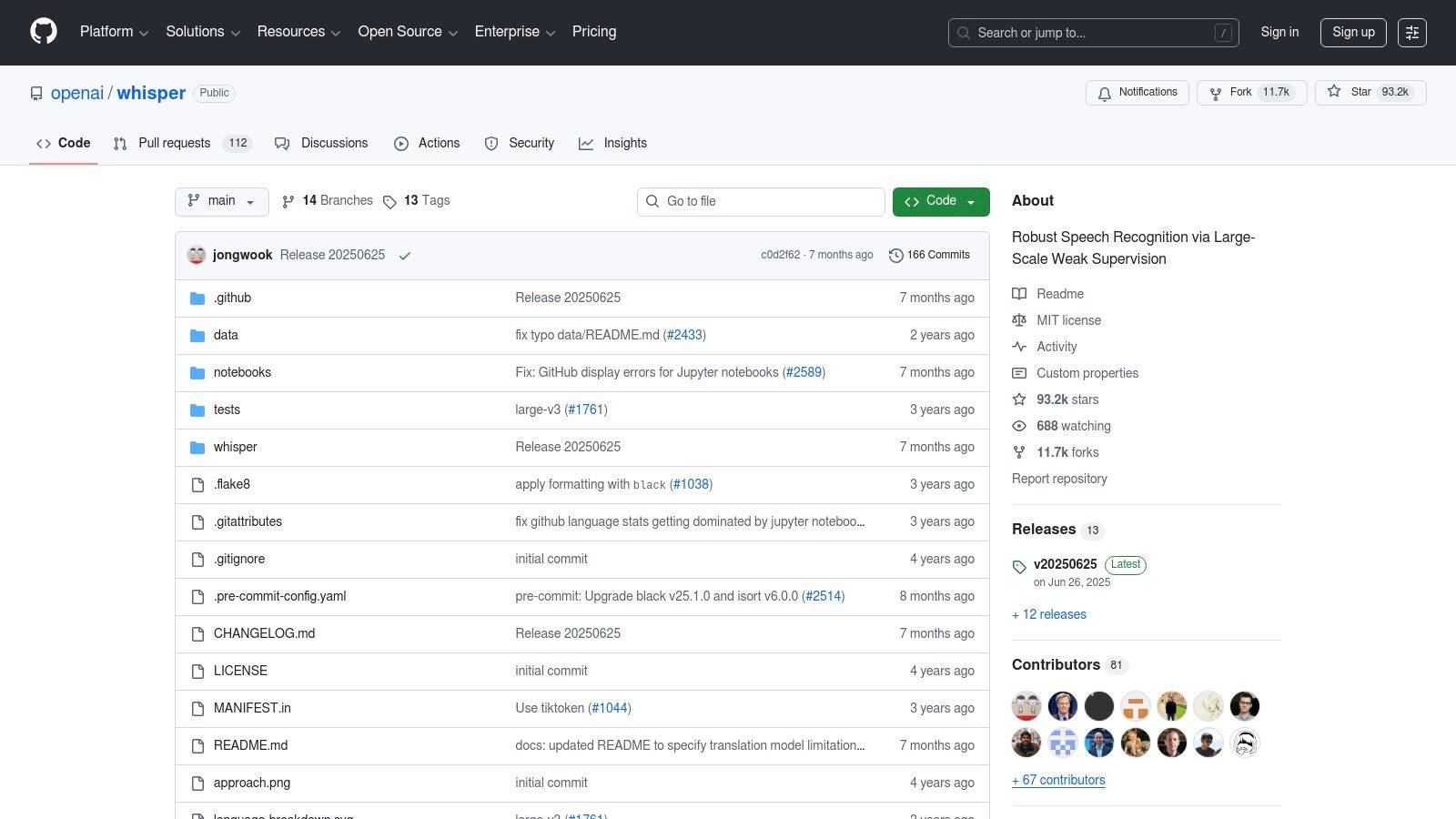
Because it runs on your computer, Whisper is a totally free way to turn talking into writing. There are no time limits or rules. You can pick different versions of the program. Some are faster, and some are more accurate if you have a powerful computer. This makes it great for secret interviews or many sound files at once.
What You Get and What You Don't
Whisper gives you a lot of power, but you need to know how to use it.
What you get for free:
- Full Control: You can turn talking into writing without the internet, keeping your files safe.
- Very Good Writing: It is one of the best at understanding words in many languages.
- No Limits: You can transcribe as much as you want.
- Different Versions: You can choose a version that works best for your computer.
What are the rules:
- It's tricky to set up. You need to use computer code, which is not for everyone.
- It can be slow if your computer is not very powerful.
You can get Whisper and learn how to use it from its official GitHub repository.
Best For: Computer experts and scientists who need a very accurate and private tool for their work.
10. whisper.cpp
For computer whizzes, whisper.cpp is another powerful way to turn talking into text for free on your own computer. It's a faster version of OpenAI's Whisper. It was re-written to work well even on computers that don't have a strong graphics card. Its biggest plus is that it gives you great writing quality while being totally private and offline.
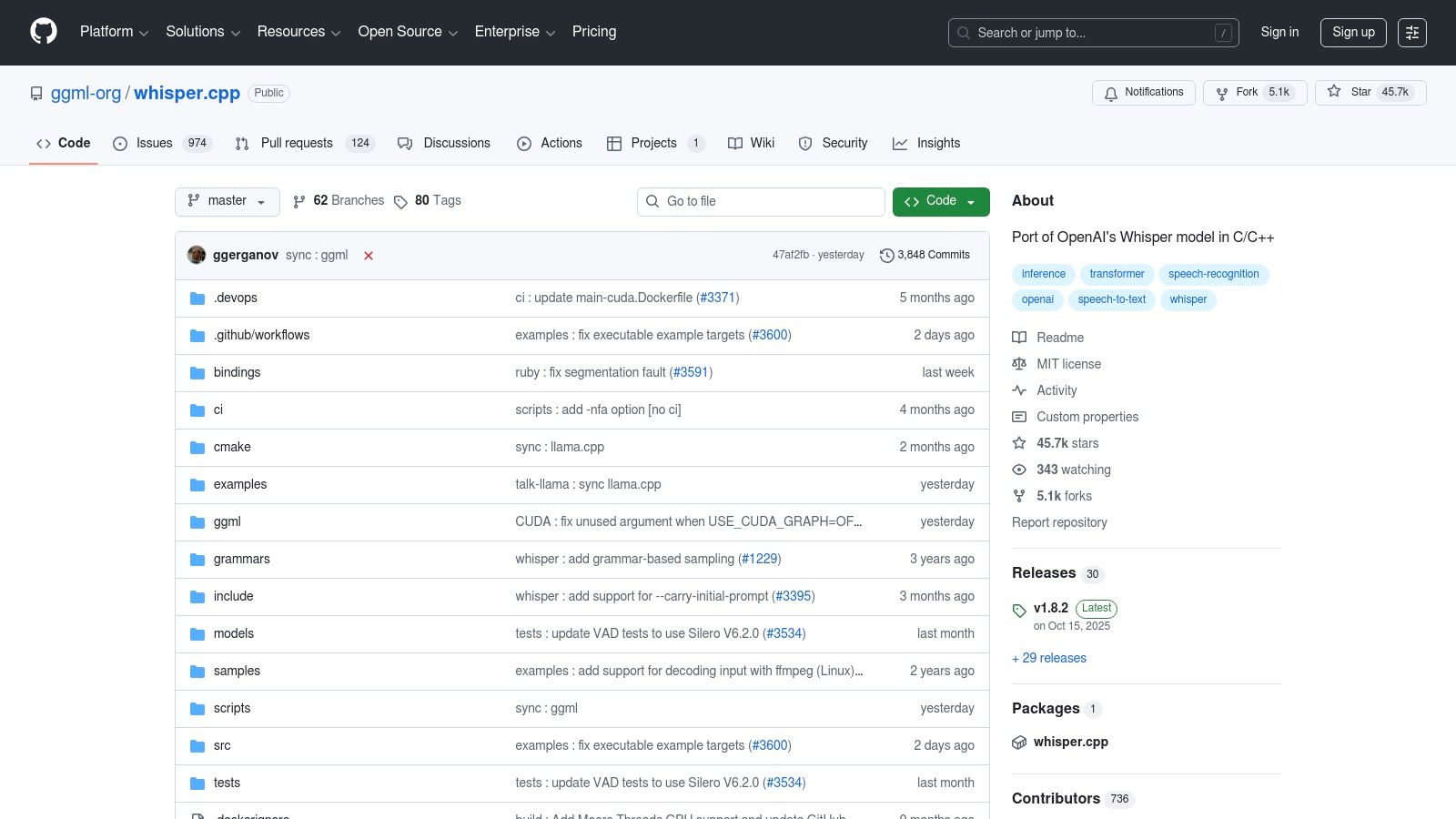
This tool is great for doing many sound files at once. Because it's on your computer, you control everything, making it safe for secret stuff. You do need to be comfortable using a command line (a text-based way to talk to a computer), but it's very fast, especially on Apple computers.
What You Get and What You Don't
whisper.cpp is totally free, but it's not a simple program with buttons.
What you get for free:
- Offline Writing: You can do unlimited files on your computer with no internet.
- Super Fast: It is made to run very quickly on regular computers.
- Works on Most Computers: It uses smaller versions that don't need a lot of computer memory.
- Command-Line Power: You can tell it to do many files at once.
What are the rules:
- You need to be a computer expert to set it up and use it. It has no pictures or buttons.
- The smaller versions might not be as perfect as the biggest ones.
Best For: Computer experts and scientists who need a fast, private, and free tool to work with many sound files offline.
11. Amazon Transcribe
Amazon Transcribe is a very powerful tool made for computer programmers. It's part of Amazon Web Services (AWS), which big companies use. While you usually have to pay for it, Amazon gives you a free trial. This makes it a great choice for tech-savvy people who want to test a really strong transcription tool for a project.
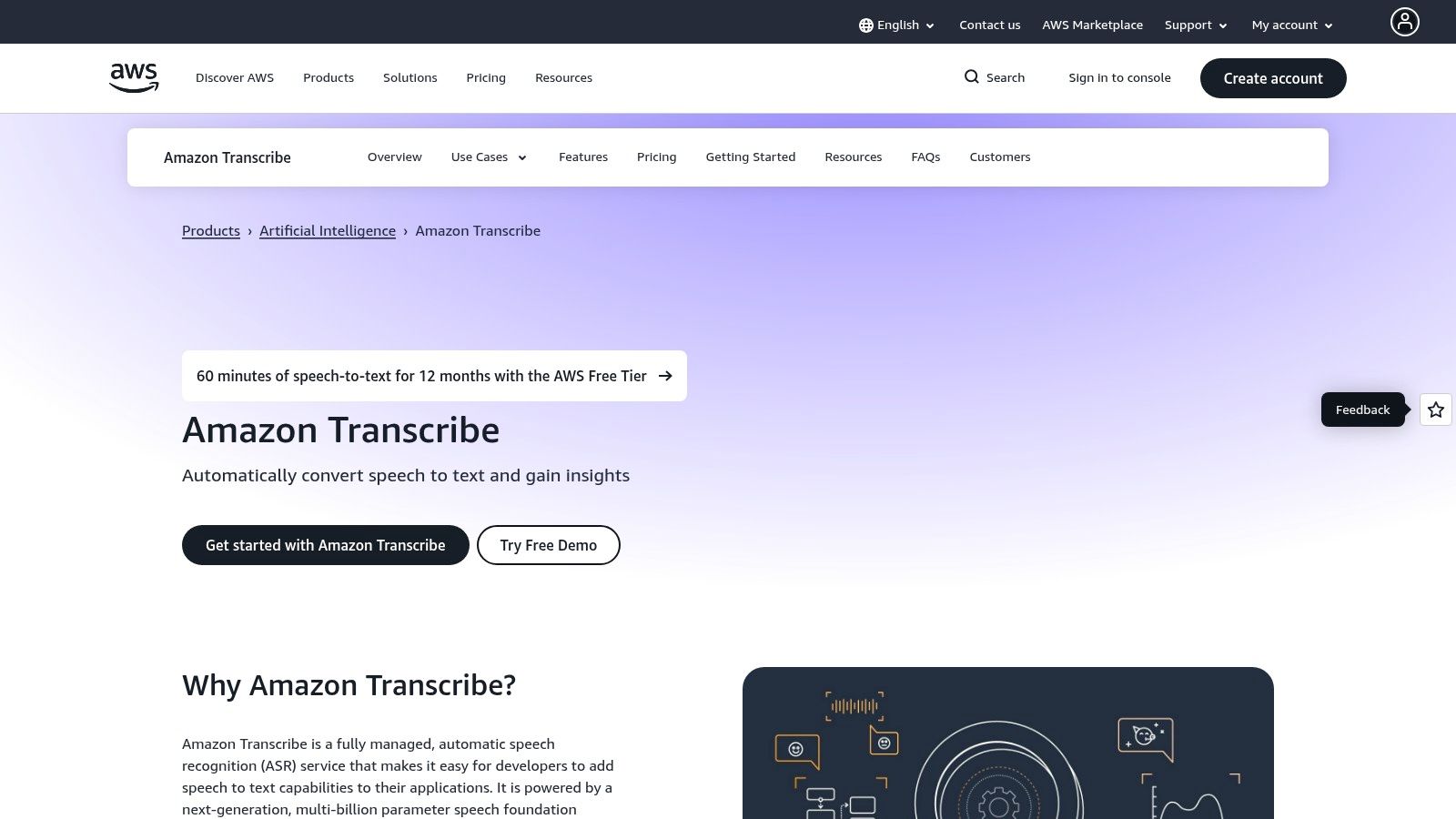
This tool can work with both recorded files and live talking. It can tell when different people are speaking. You can even teach it new words for special topics like medicine. This makes it perfect for building new apps that need to turn talking into writing.
What You Get and What You Don't
The free trial gives you a lot of time, but the tool is made for computer experts.
What you get for free:
- Monthly Free Time: You get 60 minutes per month for your first year with a new AWS account.
- Tells Who is Talking: It can tell different speakers apart.
- Teach it New Words: You can add special words to make it more accurate.
- Live Listening: It works for live audio too.
What are the rules:
- You have to sign up for an AWS account and give your credit card number.
- The free trial is only for the first year. After that, you have to pay.
- It is not an easy-to-use app. It's a tool for programmers and is hard to learn.
Best For: Computer programmers and tech teams who are building apps and want to test a powerful transcription tool for free.
12. Deepgram
Deepgram is a great choice for programmers and people who need very good and fast writing. The company makes tools for developers, but they also have a simple website tool to transcribe audio to text free without even signing up. This is perfect for when you just have one file you need done quickly.
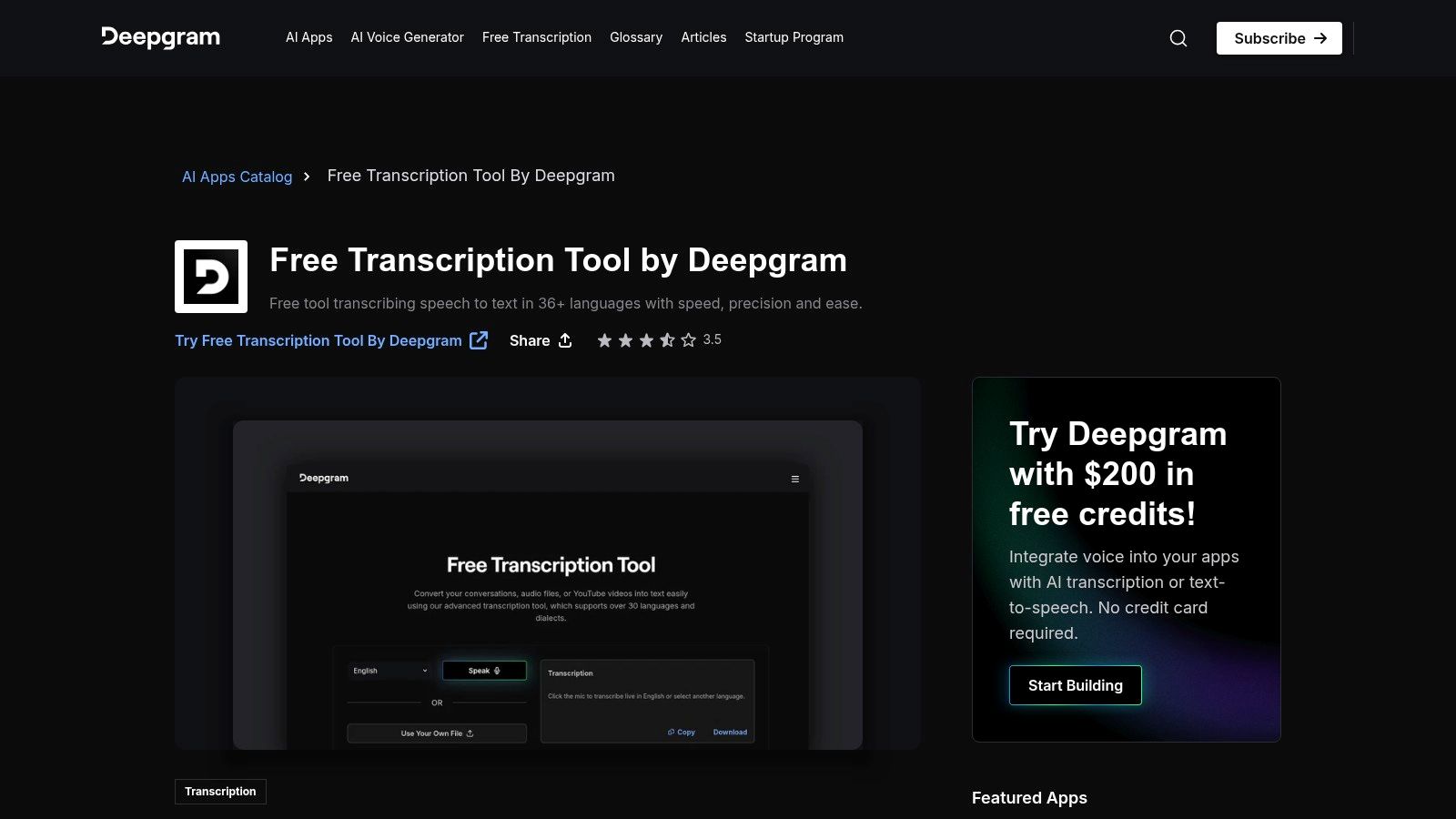
Deepgram is known for its new AI that is super fast and understands over 36 languages. If you are a programmer, Deepgram gives you a lot of free credit to try its more advanced tools. These tools can listen in real-time and tell who is speaking. The free website tool is an easy way to see how good it is.
What You Get and What You Don't
Deepgram has a simple free tool and a more complex one for programmers.
What you get for free:
- Website Tool: You can drag and drop a file on their free transcription tool and get the text right away.
- Lots of Free Credit: New users get $200 in free credits to try all the programmer tools.
- Fancy Tools (with credits): You can use your credits to try tools that tell who is talking or hide bad words.
- Fast and Good: You get to use their new and smart AI for great results.
What are the rules:
- The free website tool is very basic. You can't edit or share your work.
- The free credits are only for new users. To keep using it, you have to pay.
Best For: Programmers who are testing new tools, and anyone who needs a very good written copy of just one sound or video file.
Free Audio-to-Text: 12-Tool Comparison
| Tool | Core features | Accuracy & speed | Value / Unique selling points | Best for | Pricing & Privacy |
|---|---|---|---|---|---|
| WriteVoice (Recommended) | Real‑time dictation (<1s), AI editing, app‑insertion, meeting capture, 30+ lang. | Claimed >99% accuracy; sub‑1s processing; up to 4x typing speed (~150 WPM). | Publish‑ready text, app‑aware tone, custom vocab, Whisper Mode; strong integrations. | Knowledge workers, legal/healthcare, product & remote teams. | Free trial; team/enterprise plans & occasional LTD; real‑time processing, no audio/text stored. |
| Otter.ai | Live transcription, AI meeting notes, speaker ID, Zoom/Meet integrations | Reliable live capture; speaker labeling for meetings | Searchable transcripts and team workflows | Teams and meeting-heavy workflows | Freemium (limits on free plan); paid tiers for more minutes/features |
| Notta | Live & file transcription, speaker ID, Chrome meeting capture, exports | Generous free minutes; decent accuracy for meetings | Large free tier and simple exports | Entry‑level users, educators, small teams | Freemium with per‑recording caps; translation/custom vocab on paid plans |
| Descript | Text‑based audio/video editing, speaker detection, filler removal, collaboration | Accurate transcripts; editor focused (higher learning curve) | Edit media by editing text; strong for creators | Podcasters, content & media teams | Free plan with limited minutes; paid plans for heavy use |
| VEED | Auto‑subtitles, translation, online video editor, SRT/VTT export | Fast web workflow for captions | Quick browser‑based captioning for social content | Social & marketing creators | Freemium; free exports may watermark; paid for full features |
| Kapwing | Auto‑subtitling, templates, multi‑format exports, browser editor | Quick for short projects; limited diarization | Easy templates & team collaboration for social clips | Social media teams & creators | Freemium with watermarks/limits; paid tiers remove limits |
| YouTube (auto captions) | Auto captions, transcript panel with timestamps | Often accurate on clear audio; good for long files | Zero‑cost transcripts for uploaded video | Long recordings, cost‑sensitive users | Free with Google account; requires upload — not for sensitive content |
| Apple Voice Memos | On‑device transcription, searchable/copyable text, iOS integration | Fast for short memos; on‑device privacy | Built‑in, privacy‑forward for quick notes | iPhone users needing private memos | Free on supported iPhones; device/language limits apply |
| OpenAI Whisper (OSS) | Multilingual ASR & translation; CLI/Python APIs; multiple model sizes | Strong accuracy; speed depends on hardware/model size | Full control of data; free & extensible | Technical users, researchers, offline/privacy needs | Free/open‑source; requires compute and setup |
| whisper.cpp | CPU‑optimized Whisper port; Core ML accel for Apple Silicon | Very fast on commodity/Apple Silicon hardware | Lightweight, offline, no Python deps | Edge/batch workflows, Apple Silicon users | Free; CLI tool (limited GUI), quantized models trade accuracy for speed |
| Amazon Transcribe | Batch & streaming ASR, diarization, domain options (medical, call analytics) | Scalable, reliable enterprise accuracy | AWS scaling, security, compliance options | Developers & enterprises building STT at scale | Pay‑as‑you‑go after Free Tier; requires AWS setup and IAM |
| Deepgram | Browser transcription tool + real‑time & batch APIs, diarization & redaction | Fast streaming; modern accurate models | $200 new‑user credits; dev SDKs and redaction features | Developers prototyping production STT | New‑user credits; ongoing use is paid |
Choosing Your Perfect Tool and Knowing When to Upgrade
We looked at many great tools that transcribe audio to text free. Each one is good at something special. From the easy Voice Memos app on your iPhone to the clever trick using YouTube, you now have lots of ways to turn talking into writing without paying.
One thing is clear: the "best" free tool depends on what you need to do. There is no single winner. Picking the right one will help you get your work done faster and better.
Finding Your Perfect Free Match
To pick the right tool, think about your main goal. This will help you find the perfect match for your job.
For Quick, Personal Notes: If you just want to save an idea, use your phone. Apple Voice Memos is built into iPhones and is super easy. It’s great for brainstorming or making a quick to-do list.
For Writing Down Video Words: If you have a video and need the words from it, use YouTube, VEED, or Kapwing. They are made for videos and can even show you what time each word was said.
For Secret, Techy Projects: If you're a computer expert who wants to keep everything private, use OpenAI Whisper or whisper.cpp. You get amazing quality and your files never leave your computer.
The most important thing is to know what you need. Are you writing down a five-minute thought or a one-hour meeting with many people? Is the sound clear or noisy? Answering these questions first will help you choose the best free tool.
Knowing the Limits: When Free is Not Enough
Free tools are amazing, but they have rules. It's important to know what they can't do. You will notice these limits when you start using them for important work.
For example, many free plans have time limits. They might only let you upload a short file or give you a certain number of minutes each month. This is a problem for long recordings like interviews or classes. Also, free tools can make a lot of mistakes if the sound is not clear, like if people have accents or there is noise in the background. You might spend more time fixing the mistakes than it would have taken to type it yourself.
This is when paying for a better tool is a smart idea. When your work needs to be perfect and you need to be fast, free tools can slow you down.
A professional tool does more than just write down words. It turns them into something perfect. Imagine talking naturally, with all your "ums" and "ahs," and having it instantly become a clean, ready-to-use paper. This is what a special tool like WriteVoice does best. It's made for grown-ups at work who need to turn messy talking into perfect writing in a flash. While the free tools are great for starting, a special tool helps you work smarter, not just harder.
Ready to see what a professional tool can do? Stop fixing messy writing and let WriteVoice turn your talking into perfect text instantly. See how a smart helper can make your work better by visiting WriteVoice to learn more.