A Guide to Turning Your Talk into Notes
Did you ever have a super cool idea, but forget it before you could write it down? Speech to text note taking is like a magic trick that catches your thoughts. You just talk, and your words pop up on a screen, all saved.
Why Talking Is the New Typing
Trying to type as fast as your brain thinks is hard. Your fingers can't always keep up. Using your voice changes the game.
Most people can say about 150 words in a minute. But we can only type about 40 words in a minute. Talking is just faster. It lets your brain think about the idea, not about how to type it.
You can save an idea while you're walking your dog, riding in a car, or even in a meeting. You don't need to be stuck at a keyboard.
It’s More Than Just Being Fast
The best part of talking your notes isn't just about speed. It's about how your ideas can flow like water from a faucet. When you tell a friend about an idea, you don't stop to think about commas. You just talk. Tools that turn speech into text are made to catch your ideas just like that.
Lots of people are starting to do this. The world of talking notes is getting bigger, really fast. It's expected to grow from USD 450.7 million in 2023 to over USD 2.5 billion by 2033. This shows that many people, from students to doctors, are finding it's a better way to work. If you want to see how this helps doctors, this guide on AI medical transcription is a great place to look.
Let's see how much faster talking really is.
How Talking Beats Typing for Speed
This chart shows how much time you can save by talking your notes instead of typing them.
| Activity | Time to Type It | Time to Say It | Time You Save |
|---|---|---|---|
| Writing a 300-word email | About 7 and a half minutes | About 2 minutes | 5 and a half minutes |
| Writing down what was said in a 5-minute meeting | About 15-20 minutes | 5 minutes | 10-15 minutes |
| Writing a 1,000-word story | About 25 minutes | About 6-7 minutes | About 18 minutes |
As you can see, you save a lot of time! It adds up to hours over a week.
The real magic is that talking your notes closes the space between thinking and writing. Your ideas show up on the page almost as fast as you think them.
This makes it super easy to remember everything. You can save a to-do list or what happened in a big meeting. No important stuff gets lost. With a tool like WriteVoice, your spoken words turn into neat, searchable text right away.
Getting Started with WriteVoice
Starting to use your voice to take notes with WriteVoice is super easy. You don't need a fancy microphone. The first step is to get the app on your phone or computer and let it listen.
The microphone in your phone or headphones is good enough. When you open WriteVoice, it will ask if it can use your microphone. Say yes! That's the most important part.
Making Sure WriteVoice Hears You Perfectly
Once you give the app permission, it's a good idea to do a quick sound check. This little step helps a lot.
Find the record button (it looks like a microphone). Tap it and say something like, "Hello, this is a test." If you see your words on the screen, you're ready!
If the words are wrong, try moving your phone a little closer. You don't need to yell. Just talk like you're talking to a friend sitting at a table with you. This helps the app learn your voice. For people who need their hands free in a noisy place, a special clip-on microphone like the Monacor LAV-8 lavalier microphone can make the words almost perfect every time.
Think of it like teaching a puppy its name. You say it clearly a few times. Soon, the puppy knows your voice. WriteVoice is like that. It gets better at understanding you the more you use it.
The whole thing—from talking to seeing the text—happens in a flash.
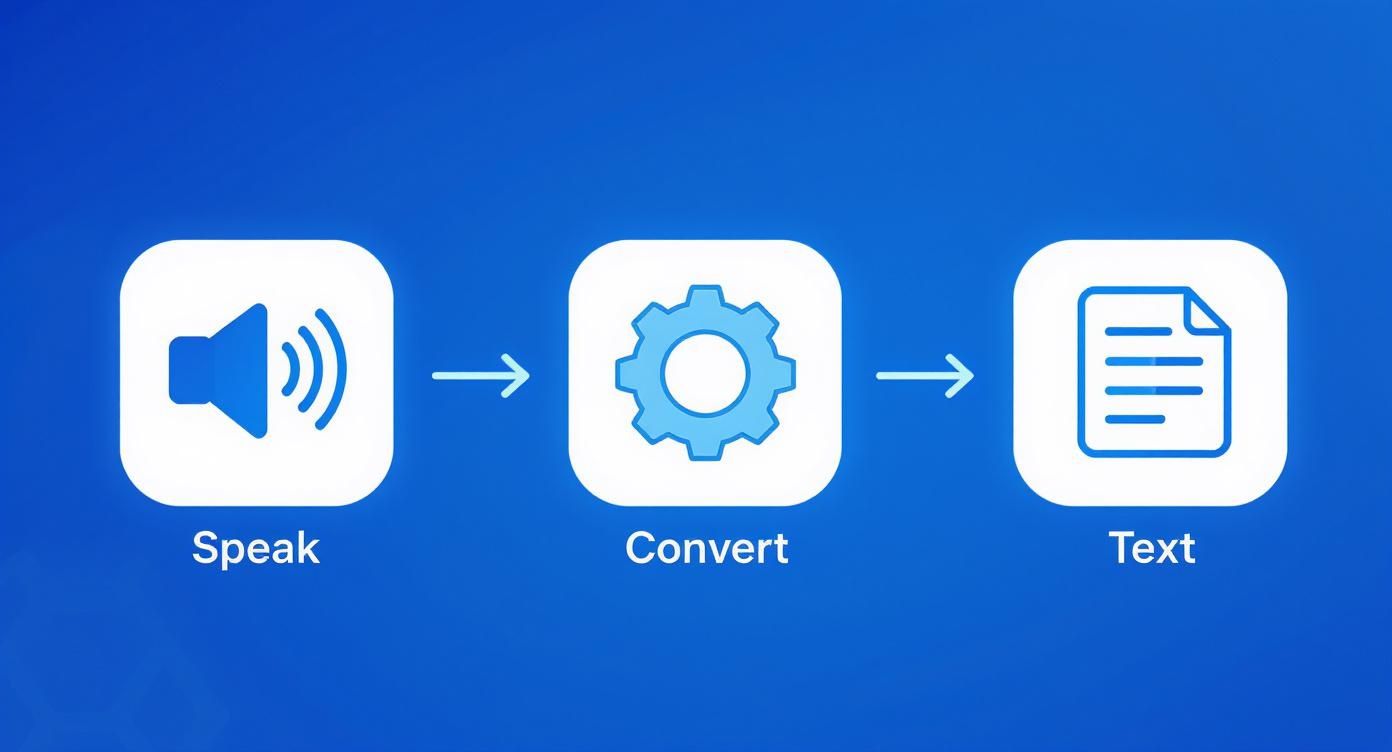
This change from spoken words to typed text happens behind the scenes. It lets you focus on your thoughts, not the computer.
Your First Note by Talking
Okay, you're ready to make your first note. Just hit record and start talking. It can be a list of things to buy at the store, an idea for a school project, or a reminder for tomorrow. Just let your thoughts come out.
Here are some tricks I've learned:
- Talk at a normal speed. Don't talk super fast or super slow. Just be natural.
- Say your punctuation. To put a period at the end of a sentence, just say the word "period." You can also say "comma" or "question mark." To start a new thought, say "new paragraph."
- Don't worry about small mistakes. If the app hears a word wrong, keep going. You can fix it later by tapping the screen. The important part is to get your ideas down fast.
It's like leaving a voicemail for a friend. If you want to learn how to turn old voice recordings into text, our guide on a https://www.writevoice.io/blog/voice-memo-to-text-converter/ can show you how.
With these easy tips, you'll be taking notes with your voice in no time.
How to Keep Your Spoken Notes Tidy
Catching your thoughts with your voice is great. But the real magic is finding them later. If you don't have a good system, your notes will be a big mess. A little bit of tidying up now will save you a big headache later.
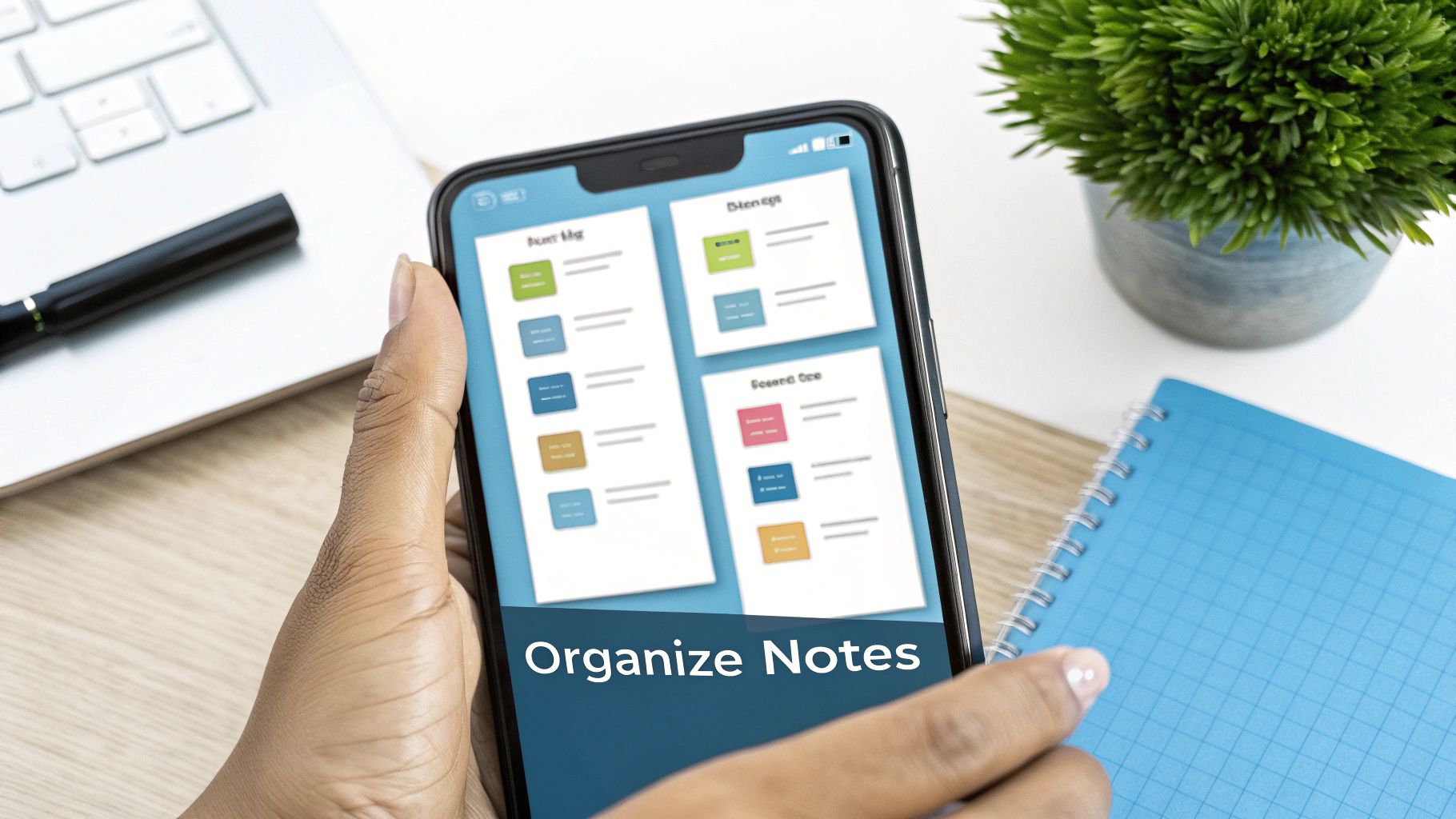
Think about it like a toy box. You wouldn't throw all your LEGOs, dolls, and cars into one box. You'd keep them in separate bins so you can find them. Your notes need the same care.
Use Your Voice to Make It Look Nice
A great time-saver with speech to text note taking is that you can format your notes as you talk. You can tell the app how to make the text look. It's like having a helper who writes everything down for you.
For example, when you're done with one idea and want to start another, just say "new paragraph." The app will start a new line. This keeps your ideas from turning into one giant block of words.
Lists also make things clearer. Instead of a messy sentence, you can say voice commands to make a list:
- Say “Start bulleted list” to make a list with dots.
- Use “Start numbered list” to make a list with numbers.
- Just say “Next item” to go to the next point in your list.
Saying these commands while you talk turns your ideas into a neat document without you ever touching the keyboard.
Tag Everything to Find It Later
Tags are like secret code words that help you find your notes. They are like little sticky notes that sort your ideas. This makes speech to text note taking super powerful.
Let's say you're on a walk and have a great idea for a science project. You can take out your phone, talk your idea, and then say, "add tag science" and "add tag homework." A week later, you can just search for "science," and your note will pop up.
Think of tags like special groups for your notes. One note can be in many groups at once. A note about a school trip could be tagged with 'permission slip,' 'what to pack,' and 'field trip.'
Doing this turns a bunch of random notes into a web of ideas you can actually use. To learn more about keeping digital files in order, these document management best practices have some great ideas that work for notes, too.
Connect Your Notes to Your Other Tools
Your notes don't have to be lonely. They are most powerful when they can talk to your other tools, like your calendar or email. When your note-taking app, like WriteVoice, is connected to your other apps, your ideas can turn into actions.
Imagine you finish talking with your teacher and say a few important things you need to do. With the right setup, you could say, "Create a calendar event for Friday at 3 PM to turn in homework," and it will be added to your calendar. Or, you could talk out a summary of a group project and have it automatically sent to your teammates' email.
This connects your spoken notes to your life. It makes your ideas do the work for you.
Cool Tricks for Taking Notes
Once you're good at talking instead of typing, you can learn some next-level tricks. These tricks aren't just about going fast. They change how you save and use information.
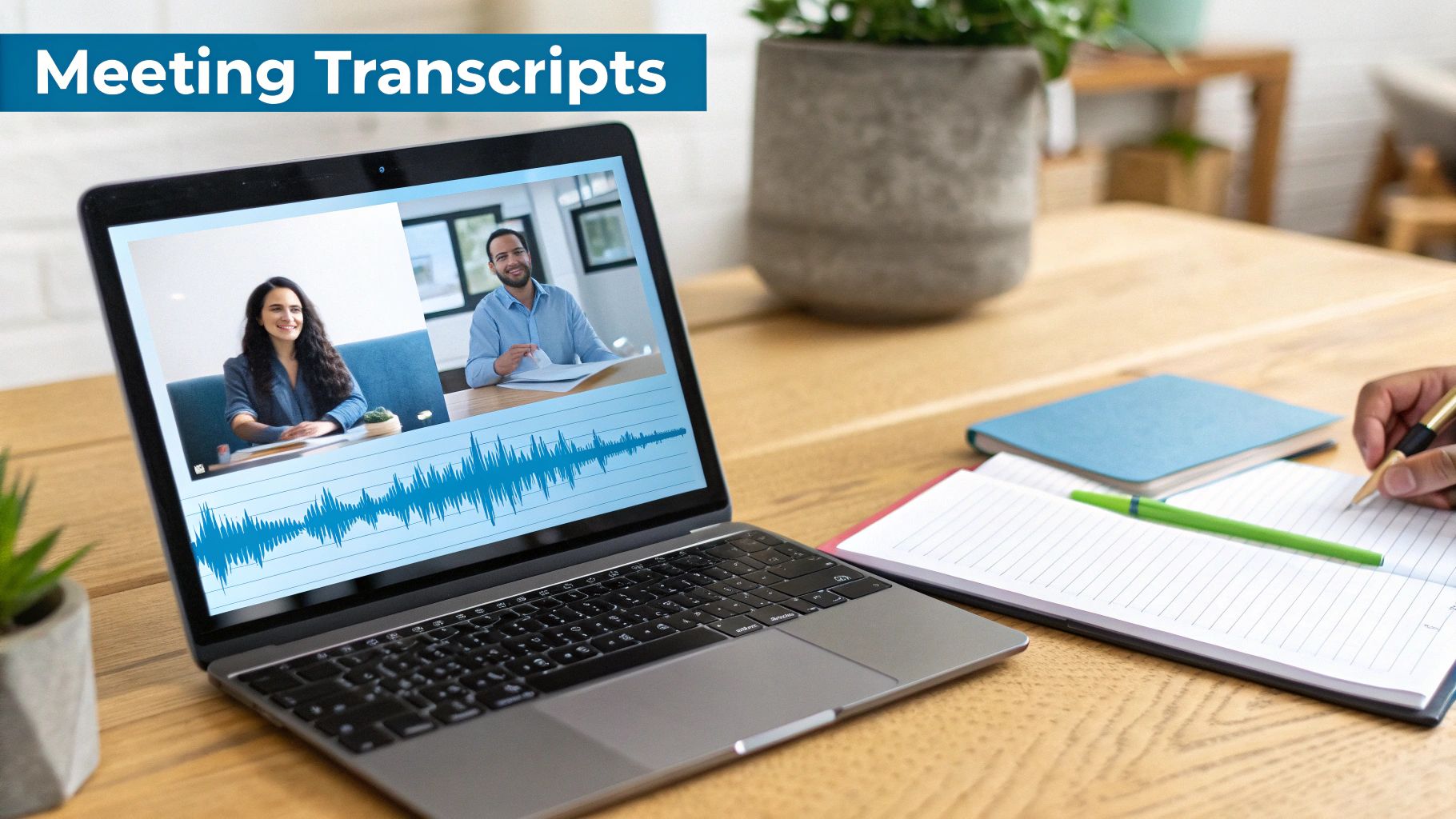
Think about the last time you were in an online class. Were you trying to listen, learn, and type notes all at once? It's really hard to do. Studies show that about 60% of people who work from home have trouble remembering what was said in online meetings.
With a tool like WriteVoice, you don't have to juggle. Just press record and let the meeting happen. You can pay full attention, knowing that every word is being saved for you.
Teach WriteVoice Your Special Words
Do you use special words for school, like "photosynthesis," or for your favorite video game? It's annoying when your note-taking app always spells those words wrong.
The secret is to make a custom dictionary. This is like giving WriteVoice a cheat sheet for your special words.
- First, go into the WriteVoice settings and find "Custom Dictionary" or "Vocabulary."
- Next, add your special words. It could be your friend's name, a science term, or a project name.
- Once you save them, WriteVoice will spell those words right every time.
This one little step saves you from fixing the same mistakes over and over. It makes the app feel like it was made just for you.
I think of it like teaching a new friend how to say your name. The first time, you have to say it slowly. After that, they just know it. Your custom dictionary does the same thing for your notes.
Fix Your Notes with Voice Commands
Here is where it feels like magic: fixing mistakes without touching your keyboard. Instead of stopping to fix a word, you can use your voice.
This is a powerful trick for speech to text note taking. It helps you keep your great ideas flowing without stopping.
Here are some commands I use all the time:
- "Delete last sentence": This is great if you want to start a thought over.
- "Bold that": This makes an important word or idea stand out.
- "Undo": My favorite! It's like a backspace button for your voice.
Learning to use these commands makes taking notes feel more like having a conversation. You can create and fix a whole page of notes just by talking.
Fixing Common Problems
Even the best tools can have a little trouble sometimes. If your notes from WriteVoice aren't perfect, the fix is usually very simple. You don't need to be a computer expert.
Most of the time, mistakes happen for one reason: the app can't hear you well. Think about trying to hear a friend talk at a loud party. It's hard! The software has the same problem.
How to Fix Noisy Backgrounds
The biggest enemy of good notes is background noise. A loud fan, a TV, or a dog barking can confuse the software. It tries to write down every sound it hears, not just your voice.
The easiest fix is to find a quiet spot. You don't need a soundproof room. Just moving away from an open window or turning off the TV can make a big difference. This gives your microphone a clear sound to work with.
Another good tip is to use a headset with a microphone. These microphones are close to your mouth. This helps them hear your voice and ignore other sounds. This is a great idea if you take notes at a busy place like a coffee shop.
Here's a simple rule: if a person would have trouble hearing you, the app will too. Making a room just a little bit quieter can make your notes a lot better.
Check Your Microphone
Sometimes the problem isn't the room, but your microphone. Your computer or phone might have more than one microphone, and WriteVoice might be listening to the wrong one.
Check the app's settings. Make sure it's using the microphone you want it to use, like your headset's microphone instead of the tiny one on your laptop.
Where your microphone is matters, too. Don't hold your phone right against your mouth, but don't have it across the room either. About one foot away is perfect. Talk to the microphone, not past it. To learn more, our guide on how to improve speech to text accuracy has more great tips.
How You Talk Matters
Finally, how you talk is very important. You don't need to talk like a robot. But speaking clearly and at a normal speed helps the software a lot. Mumbling or talking too fast will make your notes messy.
Try to talk in full sentences. Take a small pause between ideas, just like when you talk to a friend. This gives the app a moment to catch up. This little change can fix many common mistakes and make everything work better.
Why Talking Your Notes is the Future
Taking notes with your voice feels like having a superpower. But it's becoming the new normal because it's so helpful. It's a new way to save ideas that solves real problems. It gives you a helper who is always ready to write for you. This lets you focus on your idea, not on typing.
Imagine a busy doctor. Instead of typing notes about a patient, she can just talk. The notes are written down right away. Or think of a student in a big class. He can record everything the teacher says without having to type like crazy and miss something important.
A Tool We'll All Use
Many of us work or learn from home now. We need better ways to catch our ideas when we are not at a desk. This is where speech to text note taking is amazing. It lets you save an idea while you are on a walk, in the car, or even making a snack.
This isn't just a small trend. The numbers show it's a big deal. The world is expected to spend almost US$8.77 billion on voice tools by 2025. This shows that people want easier ways to get things done with their voice. You can learn more about why so many people are using this by reading the full report on voice-to-notes technology.
Talking is becoming the easiest way to use our gadgets. We are moving away from clicking and tapping. Soon we will just talk to make things happen.
This means that talking to your computer will feel as normal as sending an email. It's not something from a sci-fi movie anymore. It's becoming how we all work and think.
Common Questions About Voice Notes
Trying speech-to-text for the first time? It's normal to have questions. It's a new way to get your thoughts down. Let's answer some of the most common questions people ask.
Most people worry if it will get the words right. I understand. But today's speech to text note taking tools are very good. They can be right over 95% of the time if you are in a quiet place with a good microphone.
What's even cooler is that the software learns your voice. The more you use it, the better it gets at understanding you.
What About Different Accents?
This is a great question. The answer is yes! The computer brains behind these tools learn from millions of voices from all over the world. They are built to understand how different people talk.
So, it doesn't matter if you have a strong accent. The app is made to understand you. It might take a little time to get used to your voice, but a good tool will learn fast.
I think of it like a new friend learning how you talk. At first, they might not catch every word. But after a few chats, they understand you just fine. Good speech-to-text apps are like that.
How Do I Fix a Mistake?
If the app gets a word wrong, it's easy to fix. You can always use your keyboard to change it, just like any other text.
But here is the really cool part: many apps let you fix things with your voice. You can say simple things like “correct that” or “undo” to fix a mistake without stopping. This helps you stay focused on your idea.
It's okay to have questions when you try something new. Here are some quick answers to the most common ones.
| Common Questions About Speech to Text Notes |
|---|
| Are speech to text notes accurate? Yes, they are very accurate today. They are often more than 95% right if you are in a quiet place with a good microphone. The more you use it, the better it gets at understanding your voice. |
| Can it understand different accents? Yes. These tools are trained with voices from all over the world, so they are made to understand many different accents. It might take a little time to learn your voice, but it will catch on. |
| What's the best way to fix mistakes? Fixing mistakes is simple. You can use your keyboard. But many apps also let you use your voice to fix things. You can say 'correct that' or 'undo' to make changes without stopping what you're doing. |
I hope that helps. The best way to see how it works is to just give it a try!
Ready to turn your voice into perfect notes in seconds? WriteVoice makes speech to text note taking easy. You can focus on your ideas, not on typing. Try it for free and see how much faster you can work. Get started with WriteVoice today!