
A Simple Guide to Speech to Text in Linux
Using speech to text in Linux is like talking to your computer and having it type for you. You can tell it a story, an email, or even computer code, and it will write it down. It is easier to set up on your Linux computer than you might think.
How to Talk to Your Linux Computer

Do you ever want to give your fingers a rest? You can just tell your computer what to write. New tools can turn your voice into words on the screen right away. This can make writing, coding, or taking notes much faster.
This guide will show you how to use your voice to type on Linux. We will look at two main ways. One way keeps your words private on your computer. The other way sends your voice to the internet to get the words just right.
Why Is This So Cool Now?
More and more people are using Linux on their home computers. Because so many people use it, they want fun and easy tools. Talking to your computer is a tool lots of people want. So, smart people are making better and better voice tools for Linux.
In fact, as more people used Linux desktops, from about 3 out of 100 people in 2022 to almost 5 out of 100 people in 2025, more people wanted voice tools. This means we have great voice tools to choose from today.
The real magic of talking to your computer is not just that it's fast. It’s about making your computer feel more like a friendly helper that understands you.
Two Paths to Choose From
When you want to use speech to text in Linux, you have two choices. Knowing the difference helps you pick the best tool for you.
- Offline Tools: Think of these like a secret diary. Everything you say is turned into words on your own computer. Your voice never goes on the internet. This is super private and works even if you have no internet.
- Cloud Tools: These are like asking a super-smart robot helper. Your voice is sent to a big computer on the internet that is very good at understanding words. This is great for school or work when you need every word to be perfect.
The choice is about what you care about more: keeping your words a secret or getting the words exactly right. You can find out more about different speech to text software to see what is out there. In this guide, we will show you how to set up both kinds.
Choosing the Right Tool for Voice Typing
Picking the right tool for speech to text in Linux is like choosing between a bike with training wheels and a race car. One is safe and simple, while the other is super fast and powerful. You have to decide what you need.
Your choice is between two types of tools: ones that work on your computer (local) and ones that use the internet (cloud). Let's see what makes them different so you can pick the best one for you.
Keeping Your Words a Secret with Local Tools
Local tools are like your secret diary. When you talk, your computer does all the work to change your voice into words. Your words never go on the internet. This is great for keeping secrets.
Imagine you are saying your secret thoughts, homework answers, or a private story. You want to be 100% sure no one else hears it. Local tools promise this because your voice never leaves your computer. Plus, you can use them anywhere, like in a car or at the park, with no internet.
Two great local tools for Linux are Vosk and Whisper.cpp.
- Vosk is small and fast. It works well on computers that are not very powerful, like a small Raspberry Pi or an old laptop.
- Whisper.cpp is a very smart tool made to work on your computer. It is good at understanding how different people talk and can work even if it's a little noisy.
The only tricky part is that these tools can be a little harder to set up. Sometimes, they might not understand a strange or big word as well as the internet tools.
Getting Perfect Words with Cloud Tools
Cloud tools are like having a team of super-smart librarians listening to you. When you talk, your voice is sent over the internet to big, powerful computers owned by companies like Google or Amazon Web Services (AWS). These computers figure out what you said and send the words back to you super fast.
The best thing about cloud tools is how well they understand you. Because these big computers have listened to millions of people talk, they are amazing at getting the words right. They are great at understanding hard words, grown-up job words, and even when you talk very fast.
This makes cloud tools the best choice when you need perfect words, like for a school report, a video with words at the bottom, or an important meeting.
But to use them, you must have the internet. Also, you are sending your voice to a company's computer, which you might not want to do with secret information.
Choosing between local and cloud tools is like choosing between a lock for your diary and a smart helper. One keeps things safe, and the other gets things perfect. The best choice is the one that's best for your job right now.
A Simple Chart
This little chart helps you see the differences side-by-side.
Local vs. Cloud Tools
| What it's like | Local Tools (Vosk, Whisper.cpp) | Cloud Tools (Google, AWS) |
|---|---|---|
| Secrets | Super Safe. Your voice stays on your computer. | Needs Trust. You send your voice to a big company. |
| Internet | Nope. Works anywhere, anytime. | Yes. You need to be online. |
| Getting Words Right | Good. Can sometimes make mistakes with tricky words. | Amazing. Gets almost every word right. |
| Money | Free. You use your own computer's power. | Pay to Use. Can be free at first, then costs money. |
| Set Up | A Little Tricky. You might need to type in commands. | Easier. You just need a special password to start. |
This chart shows the main choice. If you are writing a secret story or have bad internet, a local tool is your best friend. But if you need a perfect copy of a teacher's talk, a cloud tool is probably the better choice.
To see more tools, you can look at the best free transcription software that are out there.
Your First Project with a Local Tool
Are you ready to talk to your computer and watch it write down your words? Let’s try it with a local tool. The cool part is that your words stay on your computer, so they are totally private. We will use a tool called Vosk, which is great for beginners.
We will do a simple job. Imagine you are making a list of things to buy at the store. Instead of typing, you will just say the words. We will have Vosk write them down for you in a file.
Getting Vosk Ready to Listen
First, we need to put Vosk on your Linux computer. This sounds hard, but it’s just telling your computer to get a new tool. You will use the terminal, which is a special screen where you can type commands for your computer.
The easiest way to get Vosk is with a tool called pip. Most Linux computers already have it.
Open your terminal and type this command:
pip3 install vosk
That's it! Your computer will find Vosk and set it up for you. This only takes a few seconds. As more people use Linux, which now has a 4.7% share of desktops in the world, setting up tools like this has become super easy. If you want to learn more about how big this is, you can read a report at in-depth industry analysis on GrandviewResearch.com.
This picture shows how your voice becomes words. It helps you see the choice between keeping it on your computer or sending it to the cloud.
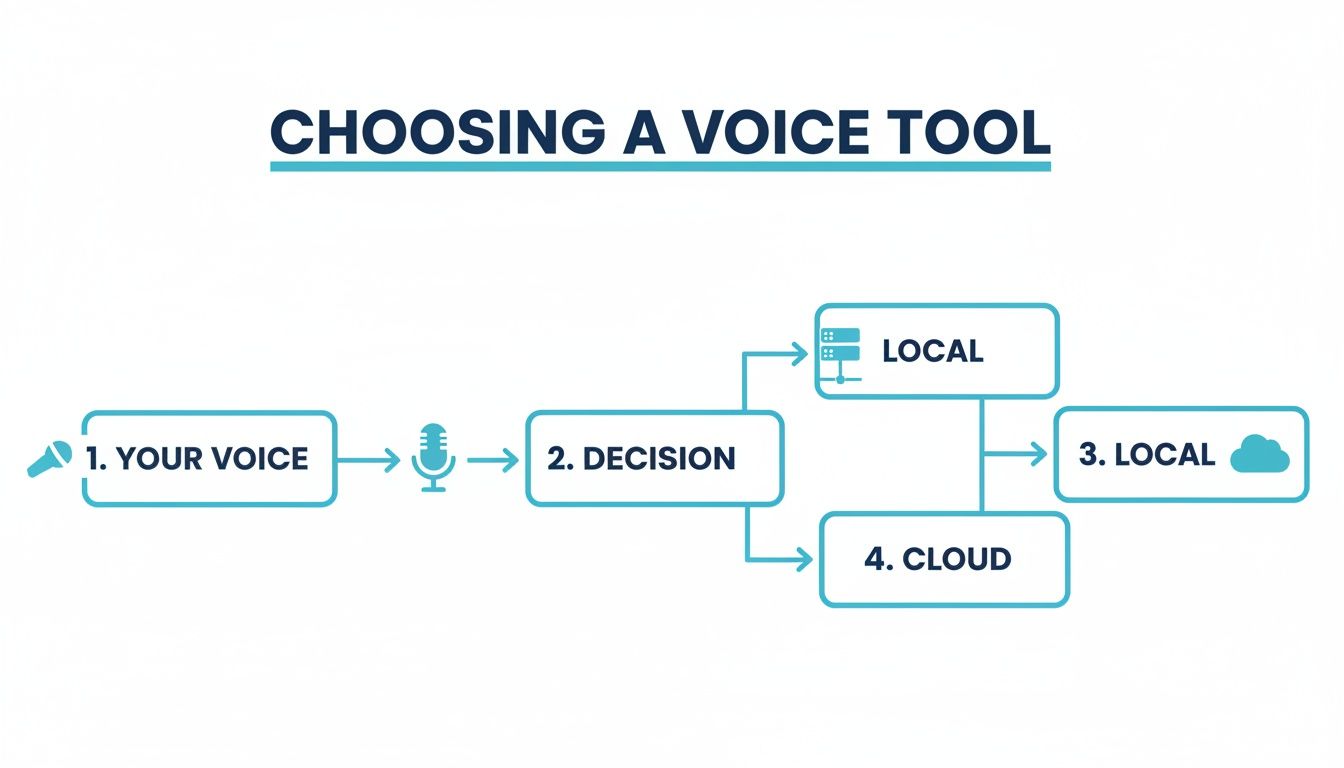
As you can see, the first choice is the most important one. For this project, we are staying on the local path to keep our words private.
Downloading the Tool's Brain
Vosk is the engine, but it needs a "brain" to understand what you are saying. This brain is called a language model. Think of it like a dictionary and a grammar book for the computer. We need to download one for English.
You can find different models on the Vosk website. For our first project, a small one is perfect. It is fast to download and does not take up much space.
Make a new folder for our project. Download the small English model from the Vosk site and put it in your new folder. You will need to unzip it. Now you have the engine (Vosk) and the brain (the model) ready to go.
The best thing about local speech-to-text on Linux is that you are in charge. You pick the tool, you pick the language brain, and you decide where your words go.
Turning Your Voice into a Shopping List
Now for the fun part. You need to record yourself saying a short shopping list. You can use any recording app on your computer or a phone.
Just record yourself saying: "milk, bread, eggs, and cheese."
Save this sound file in the same project folder with the language model. Let's name it groceries.wav. Using a WAV file is a good idea because most tools can read it.
Now, a tiny bit of computer code will connect everything. This code will:
- Tell the computer to use Vosk.
- Show Vosk where the language model (the "brain") is.
- Open your
groceries.wavsound file. - Listen to the sound and change it into words.
- Show the words on your screen.
When you run the code, you will see "milk, bread, eggs, and cheese" appear. You just finished your first speech-to-text in Linux project! This shows how easy it is to turn your voice into words right on your own computer.
Using Cloud Tools for Perfect Words

Sometimes, "good enough" is not good enough. When you need every word to be perfect, like for a school project or a video, you need the very best. This is where cloud tools for speech to text in Linux are amazing. They get the words right almost every time.
Think of it like this: a local tool is like a dictionary you have at home. It’s good, but it might not have every word. A cloud tool is like talking to a librarian who has read every book in the world. These internet services use huge computers to understand your voice perfectly.
Why the Cloud Is So Good
The secret is that they have listened to so much talking. Big companies like Google and Amazon have taught their computers with millions of hours of sound from all kinds of people. This makes them great at understanding:
- How you talk: They can understand people from different places with different accents.
- Special words: If you are a doctor or a scientist, the cloud knows your big words.
- Noisy places: They are good at hearing your voice even if other things are happening in the background.
To use this power, your Linux computer needs an API key. This is like a secret password. It tells the cloud service that it's you and lets you use their smart computers.
Talking to a Cloud Service
Getting your API key is the first step. You sign up with a cloud company. Many of them give you a free amount to use every month. This is great for trying it out without paying any money.
Once you have your key, you use it in a small bit of code. The code sends your sound to the cloud and gets the words back. Imagine you want to write down the words from your favorite cartoon. Your code would do three simple things:
- Use your API key to say hello to the cloud service.
- Send the cartoon sound file over the internet.
- Get the perfect words back in just a few seconds.
The best part about using the cloud for speech to text in Linux is that it makes something very hard feel very easy.
Using a cloud service is like borrowing a superhero's brain. You get all the power without having to build the superhero yourself.
Of course, sending your voice over the internet means you should be careful. Learning about cloud computing security helps you keep your information safe when you use these powerful tools.
What It Looks Like
The computer code does not have to be long or hard. Most cloud companies give you simple examples to help you start. For example, a few lines of code could take a sound file like teacher_talk.wav and send it to get the words back.
The result is a clean text file with all the right words. This makes it super fast to get the words from a class, an interview, or any other important sound. If you want to see other ways to turn your sound into words, our guide can show you how to convert speech to text online with different tools.
By connecting to the cloud, you can make your Linux computer one of the best word-listeners in the world.
Simple Tips for Better Voice Typing
Getting your Linux computer to understand you is easy. You do not need a fancy microphone or a quiet room like a library. From my experience, a few small changes can make your speech to text in Linux work much better. It can turn messy sentences into perfect ones.
Think about talking to a friend in a loud lunchroom. If you mumble or it's noisy, your friend won't hear you well. Your computer has the same problem. The easiest fix is to find a quiet place. Just closing your door can help block out sounds like the TV or other people talking.
Pick a Good Microphone
Your microphone is the most important part. The microphone built into your laptop will work, but it's not the best. It picks up all the sounds around you, like your computer's fan and echoes in the room.
A headset with a microphone is much better. Even the simple earbuds that came with your phone are a big help. Why? Because the microphone is right next to your mouth. It hears your voice clearly and blocks out other noises. This clean sound helps the computer understand you perfectly.
The goal is to give the computer the clearest sound of your voice. A simple $20 headset can help more than anything else. It's the best and cheapest way to get better results.
How You Talk Is Important
You don't have to talk like a robot. Just changing how you speak a little bit can make a big difference. Try to talk at a normal, steady speed. Don't talk too fast or too slow. Saying your words clearly, without sounding stiff, helps the computer understand each word.
Before you start talking for a long time, do a quick sound check. Just say something simple like, "Hello, computer, can you hear me?" and see what it types. This is a fast way to make sure your microphone is on and the sound is good.
- Speak Clearly: Don't mumble. Make sure your words are easy to hear.
- Keep a Normal Speed: Talking too fast makes words run together.
- Be Consistent: Try to keep your voice at the same volume and stay the same distance from the microphone.
Doing these things will stop a lot of frustrating mistakes.
Picking the Right Brain for the Job
When you use a local tool for speech to text in Linux, you will need to choose a "language model." Think of this as the tool's brain. It's a file that has all the sounds, words, and rules for a language.
These brains come in different sizes. You have to choose between speed and smarts.
- Small Models: These are little and fast. They work great on computers that are not very powerful. They are good for short notes but might not know big or strange words.
- Large Models: These are the big brains. They are much better at understanding tricky sentences or special words. But they need a more powerful computer to run well.
For most talking and writing, a small or medium model is just right. It is a good mix of speed and smarts. If you see too many mistakes, you can try a bigger model to see if it helps.
Answering Your Top Questions About Speech-to-Text on Linux
Trying new things can bring up questions. Let's talk about some of the biggest questions people have about using their voice to type on Linux. You might be wondering about what kind of computer you need, if it costs money, and if it's private.
These are the questions people ask when they are ready to start. The good news is that the answers are usually very simple.
Do I Need a Super-Fast Computer?
Lots of people worry about this, but you can relax. No, you don't. A fast computer is nice, but today's voice tools work well even on normal computers. This is especially true for the local tools that work offline.
For example, a tool like Vosk can run on a tiny computer like a Raspberry Pi. That means your normal laptop or desktop is more than powerful enough. You do not need a fancy gaming computer to make speech to text in Linux work.
The microphone you use is more important than how fast your computer is. A good, clear sound from a cheap headset will work better than a noisy sound on a super-fast computer.
Are There Good Free Tools?
Yes, for sure! This is one of the best things about Linux. You can set up an amazing voice typing system without paying any money.
Many of the best and smartest tools are free for everyone to use. This is especially true for the local tools that keep your words private.
- Vosk: A great tool to start with. It's free, works offline, and you can use it for many things.
- Whisper.cpp: Another amazing free tool. It is very good at understanding different ways of talking and blocking out noise.
Both of these tools are being made better all the time by lots of helpful people. You can build a system that works as well as the ones that cost money.
How Can I Keep My Voice a Secret?
Keeping your thoughts private is very important. With Linux, you are in control of your words. You can be 100% sure your voice never leaves your computer.
The secret is to use a local tool that works offline. When you use a local tool, everything happens on your own computer.
- Your microphone hears your voice.
- The voice tool on your computer turns it into words.
- The words appear in whatever you are working on.
Your voice never goes on the internet. This is a huge plus compared to most cloud tools and gives you total peace of mind.
Can It Understand Me If I Talk differently?
Yes, new tools are very good at this. Voice tools today are much smarter than they were a few years ago. They have been taught with voices from people all over the world.
Some older tools might have trouble, but a tool like Whisper is famous for understanding many different accents. If one tool doesn't understand you well, just try another one. You will probably find one that works great for you.
At WriteVoice, we believe your voice is your most powerful tool. Our software takes the best of this technology and makes it effortless, turning your spoken words into polished text in under a second, right inside any app you use. Reclaim your time and write up to four times faster. Explore how we can transform your workflow at https://www.writevoice.io.