Shortcut for Dictation on Mac: How to Talk to Your Computer
Want your Mac to type for you? The fastest way is to press the Function (Fn) key two times. A little microphone picture will pop up. This shows your Mac is listening and ready to type what you say. This is the main shortcut for most new Macs, and it works right away.
Your Mac Can Type What You Say
For most people, talking is way faster than typing. Think about writing a long email or a school paper just by talking. Your Mac has a tool called Dictation that does this. It turns your words into text on the screen. It's a great way to write down your thoughts fast or to give your hands a rest.
This tool is already on your Mac, so you don't need to add anything. It's a super helpful tool that's ready when you need it. You just need to know how to turn it on.
Find and Change Your Shortcut
The normal shortcut to start talking-to-type is to press the Fn key twice (it might have a picture of a globe 🌐 on it). But what if you don't like that shortcut? No problem. Apple makes it easy to change.
You can change the shortcut to something else, like pressing the right Command key two times. You can pick from a few choices in your Mac's settings.
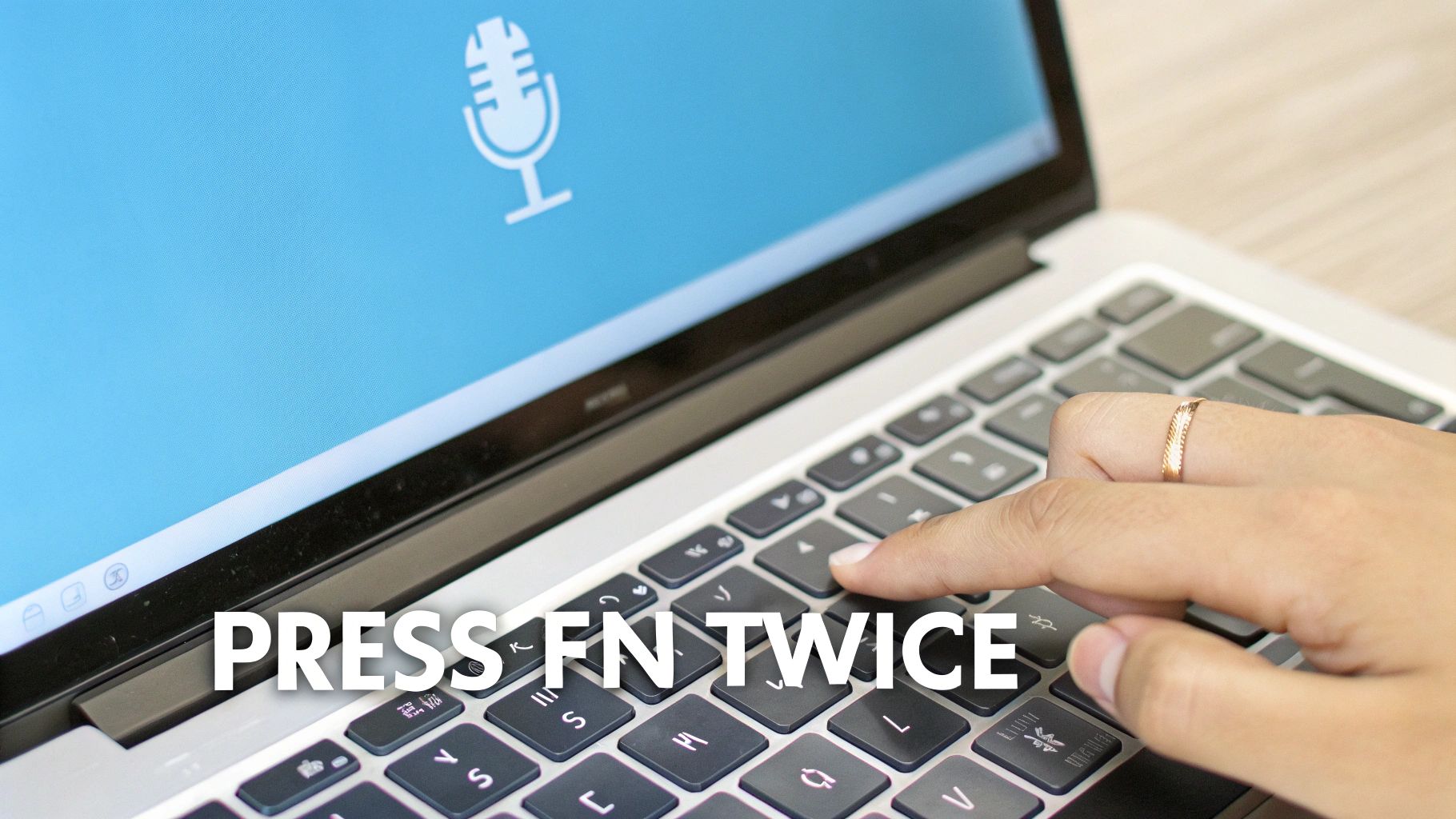
Here is a quick list of the most common shortcuts.
Common Mac Dictation Shortcuts
| Keyboard Type | Shortcut to Use | What You See |
|---|---|---|
| Newer MacBooks | Press Fn key twice | A microphone picture shows up by your mouse. |
| Older MacBooks & Keyboards | Press Control key twice | A microphone picture shows up on the screen. |
| Your Own Setting | The keys you pick (like Right Command twice) | A microphone picture shows up when you press your keys. |
Remember, these are just the starting shortcuts. You can always change them in System Settings to make them perfect for you.
To learn about all the things you can do with your voice, you can look at a comprehensive guide to Speech To Text on Mac. And if you want to learn even more ways to use your voice, we have a guide here: https://www.writevoice.io/blog/speech-to-text-mac-os/.
How to Turn On and Change Your Shortcut
What if you press the Fn key two times and nothing happens? This happens sometimes, and it's easy to fix. Dictation is probably just turned off. It's like a light switch that you need to flip on.
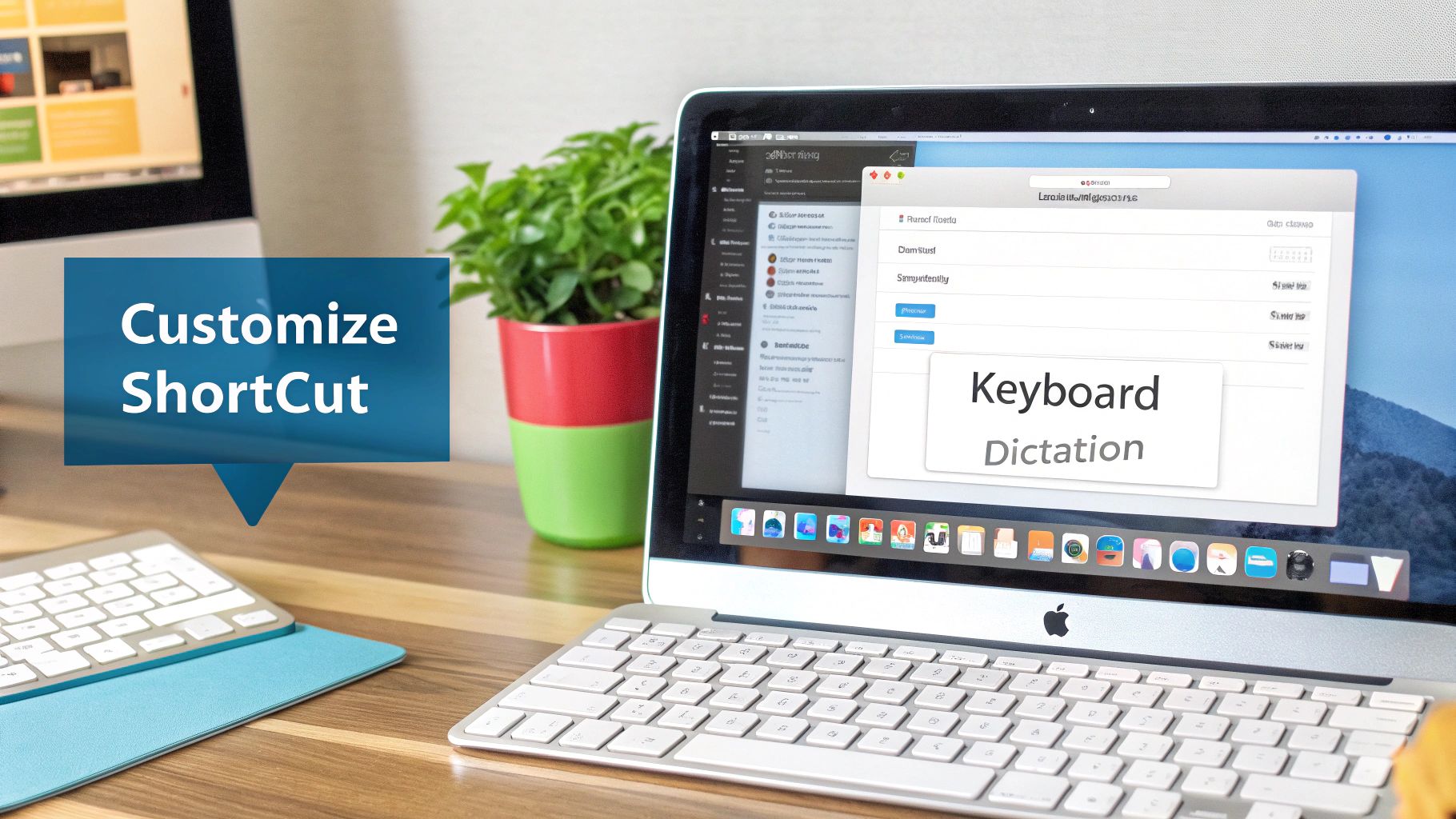
First, you need to go to your Mac's main settings. This is called System Settings on new Macs. It might be called System Preferences on older ones. Find and click on Keyboard. This is where you'll find the main switch for Dictation—just turn it "On."
Making the Shortcut Your Own
What if pressing the Fn key twice feels weird? Or what if another app you use already uses that shortcut? This is where you can change the shortcut for dictation on mac to work better for you.
Right next to the Dictation "On" switch, you will see a menu for "Shortcut." Apple gives you other choices. For example, you could change it to:
- Press Right Command Key Twice
- Press Left Command Key Twice
- Press Either Command Key Twice
Sometimes, just picking one of these makes it easier to use or stops it from messing with another program.
A cool trick is to pick "Customize." This lets you make your very own shortcut. You could make it something like Control + Option + D. That way, you won't ever start it by accident.
Most people use Fn-Fn, but many people who use Macs a lot change it. They do this so it doesn't get in the way of their work programs. If you want to see what other people do, you can discover more insights about Mac dictation shortcuts and see what other people pick.
Dictation Tricks for Faster Typing
Once you have your favorite shortcut for dictation on Mac, you can do more than just type words. You can use voice commands to tell your computer what to do. It makes typing faster in cool ways.
The small things make a big difference. For example, you can add emojis to your text just by saying their names. Try saying "smiley face emoji" or "heart emoji" when you are talking to a friend. It's a fun trick that makes your messages more fun.

Adding Punctuation by Talking
Besides emojis, you can also tell your Mac how to write your sentences using your voice. Your Mac is pretty good at understanding commands for punctuation.
Instead of typing, just say the punctuation out loud:
- Say "period" to end a sentence.
- Say "comma" when you need a little pause.
- Say "question mark" when you ask a question.
- Say "new line" to start a new paragraph.
Doing this turns your spoken words into a neat paper. It saves you from having to go back and fix everything later. Learning these small commands helps you get better results. You can learn more in our guide on speech-to-text accuracy.
A Special Trick for Newer Macs
If you have a newer Mac with an Apple computer chip, you get a big bonus: on-device dictation. This is a great feature. It means your Mac does all the work of listening right on the computer. It doesn't send your words to the internet.
This offline trick is great for keeping your words private and for making it faster. Your words stay on your computer, so it is safer. It's like whispering a secret to your Mac instead of shouting it across a room.
Before, Mac dictation needed the internet and would stop after about 30 seconds. This was not fun if you had a lot to say. Now, because the work is done on the Mac, dictation is faster, works better, and you can talk for a much longer time. This is why dictation is now a great tool for real work.
What to Do When Your Shortcut Doesn't Work
So, you pressed your shortcut, and… nothing. The little microphone picture did not show up. This can be annoying, but don't worry. This is a common problem, and it's usually easy to fix.
Most of the time, the problem is that your Mac is not sure which microphone to listen to. Your Mac needs to know where the sound is coming from.
Check Your Microphone
First, let's make sure your Mac is listening to the right microphone. Go to System Settings, then click on Sound.
Inside the Sound settings, look for the "Input" tab. This is where your Mac shows all the microphones it can use. It could be the one built into your Mac or one you plugged in.
This picture shows you what to look for in your Mac's sound settings.
Make sure the microphone you want to use is picked. To test it, talk into the microphone. You should see the input level bar move up and down. This tells you it can hear you.
If your microphone seems to be right, try turning dictation off and on again. Go back to System Settings > Keyboard > Dictation. Flip the switch off, wait a moment, and turn it back on. This simple reset often fixes small computer bugs.
A bad internet connection can also cause problems. If you don't have a new Mac, your voice is sent to Apple's computers to be turned into text. If your Wi-Fi is weak, your words might not get there.
If it's still not working, here are a few other things to try:
- Restart Your Mac: This is the oldest trick because it often works. A restart can fix many strange problems.
- Check for Updates: Go to System Settings > General > Software Update. Your Mac might have a bug that a new update can fix.
- Try a Different Shortcut: It's possible another app is using your shortcut. Go back to the Dictation settings and pick a new shortcut to see if that fixes it.
For most people, one of these easy fixes will get your Mac listening again. Then you can get back to talking instead of typing.
Other Cool Voice Tools on Your Mac
The normal dictation shortcut is great for writing down your thoughts. But what if you want to do more than just type? For that, your Mac has a special tool called Voice Control.
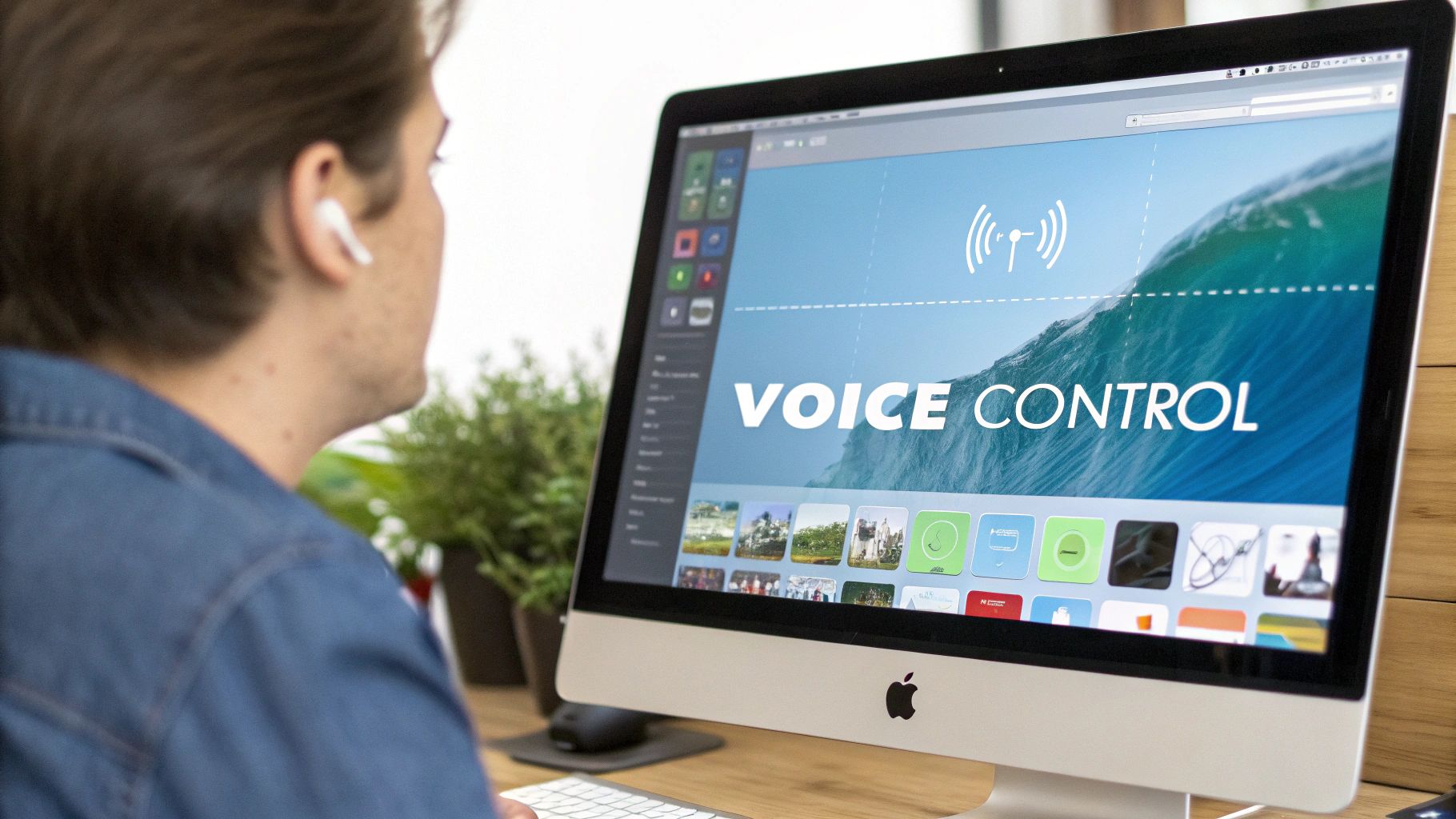
Think of it like this: Dictation is like someone who types for you. But Voice Control is like a driver for your whole Mac. It does more than just turn your words into text. You can say commands like "Open Safari," "Scroll down," or "Click the Done button," and your Mac will do it. This lets you use your computer without using your hands at all.
When You Need a Special Tool
Even with Voice Control, some jobs are better with a special tool. Imagine you have a long recording of a meeting or a class. Trying to type all of that with normal dictation would be very hard.
This is where special apps are great. These programs are made to do one thing: turn audio and video into text. You just give the app your recording, and it does all the hard work. It's a very helpful tool for people who need to write down what was said in interviews or meetings.
For people who are very busy, using a special app to turn recordings into text saves a lot of time. Instead of spending hours typing, an app can do it in just a few minutes and get it right.
If you often need to type out long recordings, it's a good idea to look for a special tool. Our guide on different dictation software for Mac can help you pick the right one. The built-in dictation is a great start, but the right tool can help you get work done much faster.
Your Top Mac Dictation Questions, Answered
If you are new to using dictation on a Mac, you might have some questions. People ask me these all the time, so let's answer the most common ones.
Can I Use Dictation Without Wi-Fi?
Yes, you can, but only if you have a new Mac with an Apple computer chip (like an M1 or M2 chip). This feature is called on-device dictation. It's great because it turns your words into text right on your computer. You don't need to be online.
If you have an older Mac, dictation still needs to send your voice to Apple's computers. So for that to work, you need a good Wi-Fi connection.
Does Dictation Cost Anything?
No, it's totally free. Dictation is a normal part of your Mac's system. You don't have to pay for it or sign up for anything when using the built-in shortcut for dictation on Mac.
Why Is Dictation So Slow Sometimes?
Slow dictation usually means you are using the older version that needs the internet. If your Wi-Fi is slow or Apple's computers are busy, it can take a long time for your words to show up on the screen.
I can tell you that using a Mac that does dictation on the computer is much better. Because it all happens right there, the text shows up almost as soon as you say it. It feels much faster.
Can I Use Dictation in Other Languages?
Yes! Your Mac can understand over 100 different languages. You can add more by going to System Settings > Keyboard > Dictation. Just click the "Language" menu and add the ones you need.
Once you add them, you can easily pick the language you want to speak in. This is very helpful for people who speak more than one language.
If you're looking for something even faster that always works, a special tool like WriteVoice can turn your words into text right away in all your apps. Give it a try and see how much time you can save.