12 Best Tools to Help Your Team Work From Home in 2025
When you work from home, your team is in different places. But the work still needs to get done well. The right tools can help a lot. They can turn a messy job into a smooth one. But there are so many tools to pick from! It can be hard to choose the best remote work productivity tools. This guide will help you.
We made a list of 12 great tools. They help with the biggest problems teams have when they work far apart. These problems are things like talking to each other, managing big jobs, and keeping papers safe. This is not just a list of what the tools do. We will show you how each tool works for real jobs. We will tell you who each tool is for, what it’s good at, and what might be tricky about it. This will help you pick the right tools for your team.
You will see pictures and links for each tool. We'll look at tools like WriteVoice, which lets you talk instead of type. We'll also look at Jira for big projects and Miro for drawing ideas together. Our goal is to help you find the best mix of tools for your team. Picking good tools is the first step. But how you use them is also very important. For more ideas, you can look at these actionable remote work productivity tips. Let's start and find the tools that will make your team great.
1. WriteVoice
WriteVoice is a top tool that changes how you write. You talk, and it turns your words into perfect writing. It is four times faster than typing. This means you can finish emails and reports very fast. It's a great tool for anyone working from home who wants to save time.
This app is more than a talking tool. It's like having a writing helper. When you talk, it takes out words like "um" and "uh." It fixes your mistakes and makes your sentences clear. This means your first try is often good enough to be your last, so you don't have to spend a lot of time fixing it.

Key Features & Use Cases
What makes WriteVoice a special tool is how it works with other apps. You can use it like a keyboard on your iPhone or as an app on your computer. Your words show up right in tools like Slack or Gmail. You don't have to copy and paste.
- For Project Leaders: Quickly talk to create detailed notes for your team on what to do next.
- For Bosses: Write secret notes or sum up what was said in a meeting in just a moment. The app does not save your voice, so it stays private.
- For Teams Around the World: You can change your notes into more than 30 other languages. This helps people from different places understand each other.
- For People in Busy Offices: It has a "Whisper Mode." You can talk very quietly, and it will still understand you. This way, you don't bother others.
Analysis & Practical Considerations
| Aspect | Details |
|---|---|
| Pros | Fast & Correct: It works in less than a second and gets almost everything right. Smart Fixing: It fixes your words, takes out filler words, and makes long thoughts short and clear. Private: It works right away and doesn't save your voice. This is great for important work. |
| Cons | Special Rules: It doesn't have special safety badges like HIPAA. Teams with strict rules need to check first. Which Phones?: It's not clear if it works on Android phones. It's best for people who use Apple products or the web. |
| Pricing | You can try it for free. You can also pay for more features. Sometimes you can buy it once and use it forever. |
| Best For | People who write a lot, like bosses, lawyers, and project leaders. It's very helpful for people who need to get their ideas down fast. |
To use WriteVoice even better, try using quick commands like "shorten" or "emojify." This helps you change your writing for any person you are talking to, from a serious post on LinkedIn to a fun message on WhatsApp. This is one of the best remote work productivity tools for turning ideas you say out loud into writing that is ready to share.
Website: https://www.writevoice.io
2. Microsoft 365 (Business plans)
Microsoft 365 is not just Word and Excel. It is a full set of tools for businesses. It helps everyone work together. It has apps like Teams for meetings, Outlook for email, and 1 TB of cloud space for each person. This makes it a key tool for many teams that work far apart. A big plus is that almost everyone knows how to use it.
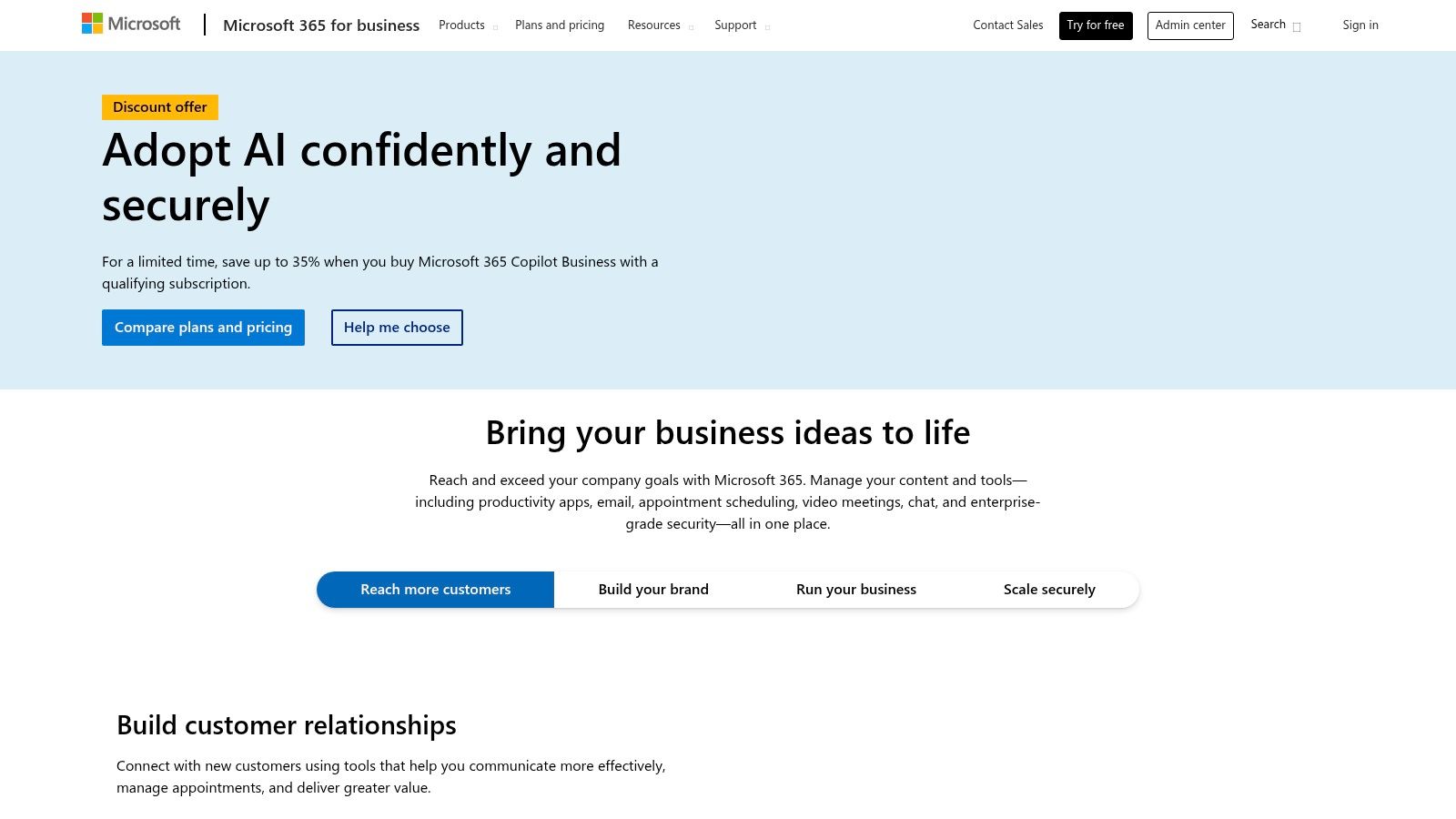
This set of tools is very good at keeping your work safe. Bosses can control who sees what and keep company secrets safe. This is very important for some jobs. For example, you can set rules on what people can do on their computers to protect the company's work, even when they are at home.
Key Details & Use Cases
- Best For: Companies that want one set of safe tools that everyone can use.
- Key Feature: Microsoft Teams is the main place for talking. It has chat, video calls, and file sharing all in one spot.
- Practical Tip: Use the apps together. For example, you and a friend can write in the same Word file inside a Teams chat. You don't have to email it back and forth. You can even make your writing faster by learning how to dictate in Microsoft Word.
| Pros | Cons |
|---|---|
| Most people know the apps and file types | Some apps do similar things, which can be confusing |
| Very safe and follows important rules | You get the best price if you pay for a whole year |
| Works very well with Windows computers | So many features can feel like too much for new people |
Website: https://www.microsoft.com/en-us/microsoft-365/business
3. Google Workspace
Google Workspace is a set of tools that live online. They are made for people to work together at the same time. This makes it great for teams that work from home and use the internet a lot. It has tools like Gmail, Meet for video calls, Drive for saving files, and Docs, Sheets, and Slides for writing. It is strong because it is simple and works on the web. Anyone on any computer can use it without putting special software on their machine.
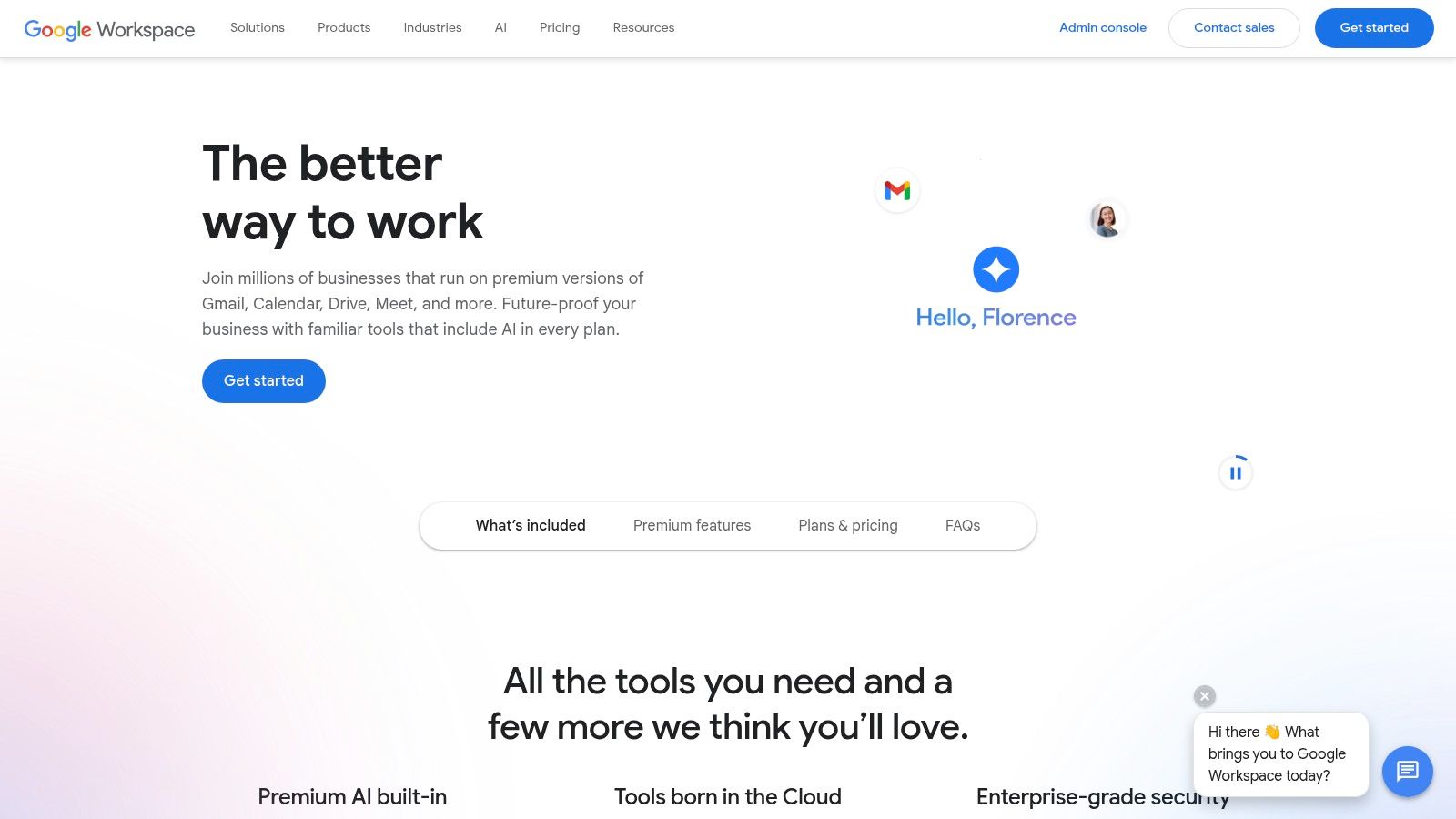
This tool is great because you don't have to worry about who has the newest version of a file. Everyone works on the same file online. This is a big help for projects that move fast. Google's great search is part of everything, so finding a file is very quick. Bosses can also control who can see files to keep things safe.
Key Details & Use Cases
- Best For: Teams that work online and need to work together in real time.
- Key Feature: You can have many people working in the same Doc, Sheet, or Slide at the very same time.
- Practical Tip: Use the sharing rules to control who can do what. You can let people only add comments for review or only look at a file when it's done. To work even faster, you can learn how to dictate in Google Docs to get your ideas down.
| Pros | Cons |
|---|---|
| Works on any computer with a web browser | If you use very complex Excel files, you might need Microsoft |
| Easy search and sharing means less confusion | Some tools for bosses are only in the more expensive plans |
| Great for working together at the same time | Working offline is not as easy as with computer apps |
Website: https://workspace.google.com
4. Slack
Slack is like an online office for many companies. It changes team talks from messy emails to neat chat rooms called channels. It's a great remote work productivity tool because it puts talks, files, and alerts from other apps in one spot. It is good for both talking right now in a quick chat and for work that can wait a bit in a channel for a special topic.
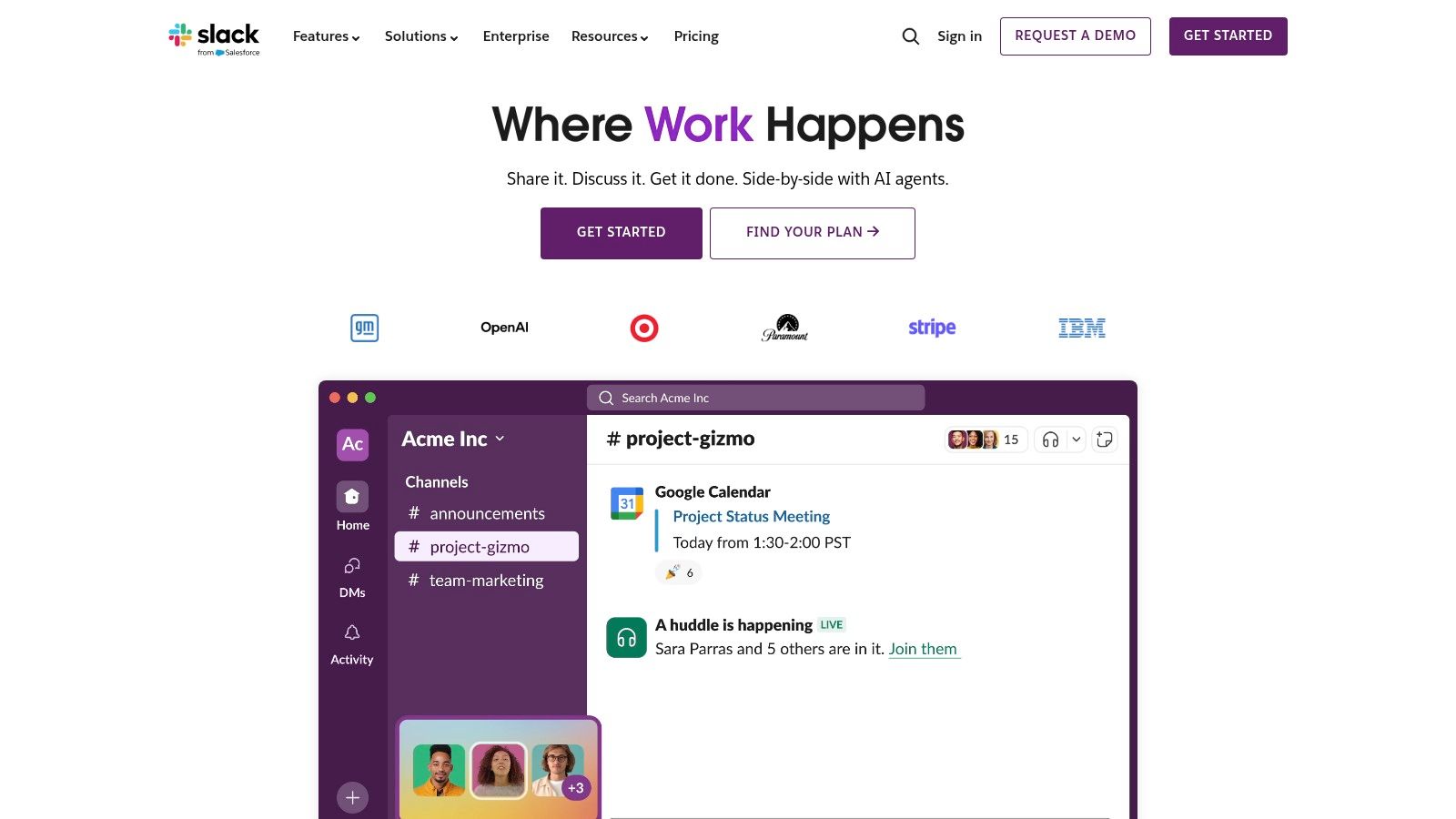
What makes Slack special is that it can connect to many other tools and has a smart helper. You can connect tools like Jira or Google Drive. This lets teams get updates and do work without leaving Slack. The smart helper can give you a quick summary of a long talk or find answers from old chats. This saves you time from reading everything. This mix of good talks and smart help makes it a key tool for teams that work well from home.
Key Details & Use Cases
- Best For: Teams that want one place for fast, neat talks that connects with their other tools.
- Key Feature: Channels let teams make special spots for projects or topics. This keeps talks neat and easy to follow.
- Practical Tip: Send a message later so you don't bother a teammate after work hours. For example, if you finish work late, you can tell Slack to send your message the next morning. This is a nice way to respect everyone's time.
| Pros | Cons |
|---|---|
| Great search for talks and files | Can get very busy if you don't have good rules for channels |
| Easy for people to learn and connects to many tools | It costs more for each person you add, and safety tools cost more |
| Smart helper gives you quick summaries | All the messages can make you feel like you always have to be working |
Website: https://slack.com
5. Zoom (Zoom Workplace / Zoom One)
Zoom got famous by making video calls simple and good. It is a key tool among remote work productivity tools. It has great video meetings, team chat, and a digital whiteboard. Its best part is how easy it is to use. You can join a meeting with just one click on any device. This means no one gets stuck with tech problems when they need to talk.
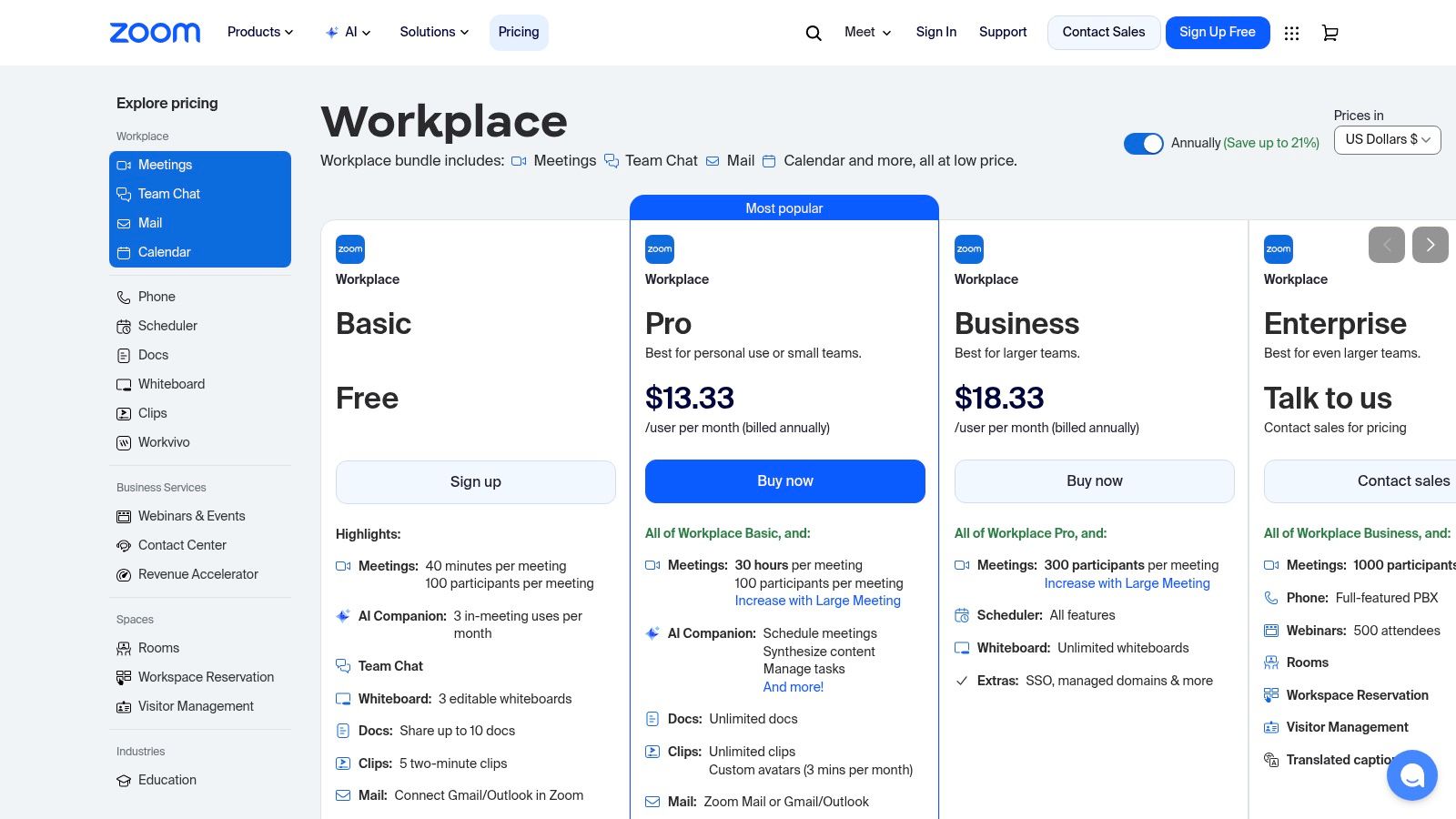
Zoom is now a bigger set of tools called Zoom Workplace. It adds phone calls, chat, and other ways to work together. This makes it a good choice for companies that want all their talking tools in one place, with great video. It has cool things like breakout rooms for small group talks and tools for big online events.
Key Details & Use Cases
- Best For: Teams that need great, easy-to-join video meetings to talk with people inside and outside the company.
- Key Feature: It has very clear video and sound that works well, even if your internet is not very fast.
- Practical Tip: Use the record button to save important meetings. This is good for people who missed the meeting or if you need to remember what was decided. To make this even better, you should learn how to take meeting notes effectively so you have writing to search through along with the video.
| Pros | Cons |
|---|---|
| Works on many devices and is super easy to use | Extra things like webinars and more storage can cost more |
| Works with lots of meeting room screens and phones | You have to be careful when you renew your plan each year |
| Video and sound are very clear and don't stop working | The free plan stops group meetings after 40 minutes |
Website: https://zoom.us/pricing
6. Asana
Asana is a tool that helps teams know who is doing what. It puts all the jobs, from little tasks to big company goals, in one shared place. This makes sure everyone knows what they need to do and when it needs to be done. This helps teams that work far apart stay on the same page without having meetings all the time.
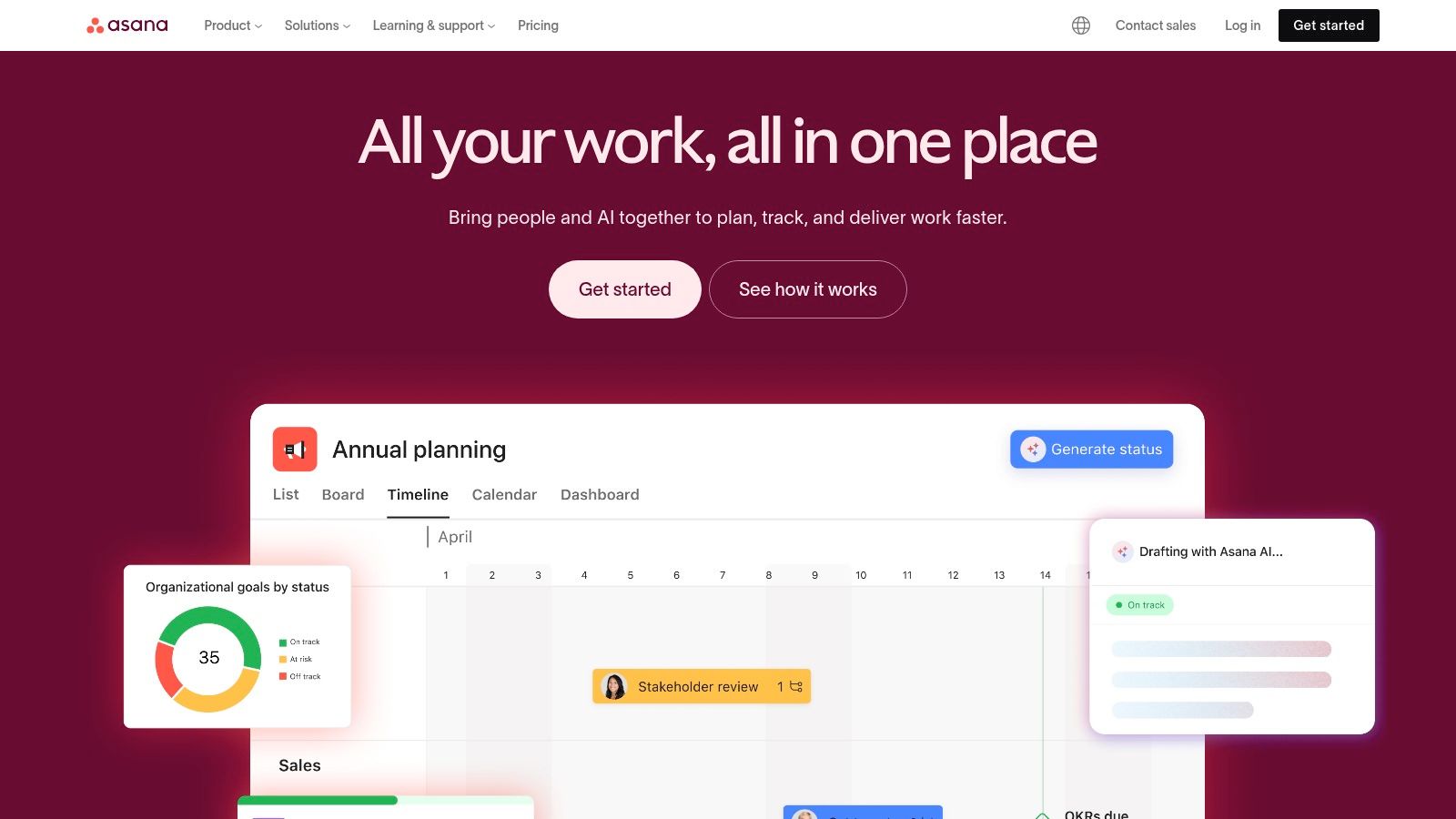
What's cool about Asana is that you can look at your work in different ways. You can see it as a list, a board with cards, a calendar, or a timeline. This means everyone can see their work in the way that makes the most sense to them. For bosses, Asana shows how all the projects are doing and if the team is on track to meet its goals. It connects the small daily jobs to the big company goals.
Key Details & Use Cases
- Best For: Teams that need to track who owns a task, when it is due, and how it connects to other tasks.
- Key Feature: You can change how you see your work. You can pick a list, board, timeline, or calendar.
- Practical Tip: Use the "My Tasks" page as your own to-do list for the day. It shows you all the jobs that are for you from all your projects. This helps you know what to do first without getting lost in the big project plan.
| Pros | Cons |
|---|---|
| Makes it clear who is responsible for each task | The best features are in the more expensive plans |
| Good for tracking big projects and company goals | Might be too much for just simple to-do lists |
| You can look at work in many different ways | You can get too many alerts if you don't set it up right |
Website: https://asana.com
7. Trello (by Atlassian)
Trello makes it easy to see and manage your work. It uses boards with lists and cards to keep track of jobs. Its best part is how simple it is. Teams can quickly see who is doing what and where a job is in the process. This visual way of working makes it one of the easiest remote work productivity tools for teams who are not tech experts or for simple projects.
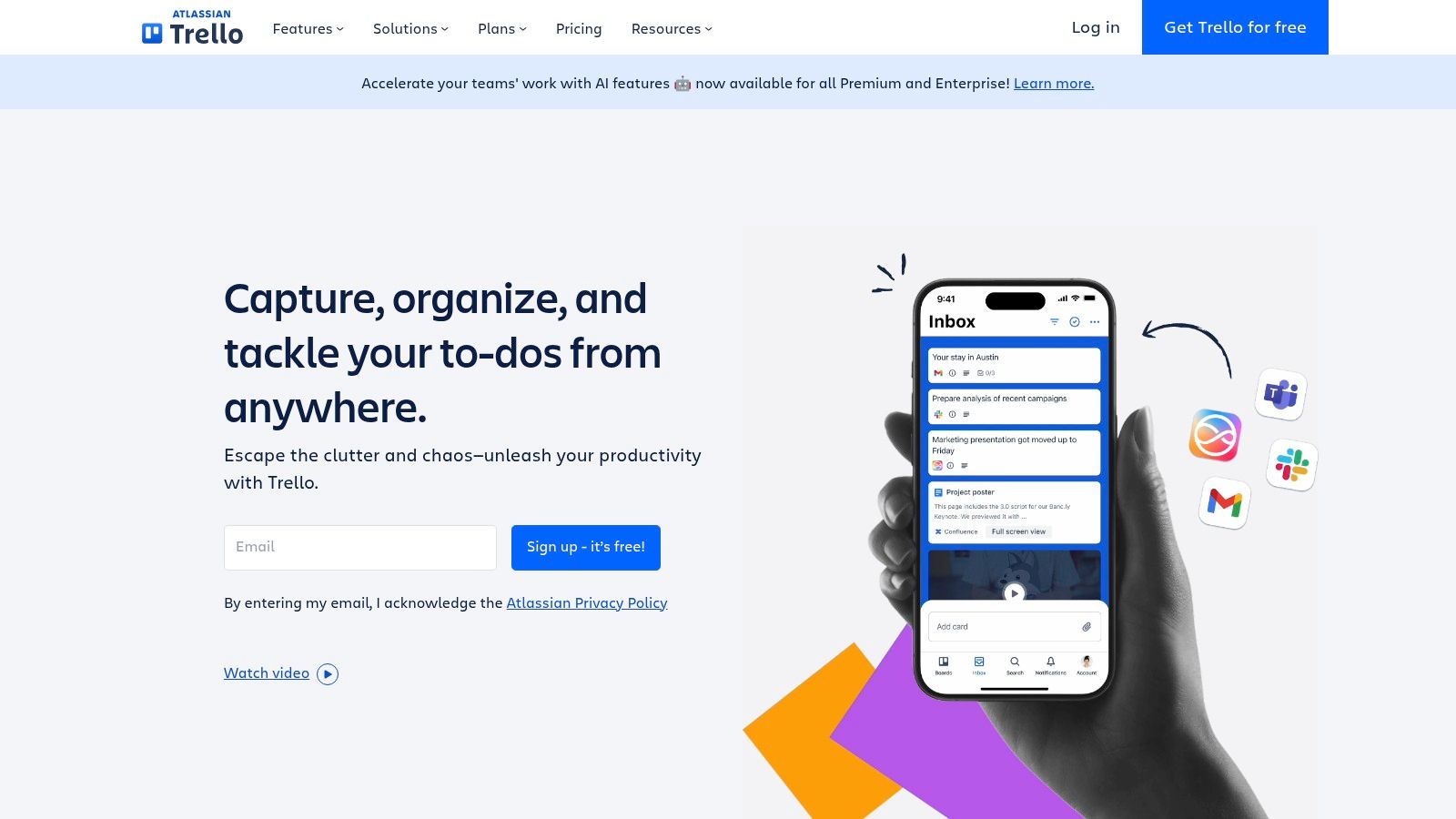
Trello is different because you can drag and drop cards to move them. Anyone can learn it in a few minutes. Teams can add "Power-Ups" to their boards. These are like little extras that add things like calendars or let you connect to other apps like Slack and Google Drive. This lets Trello work for many different kinds of jobs, from a team's plan for what to write about to a list of jobs for making software.
Key Details & Use Cases
- Best For: Teams that want a simple, visual way to manage jobs and small projects.
- Key Feature: The board with cards gives you a quick look at the whole project. It's easy to see how things are going.
- Practical Tip: Use Trello's helper, Butler, to do the same tasks over and over for you. For example, you can make a rule that when you finish all the steps on a card, it moves to the "Done" list and tells your boss.
| Pros | Cons |
|---|---|
| Very easy to learn, great for simple jobs | For very big projects, you might need a stronger tool |
| You can add many extras and use ready-made boards | The best tools for bosses and safety are in the expensive plans |
| Great for seeing how much work everyone has | Does not have detailed reports like some other tools |
Website: https://trello.com
8. Notion
Notion is like a single notebook for everything. It combines notes, papers, team information, and project plans all in one place. For teams that work far apart, it's like a central brain for the company. It holds everything from company rules to detailed project plans. Its real power is that you can build your own systems to track jobs, ideas, and files in a way that normal writing apps can't.
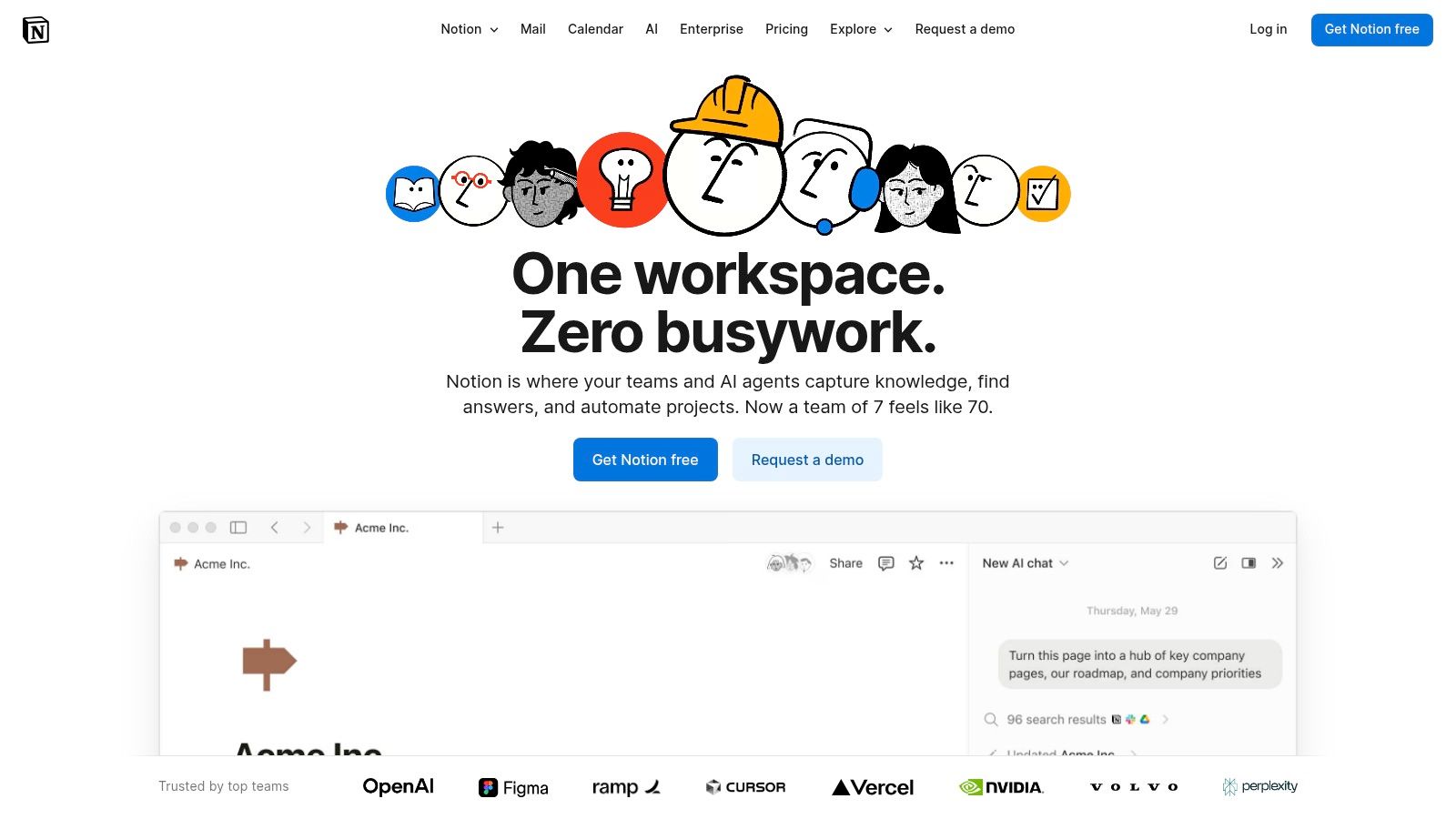
This tool is great because you can make it look and work just how you want. It gives you building blocks like pages and lists to create your own perfect workspace. When a new person joins the team, you can give them one link to a neat workspace. It can have their schedule, important papers, and a list of team members. This is much easier than sending them a lot of different files.
Key Details & Use Cases
- Best For: Teams that want one place they can shape themselves for all their papers and light project work.
- Key Feature: You can make powerful lists and see them in different ways, like a table, a board, or a calendar.
- Practical Tip: Start with a ready-made page for something common, like a team info page or a writing calendar. This helps you learn how it works without having to build it all from the start. This can help you avoid making a messy space.
| Pros | Cons |
|---|---|
| It's so flexible it can replace many other tools | You need to plan how you will set it up, or it can get messy |
| Great for company info pages and helping new people start | Some smart features and tools for bosses cost more money |
| People can work together on the same page at the same time | It can get slow if you put too much stuff on one page |
Website: https://www.notion.com
9. Atlassian Jira (Cloud)
Atlassian Jira is a strong tool for tracking work. It helps teams plan, track, and finish projects carefully. It was first made for people who make software, but now many other teams use it for big jobs. Its strength is that it shows every step of a project. This is very important for remote work productivity tools because it keeps everyone on the same page, even when they are not in the same room.
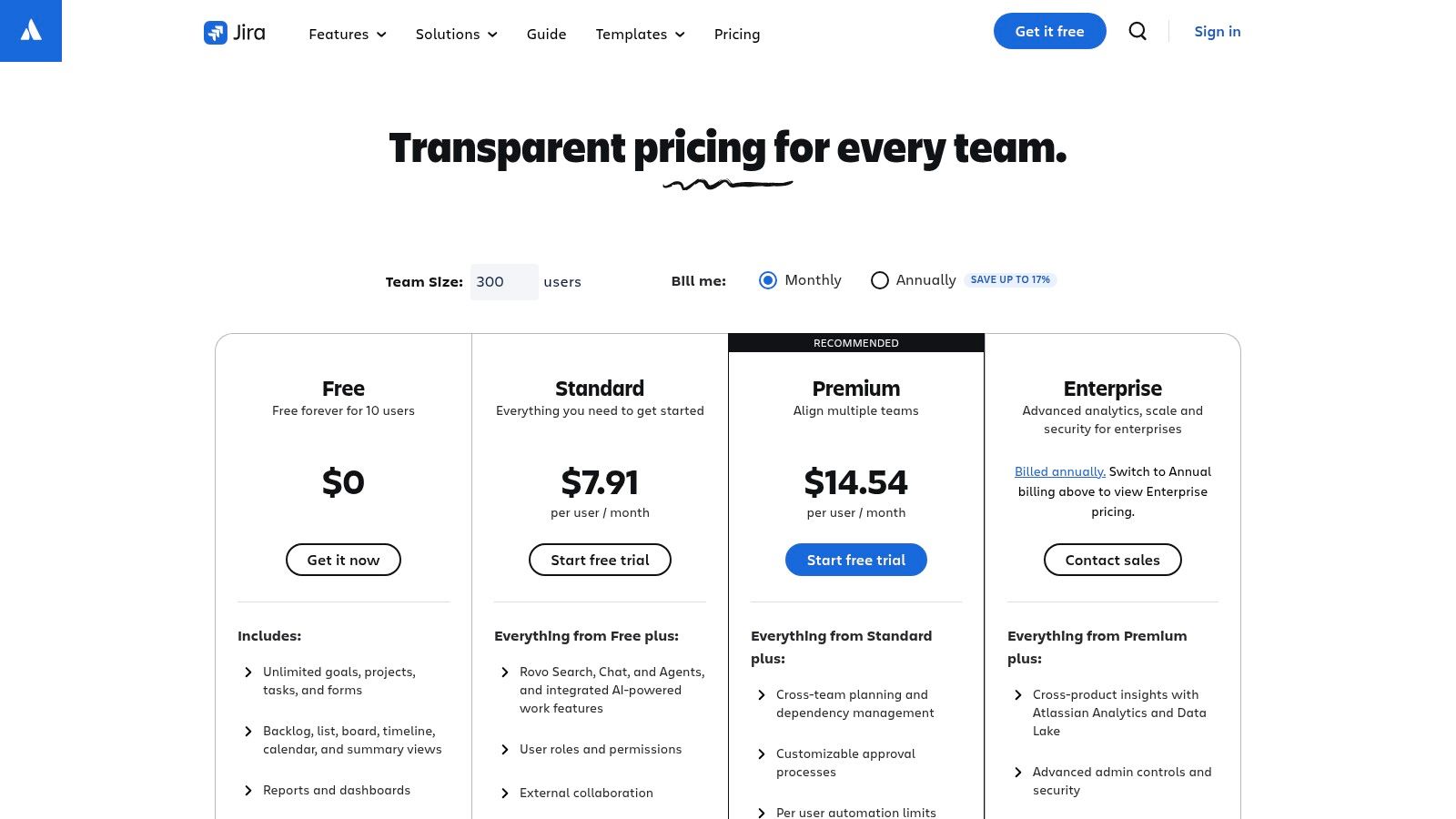
This tool is special because you can set it up to work exactly how your team works. You can make simple to-do lists or complex plans with many steps. With its special boards, teams can see their work, find problems, and manage what everyone is doing. For companies with many big projects, Jira has special plans with tools that help all the different teams work together.
Key Details & Use Cases
- Best For: Software teams and other groups that have complex projects with many steps.
- Key Feature: The special boards give everyone a clear, shared picture of how the project is going.
- Practical Tip: Set up automatic rules to do boring tasks. For example, you can make a rule that gives a new job to the team leader or moves a task to be checked when someone says they are done. This saves time and makes sure everyone follows the rules.
| Pros | Cons |
|---|---|
| Can be set up for very complex jobs | Setting it up can be hard |
| Works with many other tools | The price has been going up |
| Great for teams that work in sprints | It can look very confusing to new people |
Website: https://www.atlassian.com/software/jira/pricing
10. GitHub (with Copilot and Codespaces)
GitHub is more than just a place to store computer code. It is now a full tool for software teams that work from home. It brings together code saving, project plans, and automatic jobs in one place. It is the main spot where computer experts work together. With cool add-ons like Copilot (a smart helper for writing code) and Codespaces (a place to code in the cloud), it helps teams of experts work from anywhere.
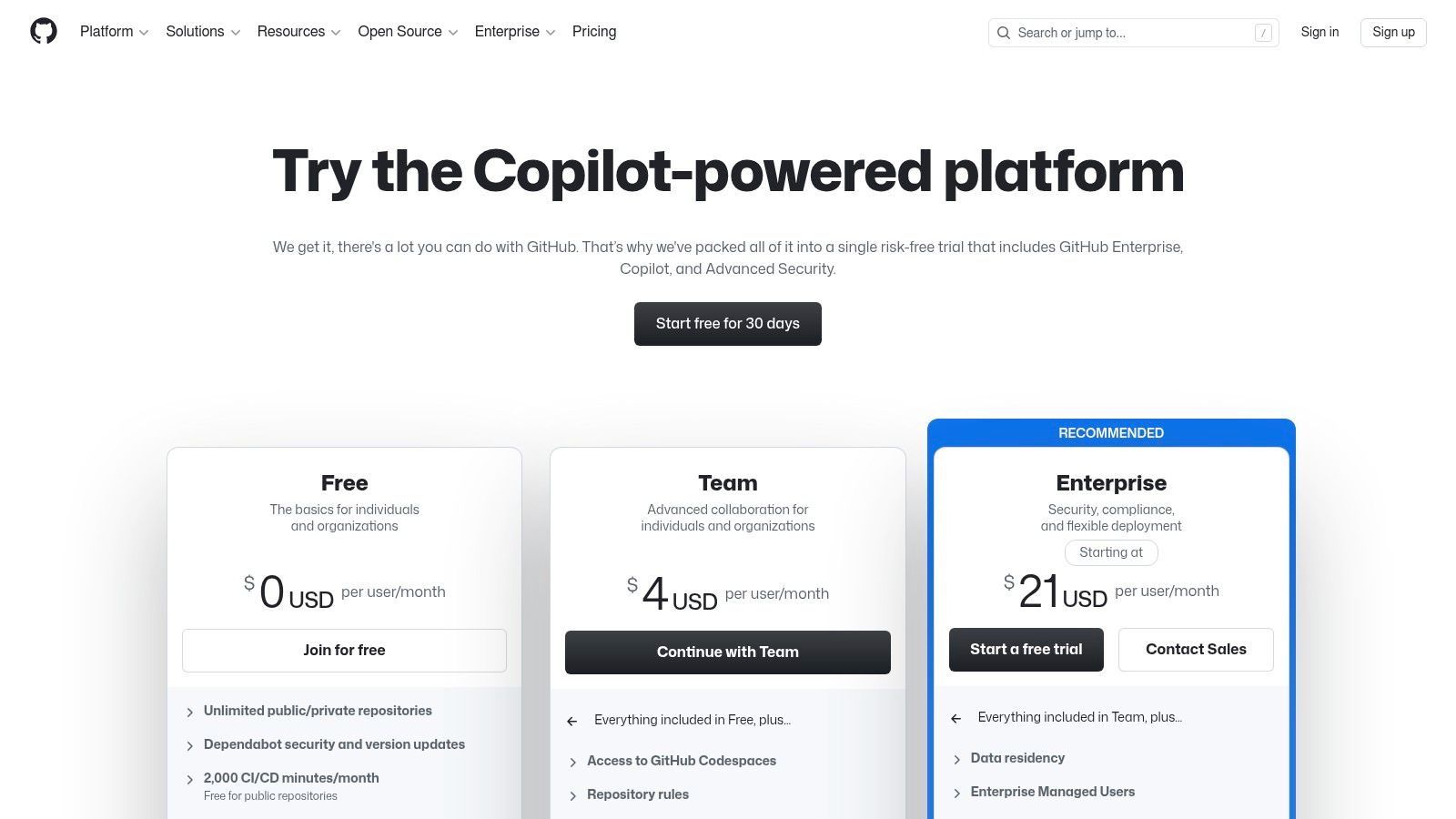
The best thing about GitHub for remote teams is that it makes sure everyone works the same way. With Codespaces, a new team member can get a ready-to-use coding space online in minutes. This saves hours of setup time. This means everyone uses the same tools, which makes it easier to find and fix problems. GitHub also has tools that check for safety problems and help get the software ready for people to use.
Key Details & Use Cases
- Best For: Teams of software experts who need one place for their code, teamwork, and automatic jobs.
- Key Feature: GitHub Copilot is like a smart helper that suggests code while you type. This makes writing code faster.
- Practical Tip: Use GitHub Projects to make a board to track your work, right next to your code. This lets everyone on the team, even people who don't write code, see how the work is going in a simple, visual way.
| Pros | Cons |
|---|---|
| All your code, teamwork, and automatic jobs in one spot | You can spend a lot of money on Codespaces if you're not careful |
| Copilot helps people write code faster | Some safety tools might cost extra |
| Codespaces makes sure everyone's computer setup is the same | It can be hard to understand for people who are not coders |
Website: https://github.com/pricing
11. Miro (Online whiteboard)
Miro is like a giant digital whiteboard. This makes it a key tool for teams that need to be creative together. It lets teams that are far apart feel like they are in the same room drawing on a whiteboard. It has things like sticky notes, drawing tools, and ready-made layouts for sharing ideas and planning projects. Its best part is making complex ideas easy for everyone to see and understand.

This tool is great because it connects with other tools like Jira and Asana. This lets teams turn their ideas into real jobs in their other tools. This closes the gap between having an idea and doing the work. For example, a team can draw out a plan on a Miro board and then turn the key steps into jobs in Jira without leaving the board. This keeps the work moving fast.
Key Details & Use Cases
- Best For: Teams that need to see complex plans and ideas, like product, design, and building teams.
- Key Feature: It has a big library of ready-made layouts for all kinds of things, from team meetings to planning a customer's journey.
- Practical Tip: Use the "Frames" tool to turn your big board into a set of slides. You can move from one frame to the next like a presentation. This makes it easy to show your team around a complex board in a meeting.
| Pros | Cons |
|---|---|
| Great for online workshops and creative meetings | It can get messy if you don't have rules for keeping boards neat |
| Easy for everyone to add ideas visually | The best safety and boss tools are in the more expensive plans |
| Works well with popular project tools | The giant board can feel like too much for new people |
Website: https://miro.com
12. Amazon Business (plus Business Prime)
Getting the right gear for a team that works from home can be tricky. Amazon Business helps by putting all the buying in one place. It's more than the normal Amazon store. It's made for companies to buy everything from headsets to chairs. It has special prices for businesses and lets you manage who can buy what. This makes it easy to give your team the physical remote work productivity tools they need to do a great job.
The tool is even better if you have a Business Prime account. This lets you use a tool called Guided Buying. This lets bosses set rules for what people can buy. You can make a list of good sellers or block people from buying certain things. For a company where everyone works from home, this means you can make sure everyone buys the same computer screen. This keeps things the same and saves money without having to check every single order.
Key Details & Use Cases
- Best For: Companies that need an easy way to buy and manage gear for a team that works in different places.
- Key Feature: Guided Buying (with Business Prime) lets you set spending rules and point people to the right products.
- Practical Tip: Make lists of approved work-from-home gear, like certain screens, keyboards, and headsets. Share these lists with new people when they start to make it easy for them to set up their home office.
| Pros | Cons |
|---|---|
| One place to buy things and approve orders for a team | The quality of things can be different, so you need to read reviews |
| Good prices with special deals for businesses | The best tools for bosses require a Business Prime plan |
| You can buy almost any kind of gear and office stuff | Shipping can be slow for things that are not on Prime |
Website: https://business.amazon.com
12-Tool Remote Productivity Comparison
| Product | Core features | UX & accuracy | Key integrations & compatibility | Target audience & use cases | Pricing & value |
|---|---|---|---|---|---|
| WriteVoice (Recommended) | Voice→text in <1s, auto‑fixing, meeting notes, rewrite words, 30+ languages, Whisper Mode | Very fast, ~98–99%+ correct, private (no voice saving) | iOS keyboard, Mac, Web; Slack, Gmail, Notion, Jira, WhatsApp, Obsidian | People who write a lot, bosses, lawyers, teams who need fast notes | Free to try, good plans, saves lots of time (up to 4× typing speed) |
| Microsoft 365 (Business) | Office apps, Teams, OneDrive (1 TB), device safety, rule tools | Familiar apps, safe for big companies | Works great with Windows; connects to many other apps | Big companies that need to follow rules and have one admin | Pay per person; best price if you pay for a year |
| Google Workspace | Gmail, Docs/Sheets, Drive, Meet, smart helper | Simple web tool, work together in real time, good search | Works in browser, easy sharing, Meet has special features | Teams that like working online and sharing fast | Pay per person; easy to add more people |
| Slack | Chat channels, quick calls, smart summaries and search | Easy to learn, great search; can be noisy | Connects to thousands of apps (Jira, Drive, etc.) | Teams focused on talking and connecting tools | Pay per person; costs more for better safety |
| Zoom (Workplace / One) | HD meetings, small groups, recording, whiteboard, phone | Good meeting tool, easy to join on any device | Works with calendars, meeting room screens, webinars | Meetings, webinars, events, for places with many devices | Different plans; extras (phone, big meetings) cost more |
| Asana | Tasks/projects, board/list views, goals, time tracking | Clear who does what; good for seeing big picture | 100+ connections including Slack, Google, Microsoft | Managing projects with many teams and tracking goals | Free→paid plans; best features cost more |
| Trello (Atlassian) | Visual boards, cards, lists, automatic jobs & extras | Very easy to learn; quick to start | Extras and connections (calendar, Slack, etc.) | Simple jobs, small teams, fast project starts | Good free plan; pay for more automatic jobs & views |
| Notion | Docs, info pages, lists, templates, smart helper (paid) | Flexible one-stop-shop; needs a plan to stay neat | Connects to other tools; can add videos and more | Info pages, company rules, new person help, papers | Free→Business plans; smart helper costs money |
| Atlassian Jira (Cloud) | Special boards, plans, automatic jobs | Can be set up perfectly for teams; hard for admins | Works with Confluence, Bitbucket, many other tools | Software making, agile planning, complex jobs | Pay per person; pay more for better planning tools |
| GitHub (Copilot & Codespaces) | Code saving, jobs, automatic building, safety check, Copilot | Made for coders; Copilot helps write code faster | Codespaces, Actions, works with many coding tools | Building teams, automatic computer jobs, cloud coding | Free→company plans; extras for Codespaces/Actions |
| Miro | Big canvas, sticky notes, templates, timers, drawing | Great for workshops and visual work; can get messy | Connects with Jira, Asana, Microsoft, Google | Design meetings, remote workshops, mapping things out | Free plan; pay for better features and boss tools |
| Amazon Business (plus Business Prime) | Store for gear/software, guided buying, spending reports | One place to buy; seller quality can be different | Works with buying systems, business orders | Buying teams, IT buying, teams in different places | Store prices; Business Prime adds shipping/buying tools |
Building Your Perfect Remote Work Toolbox
Looking at all these digital tools can be a lot. We've looked at 12 strong choices, from big sets like Microsoft 365 and Google Workspace to special tools like Jira and GitHub. But the goal is not to use every tool on this list. The real goal is to pick a few that fix your team's biggest problems and make them even better. The best set of remote work productivity tools is the one you don't even notice because it just works with how you do your job every day.
Think of it like building a box of tools. A woodworker doesn't own every hammer. They own the right hammers for their jobs. In the same way, your team needs to figure out what is hard for them before they pick their tools. Is your biggest problem messy projects and missed due dates? A project tool like Asana or Trello should be your first pick. Are you spending too much time in meetings and finding it hard to remember what was said? A tool like WriteVoice can turn talking into neat text, letting your team focus on the talk, not just writing notes.
How to Choose Your Essential Tools
To go from this list to a set of tools that works for your team, start by asking your team the right questions. Don't pick the tools by yourself. A tool only works if people use it, so ask your team to help you choose.
Here are a few steps to help you decide:
- Find the Hard Parts: Before you look at what a tool can do, figure out the problem. Are your team's talks spread all over emails and private messages? A main spot like Slack might be the answer. Is it hard to share creative ideas without a real whiteboard? A digital board like Miro could help your team work together better.
- Start Small with a Test Group: Don't give a new tool to the whole company at once. Pick a small team that is good with tech to try a new tool for one project. For example, let your building team try GitHub Copilot for two weeks. Or have your marketing team use Notion for their next big plan. Get their real thoughts on what was good and what was not.
- Make Sure They Work Together: The best remote work productivity tools connect well with others. A great tool gets even better when it connects to the software you already use. Can your project board make jobs from Slack messages? Does your talk-to-text tool put the words right into your writing app? These connections save time and make it easier to switch between apps.
- Think About the Full Cost: Look at more than just the monthly price. Think about the time it will take to teach your team, any time the tool might not work, and the cost of any connections you need. Sometimes, a tool that costs a little more but is easier to use and has better help can be a much better deal in the long run.
Building for the Future of Work
The right set of tools does more than just make work faster; it helps build a better remote team spirit. It makes things clear and lets everyone do their best work from anywhere. When talks are clear and everyone can see how projects are going, trust grows on its own. We have talked about many tools that help get more done. But the most important thing for any successful remote team is clear and good talking. For teams that want to get better at this, a list of the 12 best remote team communication tools from CallSky.io is a great place to start.
In the end, your perfect remote work toolbox is something that will change. It will grow as your team grows, as your projects change, and as new tools come out. The key is to be ready to change, listen to what your team needs, and be willing to try new things. By focusing on fixing real problems and making things easy for people to use, you can build an online space that not only gets more done but also makes remote work more focused, fun, and good for everyone.
Ready to stop wasting time typing and taking notes? WriteVoice uses smart tech to turn your spoken words into clean, ready-to-use text right in the apps you use every day. See how much time you can save by visiting WriteVoice and trying it for yourself.