How to Use Your Voice to Text and Type Faster
Ready to give your fingers a rest? It's super easy to text with your voice. Just open an app where you type, like your email or a message app. Tap where you would write. When your keyboard pops up, look for a small microphone picture and tap it. Start talking, and you'll see your words show up on the screen.
Stop Typing and Start Talking with Voice Text
Think about all the messages you send every day. You probably send lots of emails and texts. What if you could write them all without using your hands? That's what voice-to-text does. It's a tool that turns your spoken words into written words on your screen.
For most of us, talking is much faster and easier than typing. This isn't just a small helper; it changes how you get things done. Instead of slowly typing a long message, you can just say it in a few seconds. This lets you do more important things.
The best part is catching your ideas right when you think of them. Voice text helps you write down your thoughts without slowing down to type.
Why Talking Is Better Than Typing
We've all been there—looking down at a tiny phone keyboard, trying to type a long message and fixing mistakes. Now, think about how fast you could just say that message out loud. Speaking is easy because it feels natural. It’s like having a helper who can type as fast as you can think.
If you want to be faster, learning how to type faster with your voice is a great trick.
And it's not just me who thinks so. Lots of people are starting to talk instead of type. The money spent on this talking-to-text tool is getting bigger and bigger. It's expected to be more than $22 billion by 2025. By 2035, it could be over $183 billion. It's clear that talking is just easier than typing for a lot of people.
Talking Is Way Faster Than Typing
Here is a quick look at how much faster it is to talk than to type a simple message.
| What You're Doing | Time It Takes to Type | Time It Takes to Use Voice |
|---|---|---|
| Writing a short email | 2-3 minutes | 30-45 seconds |
| Sending a text message | 30-60 seconds | 5-10 seconds |
| Making a to-do list | 1-2 minutes | 20-30 seconds |
As you can see, you save a lot of time all day long.
It's For More Than Just Messages
Don't think this is just for sending quick texts. Using your voice to write is great for all kinds of things. It's even used for big jobs, like artificial intelligence report writing, where people write long papers much faster. In this guide, I’ll show you exactly how to set it up and use it.
How to Find and Turn On Voice-to-Text
Before you can start talking, you need to find the microphone button. Think of it as the "on" switch for voice-to-text. It's built into almost every new phone and computer, but it might be in a slightly different spot on your device.
Let's find out exactly where to look.
On Your Phone (iPhone and Android)
The quickest way to use voice-to-text is on our phones. The good news is that both Apple and Google put the microphone right on the keyboard.
Just open any app where you can type—like messages or notes. When the keyboard shows up, look for a small microphone picture. It's usually near the spacebar. Tapping it turns on the listening mode right away.
You'll know it's working when you see something move on the screen, like a wavy line. This shows your phone is listening. From there, just speak clearly, and you'll see your words pop up on the screen.
It’s a simple, three-step change:
- You speak.
- The phone’s brain hears the sound.
- It turns your sound into written words.
Here's a simple picture showing how your voice becomes text.
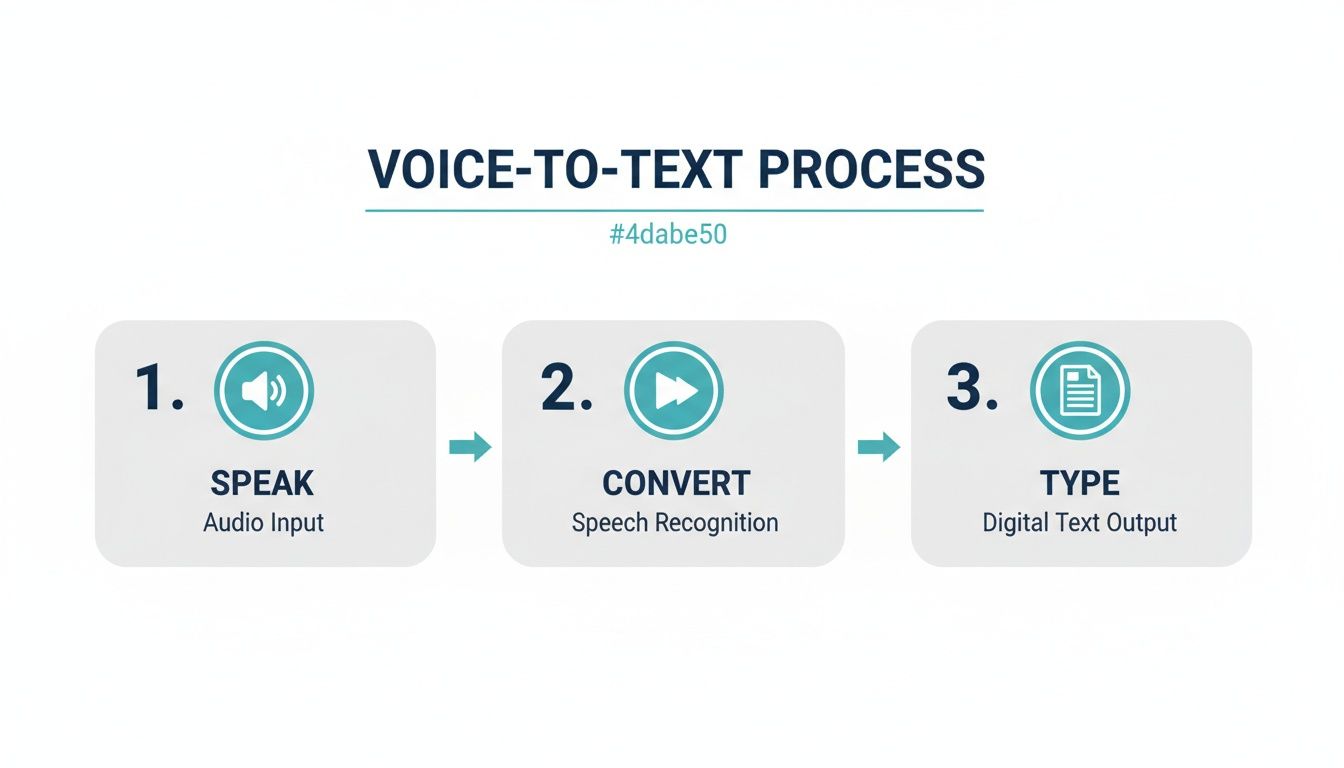
This picture shows how easy it is. The real trick is learning the special words to fix your text as you talk. We'll learn about those later.
On Your Computer (Windows and Mac)
Talking to your computer is not just for phones. It's a strong tool on your big computer, too. Both Windows and Mac computers have a voice-to-text button that you can start with a keyboard trick.
- On a Windows computer: Press the Windows key and the H key at the same time. A small listening box will appear, ready to hear you in any spot where you can type.
- On a Mac computer: The button is usually a Microphone picture on newer keyboards. If you have an older Mac, just tap the Fn key two times fast to start it.
The very first time you do this, a box might ask if the app can use your microphone. Just click "Allow" or "OK." This is a one-time safety check.
A Quick Word on Asking to Use the Mic
That pop-up box is important for your privacy. It makes sure no app can listen to you without you saying it's okay.
Once you say yes for an app, it won't ask you again. It’s an important step that lets the tool work right while keeping you safe. For more help, you can look at our full guide on how to use voice-to-text for cool tips. Setting this up right makes everything work smoothly.
Special Words to Control Your Text
Saying your message is one thing, but making it look nice is another. The real power of voice-to-text is using simple spoken words to fix your text as you go. Think of them as your talking tools for adding periods, making new paragraphs, and even putting in an emoji, all without touching the keyboard.
Without these special words, you get a giant block of text that's hard to read. Once you start using a few key phrases, your writing becomes neat and ready to send.
For busy people, this is a huge help. Today's voice-to-text tools are very good. They can be right over 99% of the time if you speak clearly. Research from Technavio on the AI speech-to-text market shows that people can write papers up to four times faster by talking than by typing. That's a lot of time saved.
The Everyday Words You'll Use a Lot
Starting is easier than you think. You don’t need to learn a long, hard list. A few main words will do most of what you need for everyday emails, notes, and messages.
These are the words that will soon feel natural to say.
- Period: Just say "period" to end a sentence.
- Comma: Use "comma" to add a small pause.
- Question Mark: Finish any question by saying "question mark."
- New Paragraph: Say "new paragraph" to make a space and start a new idea.
It's like having your own writer who listens to every word. You’re not just saying the words; you're telling them where to go.
Your Cheat Sheet for Voice Words
Here are the simple words you'll use all the time to add punctuation and change your text with your voice.
| What You Want to Do | The Magic Word to Say |
|---|---|
| End a sentence | Period |
| Add a pause | Comma |
| Ask a question | Question Mark |
| End an excited sentence | Exclamation Point |
| Start a new paragraph | New Paragraph |
| Start on the next line | New Line |
| Add "quotation marks" | Quote… End Quote |
| Put in a smiley face 🙂 | Smiley Face |
Keep this list near you. Your writing will look just as good as if you typed it.
Making It Look Nice and Fun
Once you know the basics, you can start using words that make your writing look even better or more friendly.
- New Line: This is like hitting the "Enter" key once. It moves you down one line, which is great for lists.
- Smiley Face: Want to show you're happy? Just say "smiley face" or "winky face" to put in the emoji.
- Quote and End Quote: To put words inside quotes, say "quote" before the words and "end quote" after them.
These are just a few ideas. For people who write long papers, our guide on dictating in Word shows even more words for things like making lists with dots.
Using Voice-to-Text in Your Favorite Apps
Okay, you know the basics. You know how to turn on the microphone and see your words on the screen. Now for the fun part: using this in the apps you use every single day. Once you get used to it, you’ll find chances to talk instead of type everywhere.
Think about all the times you're not at your desk but need to send a message. Maybe you're walking your dog and a great idea pops into your head. Instead of struggling with your phone's small keyboard, you can just speak it. It’s about making your tools work for you, wherever you are.

The best part is that voice-to-text works in almost any app with a text box. If you can type in it, you can probably talk to it. Let's look at a few real examples.
Sending Quick Notes in Slack or Teams
Chat apps like Slack and Microsoft Teams are perfect for using your voice to send quick messages when you're busy.
Say you are walking from one meeting to another. You can take out your phone, open the right chat, tap the microphone, and say:
"Hey team comma the client just said yes to the new picture period Please start getting the final files ready for them today period"
That whole message takes maybe 10 seconds to say. Typing it, especially while walking, would be slow and full of mistakes. This way, your team gets the news right away, and you don't have to stop walking.
Writing Emails in Gmail Without a Keyboard
We’ve all had this happen: looking at a blank email on our phone, not wanting to type a long answer with our thumbs. This is a perfect time to use your voice in an app like Gmail.
Let’s say you just finished a call and need to send a quick note about it. Instead of waiting to get back to your computer, find a quiet spot, open a new email, and just start talking.
- Start with the title: Just say "Subject line meeting notes."
- Say the email body: Speak your thoughts like you normally would. Use words like "new paragraph" to break up your text.
- Check it fast: Read it over to fix any funny words before you hit send.
Something that would take 10 minutes to type becomes a 2-minute talk. It’s a great way to get your thoughts down and keep moving.
Making To-Do Lists and Saving Ideas
Your phone's notes app can become your best helper with voice-to-text. The second an idea pops into your head, you can save it.
Imagine you're making dinner and remember things you need to do tomorrow. Just grab your phone, open your notes app, and say:
"To do list new line dash pick up milk new line dash make dentist appointment new line dash call mom"
The words "new line" and "dash" put your thoughts into a neat list right away. No more looking for a pen or trying to remember it later. You can make shopping lists, meeting plans, or even an outline for a school project, all without using your hands.
Fixing Common Voice-to-Text Problems
Even the best voice-to-text tools can make mistakes sometimes. You might be talking and see a few words get mixed up. The good news is that most of these problems are easy to fix.
The most common problem is the microphone not hearing you well. If you're in a loud coffee shop or too far from your phone, your words can get lost. The fastest fix? Move to a quieter place. A little bit of noise can make a big difference.
What to Do for Bad or Unclear Sound
Sometimes the problem isn't the room, but the sound your mic is picking up. The microphone in your phone is good, but it can have trouble hearing just your voice if there is an echo or you are far away.
A simple fix that works well is using headphones that have a microphone on the cord. This puts the mic very close to your mouth, so it hears your voice best. For example, if a dog is barking outside, the headphone mic is less likely to pick it up than your phone’s mic. Learning to reduce background noise in your microphone can really help.
Also, try talking at a normal, steady speed. You don't need to talk extra loud or slow. Just talk like you would to a friend. This helps the tool learn how you speak.
Think of it like teaching a new helper. At first, you have to be clear. The more you use voice-to-text, the better it gets at knowing your voice.
What to Do When Words Get Mixed Up
It’s annoying when your phone hears "ate" but you said "eight." When this happens, the fix is usually easy.
Just hit the backspace button to erase the wrong word and say it again, maybe a little clearer. For words that sound the same, like "to" and "two," saying the letters out loud ("T W O") is a sure way to get it right.
- Hard Names: Spell them out, letter by letter.
- Numbers: For phone numbers, say each number one by one—like "five five five" instead of "five hundred fifty-five"—to make sure it's right.
- Special Words: Many tools let you add your own words, like a company's name, to a list. This teaches the tool to spell your special words correctly.
My Microphone Button Disappeared!
Seeing the microphone button vanish from your keyboard can be scary, but it’s an easy fix. This almost always means a switch was turned off by accident.
Just go to your phone's Settings, then find the Keyboard part. Look for a choice that says "Enable Dictation" or "Voice Input" and make sure it's turned on. Once you do that, the microphone button will come right back, ready for you to use.
Answering Your Top Questions About Voice Text
Once you start using voice-to-text a lot, you might have some questions. It’s smart to think about things like if it's private or what to do when it gets words wrong. Let's go over some of the most common questions people ask.
These are the things most people wonder about, and the answers are usually pretty simple.
Is Using Voice Text Private and Safe?
This is a very important question. Mostly, yes, voice-to-text is safe. When you use the talking tools that come with your iPhone or Android phone, your voice is handled by big companies like Apple and Google. They have strong rules to keep your information safe.
But, if you add a new keyboard or a special talking app, it’s a good idea to read their privacy rules. If you are talking about secret work stuff, look for tools that promise to keep your words locked up or say they are never stored anywhere.
A good rule is to be as careful with your spoken words as you are with your typed words. The tool is safe, but it's always smart to be careful about what you say and where you say it.
How Can I Make Voice Text Understand Me Better?
Tired of mistakes and wrong words? Getting your phone to understand you better often just takes a few small changes. Try to speak clearly at a normal speed—not too fast, but not too slow.
Where you are matters a lot, too.
- Less background noise: A loud fan, a TV, or people talking nearby can cause a lot of mistakes. Just moving to a quiet room can make a big difference.
- Get closer to the mic: Hold your phone a good distance from your mouth. Even better, use headphones with a built-in microphone. This helps your voice stand out from other sounds.
- Give it time: Believe it or not, these tools often learn how you talk over time. The more you use it, the better it gets at understanding you.
Can I Use Voice Text in Other Languages?
Yes, you can. Today's voice-to-text tools on phones and computers can understand many languages. This is a huge help for anyone who speaks more than one language or is trying to learn a new one.
You can usually add new languages in your phone's keyboard settings. Once you add a new language, you can switch between them easily, often by just tapping the picture of a globe on your keyboard. It's very smooth—you can say a text in Spanish, then switch right back to English to write an email for work.
Ready to stop typing and start talking? WriteVoice turns your spoken words into clean, ready-to-use text in under a second, working inside any app you use. Try it today and see how much time you can save. Learn more at https://www.writevoice.io.