How to Talk-to-Text on Your iPhone: A Fun Guide
Do you ever want to send a text but your hands are full of toys or snacks? We've all been there! The good news is, your iPhone can listen to you and type what you say. It's like magic! To start, you just need to turn on a special tool called Dictation in your Keyboard settings. This tool turns your spoken words into typed words.
Why Talking is Easier Than Typing

Let's be real, talking is much faster than typing with your thumbs. Think about how fast you can tell a story. Now think about how long it takes to type that story on a little screen. This special feature, called dictation, makes texting, writing notes, and even searching for funny cat videos way faster.
This cool trick has been on iPhones for a long time. It got super popular when Siri, Apple's talking helper, showed up with the iPhone 4S back in October 2011. Siri was the first time many of us could send a text just by talking to our phone. It was a big deal!
How Does It Work?
When you talk to your phone, it's really doing something called audio-to-text. Want to know more about the techy stuff? You can read a complete guide to modern audio to text transcription. In simple words, your iPhone listens to your voice, sends it to a super-smart computer to figure out the words, and then sends the typed words right back to your screen.
This tool is great for more than just texting. It can help you in lots of ways:
- When your hands are busy: You can tell your phone to write an email while you're making your breakfast.
- If typing is hard: It's a big help for anyone who has trouble with small keyboards.
- To remember ideas: Quickly say your great idea into a notes app before you forget it!
Voice-to-text is not just for quick replies; it's a real helper. I use it to write down my thoughts for stories without ever touching the keyboard. For people who do a lot of writing, special tools like a https://www.writevoice.io can do even more cool things.
How to Turn On the Talking Tool
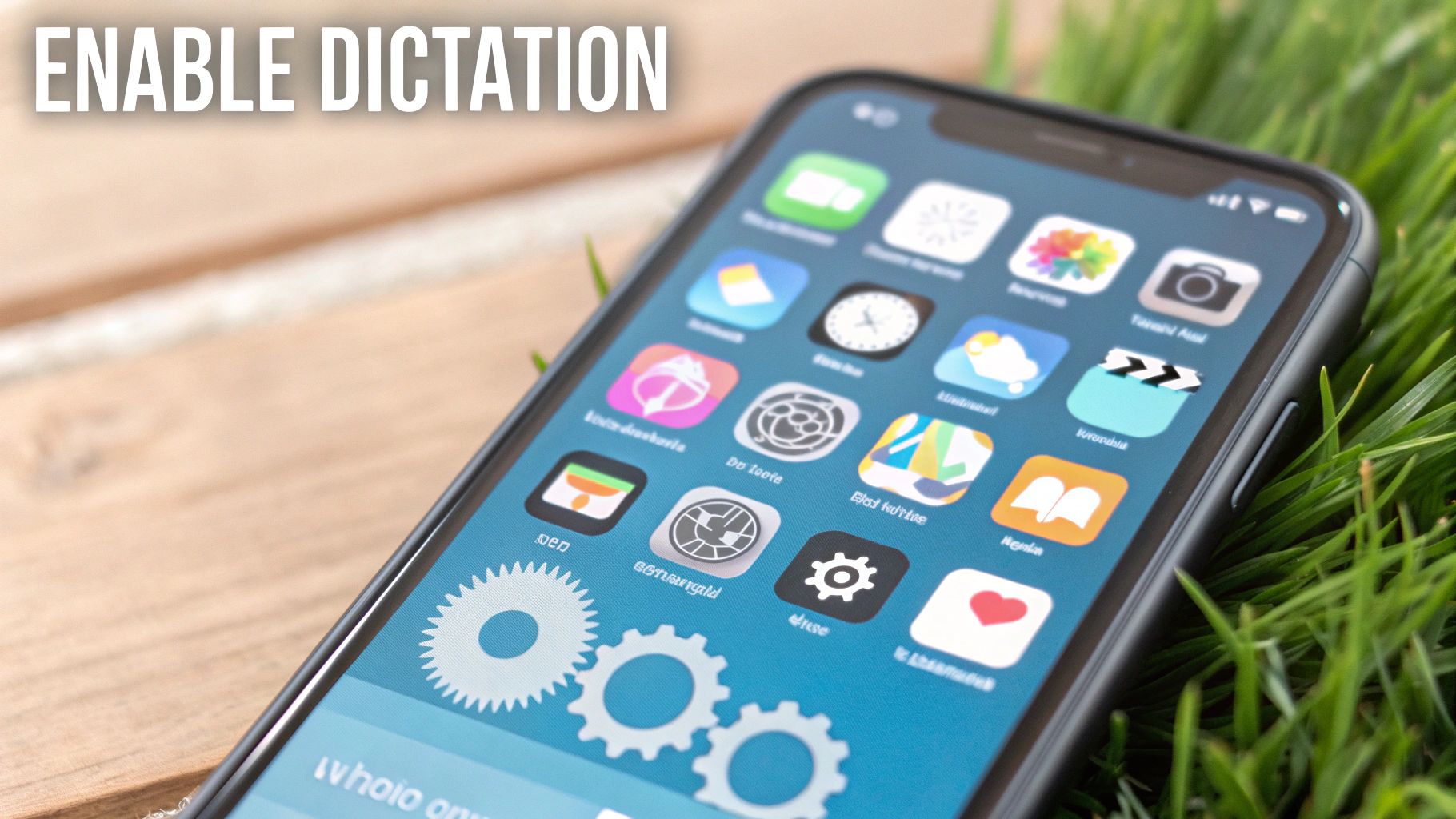
Ready to talk instead of type? Turning on this tool is easy. You only have to do it once to make typing much faster.
First, find the Settings app on your screen. It's the one that looks like gray gears. Tap it!
You'll see a long list. Scroll down until you see General and tap it. This is like the control center for your iPhone.
Finding the Keyboard Menu
Once you're in General, look for the Keyboard menu. This is where you can change how your keyboard works. It's also where the talking tool lives.
Scroll down until you see a switch that says Enable Dictation. This is the on/off switch you need.
If the switch next to Enable Dictation is gray, it's turned off. Just tap it.
It will slide over and turn green. That means it's on! Your iPhone might ask you if you're sure you want to turn it on, because it sends your voice to Apple to understand it.
Just tap the "Enable Dictation" button to say yes. That's all! Now your phone is ready to turn your talking into typing whenever you see a microphone button on your keyboard.
How to Use the Keyboard Microphone
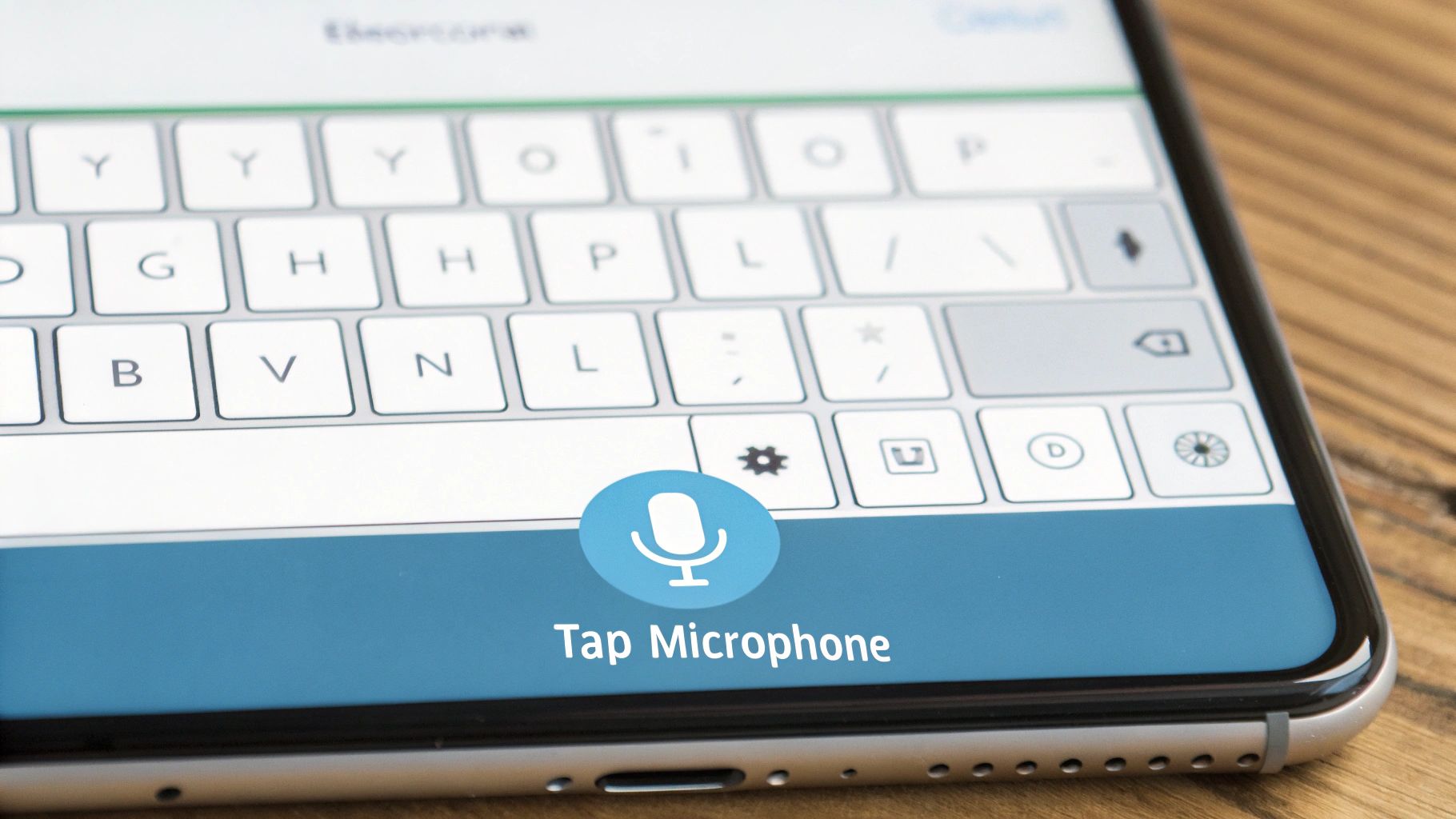
Now that you've turned on the tool, you have a new button on your keyboard. Look for a little microphone, usually next to the space bar. This button is how you start talking instead of typing.
To try it, open any app where you can type. You can open Messages to send a text, Notes to write something down, or Safari to search for a new game.
Start Talking and Watch the Magic
When the keyboard shows up, tap the microphone button. The letters will disappear and you'll see a wiggly line. That means your phone is listening.
Just start talking. You don't have to talk slow or loud. Just talk like you normally do. As you talk, your words will show up on the screen. For example, you could say, "Don't forget to feed the dog," and watch it type itself.
When you're done talking, tap the keyboard button at the bottom of the screen. This tells your iPhone you want to go back to typing. It's a super easy way to write without using your fingers.
My favorite part is that the microphone is right there on the keyboard. You don't have to open a different app. It's so fast and easy!
Apple keeps making this tool better. New iPhones show a microphone that wiggles to show it hears you. If you talk for a long time, it can type up to 6,000 letters before it needs a break! You can learn more about the evolution of iOS voice features and how they've gotten better.
This microphone is great for everyday stuff. Here are some ideas:
- Writing an email: You can say what you want to write to your teacher while you're walking to school.
- Making a list: As you look in the fridge, you can tell your phone to make a shopping list.
- Answering texts: When your hands are dirty from playing outside, you can answer a text without touching the screen.
How to Get Your iPhone to Understand You Better
Does your iPhone ever hear the wrong words? Like you say "I want a puppy," and it types "I want a guppy"? It happens. The best trick is to go to a quiet room. Loud noises from the TV, the wind, or other people talking can confuse your phone.
You also don't have to talk like a robot. Just speak clearly at a normal speed, like you're talking to a friend. This helps the phone hear your words just right.
Telling Your Phone Where to Put Punctuation
Here is a super cool trick: you can tell your phone what punctuation to use! This is a secret that makes your texts look much better. You don't have to go back and add periods or question marks later.
For example, instead of just stopping at the end of a sentence, say the word. Try this: "I will be there soon period". The phone will type a "." for you.
Here are some helpful words to say:
- Comma: Say this to add a little pause in your sentence.
- Question mark: Say this to ask a question.
- New line: This moves your typing to the next line, like in a poem.
- New paragraph: Use this to start a new idea with a clean space.
Once you get used to saying the punctuation, your texts will look neat and tidy. It's a small trick that saves a lot of time fixing mistakes.
Getting your phone to hear you right is all about giving it a clear sound to listen to. If you want to learn more about how it works, you can read about speech-to-text accuracy and see how the tech gets smarter all the time.
Fixing Problems with Talk-to-Text
Sometimes, the little microphone button on your keyboard disappears. Or maybe it's there, but it won't listen. Don't worry! This is usually easy to fix.
The first thing I always do is check the settings. Go back to Settings > General > Keyboard and make sure the "Enable Dictation" switch is still green. Sometimes, after an update, it can get turned off by accident.
A really good trick is to turn the switch off and on again. Turn "Enable Dictation" off, wait a few seconds, and then turn it back on. This little reset makes the microphone button pop back up on the keyboard.
Checking Your Internet and Microphone
If that didn't work, check your internet. Your iPhone needs to be on Wi-Fi or have a good cell signal for talk-to-text to work. It sends your voice to Apple's computers, so no internet means no talk-to-text.
Also, check the little holes on the bottom of your iPhone. Those are the microphones. They can get filled with dust or pocket fuzz. Use a soft, dry brush to gently clean them out. Sometimes even your phone case can block the sound.
When you use this tool, Apple keeps some of your voice recordings to help make the tool better. This helps it get smarter, but your name is not on it. You can learn more about how Apple manages dictation history if you want to know more.
Most of the time, the easiest fix works. Before you get upset, always try turning the dictation setting off and on again. This fixes the problem for me almost every time.
If you still have trouble, try turning your whole iPhone off and on again. This can fix bigger problems. For more help, our guide on how to turn on voice to text has even more tips.
Voice Text Questions Answered
Even after you learn to use talk-to-text, you might have some questions. Here are the answers to some common ones.
A big question is about money. Does it cost anything? No, it's free! Apple puts it on every iPhone. It does need internet, so if you're not on Wi-Fi, it will use a little bit of your cell data. But for a short text, it uses almost nothing.
Can I Talk-to-Text in Other Languages?
Yes, you can! Your iPhone can understand many languages. First, you need to add the keyboard for the language you want to speak.
Here's how to add a new language:
- Go to Settings > General > Keyboard.
- Tap Keyboards, then Add New Keyboard…
After you add it, you'll see a little globe button on your keyboard. Tap the globe to change languages. The microphone will know what language to listen for. It's great for talking to friends and family from other countries.
This same talking tool helps with other things, too. For example, it can be used to translate voicemail to text, so you can read a voicemail when you can't listen to it.
Why Did the Microphone Button Go Away?
This is a common and annoying problem. You want to talk-to-text, but the microphone button is gone. Most of the time, it's because the tool got turned off by mistake.
The fix is usually super easy. Go back to Settings > General > Keyboard and find the Enable Dictation switch. If it's off, turn it on. If it's already on, turn it off, wait a second, and then turn it back on.
This simple reset almost always brings the button right back. It's a quick fix that gets you talking again in no time.
At WriteVoice, we want to help you work faster. Our smart voice-to-text tool helps you write down ideas and papers up to four times faster than typing, and it gets the words right over 99% of the time. https://www.writevoice.io