How Do I Turn Talking Into Words? A Simple Guide
Turning your talking files into words you can read is easy and fast. The best way to turn talking into words is with a computer helper, like WriteVoice. You give it your sound file, and the computer does all the work. It turns hours of talking into a page of words in just a few minutes.
Why Turn Talking Into Words?
That's a good question. It’s like magic when you see the words on the page. Now you can search for a word, read it fast, and share it.
Think about finding one thing someone said in a long two-hour talk. It's hard to find! But with the words written down, you can use a search tool (Ctrl+F) to find that one word in just a few seconds. This is why it's so helpful—it lets you use the words that were stuck in the sound file.
The Big Choice: Fast or Perfect?
When you turn talking into words, you have a choice. Do you want it done super fast, or do you want to check every single word yourself?
Your choice depends on what you need the words for.
- Need it fast? If you have a long class talk you need to study now, a computer helper is the best choice. It can turn a one-hour talk into words in less than 10 minutes.
- Need it perfect? If you are writing for a newspaper or a court, you might want to type it yourself. That way, you know every little sound is just right.
This picture helps you choose.
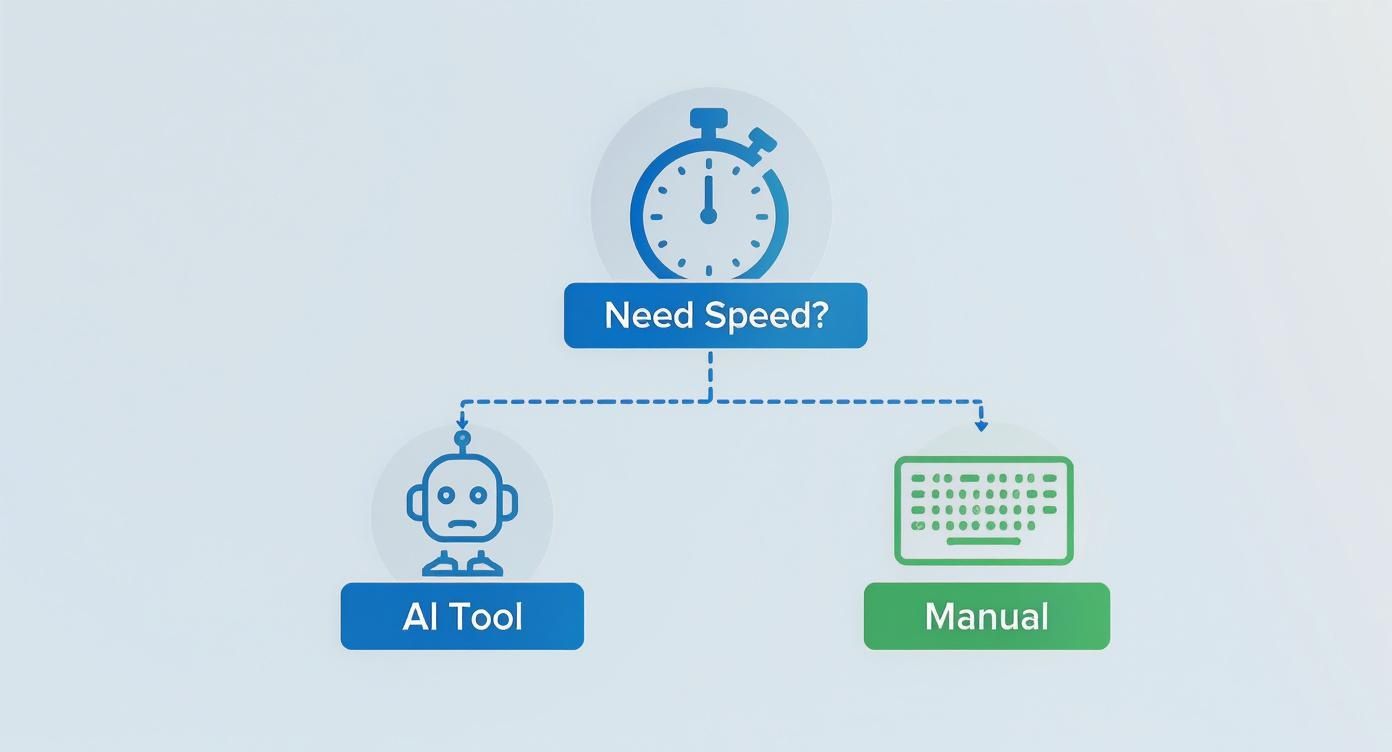
As you can see, it's mostly about how much time you have.
Easy Ways to Turn Talking Into Words
Here are the main ways to turn your sound into words. You can pick the one that is best for you.
| Method | How It Works | Best For |
|---|---|---|
| Computer Helpers | You put your sound file on a site like WriteVoice. The computer listens and writes down the words for you. | Getting it done fast, for class notes, talks, and making things easy to search. |
| Do It Yourself | You listen to the sound and type the words yourself. You can use a tool to slow it down or stop it. | When you need it 100% right, like for a story, and to get every little sound. |
| Pay a Person | You give your sound file to a person who is a pro at this. They listen and type it all out for you. | For very important things (like for a doctor or a judge) where it must be perfect, but you can't do it. |
Computer helpers are great because they are fast and do a good job. Doing it yourself is good for special jobs where every word counts.
Get Your Sound Ready for a Great Word File
Before you start, let's talk about your sound file. Think about it like this: if you show someone a blurry picture, they can't tell you much about it. It's the same for a computer helper.
A clean, clear sound file will give you a great word file. Even small sounds, like a fan or people talking far away, can confuse the computer. Then you get a word file with mistakes that takes a long time to fix.
So, a little work first can save you a lot of work later. You are giving the computer a clear map to follow.
How to Record Clear Sound
If you are making a new recording, you can make it great from the start.
Here are some good tips:
- Stay close to the mic. Keep your mouth about six inches from the microphone. This makes your voice the big sound and pushes other noises away.
- One person talks at a time. When people talk at the same time, it's a big mess for people and computers. Taking turns helps catch every word.
- Find a quiet room. A room with a rug or curtains is good. Even a closet works! These soft things stop echos. Turn off the TV or fan before you start.
Cool Fact: Making the sound clear can help the computer get over 40% more words right. That means a few minutes of quiet can save you half an hour of fixing words later!
Do you have a sound file that is not so clear? Don't worry. You can learn how to remove background sound from video before you give it to the computer.
Pick the Right Kind of Sound File
Did you know the type of file matters? Most computer helpers can use any kind, but some are better than others.
A WAV file is a good choice. It keeps all the sound just like it was recorded. An MP3 file is smaller, but it can lose some small sounds. The computer might need those small sounds to figure out a tricky word.
The rule is: always use the best sound file you have. We talk more about this in our guide to improving speech-to-text accuracy. When you give the computer the best ingredients, you get a much better meal.
Let a Computer Helper Do the Hard Work
Now it’s time to relax and let the computer do its job. You don't have to sit for hours typing every word. A computer helper can do it all much faster, and it’s easy for anyone to use.
Think of it as a smart helper who can listen and type faster than anyone. You just give it the sound file. A tool like WriteVoice is made to be simple.
How to Get Your File Turned into Words
It only takes a few clicks to get your words. It is a quick and easy way to save a lot of time.
When you go to the website, you will see a simple page. It's made to be easy to start.
Your only job is to pick your sound file and let the computer do its magic.
Here is what you do:
- Find the upload button. You'll see a big button that says "Upload," "Start," or "Transcribe."
- Pick your sound file. Find the file you saved on your computer and click on it.
- Start the work. After the file is loaded, you just click one more time to start.
You will see a bar that shows the computer is "listening" and turning the talk into a word file. Soon, all the words will be on your screen, ready for you.
Are Today's Computers Really That Good?
Yes! The computers that turn talking to words are very good now. They can get almost all the words right. This means anyone can use them. People think that by 2025, others will spend over $19 billion on tools like this. That's a lot!
Good computer helpers can be right 90% of the time. They can understand people from different places and even with noise in the back. You can read more about AI transcription trends on Zight.com.
This means you spend less time fixing mistakes and more time using your words. If you typed a one-hour talk yourself, it could take four hours. A computer can give you a good start in less than ten minutes.
This speed is a big help. Students can make study notes from class talks. Workers can save notes from phone calls. It's as easy as sending an email. To learn more about how this works, see our guide on using AI to convert audio to text.
Make Your New Word File Perfect
The computer did the hard part and gave you a page full of words. But you are not quite done. Even the best computer can miss a strange name, a big word, or a quiet part of the talk.
This is your job. Think of it like checking your homework one last time. A quick look makes sure your word file is not just done, but also right and easy to read.
This person-check is very important. Soon, lots of people will use computer helpers for this. People think this will be a $19.2 billion market by 2034. That is a lot of words that a person should check! You can read more about this rapid growth in transcription technology.
How to Make Your Word File Great
The best way to check the words is to listen to the sound file while you read the words. Your brain will quickly find spots where what you hear is different from what you see.
Good news! Most tools are made to help you do this. They have a screen where the sound and words play together. This makes finding mistakes super easy.
Look for these helpers:
- Words Light Up: The tool often lights up the word as it is said in the sound file. If the lit-up word is not what you hear, you found a mistake! Just stop, fix it, and keep going.
- Click the Time: You will see numbers like (01:15) next to the words. This is the time in the sound file. If you need to hear a part again, just click the time to jump right to it.
Super Tip: A quick check is the best way to fix mistakes. Spending just a few minutes here can turn a good computer word file into a great one you can trust.
Last Steps to Make It Clear
A few small changes can make your word file much easier to read, especially if many people were talking.
First, check the dots and commas. The computer is usually right, but you might want to break up a long sentence. This can make it sound more like how the person was really talking.
Next, add speaker names. Most tools will say "Speaker 1" or "Speaker 2." You can change these to real names like "Sarah" or "Dr. Evans." This makes it much easier to know who said what. It's a small change that helps a lot.
What to Do With Your Word File Now?
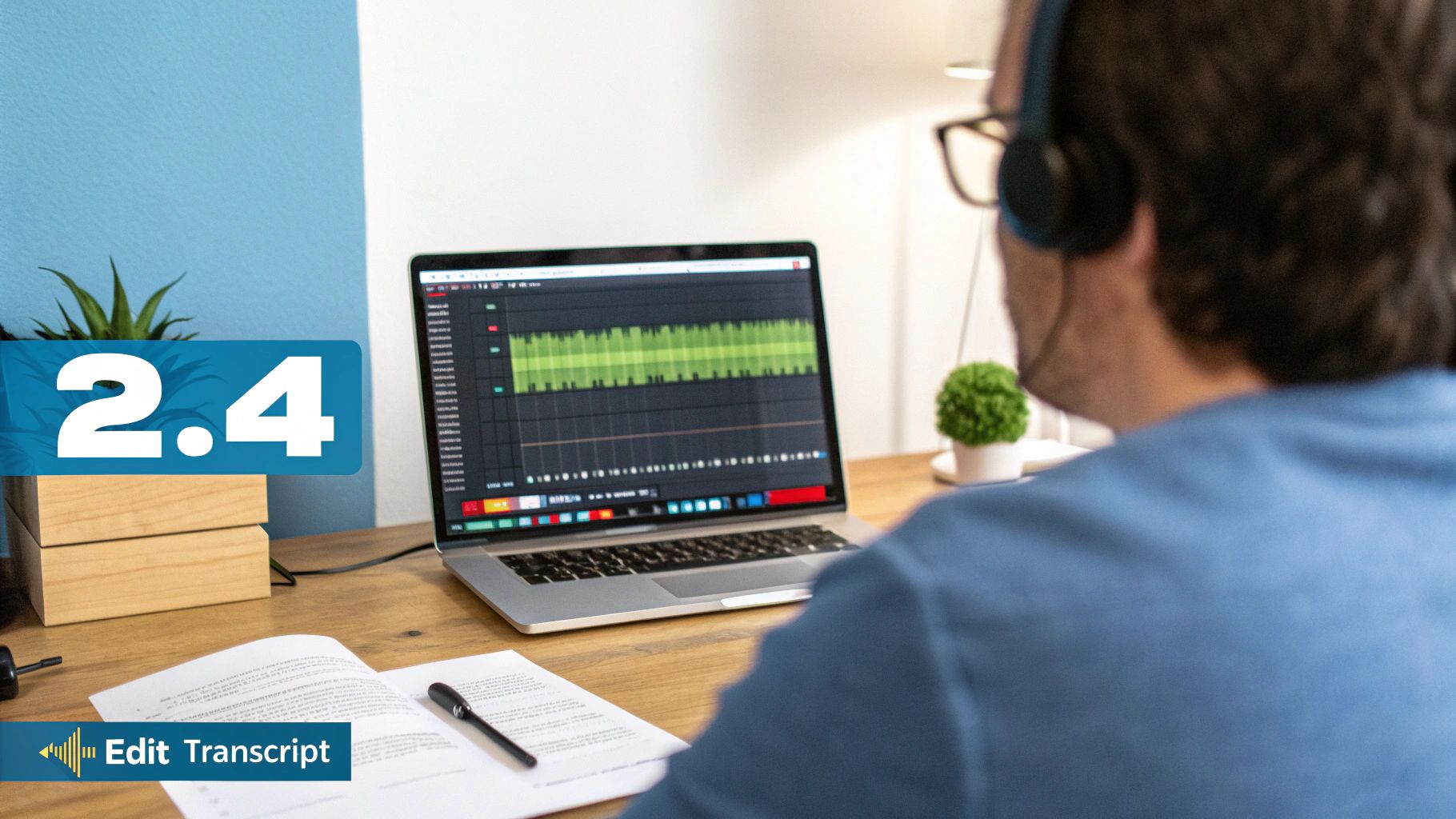
You have a word version of your sound file. What's next? Your word file is not just a bunch of words. It's a tool that helps you find, read, and use information. You can use it in more ways than you think.
For students, the words from a class talk are a big help. Think about searching for one word from a long class instead of listening to the whole thing again. For workers, it means you can find what was decided in a meeting without re-listening to the call. If you need help taking notes in meetings effectively, this is a big step up.
Do More With Your Words
One of the best things you can do with a word file is use it again in new ways. If you make videos or podcasts, you can turn them into a blog post right away. This helps you share your work with more people—like those who like to read or can't listen right now.
This is why so many people want to turn talking into words. In the U.S. alone, this work was worth $30.42 billion in 2024. This shows how important it has become.
A word file turns one sound file into many things. A 20-minute podcast can become a blog post, a social media post, and a newsletter—all from that one sound file.
You can also pull out fun quotes from your word file for social media. This makes it easy to do things like adding captions to your Instagram Story. This gets more people to look at your posts and helps everyone enjoy them.
Your Questions About Turning Talking Into Words, Answered
If you're new to this, you might have questions. Here are answers to some common ones.
How Long Does It Really Take to Get the Words?
This is where computer helpers change everything. If you try to type it yourself, it can take a long, long time. It can take four or five hours to type out just one hour of talking.
With a tool like WriteVoice, that same one-hour file is often done in less than 10 minutes. Think about that! You can upload a long meeting, get a cup of tea, and come back to a full page of words.
What if Many People Are Talking at Once?
This is a tough one, especially for meetings or talks with a lot of people. But good computer helpers are made for this. They can tell when different people are talking and write it down for you.
The word file will have labels like:
- Speaker 1
- Speaker 2
- Speaker 3
Then you can just change these labels to real names, like "Sarah" or "David." This makes it very easy to see who is talking.
It's like having a helper who is great at figuring out who said what. This makes it easy to get words from interviews, podcasts, and group talks.
Can This Work for Other Languages, Not Just English?
Yes! This is a big help for anyone who works with people from other countries. Good computer helpers, like WriteVoice, can work with many languages.
You can upload a sound file in Spanish, French, or German and get the words in that language. This is great for meetings with people from all over the world or for learning a new language.
Are you ready to see how fast and easy this is? Give WriteVoice a try and turn your talking into words in just minutes. Get started for free at writevoice.io.