A Simple Guide to Google Docs Bullet Points
Making a list with Google Docs bullet points is easy. It is also one of the best ways to make your writing clear. Big blocks of words can be hard to read. Bullet points break up big ideas into small, easy-to-read parts. This is a great skill for making notes in class or planning a fun project.
Why Bullet Points Make Your Papers Better
Think about reading a recipe that is one long sentence. It would be very hard to follow! Many papers feel the same way when they don't have lists. Bullet points help fix this problem.
Bullet points are more than just dots. They are a tool to help you sort your thoughts. For a parent planning a birthday party, lists help them see everything they need to do. They can quickly find what's important instead of getting lost in a lot of words.
Making Words Easier to Read
The best thing about bullet points is that they make your paper easy to scan. When you make a list, you add white space around the words. This makes the page look less crowded and helps people read without getting tired. Lists are great for:
- Things to do: See each task you need to finish.
- Game rules: List the steps so everyone knows how to play.
- Main ideas: Show the most important parts of a story.
This helps people understand things much faster. Some say that lists can make writing 47% easier to read than a big block of text. You can learn more from these technical writing experts. It means your friends or teachers can understand your ideas quickly.
Saving Time with Smart Tools
Making lists should be fast and fun. You can type them out, but there are even quicker ways to get your ideas on the page.
A cool trick is to use your voice to make a list. You can say your ideas out loud, and they turn into a neat list on the screen. This is like magic for when you have a lot of thoughts at once!
Tools like WriteVoice can turn what you say into a list right away. This saves a lot of time when you are thinking fast or making notes while talking to someone. If you want to get your ideas down faster, our guide on how to improve writing speed can help.
Simple Ways to Make Bullet Points in Google Docs

Starting a list with Google Docs bullet points is very simple. There are a few different ways to do it. Let’s look at the fastest ways to start sorting your ideas.
The easiest way is to use the toolbar at the top of the page. Look for a button with three dots and lines. Click it, and a bullet point will show up. Now you are ready to type your first idea!
Use the Toolbar Button
The toolbar button is great when you are already using your mouse to click on things. It is easy to see and you don't have to remember any special tricks.
Let's say you are making a list of things to pack for a trip. You can click the bullet point button and type "Toothbrush." When you are done, just press the Enter key. Google Docs will add a new bullet for your next item, like "Pajamas."
Work Faster with a Keyboard Trick
If you like to keep your hands on the keyboard, there is a special trick for you. It helps you make a list without moving your hands to the mouse.
On a Windows computer, press Ctrl+Shift+8. On a Mac, press Cmd+Shift+8. This is a great trick for people who type a lot. It saves a little bit of time, which can make writing feel much smoother.
Imagine you and your friends are making a list of games for a party in the same document. Using this trick, everyone can add ideas super fast without stopping to find a button. It keeps the fun ideas coming!
Millions of people use Google Docs every day to make lists for school and work. A quick Ctrl+Shift+8 is a big help for a scientist listing steps for an experiment or a student outlining a book report. You can see more on how these features impact workplace collaboration in action.
Try the Automatic List Trick
Here is another cool trick in Google Docs. You can start a list just by typing a star or a dash.
Type a star (*) or a dash (-), then press the spacebar. When you start to type, Google Docs will see what you are doing and turn it into a real bullet point for you. This feels very natural and is often the fastest way to begin a list.
Quick Guide to Making Bullet Points
| Method | How to Do It on a Computer | How to Do It on a Phone or Tablet |
|---|---|---|
| Toolbar/Menu | Click the button with dots and lines at the top. | Tap the button with dots and lines at the bottom. |
| Keyboard Trick | Press Ctrl+Shift+8 (Windows) or Cmd+Shift+8 (Mac). | Not available. |
| Automatic Trick | Type a star (*) or a dash (-) then a space. | Type a star (*) or a dash (-) then a space. |
These simple ways help you make lists quickly, whether you are at a desk or using a phone.
Sometimes, a simple list isn't enough. You need to show that some ideas belong under other ideas. This is where sub-bullets come in handy. They are like smaller lists inside your big list.
Think about planning a big pizza party. Your main list has big topics, like "Toppings" and "Drinks." Under each topic, you have smaller details. Using sub-bullets turns your mixed-up ideas into a clear plan everyone can understand.
Making Your First Sub-Bullet List
Making a sub-bullet list in Google Docs is super easy. It just takes one key.
First, make a normal bullet point. Then, press Enter to make a new line. Before you type, press the Tab key.
You will see the new bullet move to the right. It might even change from a filled-in circle to an empty circle. This new bullet is now a "child" of the one above it. You can do this again and again to make many layers. This is perfect for breaking big ideas into small, easy pieces.
For anyone who writes a book report or plans a science project, sub-bullets are a must. They show your teacher how all your ideas connect. A good list helps everyone see the plan clearly.
This is my favorite way to sort ideas. When I am planning a story, I use Google Docs bullet points for the main parts, like "Beginning," "Middle," and "End." Then I press Tab to add all the details under each part. If you want more tips, our guide on how to organize meeting notes has great ideas.
A Pizza Party Plan Example
Let's plan that pizza party. At first, your list of ideas might look like this:
- Pizza Party Plan
- Toppings
- Pepperoni
- Mushrooms
- Drinks
- Juice
- Water
- Games
- Board Games
- Music
All the ideas are there, but the list looks messy. Let's use the Tab key to fix it. After you type "Toppings," press Enter, then press Tab, and then type "Pepperoni."
The new list is much clearer:
- Pizza Party Plan
- Toppings
- Pepperoni
- Mushrooms
- Drinks
- Juice
- Water
- Games
- Board Games
- Music
- Toppings
Now you can see exactly what belongs together! And if you press Tab too many times? No problem. Just press Shift+Tab to move the bullet back to the left. These two keys give you full control to make neat and tidy lists for any plan.
Making Your Bullet Points Look Special
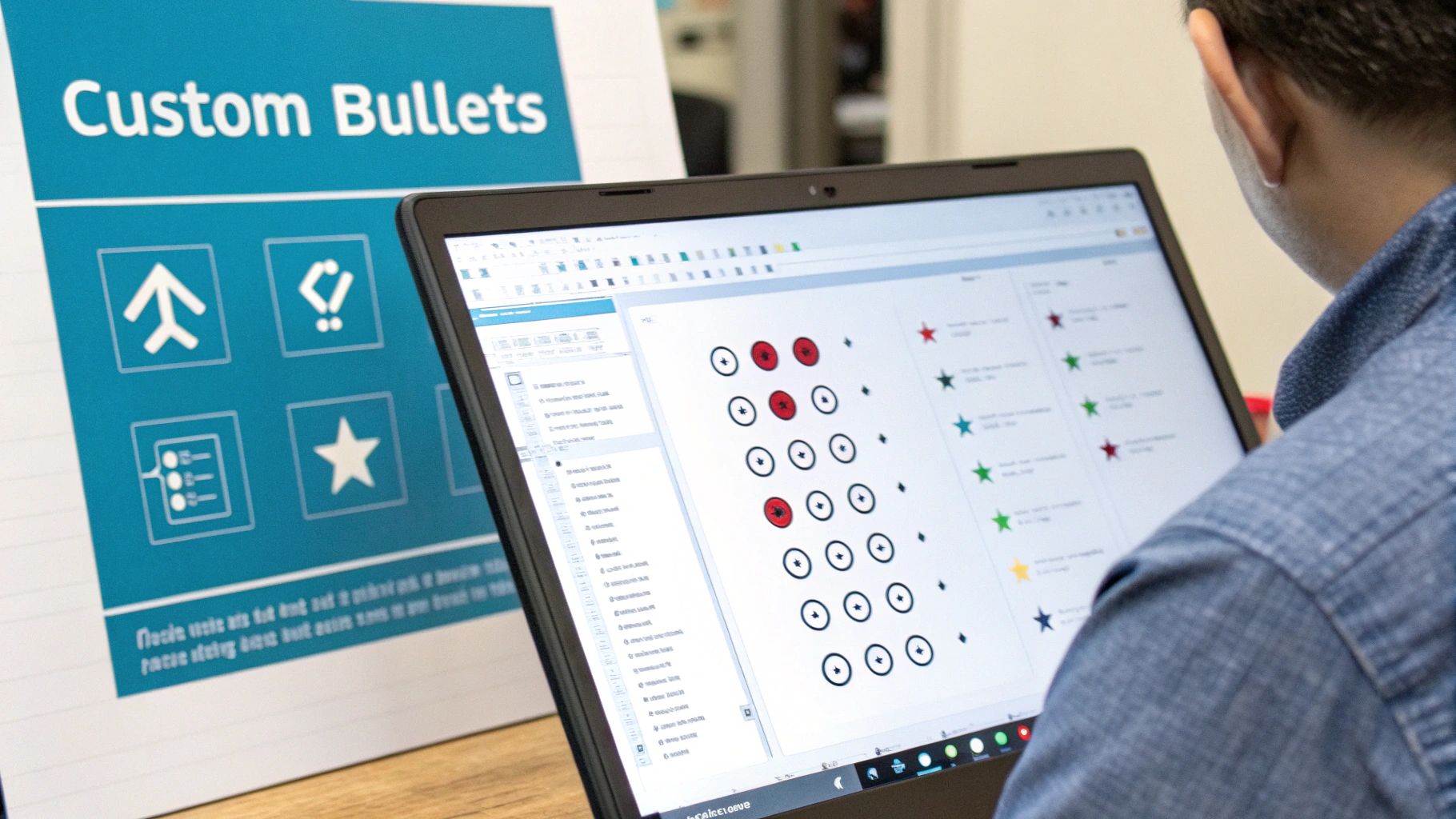
The normal black dot works fine, but you have other choices! Changing your Google Docs bullet points is a fun and easy way to add some color and style to your papers.
This small change can make a big difference. For example, a to-do list with real checkmarks is easier to understand than one with plain dots. Using different pictures for different kinds of ideas helps your reader see how things are organized.
Changing How Your Bullets Look
Ready to try something new? First, select the list you want to change. In the toolbar, find the bullet list button and click the small arrow right next to it. This will open up a box with different bullet styles.
You will see a menu with many choices, like:
- Arrows (→)
- Checkboxes (☐)
- Diamonds (♦)
- Stars (★)
This is a good time to pick a picture that fits your list. I like using arrows for step-by-step directions because they show you where to go next.
Adding a Little Color
You can also change the color of your bullets. This is a simple but cool way to make important things pop. Imagine you are making a study guide and want to mark the most important facts. Making those bullets red is a perfect way to make them stand out.
To do this, select your list and right-click on one of the bullets. A menu will appear with a color choice. It's very easy. When I make a chore chart for my family, I give each person a different color so they can see their tasks right away.
Changing your bullet points is more than just decorating. It helps you talk to your reader. A good picture or color can show what you mean before anyone even reads the words.
For example, if you are making a birthday card, you could use a star or a heart as your bullet point. You can even use emojis for fun lists! Don't be afraid to play around. You can turn a boring list into something special that helps share your message.
Make Lists Faster by Talking

What if you could make a perfect list just by talking? Sometimes ideas come to your head faster than you can type. This is where talking to your computer can be a huge help for making Google Docs bullet points.
Instead of typing every item, you can just say your list out loud. A special tool can hear your words and put them into a neat list in your document.
This is great for anyone who is doing many things at once. Imagine you are building with LEGOs and get a great idea for your next creation. Or maybe you are walking your dog and think of a list of things to do this weekend. You can just talk, and your notes will appear.
How Talking to Make Lists Works
It is easier than you think. A computer program listens to your voice and turns it into words. The best part is that it understands commands. You can say things like "start list" or "next item" to build your list as you talk, all without using your hands.
For most people, talking is much faster than typing. It feels more natural to say your thoughts out loud. This helps your ideas flow right onto the page.
I think of it like having a helper who writes down everything I say. It’s ready to catch your thoughts right away and turn them from a jumble of words into a clear list in just a few seconds.
For example, a cook could look in the fridge and say a shopping list out loud without having to stop and wash their hands to type. To see how it works, you can learn about the different ways to dictate in Google Docs and find what you like best.
Keeping Your Spoken Words Private
Of course, if you are talking about secrets, you want them to stay safe. This is very important for things like a diary or a secret club plan. While typing feels safe, new tools that listen to you are also built to be very private.
Many of the best talking tools are designed to forget what you say. Here is what makes them safe:
- They Don't Keep Your Voice: The best tools turn your voice into words right away and do not save the sound. Once it's text, the sound of your voice is gone forever.
- They Don't Keep Your Words: The words go straight to your Google Doc. They are not saved anywhere else.
This means you can talk about secret plans or private thoughts without worry. The tool is just a safe tunnel between your voice and your paper, making sure your private information stays private. It's the perfect way to make Google Docs bullet points that are fast and safe.
How to Fix Common Bullet Point Problems
We have all had this happen. You are trying to make a nice, clean list in Google Docs, and the bullets start acting silly. Maybe they are not lined up right, or a dot shows up where you don't want it.
These small problems can be annoying, but they are almost always easy to fix. You don't have to be a computer expert to fix them. You just need to know what to do.
When Your Bullets Are Messy
One of the most common problems is when the list is not lined up correctly. You might have hit the Tab key too many times. Or maybe you copied a list from a website and it brought some messy formatting with it. Now your neat list looks all jumbled.
The easiest fix is on your toolbar. Look for the Decrease Indent and Increase Indent buttons. They look like lines with an arrow pointing left or right.
- To move a bullet back to the left, use Decrease Indent.
- To move a bullet to the right to make a sub-bullet, use Increase Indent.
Just highlight the lines that are in the wrong spot and click the right button. It’s a super-fast way to make your list look neat again.
Pro Tip: If your list is a total mess, the best thing to do is use the 'Clear formatting' tool. Highlight the whole messy list, go to the
Formatmenu, and clickClear formatting. This erases all the styles, including the bullets. It gives you a fresh, clean start.
Fixing the Space Between Bullets and Words
Have you ever seen a big, weird space between the bullet dot and the first word? It can make your list look clumsy. Luckily, it is easy to fix this and make your paper look much nicer.
For this, you need the ruler at the top of your page. If you don't see it, go to the View menu and click Show ruler.
Now, highlight your list. On the ruler, you will see a little blue bar and a blue arrow above it. The arrow controls where the bullet is, and the blue bar controls where the words start.
To close the space, just click and drag the blue bar closer to the arrow. This tiny change can make a big difference in how good your paper looks.
More Cool Bullet Point Tricks
Once you know the basics, you might have other questions about Google Docs bullet points. Making a list is one thing, but making it look just right can be fun. Let's answer a couple of common questions.
Can I Use a Picture as a Bullet Point?
Yes, you can! This is a really fun way to make your papers special. You could use it for a school project or a birthday party invitation. Instead of a dot, you could use a small picture of a star or a smiley face.
It’s easy to do. Just right-click on your list and choose Bullets & numbering. A new box will open. From there, choose More bullets and then click the Image option. You can then pick any small picture from your computer to be your new, cool bullet.
Why Did My Bullets Go Away When I Pasted Words?
This is a very common problem. It happens when you copy words from a website or another app. The words bring their old, invisible formatting with them. This can mess up the formatting in your Google Doc and make your bullets disappear. It is frustrating, but there is an easy fix.
The trick is to paste the words without their old formatting. Instead of pressing
Ctrl+V(orCmd+Von a Mac), use this special shortcut:Ctrl+Shift+V(orCmd+Shift+V).
This command gets rid of all the old formatting and just gives you the plain words. Then, your Google Doc can add its own bullet points, keeping your list looking neat and clean.
Ready to create lists four times faster without typing? WriteVoice turns your spoken words into perfectly formatted text inside any app. See how WriteVoice can speed up your workflow.