Enable dictation iphone: A Fast, Friendly How-To Guide
Are you tired of typing on a tiny keyboard? Let's turn on dictation on your iPhone. It's a super easy trick that lets you write messages, emails, and notes much faster.
Talk, Don’t Type: The Magic of iPhone Dictation
Do you ever wish you had an extra hand to write a text message? With your iPhone, you kind of do. The dictation tool turns your words into text. It saves you lots of time and trouble.
This is a big help for anyone who is busy. Imagine you are making dinner and need to add something to your shopping list. Instead of stopping, washing your hands, and trying to type, you just talk. The words show up in your Notes app. That’s the power of talking to your phone.
Why You Should Give Voice Dictation a Try
Let’s be real, talking is way faster than typing with your thumbs. Most people can talk three times faster than they can type on a phone. This means you can save your ideas right when you think of them.
- Do Two Things at Once: Answer texts while you walk your dog or carry bags.
- Less Annoying Mistakes: When you talk clearly, you make fewer typing mistakes.
- A Big Help for Everyone: For people who find typing hard, talking is a great way to write.
The best part is how easy it feels. Dictation helps you get your thoughts down without any work. It makes your iPhone feel less like a phone and more like a helper.
Just like dictation makes writing easier, knowing other iPhone tricks helps too. For example, knowing how to screenshot on your iPhone is another easy skill that saves you time.
This tool is a type of speech-to-text software, which helps us use our tech every day. Ready to try it? Let’s learn how to turn it on.
How To Turn On iPhone Dictation
It only takes a few taps to get started. Here is the fastest way to make dictation work on your iPhone.
Quick Steps to Enable Dictation
| Step | Action |
|---|---|
| 1. Open Settings | Find and tap the gray Settings gear picture on your screen. |
| 2. Go to General | Scroll down a little and pick General. |
| 3. Find Keyboards | Inside General, tap on Keyboard. |
| 4. Enable Dictation | Scroll to the bottom and tap the switch next to Enable Dictation. |
After you do this, a little microphone picture will show up on your keyboard. It's ready for you to use when you want to talk instead of type.
How to Actually Enable Dictation in Settings
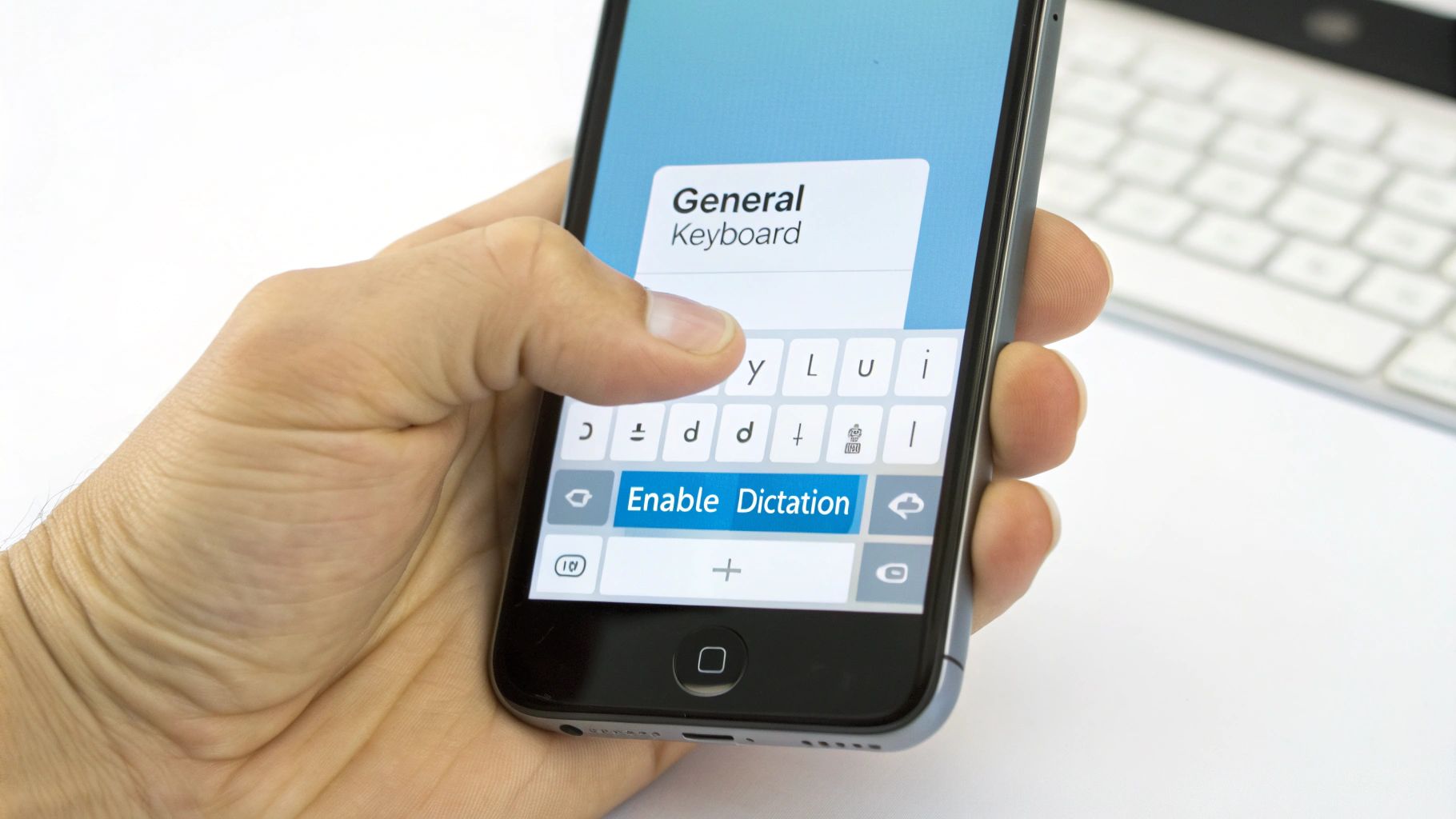
Turning on dictation is much easier than you think. Your iPhone’s Settings app is where you control everything, and this is easy to find.
First, open your Settings app and go to General. This part has many of your iPhone’s main controls. Once you are there, scroll down and tap on Keyboard. This is where you can change things like auto-correct.
Flipping the Switch for Dictation
At the bottom of the Keyboard settings, you will see the magic switch: Enable Dictation. Just tap it. A small box will pop up. This is just Apple telling you that your voice might be used to understand what you say.
Just tap Enable Dictation on the pop-up, and you are all done. That little microphone picture will now be on your keyboard, ready for you.
This easy switch turns on a tool that millions of people have used since 2011. You can turn your words into text in Messages, Notes, and many other apps. It works in over 30 languages. If you want to know about your privacy, you can learn more about how Apple uses your words on VoiceScriber.com.
What if the Option Is Missing?
Don't worry if you go to the Keyboard settings and the "Enable Dictation" button isn't there. This doesn't happen often, but the fix is almost always the same: Siri is turned off.
Dictation and Siri use some of the same tools to understand your voice. So, if Siri is off, the dictation button might hide. To get it back, just do these easy steps:
- Go back to the main Settings screen.
- Scroll down and tap on Siri & Search.
- Make sure either Listen for "Hey Siri" or Press Side Button for Siri is turned on.
Once Siri is on again, go back to Settings > General > Keyboard. The missing button to enable dictation on your iPhone should be there for you to turn on. This small step fixes the problem almost every time.
Where Do Your Spoken Words Go?
It’s a good question: when you talk to your phone, where do your words go? The good news is that Apple made dictation to keep your words private. For most things you say, it all happens right on your phone.
This is called on-device processing. It means your spoken words are turned into text without ever leaving your iPhone. This keeps your private talks safe. You can say a secret work email or a personal note to a friend and not worry.
Sometimes your iPhone needs extra help, like with a hard name or a special word. In that case, it might send a request to Apple's computers. But this does not happen very often.
You Are in Control of Your Data
Apple's rules are made to give you control. When you first Enable Dictation, your iPhone is set up to do most of the work itself. When it does need help from Apple, your words are not tied to your name.
Apple uses a random code that is not linked to you and changes often. Your spoken text is not saved unless you say it's okay. You can read all the details in Apple's data policy.
Knowing how this works helps you feel safe. Many people worry about privacy, and it’s smart to see whether voice AI is safe before you use it all the time.
The most important thing to know is this: your iPhone does most of the work on its own. It is made to keep your words private and safe.
And if you change your mind, you can go into your settings anytime to delete your Siri and Dictation history. This puts you in charge of your words.
Using Voice Commands for Punctuation and Formatting
Okay, now that dictation is on, you can start talking instead of typing. Just tap the little microphone picture on your keyboard and speak. The real magic is not just saying words. It's telling your phone how to write them.
Think of it like being the boss. You tell the words where to go and what to do. You can even tell your phone to add punctuation.
For example, if you want to text a friend, "I'm running late! See you soon," you would say: "I'm running late exclamation point see you soon period." Your iPhone knows how to turn those spoken commands into the right marks. It feels like a cool trick.
Making Your Sentences Look Right
Adding punctuation is the first step to making your text easy to read. Nobody wants to get one long sentence that never ends. By just saying the names of the punctuation marks, you can make your messages look nice.
Here are the ones you’ll use all the time:
- Period: Say "period" to end a sentence.
- Comma: Say "comma" to add a small pause.
- Question Mark: Say "question mark" when you ask a question.
- Exclamation Point: Say "exclamation point" to show you are excited.
This is very helpful. If you are making a shopping list, you can just say, "Milk comma eggs comma and bread period." Your iPhone will type it out just right, with no hands.
More Than Just Punctuation
But you can do even more. You can also control how your text looks. This is great for longer notes or emails when you want to be neat.
People who get the most out of dictation learn these easy commands. It’s what turns your spoken words into a clean text in just a few seconds.
Try using these commands next time you talk to your phone:
- New Paragraph: When you want to start a new block of text, just say "new paragraph."
- New Line: If you just need to go down one line, say "new line."
- Caps On/Caps Off: To type in all capital letters, say "caps on." When you are done, say "caps off" to go back to normal.
Getting good at these commands makes dictation much faster. You won't have to go back and fix as many things.
Troubleshooting Common Dictation Problems
Sometimes, technology does not work the way we want. If your iPhone's dictation tool is not working right, don't worry. The fixes are usually easy, and you'll be talking to your phone again in no time.
One of the biggest problems is when the microphone picture on the keyboard just disappears. You go to write a message, and the button is gone. It's annoying, but the problem is almost always in your settings.
When the Microphone Button Disappears
Most of the time, a missing microphone button is because of Screen Time rules. People use this to set limits on a phone, but it can be turned on by accident. Even if you don't remember setting it up, it's the first place to check.
Here's how to check:
- Go to Settings and tap on Screen Time.
- Go into Content & Privacy Restrictions.
- Choose Allowed Apps.
Look for Siri & Dictation in this list. If the switch next to it is off, you found the problem. Just turn it back on, and the microphone button should show up on your keyboard again.
Fixing Poor Dictation Accuracy
What if the microphone is there, but your iPhone is not hearing you right? If it makes a lot of mistakes, dictation can be more work than help. But there are a few things you can do.
First, check how you are holding your phone. It’s easy to cover the tiny microphone holes at the bottom of your iPhone with your hand.
A clear and steady voice helps a lot. I have found that talking too fast or mumbling are the main reasons for mistakes. Your phone needs a moment to understand you, so talking at a normal speed works best.
Loud noises can also cause problems. Talking in a noisy place like a coffee shop or a windy park will make your phone mess up. Just moving to a quieter place can help a lot. Learning what can affect speech-to-text accuracy can help you get it right every time.
Common Questions About iPhone Dictation
Once you start using dictation on your iPhone, you might have some questions. That's good! It means you are learning how to use it. Here are some simple answers to the questions people ask the most.
Is It Free to Use Dictation on My iPhone?
Yes, it is totally free. The dictation tool is part of the software on your iPhone. You don't have to pay or download a special app to use it.
When you talk to your phone, it might need to use the internet to understand hard words. This would use a very small amount of your phone's data. But the tool itself does not cost any money.
Can I Use Dictation When I Don't Have Internet?
Yes, you can. On newer iPhones, dictation for many languages works without the internet. This is called on-device dictation, which means your phone does all the work itself without sending your words to a server.
This is great for two big reasons. First, it keeps your words private because they never leave your phone. Second, it's very useful. You can write a quick note on a train or a plane without needing Wi-Fi.
Key Takeaway: Think of it like this: Siri is the smart helper that does things for you, like making a call. Dictation is a tool that only does one thing: it writes down what you say.
How Do I Make a Smiley Face Using Dictation?
This is one of my favorite little tricks. It makes talking to text feel more fun. You can add emojis just by saying their names.
For example, if you say, "I am so excited smiley face emoji," your iPhone will type the sentence and add the 🙂 symbol at the end.
Try some of these:
- "See you soon winky face emoji" adds a 😉.
- "Thinking of you heart emoji" adds a ❤️.
- "That's hilarious laughing emoji" adds a 😂.
What Is the Difference Between Siri and Dictation?
This is something that confuses many people, because you talk to both of them. The easiest way to tell them apart is to think about their jobs: Siri is a helper, while dictation is a typing tool.
You give Siri jobs to do. For example, you might ask Siri to "set an alarm for 7 a.m." or "what's the weather like?" Siri understands your order and then does the job.
Dictation just writes down what you say. It doesn't do anything with your words. You will only see the little microphone button for dictation when your keyboard is on the screen, ready to help you write without using your hands. They are two different tools that both use smart voice technology.
If you're looking for an even faster and more accurate way to turn your voice into text, WriteVoice can take your productivity to the next level. It processes your words in under a second and automatically formats them into polished text inside any app you use. Try it for free and see how much time you can save at https://www.writevoice.io.