The 12 Best Tools to Turn Your Voice into Words in 2026
Typing a lot can make your hands tired and slow you down. It's hard to type as fast as you can think. What if you could just talk and have your words appear on the screen? Special tools called dictation software for writers can do this. They help you write faster and give your hands a rest.
This guide will show you the best tools for turning your talk into text. We will look at tools for writing a story, taking notes, or working on a big school project. The right tool for you depends on what you need to do. Do you need a tool that gets every word right for a long book? Or do you need one that works with special programs for your job?
In this guide, you will find:
- A close look at 12 of the best tools for talking and writing.
- Good things and bad things about each tool.
- How much each tool costs.
- What kinds of writers should use each tool.
- Pictures and links for every tool we talk about.
We want to help you find the best tool to write more, hurt your hands less, and get your ideas on the page. We'll show you which tools are the best at understanding your voice and working the way you need them to.
1. WriteVoice: The Best All-Around Choice for Writing Fast
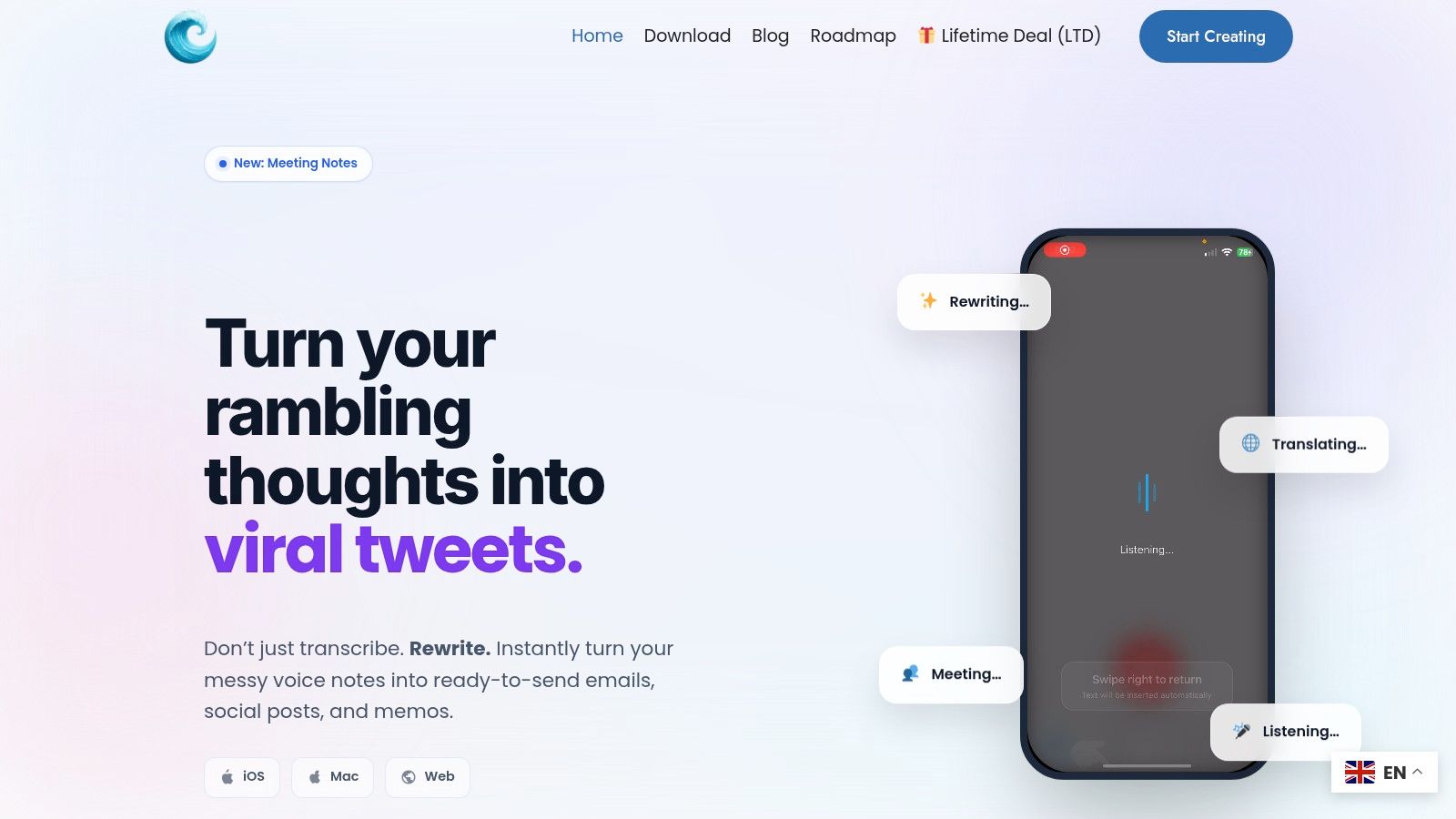
If you want a tool that not only writes what you say but also helps fix it, WriteVoice is the best choice. It is more than just a voice-to-text tool. It is like a smart helper that turns your spoken words into a clean, finished story with very little work. It is great because it understands what you mean, so you can think about your ideas, not about fixing mistakes.
This tool is great for big ideas. If you are a writer planning a new part of your book or a student taking notes, WriteVoice can help. You can talk like you normally would, and it will add the periods and commas for you. It can even help you say things in a better way.
Key Features & User Experience
WriteVoice is easy to use and does not have a lot of confusing buttons. Its best parts are made for people who write a lot:
- Smart Commands: Unlike simple tools, WriteVoice knows what you mean when you say things like "start a new line" or "make that word bold." This makes writing with your voice feel easy and natural. For example, if you say "add 'once upon a time' in quotes," it types: "once upon a time".
- AI Helper: After you talk, its computer helper can check for mistakes, help you make your writing sound better, and keep your style the same. This is great for making your first try look almost perfect.
- Keeps Your Work Private: If you are writing something secret, like a lawyer or a reporter, WriteVoice keeps your words safe. It uses a special lock so only you can see your work.
Practical Use Cases & Pricing
WriteVoice is good for many kinds of writers. A story writer can talk out a whole chapter while walking in the park. A manager can talk their ideas right into a work ticket, and the tool will spell the hard words right.
Pricing Tiers:
- Free Plan: Lets you try it out and gives you some time to turn your voice into text each month.
- Pro Plan ($15/month): Gives you unlimited time, the smart AI helper, and connects to other writing apps.
- Business Plan (Custom Pricing): Good for teams, with one bill and extra safety features.
Visit the website: WriteVoice Official Site
2. Nuance Dragon Professional v16
For writers who want a very powerful tool that works without the internet, Nuance Dragon Professional v16 is a top choice. You put it on your Windows computer, and it does all the work right there. This is good for secret stories or important papers that need to stay private. Dragon lets you talk into almost any program, like Microsoft Word or a special tool for writing books.
What makes Dragon special is that you can change it to work just for you. You can teach it new words, like the names of your story characters or hard science words. It also learns how you talk over time so it gets better at understanding you. To see how these tools get so good, you can learn about speech-to-text accuracy. You can also make your own voice commands. For example, you could teach it that when you say "New Chapter," it makes a big, bold title. This saves a lot of time.
Key Features & Assessment
| Feature | Analysis |
|---|---|
| Works on Your Computer | Use it with almost any program on your Windows computer. It works fast. |
| Add Your Own Words | You can add special names or words so it spells them right. |
| Make Voice Shortcuts | Create your own commands to do things that take many steps. |
| Works Offline | Everything stays on your computer, so your work is safe and private. |
Pros & Cons
- Pros:
- Works great with programs on your computer.
- Super private because it works offline.
- You can buy it one time and own it.
- Cons:
- Only for Windows computers, not for Mac.
- It can be a little tricky to learn all its cool tricks.
Best for: Writers with Windows computers, like people writing books or legal papers, who need a strong offline tool they can teach their own words to.
Link: Nuance Dragon Professional
3. Dragon Anywhere Mobile (Nuance)
For writers who get ideas when they are out and about, Dragon Anywhere lets you use a pro tool on your phone. It's not just a simple voice-to-text app. It lets you talk for as long as you want to write book chapters or long articles. This is great for when an idea pops into your head and you want to get it all down. It also connects to the main Dragon tool on your computer.
What makes this app a great dictation software for writers is that it remembers your special words. If you teach your computer the name of a dragon in your story, the app on your phone will know that word too. You can talk out a new idea on the bus and then save it to Dropbox or send it in an email. Then you can open it on your big computer to finish it. It is as good as the computer tool but fits in your pocket.
Key Features & Assessment
| Feature | Analysis |
|---|---|
| Talk as Much as You Want | There are no limits, so you can write whole chapters on your phone. |
| Connects to the Cloud | Your special words are the same on your computer and your phone. |
| Easy Formatting | You can say things like "make that bold" to change your text. |
| Simple to Share | Send your writing to other places like email with just a tap. |
Pros & Cons
- Pros:
- Works really well, just like a pro tool, but on your phone.
- Connects with the computer version of Dragon.
- You can try it for free before you buy it.
- Cons:
- It only works on your phone or tablet, not your big computer.
- You need to be connected to the internet for it to work.
Best for: Reporters, writers, and other pros who write a lot when they are not at their desk and need a great tool on their phone.
Link: Dragon Anywhere Mobile
4. Microsoft 365 Dictation
If you already use Microsoft programs like Word, this is the easiest tool for you. It's already built into programs like Word, Outlook, and OneNote. You don't have to install or pay for anything extra if you have Microsoft 365. This is perfect for writing a blog post, an email, or the first draft of your book right where you will edit it. No need to copy and paste!
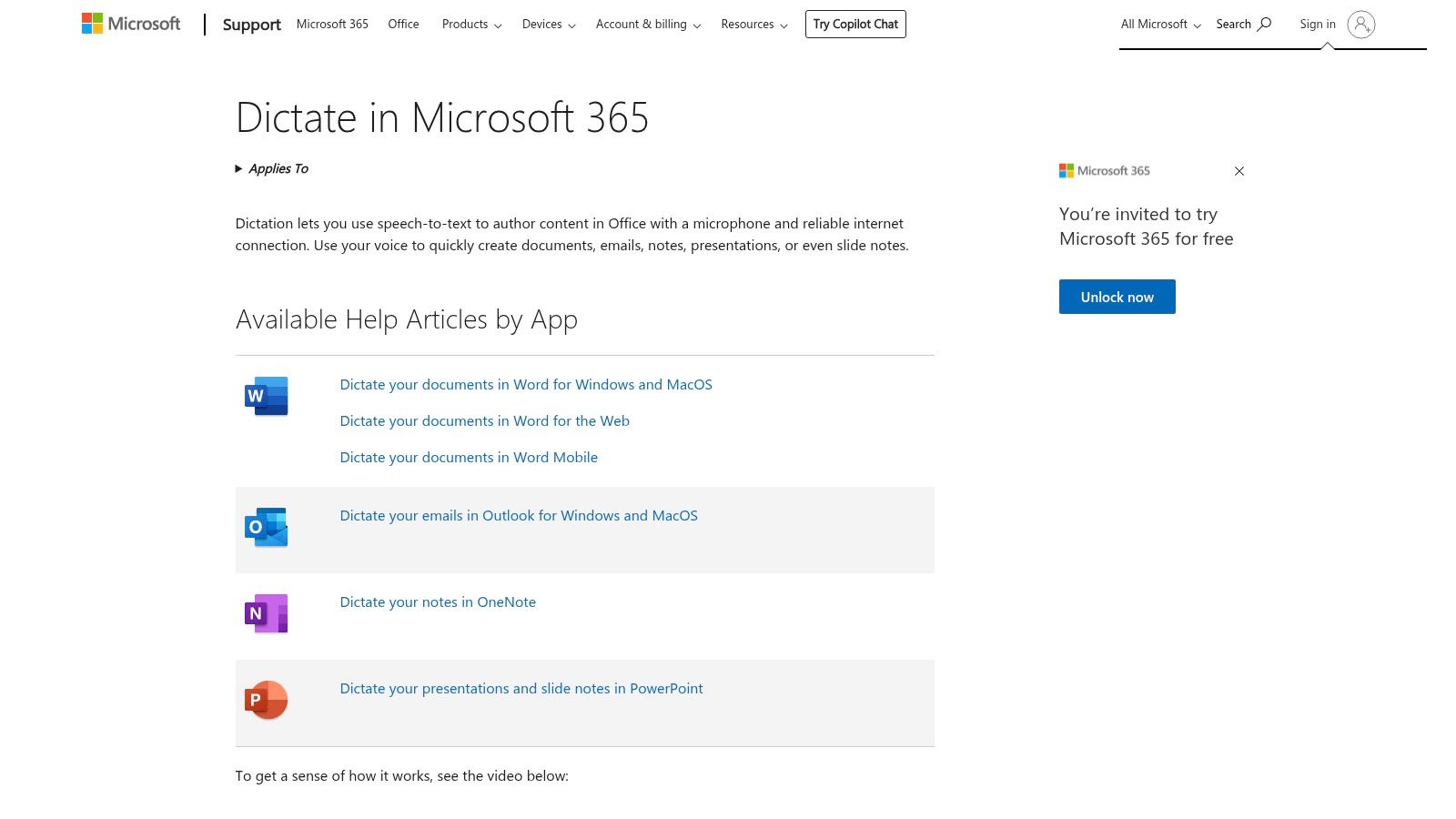
This tool is great because it is so simple. You just click a button, start talking, and your words show up. It's not as fancy as other tools, but it knows commands like "period" and "new line." Because it's part of Microsoft, it is always getting better in the background without you having to do anything. It is like having a little helper already waiting for you.
Key Features & Assessment
| Feature | Analysis |
|---|---|
| Built Right In | Works in Word, Outlook, and other Microsoft programs you already use. |
| Uses the Cloud | It uses Microsoft's smart computers to understand what you say. |
| Works Everywhere | You can use it on Windows, Mac, or on the web. |
| It's Free with Your Plan | If you have Microsoft 365, you already have this tool. |
Pros & Cons
- Pros:
- No extra cost if you already have Microsoft 365.
- Works right inside the programs you use for writing.
- Super easy to use, you can start right away.
- Cons:
- You need to be online and have a Microsoft 365 plan.
- You can't teach it your own special words.
- It won't be updated on older versions of Office.
Best for: Writers and students who do most of their work in Microsoft Word and want a simple, free tool without any extra fuss.
Link: Microsoft 365 Dictation
5. Apple Dictation
For writers who use Apple products like Macs, iPhones, and iPads, this tool is already there and costs nothing. It is built into the machine, so you can talk to write in almost any app, like Pages, Notes, or Mail. Since it is already installed, it's a super easy way to write down your ideas quickly.
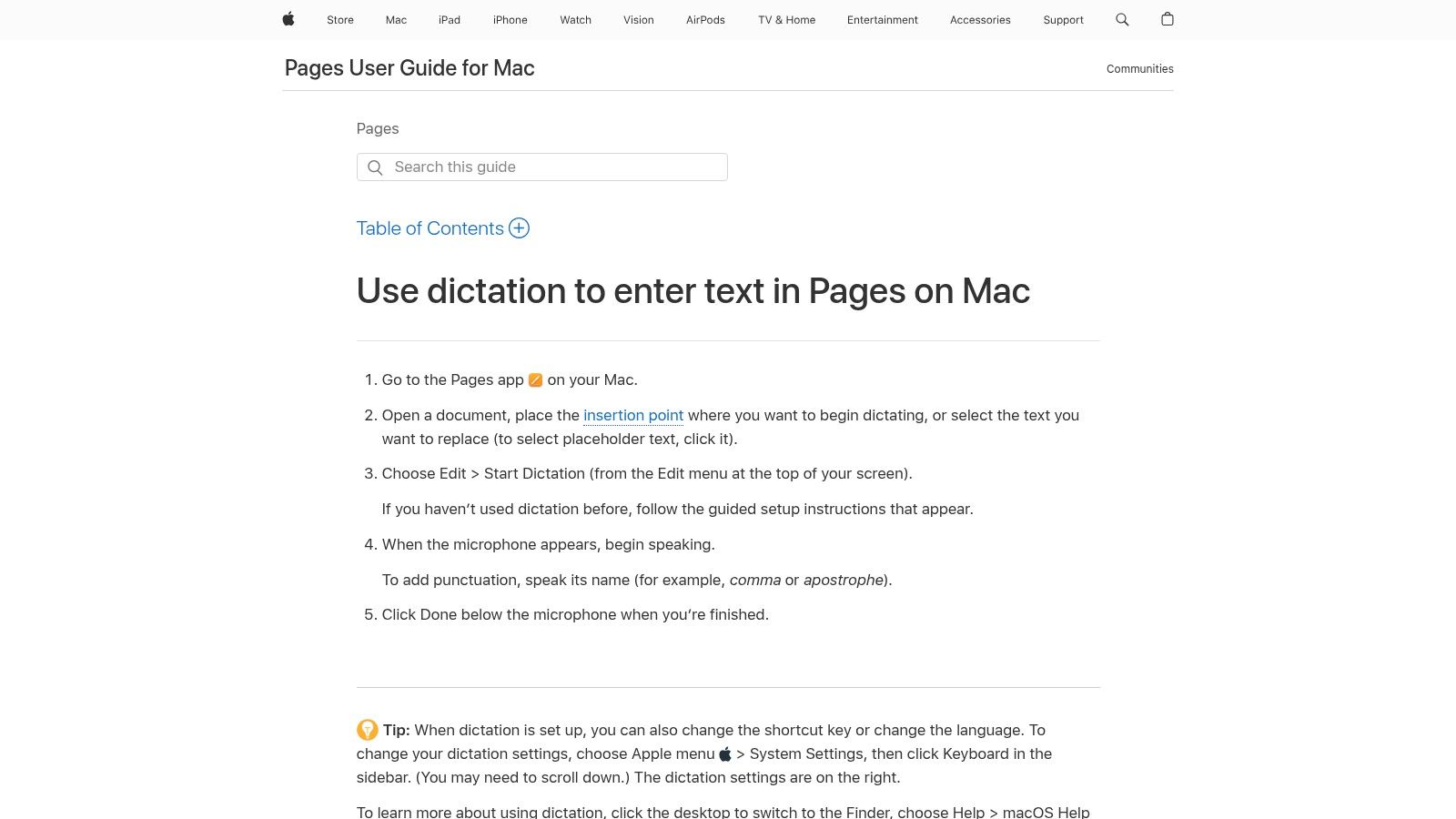
What makes Apple Dictation great for writing on the go is that it can work without the internet on newer devices. This means it turns your words into text right on your iPhone or Mac, which keeps your ideas private. It also adds periods and commas for you as you talk, so you don't have to say them out loud. If you need help turning it on, here are some tips on how to enable voice-to-text on your device.
Key Features & Assessment
| Feature | Analysis |
|---|---|
| Works Everywhere on Apple | Use it in almost any spot where you can type on a Mac, iPhone, or iPad. |
| Works Offline | You can choose to have it work on your device for more privacy. |
| Adds Punctuation for You | It's smart enough to add periods and commas as you talk naturally. |
| Speaks Many Languages | You can easily switch to a different language if you need to. |
Pros & Cons
- Pros:
- It's totally free and already on your Apple stuff.
- Very simple to turn on and use.
- The offline option is great for keeping things private.
- Cons:
- You can't teach it special words or commands.
- How well it works can change with new updates from Apple.
Best for: People who use Apple devices, like students and writers, who want a fast, free, and private way to write things down.
Link: Apple Dictation
6. Google Docs — Voice Typing
For writers who use Google Docs, the Voice Typing tool inside it is a great, free choice. Anyone with a Google account can use it. This makes it a powerful dictation software for writers who don't want to spend money. You can talk out your story or school paper right into a Google Doc and still share it with others easily.
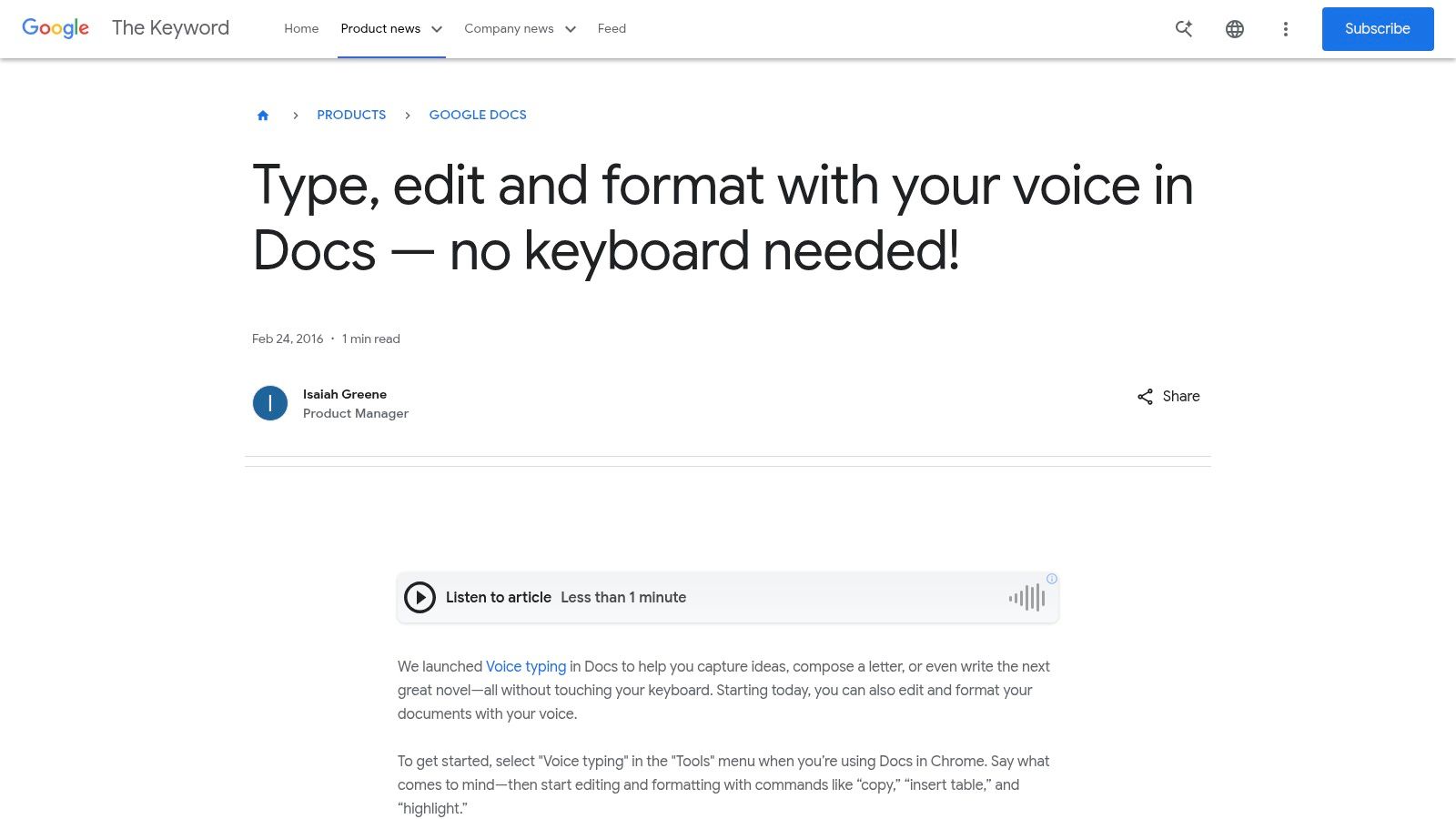
This tool is special because it's so simple and ready to go. You don't have to download anything. Just open Google Docs in the Chrome web browser, find the tool in the menu, and start talking. It can also do more than just write. You can say things like "new paragraph" or "select the last word" to edit without using your hands. This is very helpful for writing quickly. If you want to learn how, check out how to dictate in Google Docs.
Key Features & Assessment
| Feature | Analysis |
|---|---|
| Built into Google Docs | It's already there, so it works perfectly. |
| Works in the Cloud | Your work is saved online, so you can share it with friends. |
| Voice Commands | You can say commands to fix and change your writing. |
| Totally Free | All you need is a Google account and the Chrome browser. |
Pros & Cons
- Pros:
- Costs nothing and you don't need to install anything.
- You can still work with other people on the same document.
- Easy to learn and use right away.
- Cons:
- You need to be online and use the Chrome browser.
- The voice commands work best for English.
Best for: Students and writers who work in teams and use Google Docs a lot. It's a simple, free way to write with your voice.
Link: Google Docs Voice Typing
7. Otter.ai
While some tools help you write your own words, Otter.ai is great for writing down what other people say. It is perfect for writers who talk to people for interviews, go to meetings, or just talk out their ideas. Otter writes down everything it hears and can even tell who is talking. It also makes a short summary of the talk so you can quickly see what it was about.
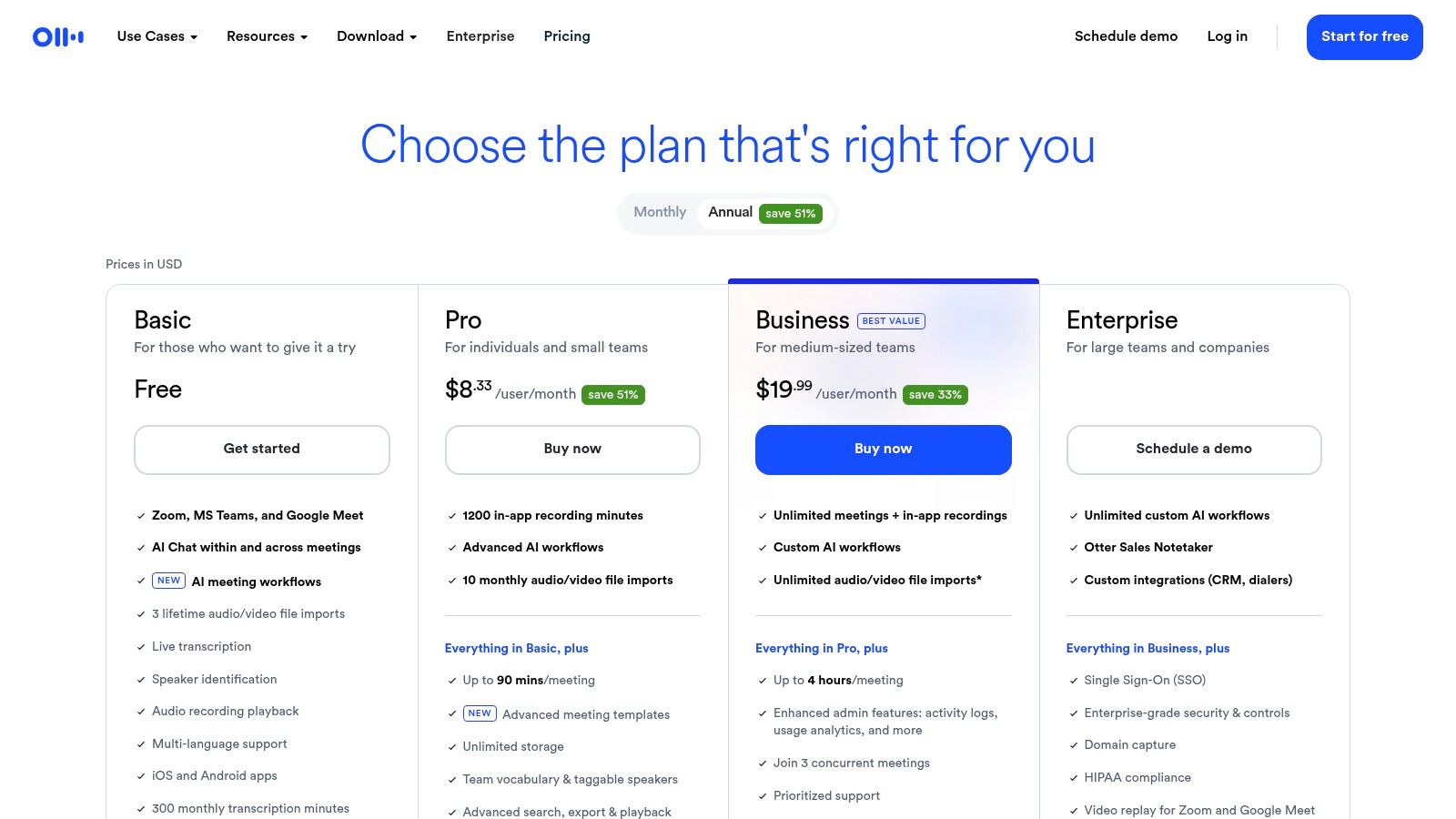
What makes Otter.ai a helpful dictation software for writers is how well it handles talks with many people. You can give it a recording of a talk, and it will quickly give you a written copy with times next to the words. The computer summary helps you find the most important parts of a long talk. This can save you hours of listening when you are writing an article or a book based on what people told you.
Key Features & Assessment
| Feature | Analysis |
|---|---|
| Writes Down Live Talks | It can write down what people say in a meeting as it happens. |
| Smart Summaries | The computer makes a short version of the talk for you. |
| Knows Who Is Talking | It can tell the difference between people in a conversation. |
| You Can Search Your Talks | You can look for certain words in all your saved talks. |
Pros & Cons
- Pros:
- Amazing for writing down interviews and meetings.
- The smart summaries save a lot of time.
- You get a lot of free time each month on the paid plans.
- Cons:
- It works best when you are connected to the internet.
- Some of its tools are only for meetings, which a solo writer might not need.
Best for: Reporters, researchers, and writers who need to write down what was said in interviews or meetings.
Link: Otter.ai
8. Descript
For writers who also make things like podcasts or videos, Descript is a special tool that does it all. It's not just for writing down words. It lets you record your voice, get a written copy, and then edit the sound or video by just changing the text. For example, if you delete a word from the text, it cuts that word from the recording. This makes editing easy for everyone.
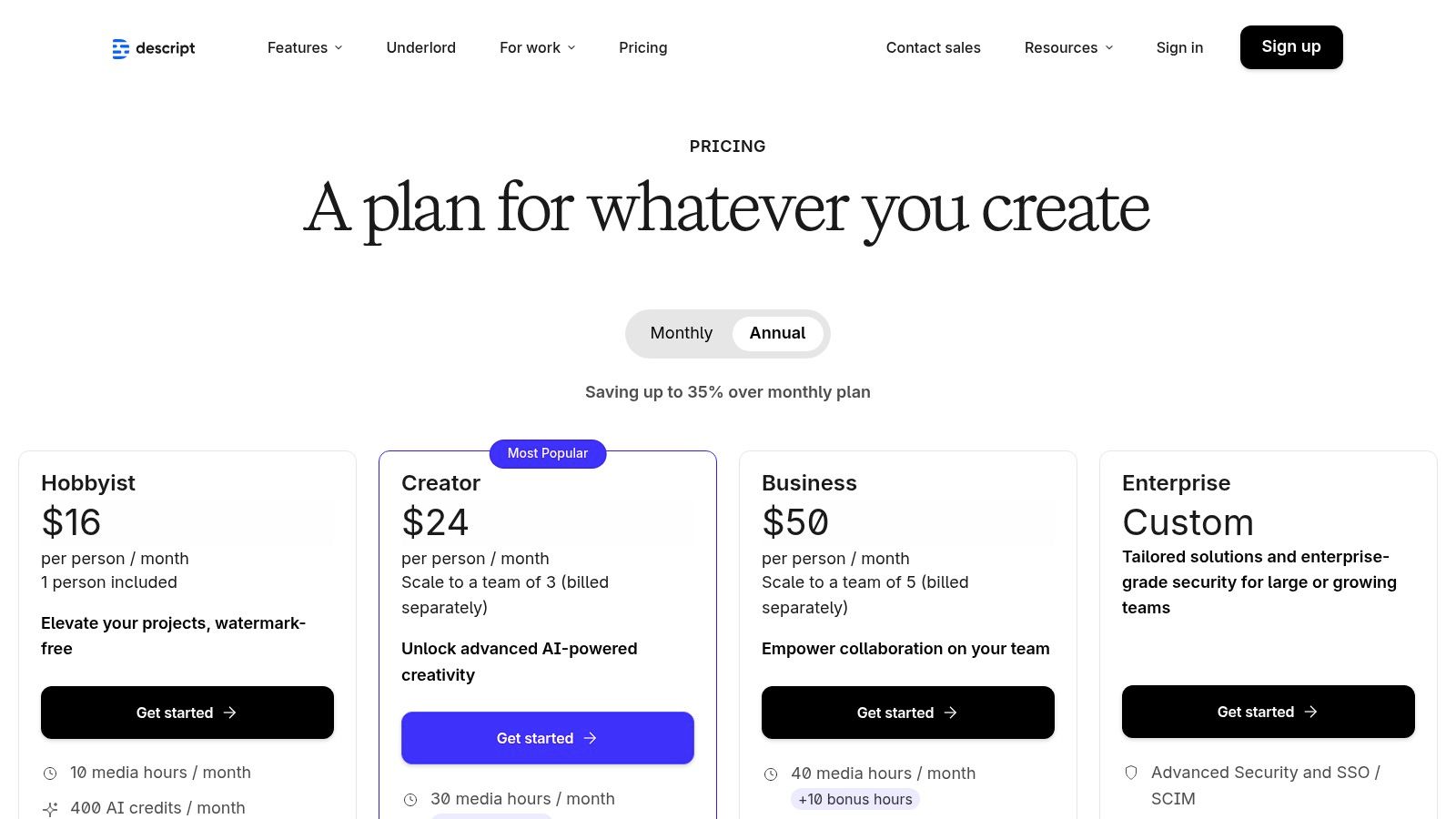
What makes Descript special is its powerful editing tools that are simple to use. A tool called "Studio Sound" can make your recordings sound like they were made in a real studio with one click. It can also take out all the "ums" and "uhs" for you. It even has a cool trick where it can make a copy of your voice. If you made a mistake, you can just type the right word, and it will say it in your voice! This is a very cool dictation software for writers who want to make more than just text.
Key Features & Assessment
| Feature | Analysis |
|---|---|
| Edit by Changing Text | Change your sound or video by just editing the written words. |
| Voice Copy | Fix mistakes by typing, and a computer voice that sounds like you will say it. |
| Studio Sound | Make your sound better with one click. It gets rid of background noise. |
| Screen Recorder | It has a tool to record your computer screen for making videos. |
Pros & Cons
- Pros:
- A great all-in-one tool for writers who make podcasts or videos.
- Editing by text makes hard jobs easy.
- Tools that take out filler words save a lot of time.
- Cons:
- It's a big tool and might be too much for writers who only need text.
- The monthly plans have limits on how much you can record.
Best for: Podcasters and people who write for videos who want to go from talking to a finished project in one place.
Link: Descript
9. Rev
For writers who need very accurate written copies of their recordings, Rev is a great choice. It uses both smart computers and real people to turn your sound and video into text. This is perfect for a reporter who needs every word from an interview to be right, or a writer who wants to turn their spoken ideas into a perfect book. The mix of computer and human help makes it a special dictation software for writers.

What's cool about Rev is that you can choose how accurate you need it to be. You can get a fast, cheap copy from the computer to start. If you need it to be perfect for a book or article, you can ask a real person to check it. They promise it will be 99% right. Rev also has a tool that takes notes during online meetings and a phone app to record ideas anywhere.
Key Features & Assessment
| Feature | Analysis |
|---|---|
| Computer and Human Help | Choose between a fast computer copy or a perfect human-checked copy. |
| Meeting Note Taker | It can write down what is said in online meetings. |
| Phone App | A simple app to record your voice and get it written down. |
| Easy to Use | It's very simple to upload your files and ask for a written copy. |
Pros & Cons
- Pros:
- The human-checked copies are super accurate.
- Good for one person or a big team.
- You can choose what you need based on your budget.
- Cons:
- Paying a person for each minute can get expensive for long recordings.
- It's mainly for turning recordings into text, not for talking and writing at the same time.
Best for: Reporters, podcasters, and writers who need a perfect written copy of a recording.
Link: Rev
10. Notta
Notta is a strong tool for writers who need to get ideas from meetings, interviews, or sound files. It is very good at turning talks into written text. It connects with programs like Zoom, Google Meet, and Microsoft Teams. This makes it a great choice for reporters, students, or writers who work in teams and need to remember what was said in a discussion.
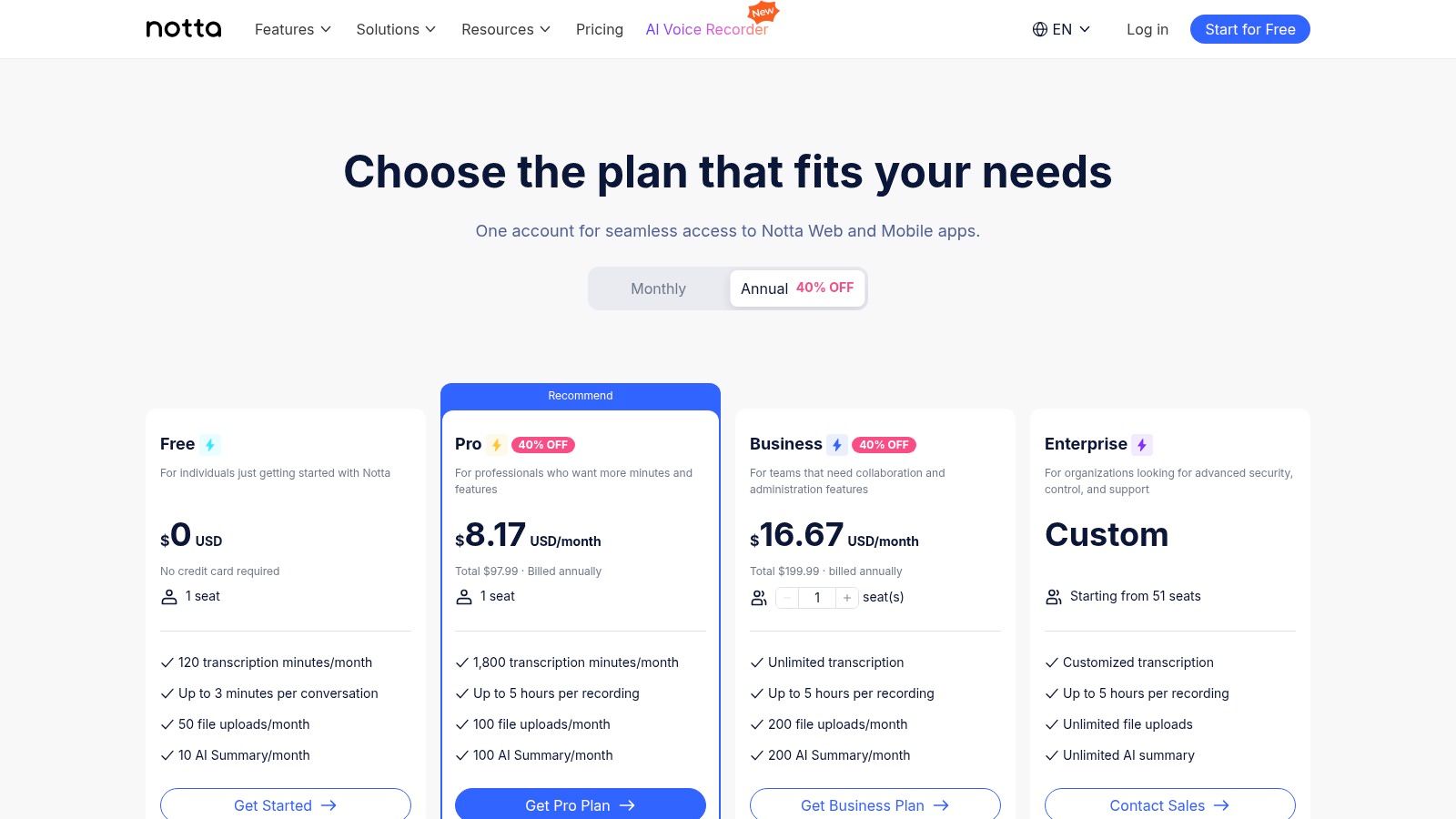
What makes Notta different is that it can make a short summary of a long talk. After a meeting is written down, Notta's computer brain can make a quick summary with the most important parts. This saves writers a lot of time. It also works on your computer and your phone, and it has a tool for your web browser to record sound from websites. This makes sure you can always get to your notes.
Key Features & Assessment
| Feature | Analysis |
|---|---|
| Connects to Meetings | It can write down what's said in Zoom, Teams, and Google Meet calls. |
| Smart Summaries | It makes a short version of long talks to find the main ideas. |
| Works on All Devices | You can see your notes on your computer, phone, or tablet. |
| Add Your Own Words | You can teach it special names or words to help it learn. |
Pros & Cons
- Pros:
- You get a lot of recording time each month on paid plans.
- It is very easy to use on both computers and phones.
- Connecting to meeting programs is a huge help.
- Cons:
- It's not as good for talking and writing at the same time as other tools.
- There might be limits on how long you can record at one time.
Best for: Reporters, podcasters, and students who need to write down what was said in interviews and meetings and want a quick summary of it all.
Link: Notta
11. Trint
For writers who work in teams, like reporters or content groups, Trint is a powerful tool. It does more than just turn talk into text. It creates a space where a whole team can work together on the written copy. Team members can fix it, leave notes, and share it. This makes it a great choice for writers who need to turn talks from many people into a finished piece of writing.

What makes Trint special is that it helps with everything you do after the talk is written down. You can use its editor to fix mistakes, mark important quotes, and even change the text to another language. This is a very helpful dictation software for writers who work with different languages or make videos with words on the screen. It helps you go from a simple recording to a finished story ready to be shared.
Key Features & Assessment
| Feature | Analysis |
|---|---|
| Work Together Editor | Many people can work on the same written copy at the same time. |
| Computer Writing | It quickly turns your sound and video files into text you can edit. |
| Translate and Add Words | It has tools to change the text to other languages and add words to videos. |
| Ready to Publish | It makes it easy to turn your written copy into a story or video. |
Pros & Cons
- Pros:
- Great tools for teams to work together.
- It can translate and add words to videos, which is a big plus.
- You can try it for free to see if you like it.
- Cons:
- It can be expensive for just one person to use.
- Plans that say "unlimited" might still have some limits.
Best for: Reporters and marketing teams who need to write down, edit, and work together on talks in a shared online space.
Link: Trint
12. Voice In (Dictanote) – Chrome extension
For writers who do all their work in a web browser, Voice In is a small and very handy tool. It is a helper for the Chrome browser that lets you talk to type in almost any box on any website. This is perfect for writing emails in Gmail, making blog posts, or adding notes in work tools like Jira or Slack without having to switch windows.
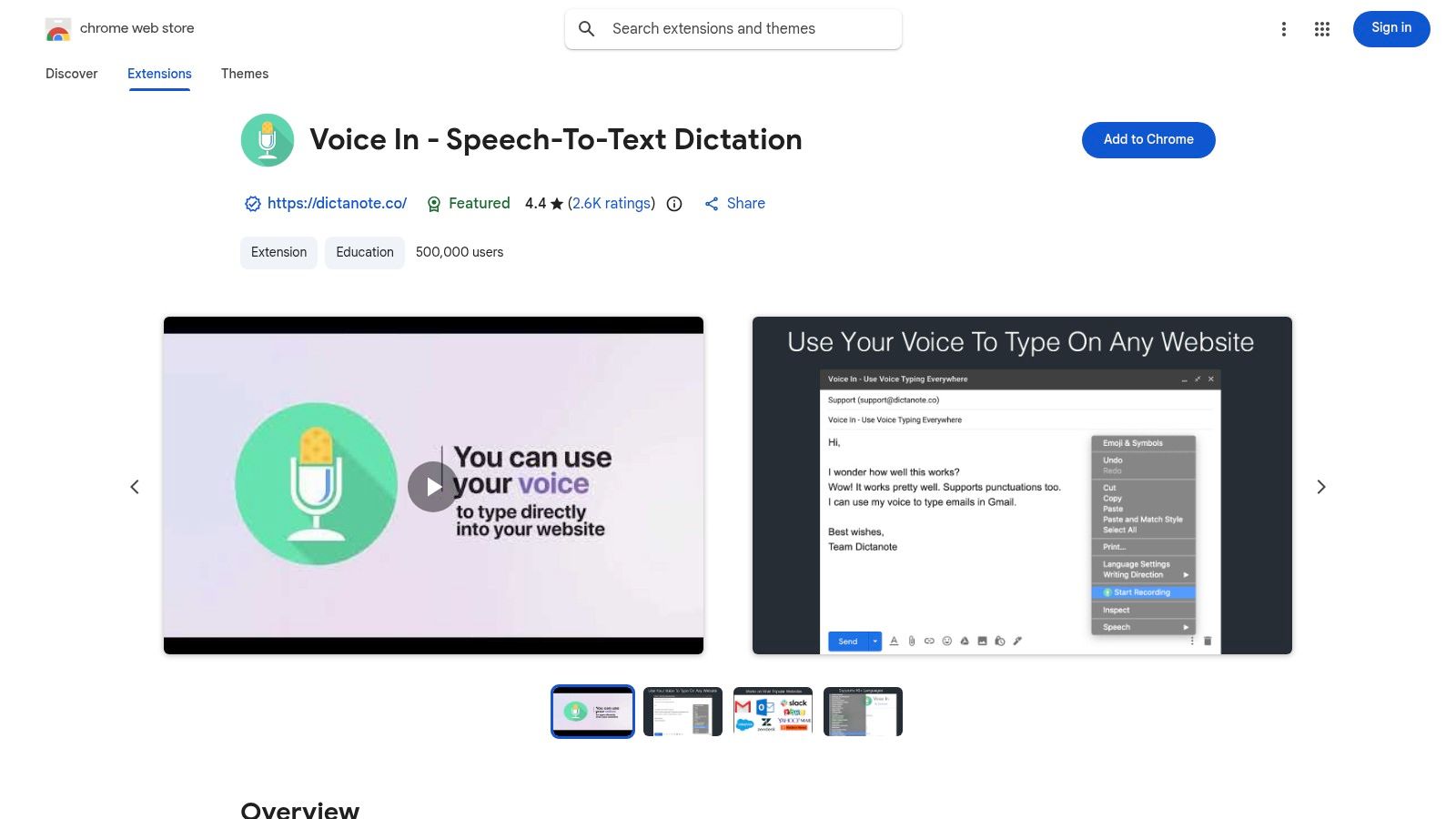
What makes Voice In special is how easily it fits into what you are already doing on the web. After you add it, you can just click the microphone button and start talking anywhere you would type. It understands over 50 languages. The paid version has a "Dictation Box," which is a special place to talk out long thoughts before you put them where they need to go. This simple tool is one of the easiest dictation software for writers who work online.
Key Features & Assessment
| Feature | Analysis |
|---|---|
| Works in Your Browser | Use it on thousands of websites right in Chrome. |
| Many Languages | You can talk in over 50 different languages. |
| Your Own Commands | The paid plan lets you make voice shortcuts for words you say a lot. |
| Easy to Add | It's a simple helper for Chrome that you can start using right away. |
Pros & Cons
- Pros:
- Small, simple, and very easy to start using.
- The free version is good for simple writing needs.
- Works on most websites, like email and team apps.
- Cons:
- It doesn't work perfectly with Google Docs.
- The best features are only in the paid version.
Best for: Bloggers and writers who do most of their work on websites and need a quick, easy way to talk instead of type in their browser.
Link: Voice In (Dictanote)
Top 12 Dictation Tools for Writers — Feature Comparison
| Product | Key features | Accuracy & Speed | Integrations & Platforms | Best for | Price & Privacy |
|---|---|---|---|---|---|
| WriteVoice | Super-fast talking to text, AI editor, auto-formatting | Very accurate (≈98–99%), 4x faster than typing | iPhone keyboard, Mac, Web, Slack, Gmail, Jira | Workers, managers, doctors, lawyers, bosses | Free trial; plans with different prices; very private |
| Nuance Dragon Professional v16 | Works on Windows without internet, voice shortcuts | Very accurate, works fast on your computer | Windows computer apps | Windows users, lawyers, doctors | Buy it once; offline means good privacy |
| Dragon Anywhere Mobile (Nuance) | Talk as much as you want on your phone | Very accurate on mobile | iPhone/Android phones, connects with Dragon | Writers who use their phones to draft stories | Pay each month; buy through the app store |
| Microsoft 365 Dictation | Built into Word, Outlook, and other Microsoft apps | Good for basic writing | Microsoft 365 apps on computers and phones | Writers who already use Microsoft 365 | Free with Microsoft 365 plan; uses the cloud |
| Apple Dictation | Built into all Apple devices | Good on new devices; can work offline | Mac, iPhone, iPad — works in most apps | Apple users who want a free, built-in tool | Free on Apple stuff; has a private offline option |
| Google Docs — Voice Typing | Talk and edit inside Google Docs on Chrome | Works okay, best on a computer in Chrome | Google Docs on a computer (Chrome) | People who share and write in Google Docs | Free with a Google account; uses the cloud |
| Otter.ai | Writes down live talks, knows who is speaking | Good for meetings | Web/phone apps, works with Zoom | Meetings, interviews, notes you can search | Paid plans give you lots of time; uses the cloud |
| Descript | Edit sound/video by editing the text | Good for making podcasts and videos | Computer/web editor, tools for media | Podcasters, video makers, multimedia writers | Pay monthly for a certain amount of time |
| Rev | Computer + optional human help | Human help is almost perfect (99%) | Phone app, works with Zoom/Teams | Perfect written copies of long interviews | Pay for each minute a person works on it |
| Notta | Writes down meetings, translates | Good for many hours of meetings | Web/phone, connects to Zoom/Teams/Meet | People in lots of meetings needing notes | Different price plans; Business plan has lots of time |
| Trint | For teams to work on written copies together | Good for teams working on interviews | Web editor, shared folders | Newsrooms, teams working with many languages | Monthly plans; can be expensive for one person |
| Voice In (Dictanote) — Chrome extension | Talk to type on any website in Chrome | Fast and light in your browser | Chrome helper for Gmail, Slack, Jira | Writers who work in their web browser | Free version; paid version has more cool stuff |
Choosing the Right Tool to Unleash Your Voice
We've looked at many tools, from big computer programs to small helpers for your web browser. Turning your talk into writing is no longer just an idea from a movie. It's a real way for writers and busy people to work. The most important thing to know is that there is no single "best" tool for everyone. It depends on how you work, how much you want to spend, and what you are writing.
Think of it like choosing a pencil. A story writer might like a fancy pen that flows nicely, but a reporter needs a tough pen that works anywhere. The right tool for you has to fit your own way of doing things.
Synthesizing Your Options: Key Takeaways
To help you choose, let's look at the main points. Your choice will probably come down to a few things:
- Getting Words Right: If you need your tool to understand every word perfectly and learn special words, a tool like Nuance Dragon Professional is the best. This is extra important for people in jobs like law or medicine.
- Easy to Use: If you want something simple that works on all your devices, the tools that are already built-in are a great place to start. Apple Dictation and Microsoft 365 Dictation work well and don't cost anything extra.
- Working with Others: If you write down interviews or work with a team, tools like Otter.ai and Descript are amazing. They don't just write down words; they help you find, edit, and share them.
- Keeping Things Secret: If you write about private things, safety is very important. Tools like WriteVoice work on your device and keep your words locked up and safe. This is a must-have for lawyers, doctors, and bosses.
A Framework for Your Decision
Feeling like there are too many choices? Use these simple steps to help you pick:
- What Will You Use It For? Are you writing a book, taking notes from an interview, or writing reports? Be clear. A writer needs a tool that lets ideas flow. An engineer needs one that gets hard words right.
- Where Will You Use It? Do you work in a quiet room, a noisy office, or on the go? This will tell you if you need a tool that can ignore noise or one that works on your phone.
- What Tools Do You Already Use? If you are always on the internet, a Chrome helper like Voice In could be perfect. If you love your Mac, start with Apple's own tools.
- What Are You Writing? For people writing long stories, using a voice tool with a dedicated novel writing software can make writing a book much easier.
Using these tools is about helping you be a better writer, not replacing you. They can help you get past writer's block, write down ideas before you forget them, and finish your work faster. This gives you more time to do the most important part: making your writing the best it can be. Try a free tool first, see how it feels, and find out how talking can change the way you write.
Ready to experience a dictation tool built for the modern professional's need for speed, accuracy, and uncompromising privacy? WriteVoice offers secure, on-device transcription and powerful commands to streamline your workflow. Stop typing and start creating at the speed of thought by trying WriteVoice today.