A Simple Guide to Talking to Your Windows Computer
Imagine telling your computer what to write, and it just types the words for you. That’s what speech to text for Windows does. You just talk, and your words show up on the screen. No keyboard needed!
Let Your Voice Do the Typing on Your PC
Think about it. Can you talk faster than you can type? For most people, talking is much faster. When you use your voice to write, your ideas go straight from your brain to the screen. You don't have to slowly type out each letter.
This is a big help when your hands are tired or when you have an idea you need to write down fast. Your Windows computer has a free tool to help you start. There are also other apps you can get that work even better.
Why Talking Is Often Better Than Typing
Using your voice to type is not just a cool trick. It can feel more natural and help your ideas flow better.
- It's Fast: Most people talk at about 150 words a minute. But they only type about 40 words a minute. This means you can write things almost four times faster by talking.
- It's Easy on Your Hands: Talking gives your hands and wrists a break from the keyboard. This can help you feel better after a long day of work.
- It Helps You Think: When you’re not looking for keys on the keyboard, you can think more about what you want to say. This helps you stay focused.
Two Ways to Write
Let's look at typing with your hands and talking to your computer. They are both good for different things.
The big idea is simple: turn your spoken words into written words. It feels like magic when you see your ideas pop up on the screen right away.
Here’s a quick look at the difference.
| How You Write | What It's Like | Best For |
|---|---|---|
| Typing with Hands | Using your fingers on a keyboard to write each letter. | Good for short notes and quick fixes, but it can be slow for long stories. |
| Speech to Text | Talking into a mic and letting the computer type for you. | Great for writing long things, thinking of ideas, or when your hands need a rest. |
The next parts will show you how to set up these tools and start using your voice to get work done.
How to Use the Free Tool on Your Computer
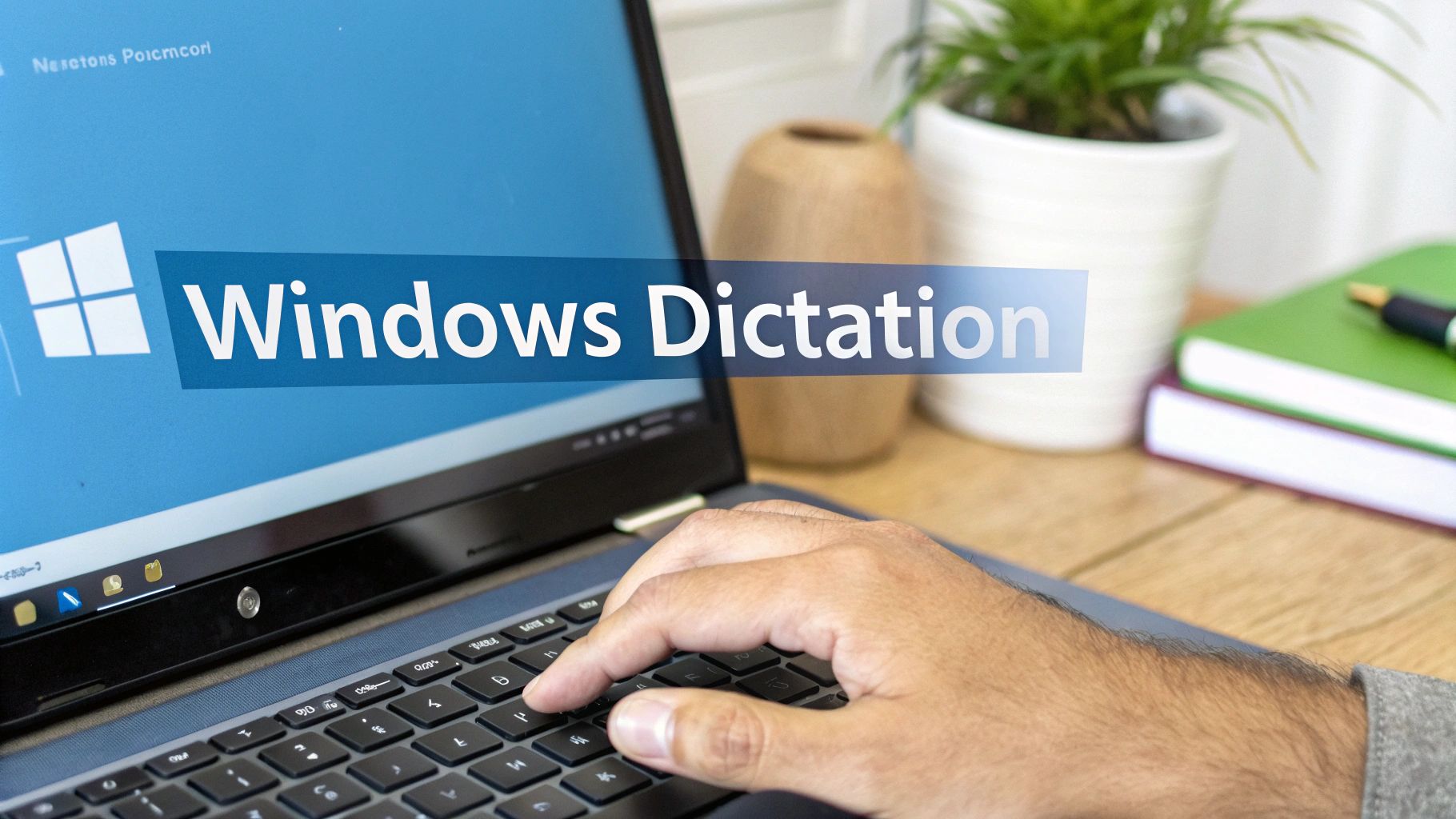
Did you know your Windows computer has a free tool that turns your voice into words? It's called Windows Dictation. You don't need to download anything to use it.
It's super easy to start. Just press two keys on your keyboard: the Windows logo key + H.
When you do that, a small bar with a microphone will show up. This means your computer is ready to listen to you.
How to Start with Windows Dictation
Once you see the microphone bar, you're ready to go. Put your cursor where you want to write, like in a new email or a blank page. Then, just start talking.
You will see your words appear on the screen as you say them. It’s a great way to try speech to text for Windows for the first time.
For example, you can open Notepad and say, "Hi, I am trying this for the first time," and the words will show up.
What This Free Tool Can Do
The free Windows tool is like a small pocketknife. It's good for easy jobs but not for big ones. It’s a great way to see if you like talking to your computer, but it has some limits.
- It Likes Quiet: This tool works best when it's quiet. If there is a lot of noise, like a TV or people talking, it might make mistakes.
- Speak Clearly: It works better if you talk clearly and not too fast. If you mumble, it might not understand your words.
- It Knows Simple Commands: You can say things like "period" or "comma" to add punctuation. If you say "new line," it will start a new line for you.
This tool is a good place to start. You can learn more about using it in Microsoft Word in our guide on dictating in Word.
Using the free Windows tool is like riding a bike with training wheels. It helps you get used to talking instead of typing and shows you what is possible.
Easy Steps to Try It Now
Want to try it? Here is how to start in less than a minute.
- Open a Program: Open any app where you can type, like Notepad or Microsoft Word.
- Turn on Dictation: Press the Windows key + H. You will see the microphone bar.
- Start Talking: When it says "Listening…," just start to speak. Your words will turn into text.
That's it! This free tool is great for short emails or notes. But for bigger or more important work, you might need a tool that is more powerful and makes fewer mistakes.
When You Need a Better Helper
The free tool in Windows is a good start. It's great for writing a quick email or a short note. But what if you need to talk to your computer for important work? For that, you need a helper that really understands you.
This is where better speech to text for Windows apps, like WriteVoice, come in. Changing from the free tool to a pro app is like going from a regular car to a race car. Both get you there, but one is made for speed and does a much better job.
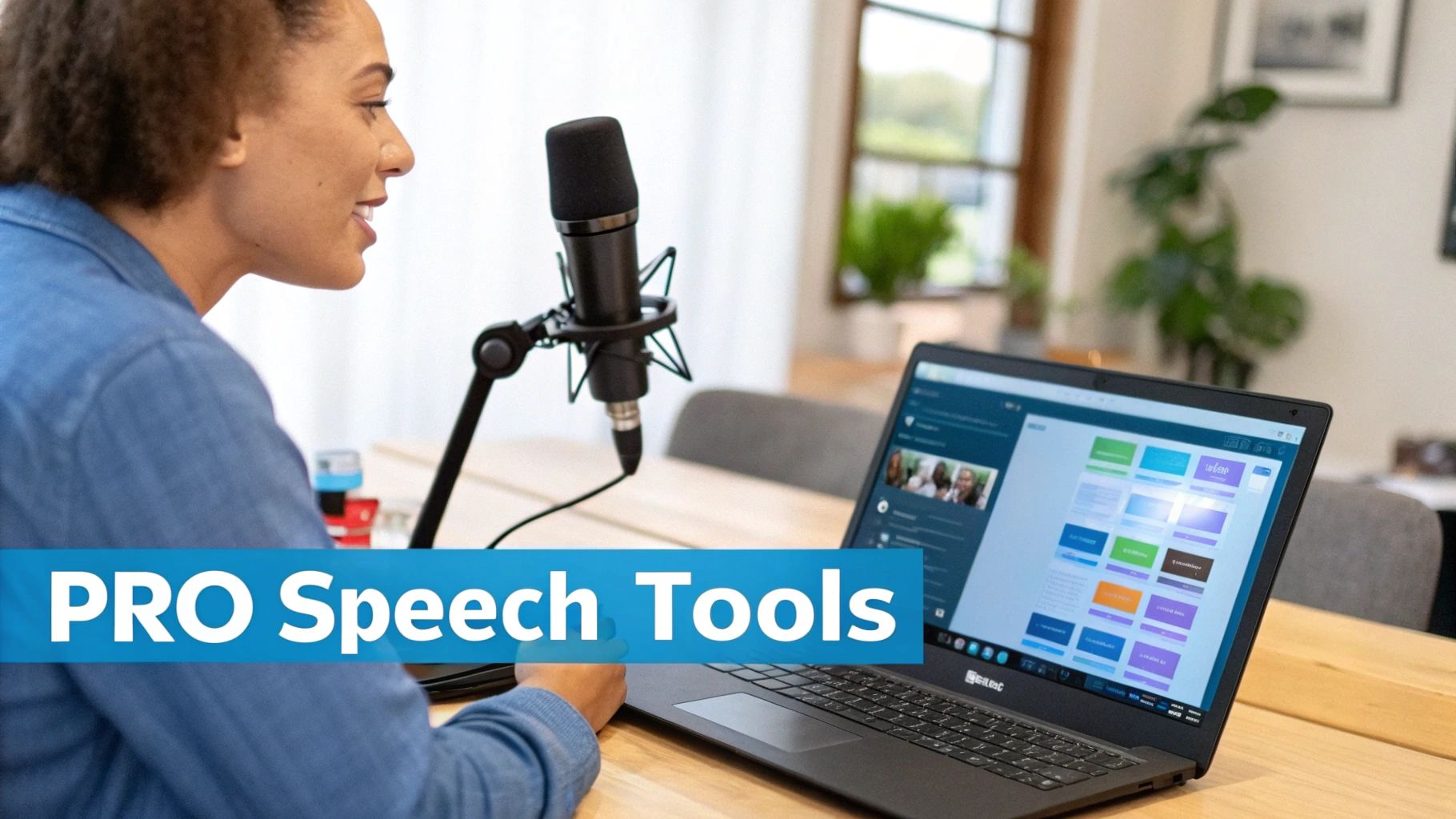
These powerful tools are smarter and make fewer mistakes. They can hear your voice even if it's noisy and turn your words into text very fast. Let’s look at three big reasons why people switch: getting words right, speed, and keeping things private.
Getting Every Word Right
Getting the words right is the most important thing. The free Windows tool is okay, but it can make mistakes. Then you have to stop talking and use the keyboard to fix them. This can be slow and break your train of thought.
Pro tools are much better at this.
- Gets Almost Every Word Right: Pro apps like WriteVoice can get over 99% of your words right. That means for every 100 words you say, you might only have to fix one word. This saves a lot of time.
- Works in Noisy Places: They use smart tech to block out noise, like people talking in an office. They focus only on your voice.
- Learns Your Voice: The best tools get to know how you talk over time. They learn your accent and the words you use a lot.
Getting words right is a must-have for people like lawyers and doctors. One wrong word in their notes can cause big problems. To see other good tools, check out our guide on the best dictation software for Windows.
The Need for Speed
When you're busy, every second counts. The free Windows tool is pretty fast, but you might see a small delay before your words show up. A powerful app makes your words appear almost instantly. It feels more like a real conversation.
The goal of a pro speech to text tool is to write down your thoughts as fast as you think them, with no waiting.
It's no wonder that lots of people are starting to use these tools. The market for them is growing very fast, from $2.77 billion to almost $9.86 billion. This shows that people want faster ways to write. You can read more about this growing market on skyquestt.com.
Keeping Your Words Private
When you talk about private things, like a secret project or a client's problem, you need to know your words are safe. Some free tools send your voice to the cloud to help them learn. This is okay for fun stuff, but not for private work.
The best tools are made to be private.
- They Don't Keep Your Words: Tools like WriteVoice turn your speech into text right away and then forget it. They never save your voice or your words. Your thoughts stay yours.
- Safe for Any Job: Because they are so private, they are safe for any job where secrets are important, like in hospitals or law offices.
Seeing the differences can help you choose.
Free Tool vs. Pro App
Here’s how the free tool compares to a powerful app.
| Feature | Windows Dictation (Free Tool) | WriteVoice (Pro App) |
|---|---|---|
| Getting Words Right | Pretty good, but you have to fix mistakes. | Almost perfect, gets over 99 out of 100 words right. |
| How Fast It Is | Okay, but sometimes you have to wait for the words. | Super fast, your words show up in less than a second. |
| Keeping Words Private | Sends some of your words to the cloud to learn. | Never saves your voice or text, so your words are always private. |
| Works with Other Apps | Works where you can type. | Works everywhere, like in Slack, Gmail, and work tools like Jira. |
So, which one is for you? The free Windows tool is good if you only need to talk to your computer sometimes. But if you do a lot of writing for work, a powerful helper will make your job much easier.
Real Stories of People Saving Time with Voice
Seeing a new tool work is cool. But hearing how real people use it every day helps it make more sense. Using speech to text for Windows is not just for fun; it helps busy people get more done.
Let's look at how talking instead of typing helps real people.
Imagine Sarah, a manager who has ideas all the time. They pop into her head when she's walking to a meeting. Instead of trying to type them on her phone, she uses an app like WriteVoice.
She just says her ideas out loud. The app turns them into a neat list in her notes. This means she never loses a good idea, and she doesn't have to stop what she's doing just to write something down. For Sarah, this saves her from a big headache: forgetting a good idea because she couldn't write it down fast enough.
Keeping Important Words Private
Now, think of Mark. He's a lawyer who writes long emails to his clients. These emails have secret information that must be kept safe. He can't risk that information being stored on a server somewhere in the cloud.
This is where a private tool is key. Mark can talk out his emails and notes, knowing that his voice and words are never saved. He gets to work fast without worrying about his clients' secrets. For him, the most important thing is not just being fast, but being safe.
The need for safe and fast tools is making this technology grow. The market for voice tools is expected to jump from $17.63 billion to $39.91 billion. A lot of this growth comes from people who need safe, hands-free ways to work. You can find out more about this expanding technology market at einpresswire.com.
Making Work Feel Smoother
Finally, meet David, a computer programmer. He uses a tool called Jira to track his work. Stopping to type updates in Jira used to break his concentration.
Every time he stopped to type, he lost his focus on the hard problem he was solving. Now, he uses a speech-to-text tool that works with Jira. He can just say, "Finished the login button," and it's saved instantly.
For David, the real win isn’t just saving a few minutes. It’s staying focused. By not stopping to type, he can solve problems faster, which saves him hours each week.
These stories show how helpful voice tools can be.
- For Sarah the Manager: It helps her catch ideas before they disappear.
- For Mark the Lawyer: It helps him work fast while keeping secrets safe.
- For David the Programmer: It helps him stay focused without interruptions.
Each of them found a way to make their work easier just by using their voice. It shows that talking can be a much better way to work than typing.
How to Choose the Right Tool for You
Picking the right speech-to-text tool is like picking the right shoes. The best ones for you depend on what you're doing. You wouldn't wear hiking boots to a party.
If you just need to write down a quick note now and then, the free Windows tool is like a comfy pair of slippers. It's easy and good enough for simple things.
But what if you write all day for your job? If you're a manager with tons of emails or a lawyer writing long papers, you need better shoes. You need a pro tool that is strong and built to last, like a good pair of running shoes for a marathon.
To find the right tool, just ask yourself three simple questions.
1. How Important Is It to Get Every Word Right?
First, think about what you are writing. If it's an important email to a client or a legal paper, every word matters. A wrong word could cause big problems.
In these cases, you need a tool that gets almost every word right. A pro app like WriteVoice can be over 99% correct. That means you can spend your time thinking and talking, not fixing mistakes.
2. How Much Is Your Time Worth?
Next, think about your time. Even small waits can add up. A tool that is a little slow can steal seconds from every sentence you say.
A fast tool gives you those seconds back. Over a week, that can add up to hours of saved time. If you write for a living, a fast app is a must-have. It turns your voice into text right away, so you can keep your thoughts flowing.
3. Are Your Words a Secret?
Last, and most important for many people, are your words private? For doctors, lawyers, and bosses, this is the biggest question. They can't have private talks sent to some other company's computer.
The picture below shows how different people might choose a tool based on what they need.
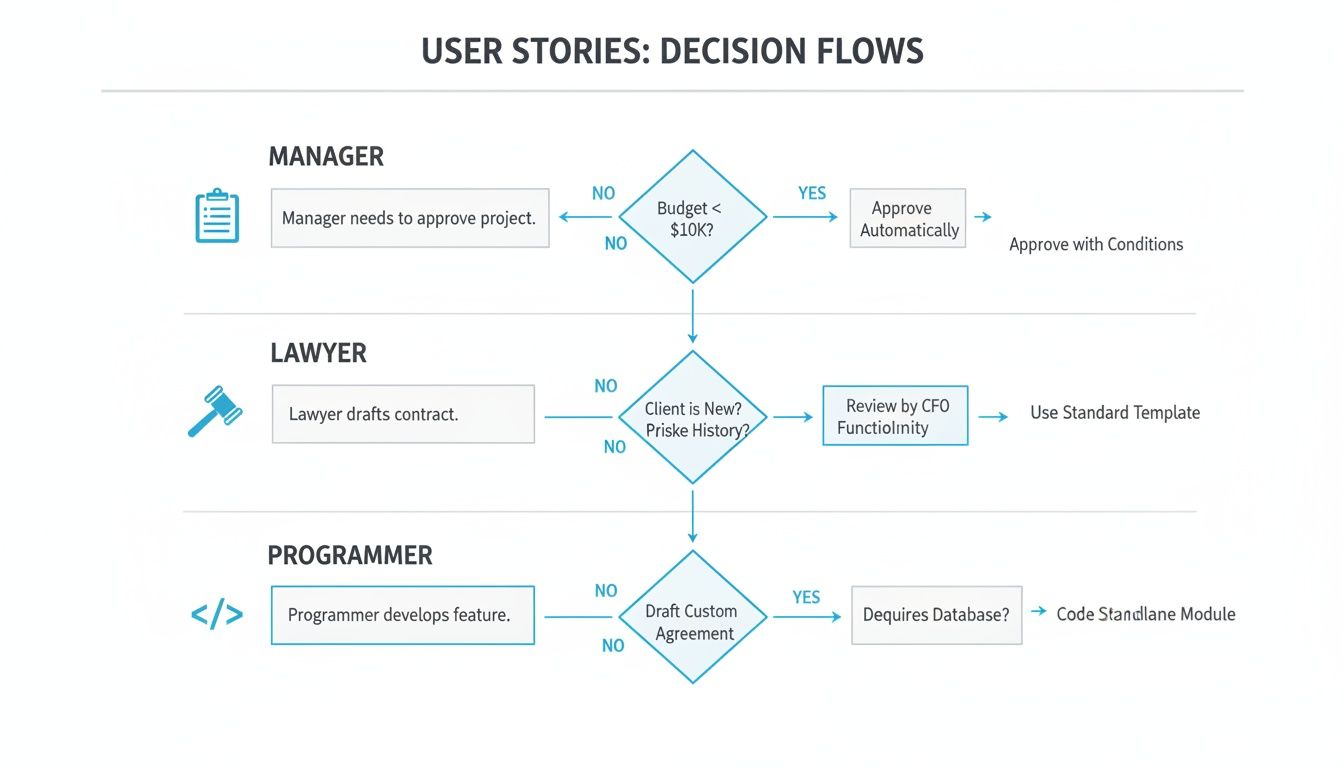
As you can see, a lawyer needs privacy most of all. For them, a safe tool that keeps their words on their own computer is not just nice to have—it's something they must have.
Choosing a tool that keeps your words private means your secrets stay secret. It’s not just a nice feature; it’s a promise that you are safe.
Picking the right tool is about matching it to your workday. By answering these three questions—about getting words right, saving time, and keeping secrets—you can choose the best speech to text for Windows tool for you.
How to Fix Common Voice Typing Problems
What do you do when your computer doesn't understand you? It's no fun when your speech tool keeps making mistakes. But don't give up! These problems are usually easy to fix.
The biggest reason for mistakes is often the microphone. The mic is like the computer's ears. If it can't hear you well, the tool can't work right. Think of it like a bad phone call. If you can't hear the other person, you'll miss a lot of what they say.
The microphone built into your laptop is often not the best. It's usually too far from your mouth and picks up other sounds, like the fan or you typing. A simple headset can make a huge difference.
Your Quick Fix Checklist
Before you get upset, try these quick checks. One of these small changes will probably fix the problem.
- Check Your Microphone: Is it plugged in all the way? Is it picked as the main microphone in your Windows settings? Sometimes, another mic, like the one on your webcam, can be on by mistake.
- Get Closer to the Mic: Your microphone should be the same distance from your mouth all the time. About two or three inches away is perfect. This helps the tool hear a strong, clear voice.
- Find a Quiet Spot: Noise is the enemy of speech to text. A barking dog, a TV, or an echo in the room can mess up your words. Try to work in a quiet place if you can.
How to Speak for Good Results
Once your microphone is set up, the next step is how you talk. The tool is smart, but it can't read your mind. If you speak clearly and at a normal speed, it has a much better chance of getting every word right.
Don't talk too fast, but don't talk too slow either. The best way is to talk like you are talking to another person. This helps the tool learn your voice.
A common mistake is talking louder when the tool makes an error. Instead of getting louder, try to say each word more clearly. It’s about being clear, not loud.
If you try all of this and still have problems, our article on how to get better speech to text accuracy has more tips to help you.
When the Tool Needs Help with Words
Sometimes, the problem is not your mic or your voice. It's a special word. Maybe the tool doesn't know your coworker's name or a word you use for your job. This is a common problem with simple tools.
This is where a better app can save you a lot of time.
For example, a tool like WriteVoice lets you teach it new words. You can add names, special work words, or short words for long names. Once you teach it the word "Project Xenon," it will get it right every time. This is a big help for people who use special words in their work.
Common Questions About Speech to Text
Are you trying to talk to your computer for the first time? It’s normal to have questions. Changing from typing to talking is a big step. Let's answer some common questions about speech to text on Windows.
Is Talking to My Computer Really Faster Than Typing?
Yes, for most people it is! We can talk at about 150 words per minute, but we can only type around 40 words per minute.
With a good speech tool, you can write things up to four times faster. That's a lot of time you get back in your day to do other important things.
Do I Need a Special Microphone?
You don't need a fancy microphone from a music studio. But a good microphone will help the computer understand you better. The mic in your laptop can work, but it picks up a lot of background noise.
A simple headset with a microphone is usually the best choice. It keeps the mic close to your mouth so your voice is always clear.
It's like the difference between talking on speakerphone and holding the phone to your ear. A headset gives the computer a clear sound of your voice so it can get every word right.
Are My Words Kept Private?
This is a very important question. The answer depends on the tool you use. Some free tools might send your voice to their computers to help them learn. This isn't great if you are talking about private things.
But pro tools are built to be private. A safe app like WriteVoice is made to never save your voice or your words. This makes it safe for private work, which is very important for lawyers, doctors, or business leaders.
Can I Use My Voice to Type in Any Program?
Yes! The best part of a great speech app is that it works anywhere you can type.
A good app lets you talk directly into almost any program on your computer. You can:
- Write emails in Gmail or Outlook.
- Send messages in Slack or Teams.
- Update your work in tools like Jira.
This means you can say your thoughts right where they need to go. No more copying and pasting. It makes your work much smoother.
Ready to stop typing and start talking? See how WriteVoice can help you work up to four times faster with over 99% accuracy. Try it for free today.