Good Ways to Handle Your Email
Is your email box full of messages? Does looking at it make you feel tired? It's like a messy toy box. You clean it, but more toys keep showing up. For grown-ups at work, a messy email box can stop them from getting their work done.
What if you could make your email help you instead? Think of having a clean email box. You can find any message you need right away. You can do your important work without emails popping up all the time. This is not about working more. It's about being smart with your email. The goal is to make your email box a helpful tool, not a stressful mess. This will give you more time to think and play.
This guide will show you 10 good ways to handle your email. These are not the same old tips. Each one helps with a different email problem. You will learn how to:
- Sort your emails with special folders and rules.
- Answer emails faster with ready-made messages and talking tools.
- Control your time by checking emails only at certain times.
- Work better with your team by making clear rules for talking.
We will show you how to get to zero emails in your main box. We will explain how to set up smart filters to sort emails for you. Are you ready to turn that messy toy box into a neat and tidy space? Let's start.
1. The "Inbox Zero" Idea
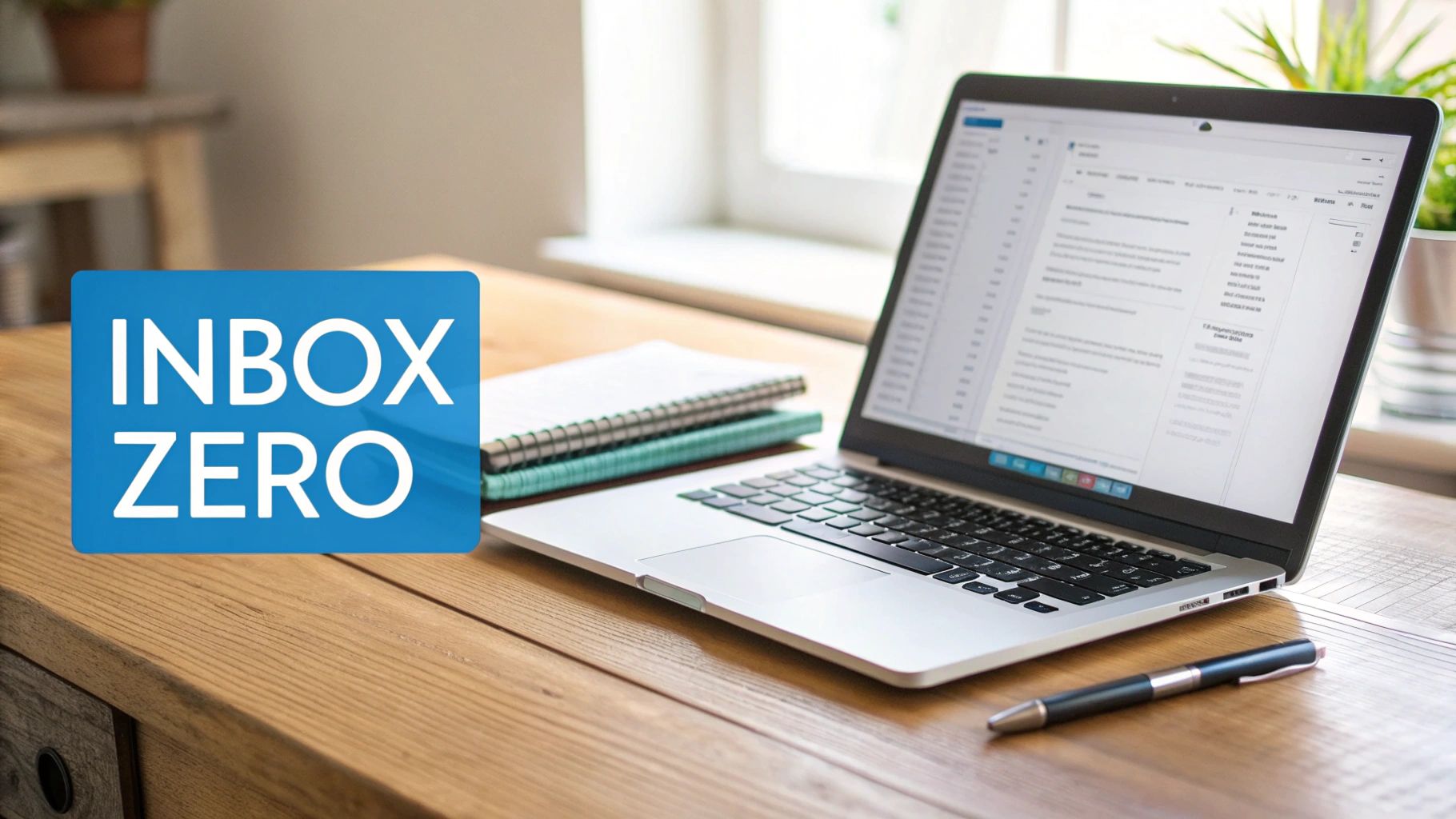
"Inbox Zero" does not mean you have zero emails. It means your main email box is empty because you have put every email where it belongs. Think of your email box like a mailbox at your house. You take the mail out every day and decide what to do with it. You don't leave it in the mailbox for weeks. This is a good way to handle email because it stops your email box from feeling like a big, scary pile of work.
How It Works
When a new email comes in, you do one of five things with it right away:
- Delete: If it's junk, throw it away. Like a pizza flyer you don't need.
- Delegate: If it's for someone else, send it to them. Like giving your dad his mail.
- Respond: If it's quick (like saying "thank you"), answer it now.
- Do Later: If it's a big job, move it to a to-do list or your calendar.
- Archive: If you need to keep it but don't need to do anything, put it in a "Keep" folder.
A Good Tip: Your main email box is for getting new mail, not for keeping old mail. Moving emails out after you read them makes your mind feel less full.
Easy Ways to Do It
- Set Check Times: Only look at your email at set times, like after breakfast and before you go home. This stops emails from bugging you all day.
- Start Fresh: Make a new folder called "Old Emails." Move every email you have now into that folder. Now you have a clean start!
- Talk, Don't Type: To answer fast, use a tool like WriteVoice that types what you say. You can talk much faster than you can type.
- Let the Computer Sort: Make rules to automatically put store ads or newsletters into their own folders. They won't even show up in your main box.
2. Check Emails in Groups
Checking emails in groups means you pick a few times a day to look at your email. You don't check it every time a new one arrives. This stops the little pop-up sounds that make you lose your focus. When you treat email like a chore you do at a set time, it can't take over your whole day. This is a great way to handle email because it lets you control your own time.

How It Works
Instead of stopping your work for every new email, you plan 2 or 3 "email times" each day. During these times, you only work on your emails. When it's not email time, you close your email and turn off the sounds so you can think hard about your big projects. It’s like having a "snack time." You eat snacks at snack time, not all day long. This helps you stop switching your brain from one job to another, which can be very tiring.
- Plan It: Put "Email Time" on your calendar, just like you would for a meeting.
- Focus: During "Email Time," just do emails. Don't do anything else.
- Turn It Off: When it's not "Email Time," stay away from your email box.
A Good Tip: If you always check email, you teach your brain to be jumpy. If you check in groups, you teach your brain to focus. You are the boss of your brain, not your email.
Easy Ways to Do It
- Tell People: Let your team know you only check emails a few times a day. You can even set up an automatic reply that says, "I check my email at 10 AM and 3 PM."
- Have an Emergency Plan: For super important things, tell people they can call you or send a text. This way, you won't miss a real fire.
- Use Your Voice: During your email time, talk your replies out loud with a tool like WriteVoice. You can get through your emails so fast, like a superhero.
- Start Small: Try having three 20-minute email times a day. You can change it later if you need to. You can learn more best practices for time management to find what works for you.
3. Use Folders and Labels to Sort
Using folders and labels turns your messy email box into a neat filing cabinet. Instead of having all your emails in one big pile, you put them in different folders based on what they are about. This is a key way to handle email because it helps you find old messages super fast.
How It Works
This idea is simple: as soon as you are done with an email, you put it in a special place. For example, a teacher could have a folder for each student. A person who builds houses could have a folder for each house project. This keeps all the messages about one thing together.
- Folders: A folder is like a box. You put an email in one folder.
- Labels (in Gmail): A label is like a sticker. You can put many stickers on one email. So, one email can show up in a few different places.
- Good Names: Give your folders clear names. For a school project, a folder could be named "Science Fair Project." Everyone knows what is inside.
A Good Tip: Think of your email like a library, not a trash can. When everything has its own shelf, it's easy to find the book you want.
Easy Ways to Do It
- Use Numbers: Name your most important folders with numbers so they stay at the top. For example, "01-Projects," "02-Team Notes," and "03-Funny Pictures."
- Let the Computer File for You: Make rules that automatically move emails. For example, a rule could send any email from "school.com" right into your "School News" folder.
- Add a Spoken Note: Before you file an important email, use a tool like WriteVoice to speak a quick note to yourself and add it to the email. This can remind you why you saved it.
- Keep It Simple: Don't make too many folders inside of other folders. It can get confusing. Three levels of folders is usually enough.
4. Answer Fast by Talking Your Emails
Talking your emails means you use a special tool that turns your spoken words into a typed email. Instead of typing, you just talk. This helps you answer emails much, much faster. It's a super smart way to handle email for people who have a lot to say and not a lot of time.
How It Works
Tools like WriteVoice can listen to what you say and type it out almost perfectly. You can talk about four times faster than you can type. For example, a doctor can talk about a patient's visit to create a detailed email for another doctor. A team leader can speak the weekly plan into an email for the whole team. This saves a lot of time sitting at a computer.
A Good Tip: Talking feels more natural than typing. Using your voice helps you write nice, long emails in just a little bit of time. It makes answering emails a quick job instead of a long chore.
Easy Ways to Do It
- Do It During "Email Time": When you have your special time set aside for emails, use your voice to answer them. You will get through them in a flash.
- Teach It New Words: You can teach the tool special words you use for your job, like "photosynthesis" if you are a science teacher. This helps it get everything right.
- Read Before You Send: Always read the email before you send it. The tool is very good, but you want to make sure your email sounds friendly and polite.
- Talk Now, Send Later: You can talk out your replies whenever you have a free moment. Then, you can use a tool to send the emails later at a better time. To learn more, see these tricks for using dictation in Gmail.
5. Use Rules to Sort Your Email for You
Email rules teach your email box to do the sorting work for you. Instead of moving every email by hand, you make rules that automatically file, label, or even delete emails. This is one of the best ways to handle email because it saves you time and brainpower. It lets you focus on the emails that are really for you.
How It Works
You tell your email program what to do when certain emails arrive. For example, you can make a rule that says, "If an email has the word 'sale' in it, move it to the 'Shopping' folder." Or a rule that says, "If an email is from my boss, put a star next to it." The goal is to touch fewer emails yourself and make sure you don't miss the important ones.
A Good Tip: Rules turn your messy pile of mail into a neat set of drawers. It sorts the important letters from the junk mail before you even see them.
Easy Ways to Do It
- Start Simple: Make a rule for the store you shop at most. Have all their emails go into a "Deals" folder. You'll see a difference right away.
- Make a VIP List: Make a rule that puts a star next to any email from your mom, your teacher, or your best friend. You'll always see their messages first.
- Sort Work Emails: Make a rule for emails from your job. For example, any email ending in "@myjob.com" can go into a "Work" folder.
- Connect to Other Tools: You can make rules that send certain emails to your other tools. For example, an email from a customer with a problem could go straight to a to-do list.
- Mix with Talking Tools: After your rules clean up the mess, use a tool like WriteVoice to quickly talk out your answers to the important emails that are left.
6. Use Flags and Stars for Important Emails
Flags and stars help you see which emails are the most important. By using bright colors or special marks, you can tell right away which messages you need to answer first. This stops important tasks from getting lost in a full email box. It is a very simple way to handle email and stay on top of your work.
How It Works
When an important email comes in, you give it a mark. You don't just leave it unread. For example, a soccer coach might put a flag on emails about the big game. A student might put a star on an email from their teacher about a test. These marks help you scan your email box and see what needs to be done now.
- Flag/Star: Mark emails that you need to do something about.
- Color Code: Use different colors for different things. Red could be for "Urgent," and green could be for "Fun."
- Important Mark: Use a special mark (like a big red "!") for things that have to be done today.
A Good Tip: Your eyes see a picture faster than they can read words. Using flags turns your email box into a picture of your priorities. You can see what's important in just one second.
Easy Ways to Do It
- Make a Simple Code: Decide what each color means. For example: Red flag means "Answer Today," and Yellow flag means "Answer This Week."
- Set Reminders: Many email programs let you add a reminder to a flag. The computer will remind you when it's time to do the task.
- Don't Flag Everything: If you put a flag on too many emails, it gets messy again. Try to have no more than 10 flagged emails at a time.
- Un-flag When Done: As soon as you finish the task for a flagged email, take the flag off. This keeps your important list fresh and clean.
7. Use Templates for Emails You Send a Lot
If you send the same kind of email over and over, templates can save you a ton of time. A template is like a form letter that you can use again and again. You don't have to type the same thing from scratch. This is a great way to handle email because it makes sending common messages fast and easy.
How It Works
First, you find the emails you send most often. Maybe it's an email asking for a meeting or a "thank you" note. You write the best possible version of that email and save it as a template. When you need to send one, you just open the template and fill in the person's name and any other small details. This saves time and helps make sure your emails are always polite and clear.
A Good Tip: Templates save your brainpower. Most of the email is already written, so you can focus on making the little parts friendly and personal.
Easy Ways to Do It
- Find Your Top 5: Start by making templates for the five emails you send the most. This can save you a lot of time each week.
- Use Blanks: In your template, use special words like
[Name]or[Day]to show where you need to add new information. This helps you remember to personalize it. - Talk to Fill in the Blanks: You can make it even faster by using a tool like WriteVoice to speak the parts that change. You can say the person's name and the date, and the tool will type it for you.
- Check Them Every Few Months: Look at your templates every once in a while to make sure they still make sense. You might need to update them as things change.
8. Let the Right Person Handle the Email
Sometimes you get an email that is really for someone else. Instead of trying to answer it yourself, the smart thing to do is send it to the person who can help. This is called delegation. It's a key way for teams to handle email so that work gets done by the right person, and nobody gets stuck.
How It Works
When you get an email, the first thing you should ask is, "Is this for me?" If it's not, you send it to the person who should get it. For example, if a team leader gets an email asking a tech question, she can forward it right away to the tech expert on the team. This way, the person gets a good answer quickly, and the team leader can focus on her own job.
A Good Tip: Your job is to be like a mail carrier, making sure each letter gets to the right house. This helps your whole team work better and faster.
Easy Ways to Do It
- Make a "Who Does What" Chart: Make a simple list that shows what kind of emails each person on the team should handle. For example: "Questions about money go to Bob."
- Use Automatic Forwarding: You can set up rules that automatically send emails to the right person. For example, any email with the word "computer help" could go straight to the tech team.
- Add a Quick Spoken Note: When you forward an email, use a tool like WriteVoice to add a quick spoken message. You can say, "Hey Jen, can you please answer this person by tomorrow?" It's faster than typing.
- Set Time Goals: Agree as a team on how fast these emails should be answered. For example, all customer questions should be answered in one day.
- Use a Team Email Box: For things like "help@" or "info@," use an email box that the whole team can see. That way, everyone knows which emails have been answered.
9. Clean Up Your Email on a Schedule
Just like you need to clean your room sometimes, your email needs a good cleaning too. A scheduled email clean-up is a time you set aside to tidy up your folders, delete old messages, and make sure your system is still working well. This is a very important way to handle email because it stops your neat system from getting messy again over time.
How It Works
An email clean-up is your chance to fix things. Instead of just answering new emails, you look at your whole email setup. Are your folders still useful? Are your rules working? You can delete thousands of old emails you don't need anymore. For people in jobs like law or medicine, this is also important to follow rules about keeping information safe.
A Good Tip: Your email system is not something you set up just once. Cleaning it up regularly makes the job small and easy instead of big and scary.
Easy Ways to Do It
- Put It on the Calendar: Add "Email Clean-up" to your calendar for one afternoon every few months. If it's on your schedule, you will do it.
- Use a Checklist: Make a small list of things to do during your clean-up. It could include: "Check my folders," "Delete emails older than one year," and "Update my rules."
- Archive Old Stuff: Move everything that is more than a year or two old into an "Archive" folder. This gets it out of your way but doesn't delete it forever.
- Talk About What You Did: Use a tool like WriteVoice to speak your notes about the clean-up. You can say what you changed. This helps you remember for next time.
10. Make Team Rules for Email
A lot of email problems happen because everyone on a team uses email differently. Making team rules means you all agree on how to use email. You decide when to send an email and when to talk in person. This stops people from sending too many emails. This is a great way to handle email because it fixes the real reason for having too many emails: bad habits.
How It Works
Instead of guessing, your team makes a rulebook for talking to each other. The rulebook might say to use a chat app for quick questions and use email for important messages that need to be saved. This helps everyone know what to expect.
- Pick the Right Tool: Decide when to use email, when to use a chat app, and when to have a meeting.
- Set Answer Times: Agree that it's okay to answer non-urgent emails within 24 hours.
- Use Special Subject Lines: Use words like
[URGENT]or[FOR YOUR INFO]at the start of an email subject. This helps people see what's important. - Set Quiet Times: Make a rule that no one has to answer emails after dinner time. This helps everyone relax.
A Good Tip: A rulebook for talking turns secret guesses into clear rules. It helps everyone feel less worried about when and how to answer messages.
Easy Ways to Do It
- Write It Down: Make a simple, one-page guide with your team's rules. Keep it in a place where everyone can see it.
- Use Subject Tags: Agree on simple tags like
[ACTION],[FYI](For Your Info), or[EOM](End of Message, so they don't have to open it). - Respect After-Hours: Make it clear that emails sent at night can wait until the next workday. This helps everyone have a good work-life balance.
- Use New Tools: If your team uses tools like WriteVoice to talk out messages, make a rule about when a quick spoken note is a good idea.
- Leaders Should Follow the Rules: It's very important that the team leaders follow the rules. If they do, everyone else will too.
Top 10 Email Management Practices Comparison
| Method | How Hard Is It? | What Do You Need? | What Happens? | Good For… | Big Plus |
|---|---|---|---|---|---|
| Inbox Zero Idea | Medium — takes practice | Time to sort emails every day | Less mess, less stress, faster choices | People who want a very clean email box | You won't miss important messages |
| Check Emails in Groups | Easy–Medium — need to be disciplined | A calendar, turning off sounds | Fewer interruptions, more focus time | People who need to think hard for work | You stop switching your brain around so much |
| Use Folders & Labels | Medium — takes time to set up | A good folder plan | Finding old emails is fast and easy | Teams that work on projects | Makes it easy to find anything |
| Answer Fast by Talking | Easy–Medium — need a tool | A voice-to-text tool like WriteVoice | Write emails much faster, works on phone | Busy people, people who work from home | Up to 4 times faster than typing |
| Use Rules to Sort for You | Medium–Hard — takes thought to make good rules | Email rule settings | Computer sorts mail for you, less work | People who get tons of emails | Saves a lot of time and shows you what is important |
| Use Flags and Stars | Easy — simple to learn | The flags/stars in your email | You see important things right away | People who have to sort many messages | Quickly find what is urgent |
| Use Templates | Easy — easy to make | A place to save templates | Answer common questions super fast | Customer service, sales, teachers | Saves time and sounds professional |
| Let the Right Person Handle It | Medium — need clear team rules | A "who does what" chart, team email box | Work gets done faster by the right person | Teams where people have different jobs | Stops one person from getting stuck with all the work |
| Clean Up on a Schedule | Medium — need to set aside time | Time on your calendar | Your email system stays neat and works well | Big companies, people who must follow rules | Stops your neat system from getting messy again |
| Make Team Rules | Medium–Hard — everyone has to agree | A written guide, leaders who follow the rules | Fewer emails, less confusion, better work-life balance | Teams that work in different places | Fixes email problems for the whole team |
Your Path to a Happy Email Box Starts Now
Going from a messy email box to a neat one doesn't happen in one day. It's about taking small steps. You now have a toolbox full of good ways to handle your email. Each one can give you back time and help you focus. You don't have to find one magic trick. You just have to build a system that works for you.
We have talked about real plans, not just silly tips. You have a map to help you get control of your day. Think about how great it will feel to have smart folders that sort your email for you. Or how easy it will be to use templates to answer simple questions in seconds. These are not just tips; they are good habits for doing great work.
From Learning to Doing: Your First Steps
Seeing all these ideas might feel like a lot. But you only need to start with one small change. Don't try to do all ten things tomorrow. Just start. Pick one or two ideas that would help you the most and try them for a week.
Here is a simple way to start:
- If you get distracted a lot: Try Checking Emails in Groups. Tomorrow, pick two times on your calendar for email. When it is not email time, close your email. See how much work you can get done.
- If you hate typing: Try Talking Your Emails. For the next five emails you send, try talking them out instead of typing. You will see how much faster it is, especially for long messages.
- If your email box is a jumbled mess: Try making a Folder System. Make just three folders: "1-To Do," "2-Waiting," and "3-Done." For one week, move every email you read into one of those folders.
The real prize for using these good ways to handle email is more than just a clean email box. It's about feeling less stressed and having more brainpower for your big, important ideas. When you are not always stopping to check emails, you can really move your projects forward. You stop being a firefighter putting out little email fires all day. You become a builder, working on your most important goals.
"A neat email box helps you have a neat mind. When you control your email, you control your day."
This is a skill you will keep working on. You will need to do clean-ups and change your system as your job changes. The important thing is to keep thinking about it. By making clear rules with your team and using tools to do the boring stuff, you build a system that helps you, not hurts you. So, take the first step today. Pick one idea, try it out, and start your journey to a calmer, happier work life. You will be glad you did.
Ready to answer your emails super fast and get hours of your time back? See how WriteVoice turns your spoken words into perfect emails, helping you write messages three times faster than typing. Start making your email easier today at WriteVoice.