The 12 Best Dictation Apps for 2026: Talk, Don’t Type!
Imagine writing an email or a school paper just by talking. Dictation apps can do that. They turn your spoken words into typed words. This lets your hands rest and saves you time. It is like having a helper who types as fast as you can think. You can share your ideas and write things down without using a keyboard.
But there are many apps to choose from. Some are already on your phone or computer. Others have special tools for jobs like being a doctor or a lawyer. You need to find the one that works best for you. Do you want to write a story faster? Or maybe you need to add notes to a work app with your voice? The best app is the one that helps you with your tasks.
This guide will help you pick the right one. We looked at many apps and made a list of the best dictation apps. We have simple, free tools and powerful ones that cost money. We will explain what makes each app good, who should use it, and what its good and bad points are. You will see pictures of the apps and links to try them. Our goal is to make it easy for you to choose, so you can start talking instead of typing. Let’s look at the top apps that can change how you write.
1. WriteVoice: The Best All-Around Choice for Speed and Smart Editing
WriteVoice is at the top of our list because it is very fast and smart. It does more than just turn your voice into text. It is like a writing partner that cleans up your words as you speak, making them neat and ready to use. The best part is that it works in any app or website you use. You can talk right into them, so you don't have to copy and paste.
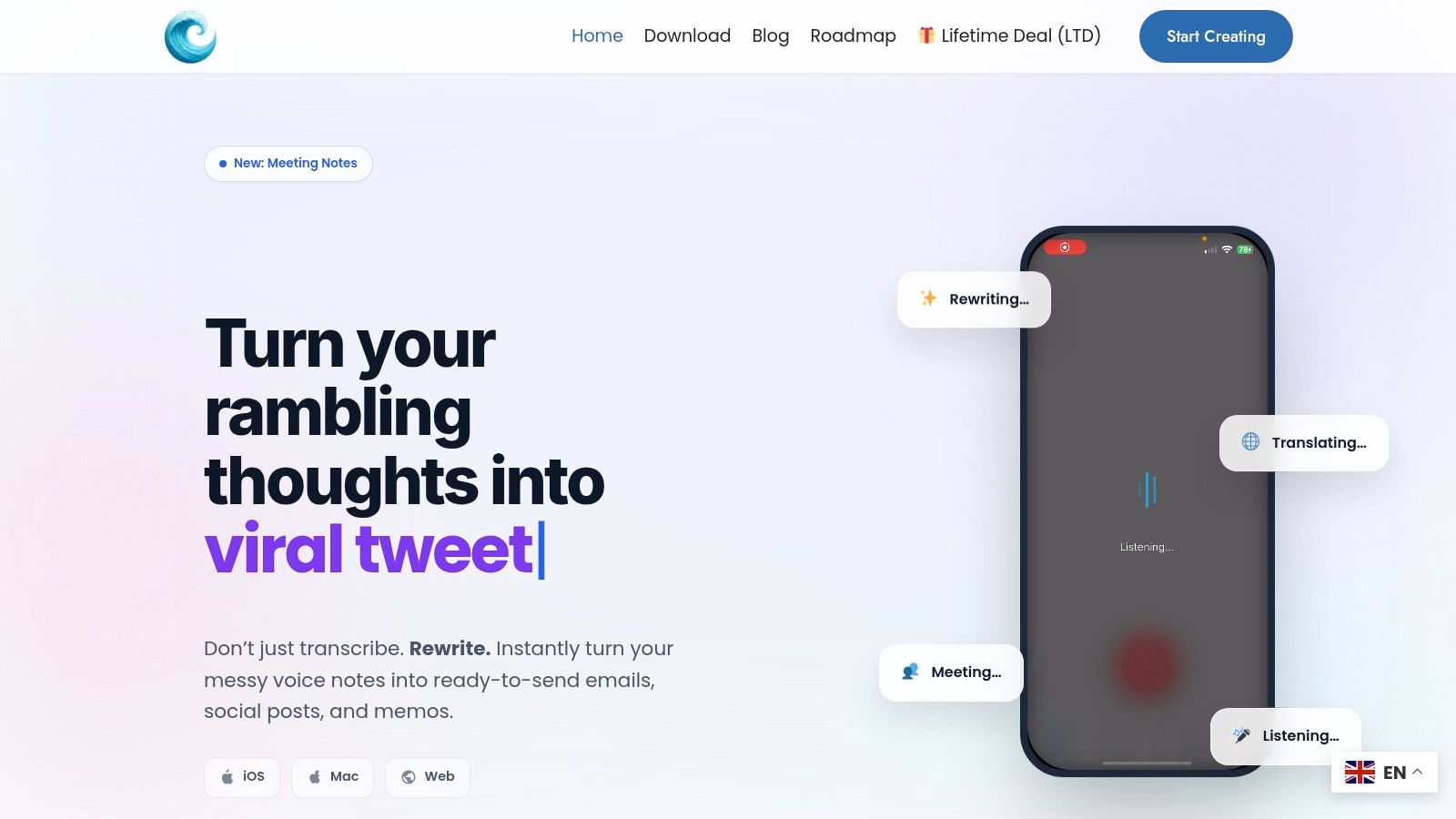
The app is smart because it fixes things for you. It automatically takes out filler words like 'um' and 'uh' and fixes mistakes as you talk. This means your text is ready to go right away. You can use it in important emails, work tools like Jira, or chat apps like Slack without spending time fixing it.
Why WriteVoice Stands Out
What makes WriteVoice really special is that it keeps your words private and is great for meetings. Many other apps send your voice to far-away computers. But WriteVoice does not save your voice or your typed words. This makes it super safe for talking about private things. For teams, it can write down what everyone says in a meeting, know who is talking, and even make a short summary of the chat. This is a big help for remembering what happened.
Key Features & Considerations
Pros:
- Writes as You Talk: Your words show up on the screen right away, much faster than typing.
- Cleans Up Your Words: It smartly takes out filler words and fixes mistakes, so your writing looks good from the start.
- Works Everywhere: You can use it in any app on your computer, like Gmail, Slack, and Microsoft Word.
- Keeps Your Words Private: It doesn't save your voice or text, so your private chats stay private.
- Good for Meetings: It can write down what everyone says and create short notes of the meeting.
Cons:
- Needs Internet: It works best when you are connected to the internet.
- Check for Rules: If you work in a place with special rules, like a hospital, you may need to check if it's okay to use.
- Pay for Best Tools: The coolest tools, like cleaning up words and meeting notes, are for paying members.
Website: https://www.writevoice.io
2. Apple App Store (iPhone/iPad/Mac)
The Apple App Store is not one app. It is a big, safe store where you can find some of the best dictation apps for your iPhone, iPad, or Mac. Think of it like a giant library just for people with Apple gadgets. Each app has a page with stars from other users, pictures, and "privacy labels" that tell you how your information is used.
What makes the App Store great is how it works with your device. Getting an app and paying for it is easy and safe with your Apple ID. You don't have to put your credit card information on lots of different websites. The App Store handles the money, and Apple checks the apps to make sure they are good and safe.
Platform-Specific Insight
A cool trick for people in jobs like medicine is using the App Store to find special dictation apps that are extra safe for private patient info. The store's ratings and rules help you find powerful apps you can trust for important work.
Key Details & Considerations
| Feature | Description |
|---|---|
| Use Case | Finding and buying many kinds of dictation apps. |
| Pricing | Some are free, some you buy once, and some you pay for each month. |
| Selection | Huge, from simple note apps to tools for serious jobs. |
| Trust Factor | Very high, because Apple checks the apps and keeps payments safe. |
Pros:
- A safe, single place to pay for apps.
- Clear rules about how your private information is used.
- Lots of apps made just for Apple devices.
Cons:
- Only for people who use Apple gadgets.
- The best apps for work often cost money every month.
Website: Apple App Store
3. Google Play Store (Android)
The Google Play Store is the main place for Android apps. It is where you can find and download the best dictation apps for your phone or tablet. It is like a huge digital store with everything from simple voice note tools to fancy writing services. For each app, you can read what other people think, see pictures, and check "Permissions" to know what parts of your phone the app can use.
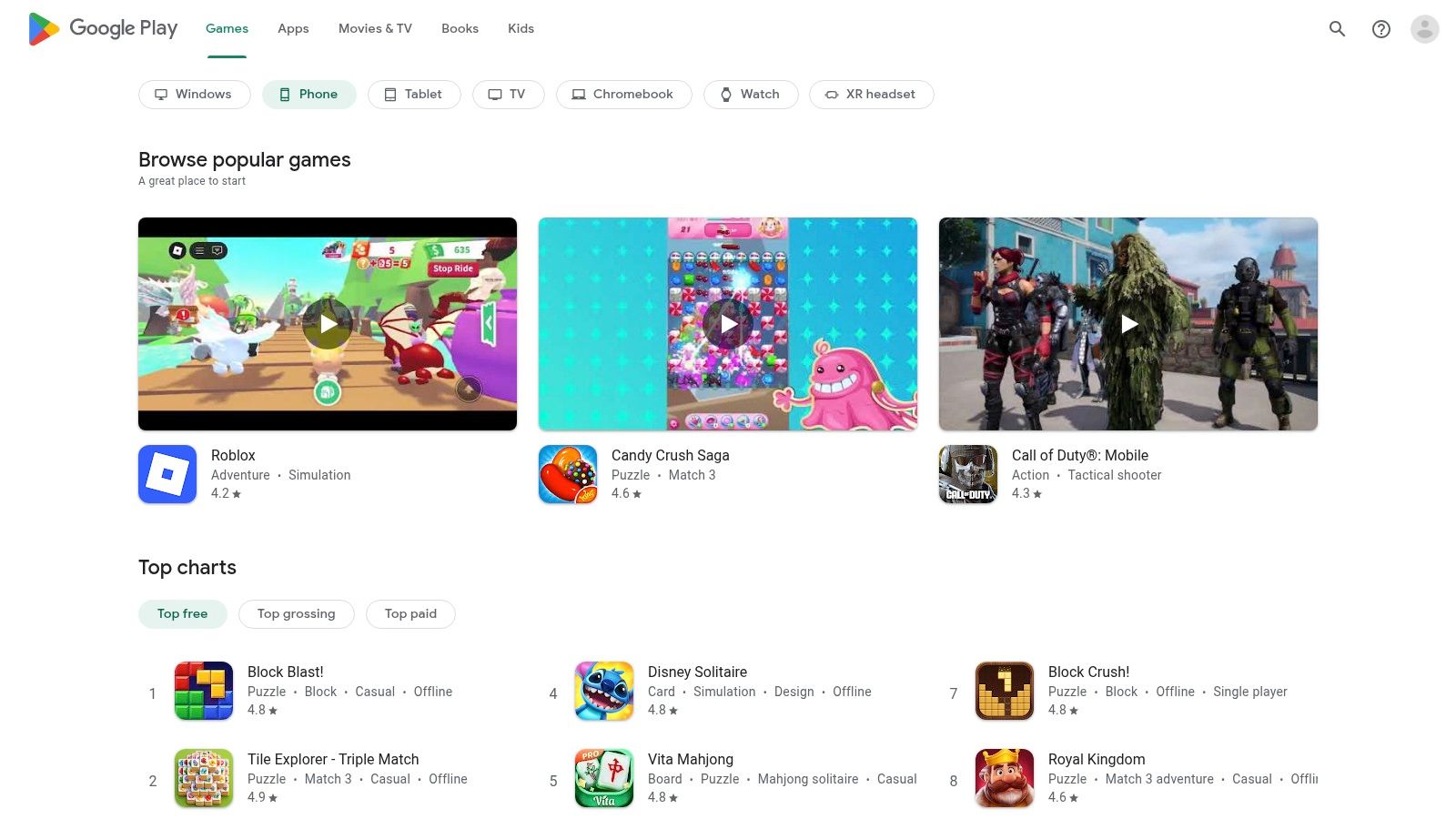
What makes the Google Play Store great is that it works perfectly with your Android phone and Google account. Putting in new apps, paying for them, and getting updates is easy and safe through your account. You don't have to manage payments on different websites. A good example is the Gboard keyboard, which has voice typing built right in.
Platform-Specific Insight
A smart tip for Android users is to start with a free app like Gboard. It uses Google's own speech-to-text power, which is very good. This means you can get great dictation for free without buying anything first.
Key Details & Considerations
| Feature | Description |
|---|---|
| Use Case | Finding, getting, and managing dictation apps on Android phones. |
| Pricing | Many choices, like free, with ads, buy once, or pay monthly. |
| Selection | Huge, from keyboards that type what you say to special business tools. |
| Trust Factor | High, because Google Play Protect checks for safety and payments are safe. |
Pros:
- A giant number of apps, including great free ones like Gboard voice typing.
- Keeps your apps updated for you.
- Easy to get your money back if you don't like an app.
Cons:
- How well an app works can be different on different phones.
- Some voice tools depend on your phone model or what language you speak.
Website: Google Play Store
4. Microsoft 365 – Dictate in Word/Office
If you already use Microsoft programs, one of the best dictation apps is the one you already have. Microsoft’s Dictate tool is built into programs like Word, Outlook, and OneNote if you pay for Microsoft 365. It is not a separate app you have to find. It is a button right at the top of the screen, ready to use with one click.
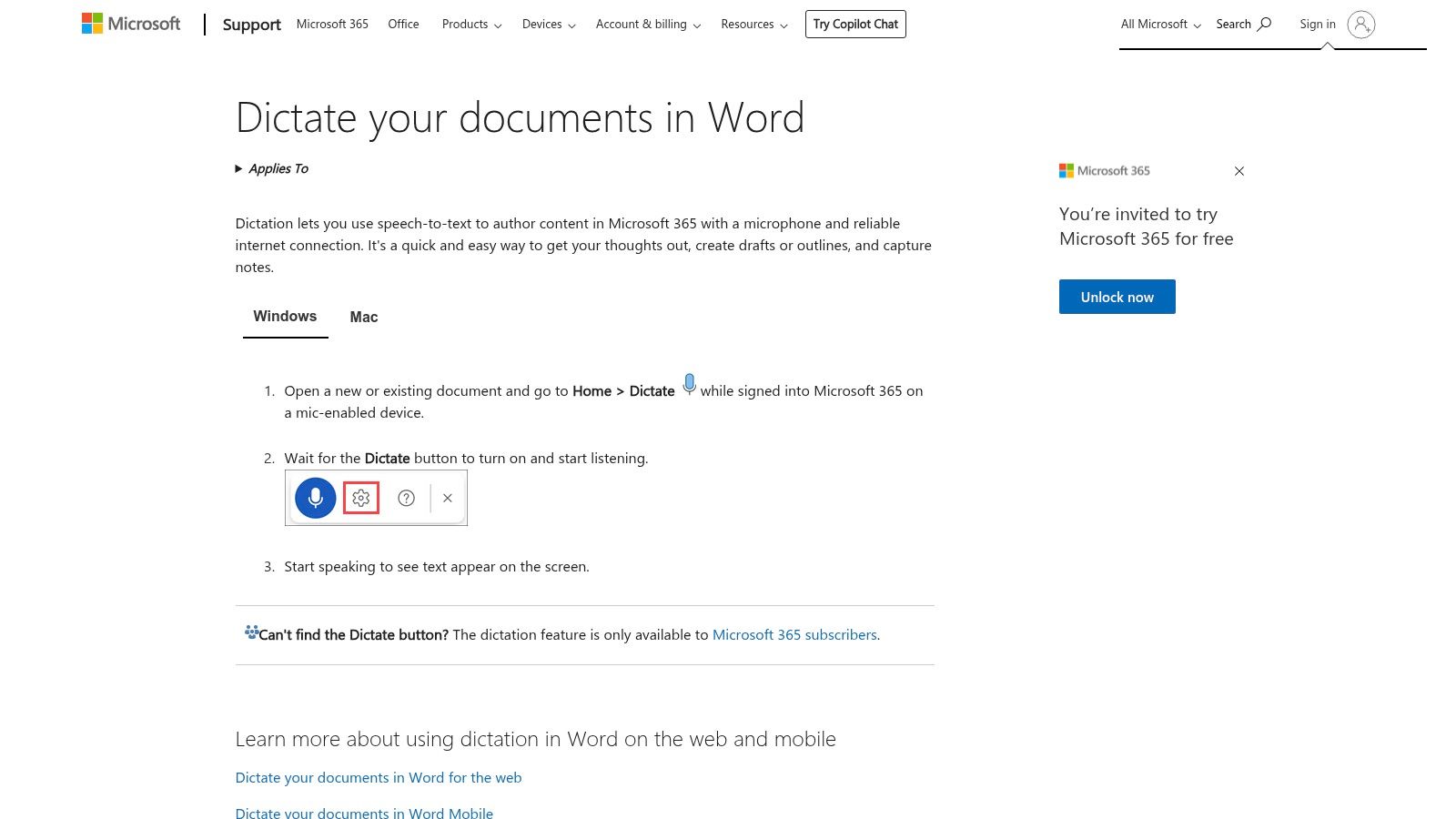
This tool is so easy because it is already inside your programs. You can type, talk, and fix your writing in the same file without changing windows. It is very good at understanding words and can even follow commands like "new line" or "make that bold." Your words show up right away, and your work is saved for you.
Platform-Specific Insight
For people who write long reports, this tool is a huge help. For example, a scientist can speak their research notes directly into a Word document. They don't have to switch back and forth between a recorder and a computer, which saves a lot of time.
Key Details & Considerations
| Feature | Description |
|---|---|
| Use Case | Writing papers, emails, and notes right inside Office apps. |
| Pricing | It comes with a Microsoft 365 plan (no extra cost). |
| Selection | Works in main Office apps (Word, Outlook, OneNote, PowerPoint). |
| Trust Factor | High, because it’s a tool from Microsoft in a trusted program. |
Pros:
- No extra app to buy if you have Microsoft 365.
- Saves your work in a place you already know.
- You can use your voice to do simple formatting.
Cons:
- You need to pay for Microsoft 365 and have an internet connection.
- It might not be in older versions of Office that you buy only once.
Website: Microsoft Support – Dictate in Word
5. Windows 11 Voice Typing (system‑wide)
Windows 11 Voice Typing is not a separate app. It is a cool tool built right into your computer. You can use it anywhere you can type, like in an email, on a website, or in a chat window. Just press the Windows key + H to start. It uses the internet to turn your spoken words into text, making it one of the easiest and best dictation apps for PC users.
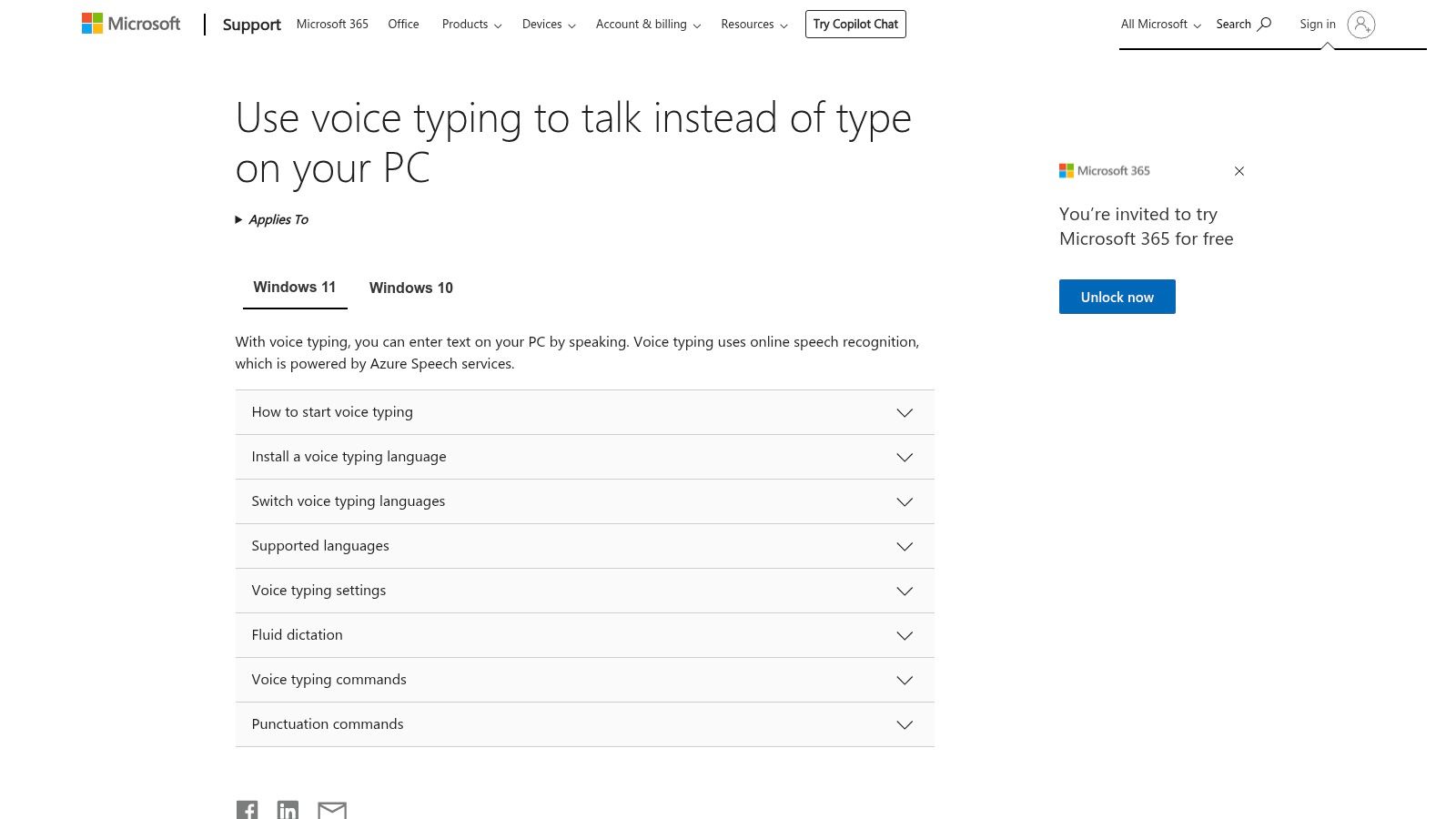
What makes this tool special is that it works everywhere on your computer. You don't have to open a special program or copy and paste. If you can type in a box, you can talk into it. The tool also has a neat trick called auto punctuation. It adds periods and commas for you as you talk, which helps you write good sentences easily.
Platform-Specific Insight
This is super helpful for people who need to fill out lots of forms online. For example, if you are applying for jobs, you can use Win+H to speak your answers into every box on the application website instead of typing the same things over and over.
Key Details & Considerations
| Feature | Description |
|---|---|
| Use Case | Quick, talk-to-type in any app on a Windows computer. |
| Pricing | Free; it comes with Windows 11 and 10. |
| Selection | It can understand many languages. |
| Trust Factor | High, because it's a tool from Microsoft. |
Pros:
- It is totally free and already on your Windows PC.
- It works in all the programs where you can type.
- It is easy to use with one keyboard shortcut (Win+H).
Cons:
- You need to be connected to the internet for it to work.
- How well it works can change depending on your computer.
Website: Windows Voice Typing Support
6. Google Docs – Voice Typing (web)
Google Docs has a great voice typing tool that is free and built right in. It is not a separate program. You can find it in the menu with just one click. This makes it one of the easiest and best dictation apps for anyone who has a Google account and uses the Chrome web browser. It is great for writing papers, emails, or notes without installing anything.
What makes Google Docs Voice Typing special is that it saves your work as you go. As you talk, your words are saved to Google Drive. This means you won't lose your writing. It also understands simple voice commands like “new paragraph” or “bold that.” This lets you set up your paper without using your hands. This mix of being free, simple, and saving online makes it perfect for writing quick drafts.
Platform-Specific Insight
A clever way to use this is for brainstorming. Open a Google Doc and just start talking about all your ideas for a project. Don't worry about making it perfect. It's like having a thought-catcher that types everything for you, so you don't forget any good ideas.
Key Details & Considerations
| Feature | Description |
|---|---|
| Use Case | Quick and free writing of papers and notes online. |
| Pricing | Totally free if you have a Google account. |
| Selection | Understands many languages, but voice commands for formatting are simple. |
| Trust Factor | High, because it is part of Google's safe and well-known Docs website. |
Pros:
- It costs nothing and is ready to use in Google Docs on Chrome.
- Your work is saved all the time to Google Drive.
- It is very easy to use with no hard setup.
Cons:
- You need to be on the internet and use the Chrome browser on a computer.
- The voice commands are simple and work best in English.
Website: Google Docs
7. Otter.ai
Otter.ai is more than just a dictation app. It is like an AI helper for your meetings. It is great at writing down what people say during a chat, which makes it one of the best dictation apps for teams, students, and anyone who needs to remember what was said in a meeting. Otter.ai does not just type what it hears. It also figures out who is talking and can even make a short summary for you.
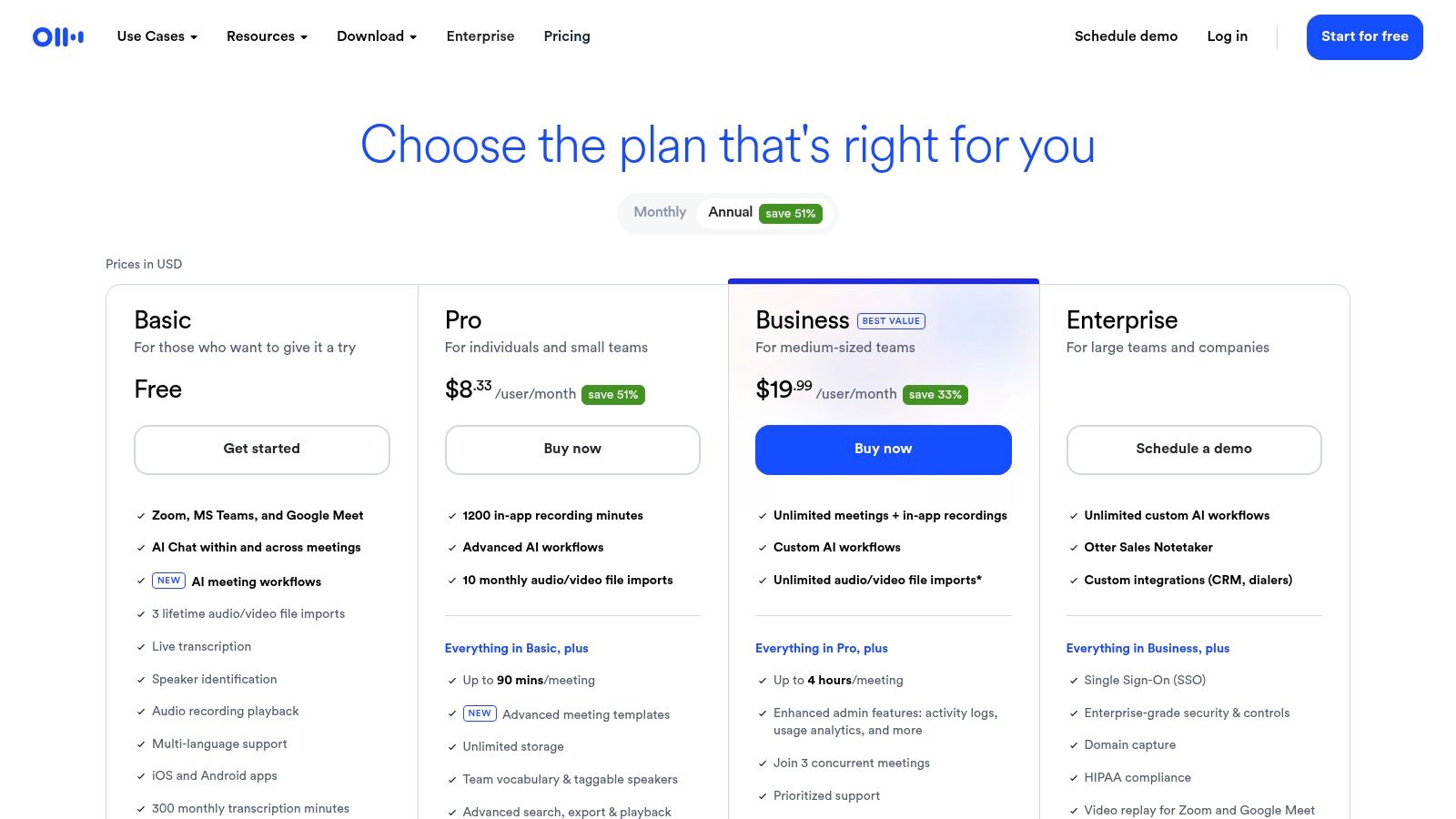
What makes Otter.ai special is how it works with meeting apps like Zoom, Google Meet, and Microsoft Teams. It can join your meetings by itself, record them, and give you a written copy of everything that was said. You can even search the text later. This turns a simple recording into a helpful record you can look at anytime.
Platform-Specific Insight
A cool trick with Otter.ai is to use it for online classes or webinars. You can focus on listening and watching, knowing that Otter is creating notes for you. Later, you can search the text for a key word to find exactly what the teacher said about it.
Key Details & Considerations
| Feature | Description |
|---|---|
| Use Case | Writing down what is said in meetings, interviews, and classes. |
| Pricing | Has a free plan; paid plans start around $16.99 a month. |
| Selection | Made for writing down what is said in meetings and making summaries. |
| Trust Factor | High, used by many schools and businesses. |
Pros:
- Very good at writing down chats and knowing who is talking.
- Works with the big video meeting apps.
- The AI summaries help you quickly see the main points.
Cons:
- The free plan limits how many minutes you can record.
- Special tools, like changing the text to another language, cost more.
Website: Otter.ai
8. Nuance Dragon Anywhere
Nuance Dragon Anywhere puts the power of its famous computer software onto your phone. It is one of the best dictation apps for people who need to write long things like reports or notes when they are not at their desk. Phone keyboards often stop you after a minute, but Dragon Anywhere lets you talk for as long as you want.
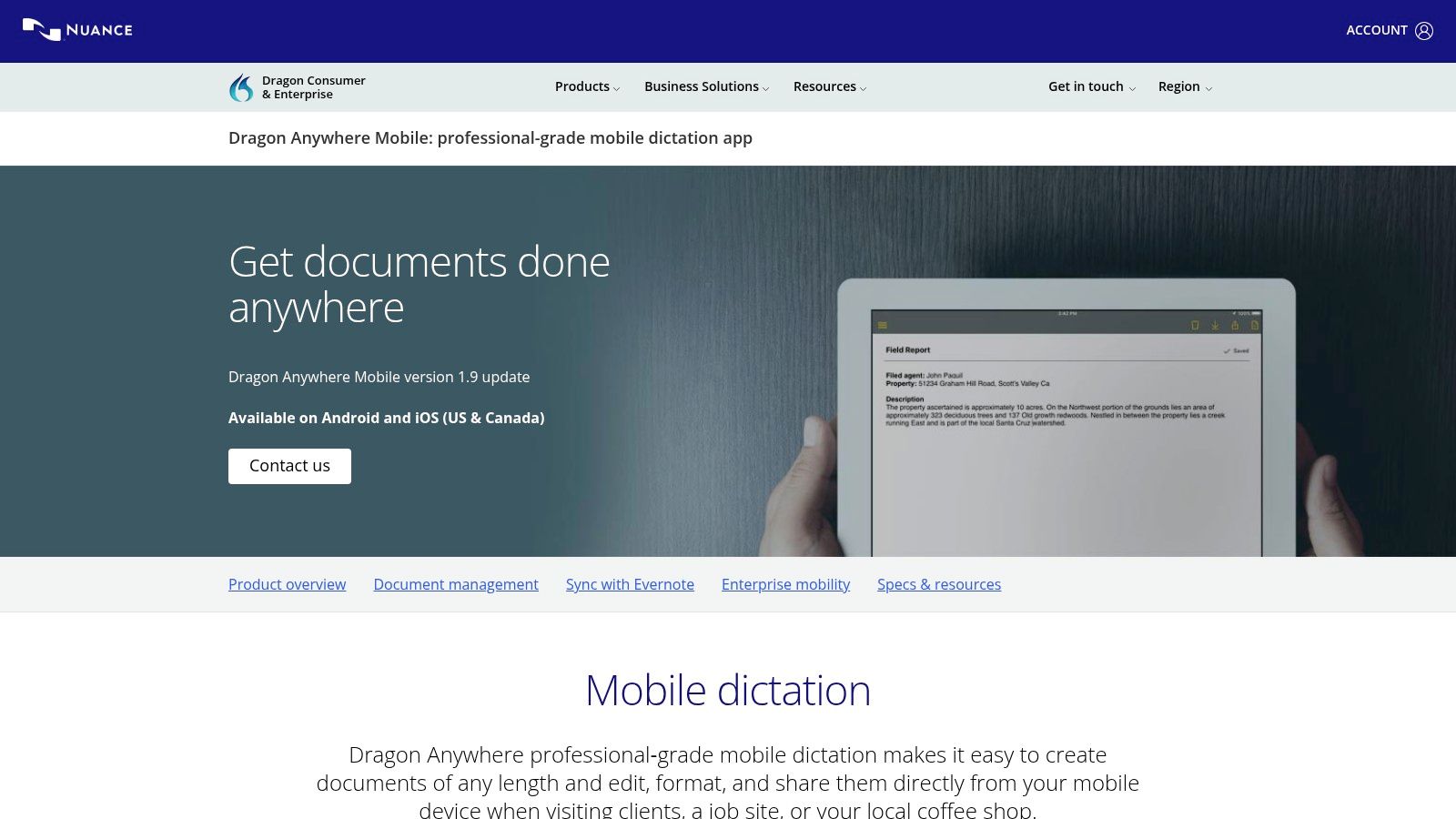
What makes this app special is that you can do hard tasks with just your voice. You can change how the text looks, make fixes, and move around your document without touching the screen. The app also learns the words you use a lot and shares them with your other devices, so it gets better at understanding you over time. It is a serious tool for serious work on your phone.
Platform-Specific Insight
This app is perfect for people who work outside, like a house inspector. They can walk through a house and speak all their notes into their phone. The app types it all out, so they don't have to write everything down by hand later.
Key Details & Considerations
| Feature | Description |
|---|---|
| Use Case | Writing long, detailed papers on your phone or tablet. |
| Pricing | You pay for it each month or year. |
| Selection | It is focused on being a powerful dictation tool for your phone. |
| Trust Factor | High, because it is made by Nuance, a company known for speech tools. |
Pros:
- You can talk for as long as you want to write down long notes.
- It is very good at understanding what you say.
- It remembers your special words on all your devices.
Cons:
- You have to pay for it every month and be on the internet.
- It is just for your phone, not your main computer.
Website: Nuance Dragon Anywhere
9. Nuance Dragon Professional v16 (Windows)
Nuance Dragon Professional is the best choice for very important dictation on a Windows computer. This is not a simple note app. It is a powerful program for people who need their words to be perfect. It learns your voice and lets you add special words for your job, like for a lawyer or a doctor. This makes it one of the best dictation apps for special work.
What makes Dragon different is that it can control your whole computer with your voice. You can make your own voice commands to open programs, fill out forms, and do boring tasks over and over again. This deep control is great for people who need to use their computer without their hands, or for anyone who wants to be faster by just talking.
Platform-Specific Insight
A special power of Dragon is turning recordings into text. If you have a recording of yourself talking, like an interview you did, you can give the audio file to Dragon. It will type out all the words for you. This saves a lot of time for people like reporters or students.
Key Details & Considerations
| Feature | Description |
|---|---|
| Use Case | For serious work dictation, hands-free computer use, and turning recordings into text. |
| Pricing | You buy it one time for a high price. |
| Selection | It focuses on deep, powerful dictation for Windows computers. |
| Trust Factor | High, because it has been a top choice in speech tools for a long time. |
Pros:
- Amazingly good at understanding you, and it learns your voice.
- Powerful voice commands to control your computer without hands.
- Has special versions for jobs in law and medicine.
Cons:
- It only works on Windows computers and costs a lot of money.
- It can be hard to buy straight from the company; it's often easier to buy from other stores.
Website: Nuance Dragon Professional
10. Speechnotes
Speechnotes is a simple tool on the internet that works like a notepad for your voice. You just go to the website, click a button, and start talking. It is made for quick, easy dictation without having to sign up or install a big program. This makes it one of the easiest and best dictation apps to use right away.
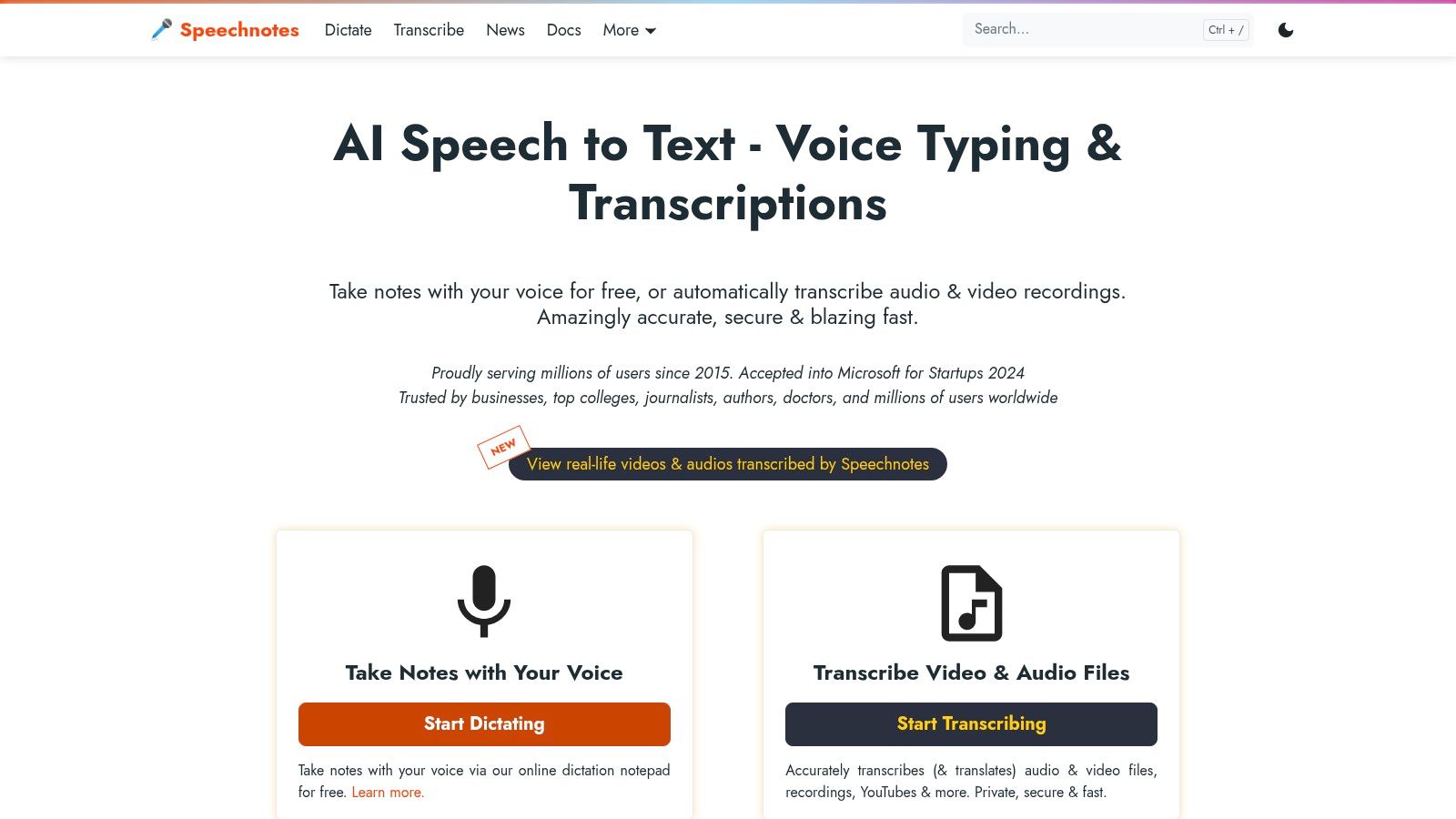
What makes Speechnotes stand out is how simple and fast it is. It is a light tool that works quickly. It even has a handy add-on for the Chrome browser to get to it easily. The main notepad is free but has ads. You can pay to remove the ads. You can also pay to have it turn your audio recordings into text. This makes it a great choice for people who only need it once in a while.
Platform-Specific Insight
This is great for someone writing a story or poem. When an idea pops into your head, you can open Speechnotes and speak the lines right away. You don't have to log in or open a big program, so you won't forget your idea.
Key Details & Considerations
| Feature | Description |
|---|---|
| Use Case | Quick note-taking on the web and writing down ideas. |
| Pricing | Free with ads; you can pay to remove ads or to turn recordings into text. |
| Selection | It's mainly a web notepad with a Chrome add-on. |
| Trust Factor | Good for notes that are not private; you don't need an account to use it. |
Pros:
- Super easy to use, with no need to install anything or make an account.
- The free version works great for simple tasks.
- Easy-to-use page with one button to start talking.
Cons:
- Not as good at understanding words as the more expensive tools.
- Works best in the Google Chrome browser.
- Not a good choice for private or secret information.
Website: Speechnotes
11. Dictation.io
Dictation.io is a super simple tool on the web for anyone who needs to type with their voice right away, with no setup. It is a clean website that opens to a blank page, ready for you to talk. Because it works in your web browser and you don't need an account, it is one of the best dictation apps for quick jobs where you want to keep your words private.
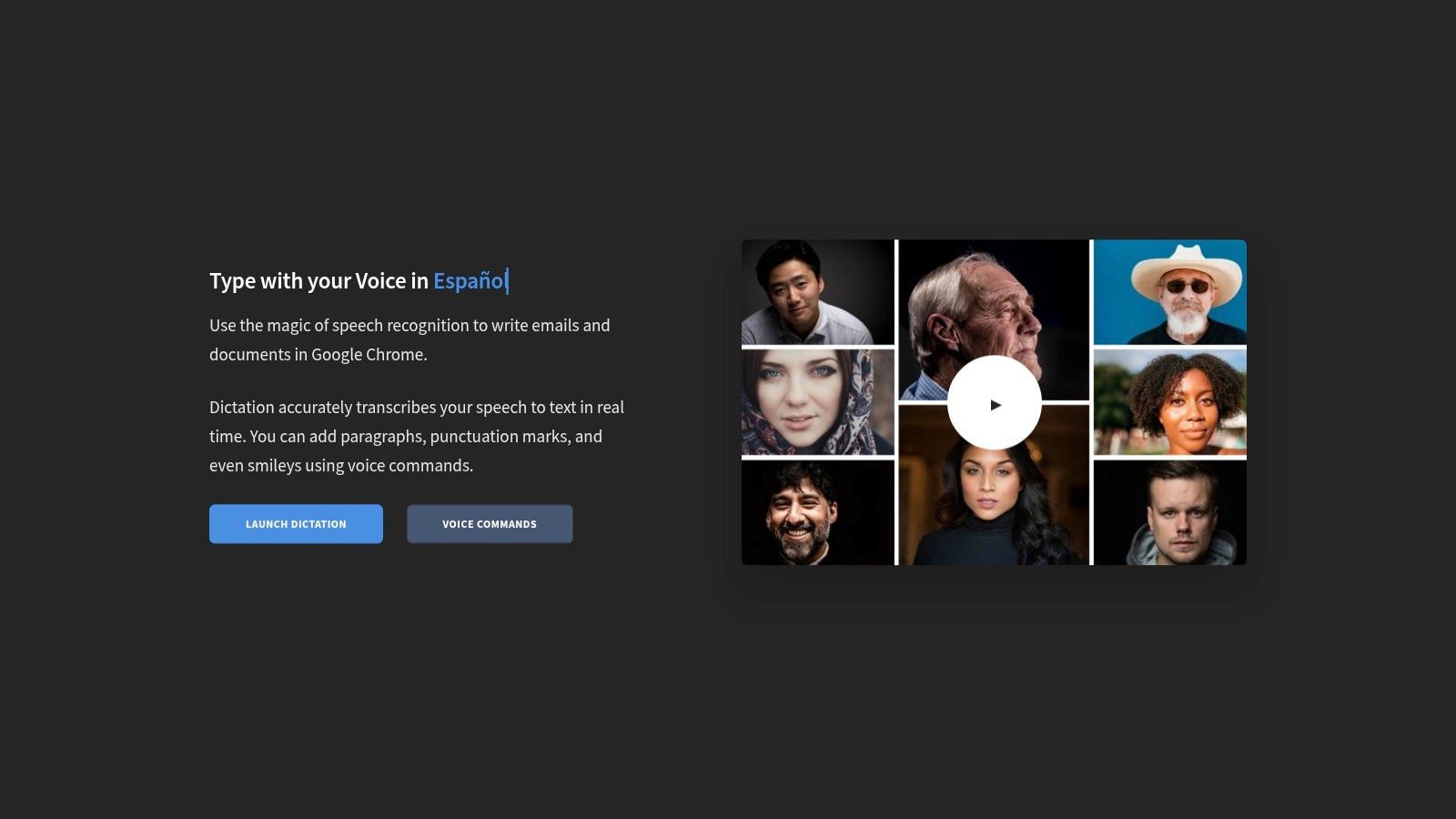
What makes Dictation.io stand out is that it is simple and private. All the words you speak are saved right in your web browser. This means your text never gets sent to a faraway computer. This is perfect for writing private emails or notes without worrying about who sees your information. The page is clean, has no ads, and understands simple voice commands for things like periods and new lines.
Platform-Specific Insight
This tool is a great "scratchpad" for getting ideas down fast. For example, if you need to write a difficult email, you can speak a rough version into Dictation.io first. Then you can copy the text and paste it into your real email to fix it up. It is faster than opening a big program.
Key Details & Considerations
| Feature | Description |
|---|---|
| Use Case | Quick, private talk-to-text for fast writing. |
| Pricing | Totally free; no ads or secret costs. |
| Selection | Made for talking in real time with simple commands. |
| Trust Factor | High, because your text stays on your computer and you don't need to sign up. |
Pros:
- Completely free to use with no account needed.
- Great for privacy since your words stay in your browser.
- Extremely fast and simple—just open the site and talk.
Cons:
- Does not have fancy tools like saving your work automatically online.
- Works best in the Chrome browser.
Website: Dictation.io
12. Speech Recognition Anywhere (Chrome extension)
Speech Recognition Anywhere is a powerful add-on that puts voice-to-text right into your Chrome or Edge browser. Instead of a separate program, it works on the websites you already use. It lets you talk into Gmail, Google Docs, online forms, and even special work websites. It basically gives a voice to any text box on the internet.
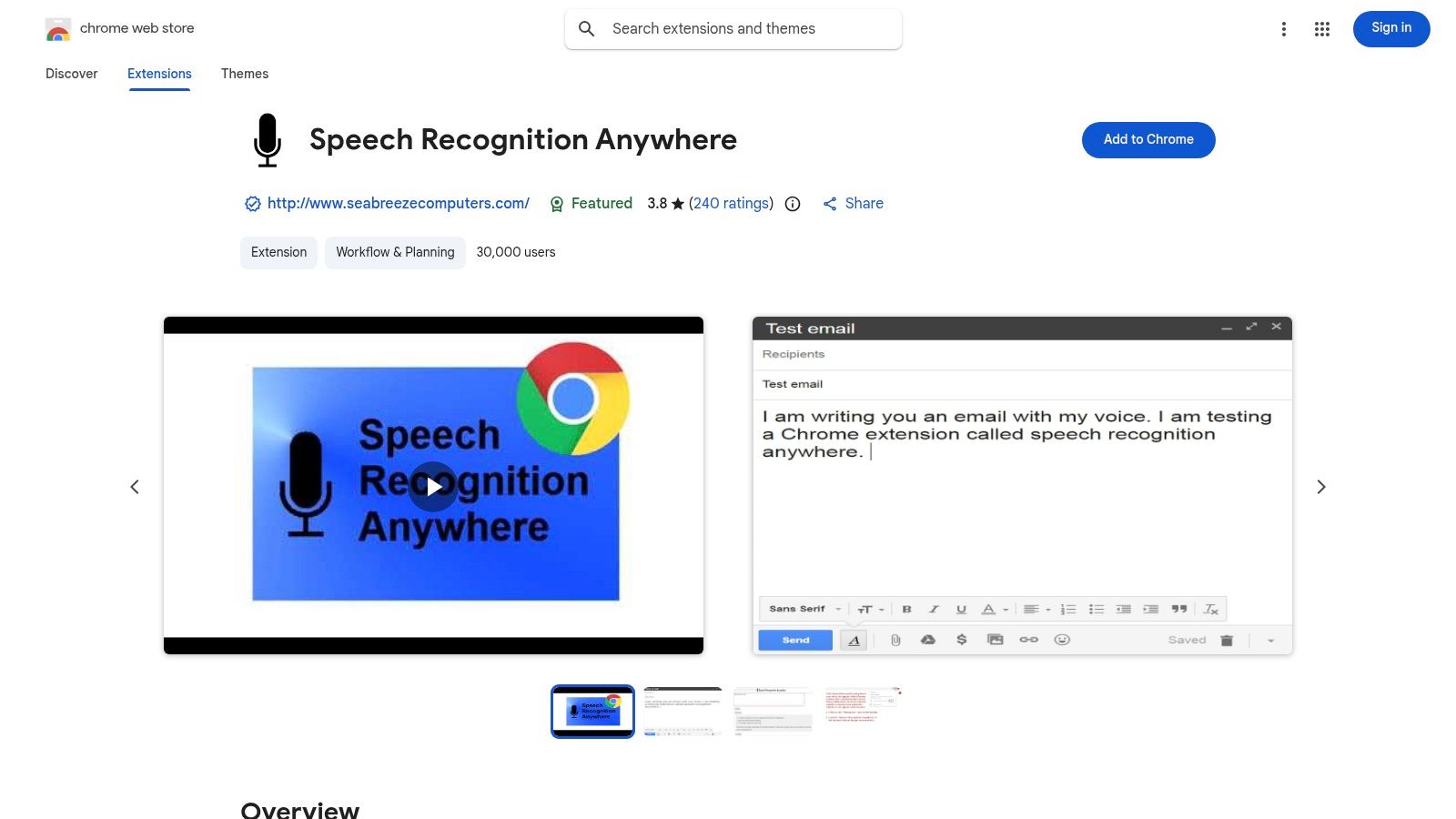
What makes this tool different is that it is all about the web. Many of the best dictation apps are programs for your computer or phone, but this one lives in your browser. If you pay for it, you get cool tools like custom voice commands (like saying "add my name" to type your name) and automatic periods and commas. This turns it from a simple talk-to-type tool into a helper for your browser.
Platform-Specific Insight
This is a game-changer for people who do most of their work on websites. If you work in customer service and use a website to talk to customers, you can speak your replies instead of typing them. It saves you from having to copy and paste from another app.
Key Details & Considerations
| Feature | Description |
|---|---|
| Use Case | Talking right into web forms, emails, and online papers. |
| Pricing | Free to try with some limits; you pay once to get all the tools. |
| Selection | Adds dictation to almost any website with a place to type. |
| Trust Factor | Medium; you can get it from the official Chrome Web Store and read what others think. |
Pros:
- Lets you talk on websites that don't have a voice button.
- Custom voice commands can make boring tasks faster.
- Works right inside the websites you already use.
Cons:
- Only works in a web browser, not on your whole computer.
- You have to pay to get all the tools after the trial.
- Does not work on some special browser pages, like the settings page.
Website: Speech Recognition Anywhere
Top 12 Dictation Apps — Feature & Performance Comparison
| Product | Core features | Accuracy & speed | Integrations & platforms | Target audience | Pricing & privacy |
|---|---|---|---|---|---|
| WriteVoice (Recommended) | Writes fast, AI cleanup & rewrites, meeting notes, many languages, whisper mode | Very good at understanding, super fast, up to 4x typing speed | Works in iOS keyboard, Mac, Web, Desktop — types into Slack, Gmail, Jira, Notion, etc. | Workers, teams, doctors/lawyers, bosses | Free trial/buy forever/pay monthly; very private — says it doesn't store voice/text (check rules) |
| Apple App Store (iPhone/iPad/Mac) | Safe store for apps, ratings, privacy info, easy buying | Depends on the app | iOS / iPadOS / macOS apps, Apple payments | Apple users wanting safe dictation apps | App prices change; Apple has clear privacy info and safe payments |
| Google Play Store (Android) | Big app store, shows what apps can use, easy payments | How well it works depends on app & phone | Android phones, good for families/work | Android users wanting lots of dictation choices | Many free apps; you can see what the app can use, easy to get money back |
| Microsoft 365 – Dictate in Word/Office | One-click Dictate, voice editing commands, adds punctuation | Good at understanding words, needs internet | Word/Office apps, OneDrive/SharePoint, works on computers/web | People who use Microsoft, professionals writing papers | Need to pay for Microsoft 365; good for businesses |
| Windows 11 Voice Typing (system‑wide) | Win+H to talk anywhere, adds punctuation, many languages | Good at understanding words online; depends on computer | Works in any Windows app with a text box | Windows users wanting a built-in talk-to-type tool | Comes with Windows; has online tools and privacy choices |
| Google Docs – Voice Typing (web) | Built-in voice typing & formatting in Docs | Works well in Chrome on a computer; limited commands | Google Docs in Chrome, saves to Drive | People writing drafts, groups using Docs | Free with Google account; online only, need Chrome |
| Otter.ai | Writes down meetings, knows who spoke, makes summaries, searchable | Good for meetings; speed depends on plan | Web, iOS, Android, works with Zoom/Google Meet/Teams | Teams, people with lots of meetings, workers | Free plan with paid plans; limits on minutes |
| Nuance Dragon Anywhere | Talk as long as you want on mobile, voice editing, custom words | Very good for long talking on your phone | Mobile apps (US/Canada), saves online | People who work outside, doctors, heavy mobile users | Pay monthly for phone app; needs internet |
| Nuance Dragon Professional v16 (Windows) | Learns your voice, custom commands, special versions for jobs | The best at understanding, learns as you talk | Windows computer, can turn recordings into text | People who need perfect words (lawyers/doctors) | High price to buy once; often sold in other stores |
| Speechnotes | Simple web notepad, Chrome add-on, simple editing | Okay for quick notes | Web and Chrome add-on | Students, people taking quick notes | Free with ads; can pay to remove ads or for other services |
| Dictation.io | Simple web app, saves text on your computer, fast start | Uses browser's speech tool (fast but simple) | Browser (best in Chrome) | For quick writing, people who want privacy | Free; saves text on your computer (good for privacy) |
| Speech Recognition Anywhere (Chrome extension) | Talk in browser, voice control, custom commands, adds punctuation | Okay at understanding; paid version has more tools | Chrome/Edge add-on for web apps | People who work a lot in a browser, fill out forms | Free to try; pay once for all tools |
So, Which App Should You Choose?
Looking at all the best dictation apps can be a lot to take in. We have looked at many choices, from simple, free tools on your phone to powerful programs for work. The right choice is not about finding the one "best" app for everyone. It's about finding the perfect tool for your job.
To pick your perfect dictation helper, you first need to know what you need it for. Are you a student writing a paper, a boss taking notes in a meeting, or a doctor writing private reports? Each job needs a different tool.
Making the Right Decision for Your Needs
To help you choose, let's look at the top apps based on common jobs. Think of this as your final checklist for picking the right tool from our list.
For Quick, Everyday Tasks: If you just need to send a quick text or write a fast note, you don't need a special app. The tools already on your iPhone (Apple Dictation) and Android phone (Gboard) are fast, free, and ready to go. They are perfect for short bits of text.
For Writing Documents and Schoolwork: When you need to write something longer, like a report or a school paper, Google Docs Voice Typing is a great free choice. It works in your web browser and is very good at turning your talking into paragraphs. Also, Microsoft 365's Dictate tool is great if you already use Word or Outlook.
For Recording and Transcribing Meetings: If you want to record a meeting and get a written copy of what everyone said, Otter.ai is the best choice. It is made for conversations. It knows who is talking and makes it easy to find what you're looking for later.
For Specialized Professional Work: For doctors, lawyers, and others who use special words and need things to be perfect, Nuance Dragon products are the best. They learn your voice and the words you use, but they cost a lot of money and take time to learn.
Why WriteVoice Stands Out
Special tools are great for one job, but many of us need a tool that can do a little bit of everything, everywhere. We need a tool that is more than just a voice-to-text machine. This is why we found WriteVoice to be the best choice overall.
WriteVoice does more than just turn your words into text. It turns your rough, spoken ideas into clean, ready-to-use writing. It is like a smart helper that not only types what you say but also helps fix mistakes and make your sentences better. It works in all your apps, from Slack and Jira to your email, so you don't have to switch between tools. It gives you the power of a professional tool without the hard setup.
By picking a tool from this guide, you are taking a big step toward working smarter. You can give your fingers a break and let your voice do the work. This simple change can save you hours every week, so you can think about big ideas instead of the busywork of typing.
Ready to see how a truly smart dictation tool can change the way you work? WriteVoice does more than just write down your words. It uses AI to turn your spoken thoughts into clear, ready-to-use text in any app. See what's next for getting things done and try WriteVoice today.