How to Use Your Voice to Type on a Mac
Let's learn how to talk to your Mac and have it type for you! Why would you want to do this? It's super fast.
Most people type about 40 words in a minute. But we can talk much faster, about 150 words in a minute! That's like a race car compared to walking. You can get your ideas out almost four times faster just by talking.
Have you ever had a great idea, but you forgot it before you could write it down? Talking to your Mac helps you catch those ideas before they fly away. It lets your hands take a break and helps you think about your ideas, not about typing.
Talking vs. Typing: What's Better?
When should you talk, and when should you type? It depends on what you're doing. This chart helps you pick the best way.
| What it's like | Talking to Your Mac | Typing on the Keyboard |
|---|---|---|
| Speed | Super fast for getting your thoughts out (150 WPM) | Slower for most people (40 WPM) |
| Mistakes | Sometimes makes little mistakes, so you have to check | Usually gets words right when you're careful |
| Good For | Telling stories, first tries, quick notes, emails | Fixing mistakes, coding, making things look perfect |
| How it Feels | Easy on your hands, no tired fingers | Can make your hands and wrists tired |
| Where to Do It | Needs a quiet room to hear you well | You can do it almost anywhere |
| Learning it | Easy to start, you just need to learn a few words | Takes a lot of practice to get fast |
The best way is to do both! I like to talk to my computer to get my ideas down fast. Then, I use the keyboard to fix any mistakes and make it look nice.
Get More Done and Have More Fun
Think about all the typing you do for emails or homework. Talking instead of typing can save you a lot of time.
The best part is keeping your ideas flowing. When you talk, your ideas come out like water from a faucet. When you type, it can feel like drip… drip… drip. Talking helps you:
- Catch Ideas Fast: Don't lose a cool thought while looking for a letter on the keyboard.
- Rest Your Hands: Give your fingers a break, especially on long school days.
- Work Anywhere: You can talk to your Mac to write an email while walking around your room.
The tool that lets you do this is getting smarter. So many people are using their voice to tell computers what to do! It’s a big deal.
And if you still want to be a super-fast typer, our guide on how to increase typing speed has great tips.
Turning On Dictation on Your Mac
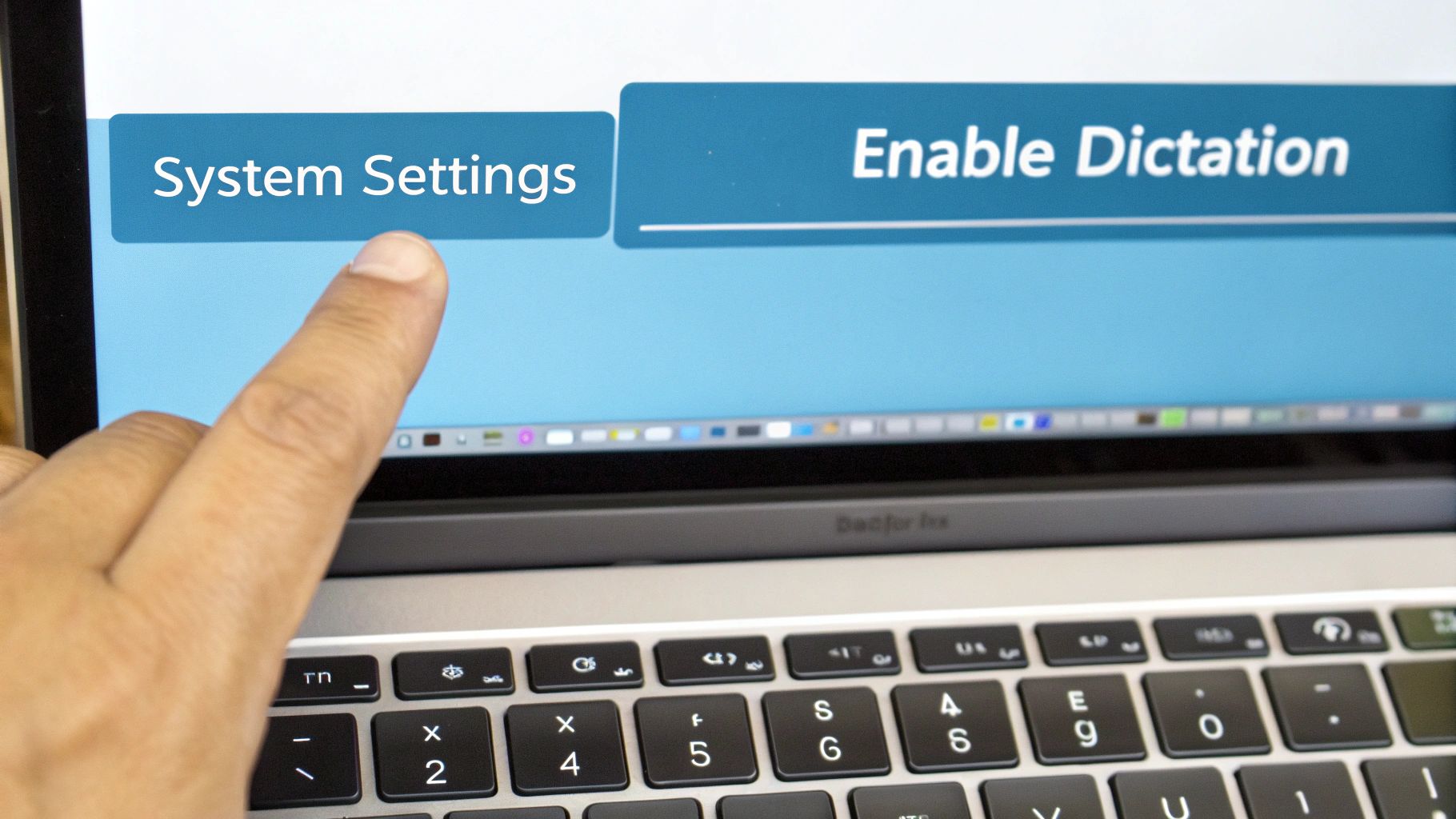
Ready to let your fingers rest? First, we need to turn on the talking feature on your Mac. It’s easy and just takes a minute in System Settings.
You can find System Settings in the row of pictures at the bottom of your screen (the Dock). Or, click the Apple picture in the top-left corner and pick it from the list. This is like the control center for your Mac.
Finding the Right Button
When System Settings opens, you'll see a list on the left. You can ignore most of it. Just scroll down until you see Keyboard and click on it.
Inside the Keyboard area, look for a part called Dictation. That’s where the magic button is.
Picking Your Settings
Now for the fun part. You’ll see a switch next to the word Dictation. Click it to turn it On.
Your Mac might ask if it can listen to what you say to get smarter. It’s okay to say "Share" or "Not Now." It's your choice!
Once it's on, you have a few choices to make:
Language: This is super important! Pick the language you speak, like English (US). If you speak more than one language, you can add others. The Mac will understand you better if you pick the right one.
Microphone Source: Your Mac has a microphone built-in, but if you have a headset with a microphone, use that! It’s like giving your Mac super hearing. A better microphone means fewer typing mistakes.
Shortcut: This is the secret button you'll press to start talking. The Mac suggests pressing the Fn key (it looks like a little globe) two times. That's a great choice. You can change it if you want, but this one is easy to remember.
My Tip: The best secret button is pressing the Fn key twice. It's simple and doesn't get in the way of other buttons.
Now you’re all set! You can now use your voice to type in any app where you can write, like Mail, Notes, or even a Google Doc. You're ready to work faster.
Using Voice Words for Periods and Spaces
Okay, you turned on the talking tool. Now for the really cool part. It's not just about getting words on the screen. You can also tell your Mac to add periods, commas, and even start a new paragraph with your voice.
Think of it like this: you're not just telling your Mac what to write, you're telling it how to write it. Instead of looking for the period key, you just say "period" when you finish a sentence. It feels a little funny at first, but you’ll get used to it fast.
Making Sentences Look Right
Using periods and commas is the first step to making your writing look neat. Your Mac listens for special words and turns them into the right marks. It's way faster than finding them on the keyboard.
Here are the most important words to know:
- Period: Say this to end a sentence.
- Comma: Say this to add a little pause in a sentence.
- Question mark: Say this at the end of a question.
- Exclamation point: Say this when you're excited!
For example, if you say, "What are we having for lunch question mark I hope it is pizza period," your Mac will type: "What are we having for lunch? I hope it is pizza."
A Quick Tip: Try to say the word for the period or comma like it's part of your sentence. Don't take a long pause before you say it. The Mac is smart and will know what you mean.
Making New Paragraphs with Your Voice
You can also change how your writing looks. If you have a big block of words and want to start a new part, just say "new paragraph." This saves you from stopping to press the Enter key. You can keep your ideas flowing without touching the keyboard.
You can even fix words. Let’s say you said "we are going on tuesday" but wanted a capital T. Just say "capitalize that" right away, and your Mac will fix the last word for you.
Important Voice Words to Remember
To get really good at this, you should learn a few key words. This chart has the most helpful words for writing and fixing things on your Mac. Keep it handy when you start.
| To Do This… | Say This Word… |
|---|---|
| Add a money sign ($) | "dollar sign" |
| Add talking marks (" ") | "open quote" and "close quote" |
| Make a word start with a big letter | "cap [word]" |
| Make words all big letters | "all caps [words]" |
| Start on the next line down | "new line" |
| Erase the last thing you said | "delete that" or "scratch that" |
| Pick a word to change it | "select [word]" |
| Move your typing spot | "go to the end of the sentence" |
Learning these simple words turns your Mac from a listener into a real helper. It saves you a lot of time and makes writing easier.
Unlocking Super Dictation Powers
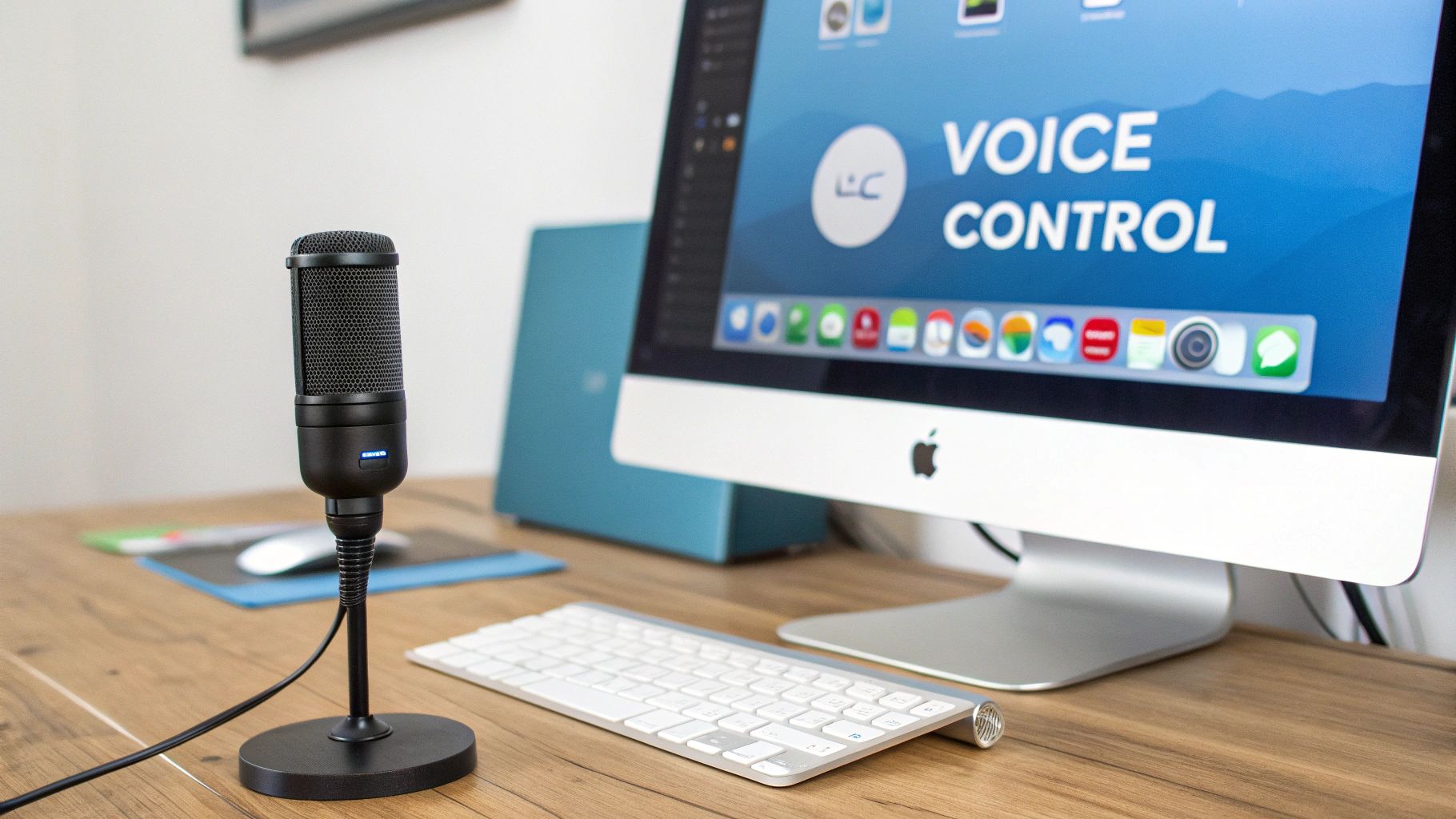
Once you know the basics, you're ready to learn the next level. There’s a super-powerful tool called Voice Control.
Voice Control isn't just for typing. It lets you tell your Mac what to do. You can say, "Open Notes" or "Click the Save button," and your Mac does it! It's like having a helper for your computer that listens to your voice.
Do More Than Type with Voice Control
Voice Control helps you do things on your Mac without using your hands. It’s perfect for when you're busy or just want to relax.
Imagine you are looking at your pictures. Instead of clicking and dragging with the mouse, you could just say:
- "Show numbers." (Numbers will pop up on everything you can click.)
- "Click 12." (It clicks on picture number 12.)
- "Drag 12 to 25." (It moves picture 12 over to folder 25.)
This changes how you use your computer. Your voice becomes a remote control for everything.
Pro Tip: Voice Control is a big help for people who find it hard to use a mouse or keyboard. It makes using a Mac much easier for everyone.
A Better Mic Means a Better Listener
Does your Mac ever type the wrong word, like "to" when you said "two"? A better microphone can fix that. The microphone in your Mac is okay, but it hears everything, like your fan or people talking.
Getting a simple USB microphone that plugs into your computer can make a huge difference. It’s like giving your Mac better ears. A special microphone focuses only on your voice and blocks out other sounds. This means your Mac will make fewer mistakes, and you'll spend less time fixing them.
Lots of people talk to their gadgets now. One report said that 57% of people use their voice to control things every day! And this is just the beginning. The tools will keep getting smarter. You can learn more with these voice search statistics from Embryo.
Teach Your Mac Special Words
What if you need to use a special word that your Mac doesn't know, like your friend’s name "Kaelan"? The first time you say it, your Mac might type "Kaylin."
Here's a cool trick: teach it! When the Mac gets it wrong, just use your keyboard to fix it. After you fix it once or twice, your Mac learns. It's like teaching a pet a new trick. Soon, it will get "Kaelan" right every time.
Your Mac gets smarter the more you use it and fix its mistakes. If you use your voice to type a lot, you might want to look at special dictation software for Mac that can learn even more words.
Fixing Common Talking Problems
Even the best tools have small problems sometimes. If your Mac stops listening, don't worry. The fixes are usually easy.
Sometimes, the talking tool just won't start. The first thing I always check is my Wi-Fi. Your Mac sometimes needs the internet to understand what you're saying. If your internet is slow, the tool might not work.
Why Does It Type the Wrong Words?
"I said cat, not that!" This is a common problem. It usually happens when your room is noisy. A TV, people talking, or even a loud fan can confuse your Mac.
Here are a few simple things you can try:
- Speak clearly. You don't have to talk like a robot. Just speak at a nice, steady speed so your Mac can keep up.
- Find a quiet spot. This is the best way to get better results. The quieter the room, the better your Mac can hear just you.
- Check your microphone. Make sure your Mac is listening to the right microphone, especially if you have a headset plugged in.
If you want to learn more about how this all works, check out our guide on the factors affecting speech-to-text accuracy.
Where Did the Microphone Picture Go?
You press your secret button, but the little microphone picture doesn't show up. This can happen, but the fix is the oldest trick in the book: turn it off and on again.
Turning the tool off and on again is like giving it a quick nap. It wakes up fresh and ready to work. It’s the first thing I try, and it usually works!
Just go back to System Settings > Keyboard > Dictation. Click the switch to turn it off. Wait a few seconds, then click it back on. This simple step usually fixes the problem and makes the microphone picture come back.
A Few Common Questions About Mac Dictation
When you start talking to your Mac, you might have some questions. Let’s answer the most common ones.
Can I Talk to My Mac If I'm Not on the Internet?
Yes, you can! Newer Macs can understand you without being online. They do all the thinking right on the computer. This is great because it's faster and keeps what you say private.
If you have an older Mac, you might have to turn on something called Enhanced Dictation. This will download the language parts your Mac needs to understand you all by itself.
How Do I Make My Mac Understand Me Better?
The best thing you can do is use a different microphone, not the one built into the computer. A simple microphone you plug in or the one on your headset is much better. It hears you more clearly.
Also, try to talk at a normal speed in a quiet room. When your Mac makes a mistake, fix it with the keyboard. Your Mac learns from your fixes and gets better at understanding you over time.
A lot of mistakes happen because of noise in the room. If you go to a quiet place, your Mac might understand you 50% better!
Can I Talk to My Mac in Any App?
Almost! You can use your voice to type almost anywhere you can write words. It works in apps that come with your Mac, like Mail, Notes, and Messages. It also works on websites in Safari or Chrome.
All you do is click where you want to type. Then, press your secret button (usually the Fn key twice) and start talking. Your words will show up right where you want them.
Ready for dictation that's faster and more accurate than anything built-in? WriteVoice turns your speech into perfectly formatted text in under a second, working everywhere you do. Try WriteVoice for free today.