How Do You Turn On Voice To Text on Any Device
Do you ever wish you could talk to your screen and have words show up? That is what voice-to-text does. It’s like having a helper who writes down what you say. You can use it to send a quick text or write a long email.
Stop Typing and Start Talking
This guide will show you how to turn on voice-to-text. The steps are simple and not hard. Think of all the time you can save when you talk instead of type.
It's a big help when your hands are busy. Maybe you are walking your dog and need to send a message. Or you are cooking and need to add to your food list. Voice-to-text lets you do that.
Find Your Setting Fast
No one likes to look for settings. This quick guide will show you right where to go. Knowing how do you turn on voice to text is the first big step.
Quick Guide to Turn On Voice-to-Text
Find the right setting to turn on voice typing on your toy.
| Device | Where to Look | What It's Called |
|---|---|---|
| iPhone/iPad | Settings > General > Keyboard | Enable Dictation |
| Android | Keyboard Settings (Gboard) | Voice Typing |
| Windows | Settings > Time & language > Speech | Online speech recognition |
| macOS | System Settings > Keyboard | Dictation |
Each one calls it something different, but they all let you talk instead of type. Once that setting is on, you are ready to start.
Turning On Voice-to-Text on Your Phone
Your phone is a great tool for talking to write. It’s always near you. It's perfect for when you have a good idea or need to send a message when your hands are full.
Let's make sure it is ready to go.
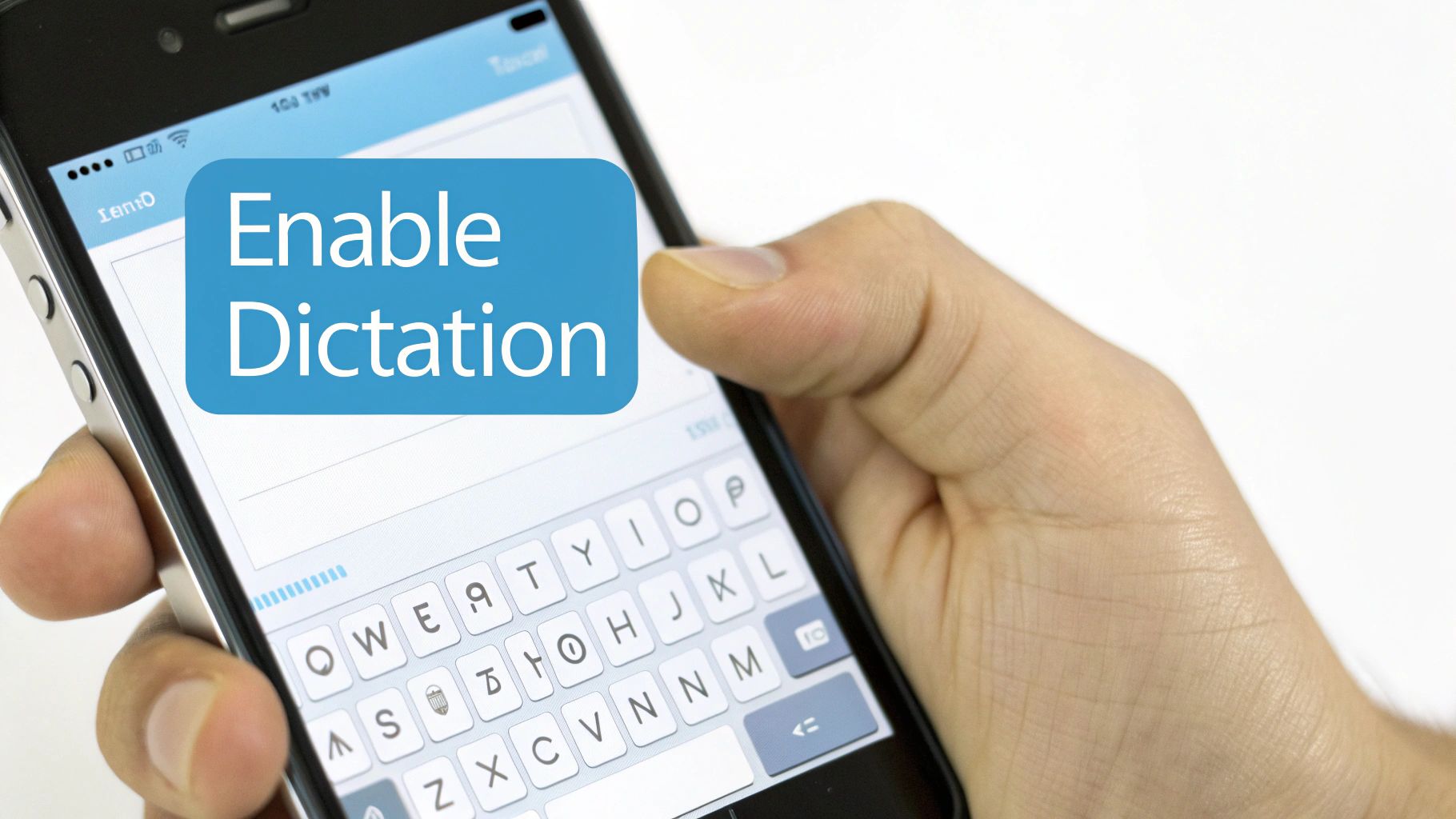
Turning it on is easy. It takes less than a minute. When it's on, you will see a little microphone button on your keyboard. It's ready when you are.
Setting Up Your iPhone
If you have an iPhone, turning on dictation is super easy. You just have to flip one switch.
Here is how to find it:
- First, open your Settings app.
- Tap on General, then go to Keyboard.
- Look down the page for Enable Dictation. Tap it to make it green.
That’s it! The next time you see your keyboard, you will see a microphone button. Tap it, and your phone will listen.
A Quick Tip: If you speak two languages, you can add them both. This is great for texting with family who speak another language. Your phone can understand both.
Turning On Voice Typing for Android
Android phones make it just as easy. The tool is called Voice typing. Most of the time, it's already on.
If it is not working, it is easy to check. Open an app where you type, like your texting app. The keyboard will pop up. Tap the little gear button to open the keyboard settings. Find Voice typing and make sure it's on.
That's all you need to do. Now you can talk to write emails or make a shopping list. For a deeper dive, check out our complete guide on using voice-to-text on Android. Think about a busy mom or dad. They can answer a text while holding a baby. It helps a lot.
Turn On Talking on Your Computer
Using your voice to write on your computer can save a lot of time. This is great for long school papers or emails. Just think about writing a whole story by just talking.
Let's get your computer ready to listen.
This tool has gotten so much better. The first one for sale came out in 1990. It cost $9,000, which is a lot of money! By 1997, a new one could write 100 words per minute. That's much faster than most people can type. You can read more about the cool history of voice recognition technology if you want.
Turn on Voice Typing in Windows
On a Windows computer, turning on voice-to-text is easy. You don't have to look through settings.
Just press the Windows key + H on your keyboard. That's it. A small bar with a microphone will pop up. It is waiting for you to talk. This works almost anywhere you can type.
I use this to write long emails. I can sit back and talk like I'm having a chat. The words come out more like me, and the computer does all the work.
Enable Dictation on a Mac
For Mac computers, you set it up one time in your settings. Once you turn on Dictation, it works all over your computer.
Here’s how to turn it on:
- First, open System Settings and go to the Keyboard part.
- Next, find Dictation and flip the switch to turn it on.
- You can also pick a shortcut, like pressing the Function (fn) key two times.
Now, just use your shortcut when you want to talk instead of type. For a more in-depth look, we have a complete guide to speech-to-text on macOS.
A fun trick on a Mac is to teach it new words. If it always messes up your friend's name, you can add it to the computer’s brain. Then it will get it right every time.
Use Voice Typing in Your Favorite Apps
Once voice typing is on, you can use it in lots of places. It's not just for texts. You can use it to do work in your other apps. You can write a big report in Google Docs or send a message in Slack while you drink your juice.
Look for the microphone button. It is the picture that tells you your computer or phone is ready to listen. Tapping it helps you work faster.
Talking in Common Tools
In a tool like Google Docs, you can find voice typing in the "Tools" menu. When you click it, a small microphone box shows up. I use this to get all my ideas down for a big paper without typing.
For apps like Slack or Gmail, the microphone is on your phone's keyboard. This makes it easy to talk-type a message in a group chat or write a nice email. For a deeper dive, check out our guide on using dictation for Gmail.
Here is a good example: You need to update a task in a tool like Jira. Instead of typing a long note about a problem, you can just say it. It’s faster, and you can explain it better with your voice.
A New Way to Work
In the 2010s, talking to our toys became normal. We started saying "Hey Siri" or "OK Google." This happened because Apple put Siri on the iPhone in 2011. It made talking to your phone a normal thing for lots of people.
For teams at work, this was a big deal. Talking to write a report can help a team get work done 30-50% faster. You can read more about the history of this voice revolution to see how much things have changed.
The microphone button might be in a different spot in each app. But the idea is the same: find the mic, tap it, and talk.
Where to Find the Microphone Button
This table will help you find the voice-to-text button in some popular apps.
| Application | Where to Look | What to Expect |
|---|---|---|
| Google Docs | On the top menu bar: Tools > Voice typing | A small microphone box will show up on your screen. |
| Slack | On your phone's keyboard. | The normal keyboard microphone for iPhone or Android. |
| Gmail | On your phone's keyboard. | Use the keyboard mic to write new emails or answer them. |
| Jira | On your phone's keyboard, inside any text box. | Talk to write task details, notes, or updates. |
Once you start looking for it, you'll see the little microphone button everywhere. It's a small button that can help you get more done every day.
A Better Way to Talk-to-Text with WriteVoice
The free tools on your phone and computer are good for quick notes. But for big jobs, they sometimes make mistakes. A special app like WriteVoice works much better. It was made to do one thing very well: turn your words into text super fast. It takes less than one second for your words to show up on the screen.
It's like having your own writer. It's not just fast. It also adds commas and periods for you. This means your writing looks good without you having to fix it later.
Work Smarter in Any App
A great thing about WriteVoice is that it works everywhere on your computer. I can use it to write an email in Gmail, update a task in Jira, or send a message on Slack. It just types right where I am working.
This kind of tool is here because people have been working on it for a long, long time. The very first machine that could understand words was made in 1952. It could only understand numbers when people said them. Today's tools are so much better. They can write 4 times faster than a person can type. That's a big help, since 62% of people at work feel like they have too much boring typing to do. You can read more about the long journey of speech recognition to see how far we've come.
For people who work with secret information, keeping it private is very important. WriteVoice does not save your words. Once they are typed, they are gone. This is very important for doctors, lawyers, or people who work with money.
Knowing how do you turn on voice to text is the first step. But to be really fast and safe, picking a tool that works well is the best choice.
Easy Fixes When Voice-to-Text Doesn't Work
Sometimes, things go wrong. You tap the microphone, you talk, but nothing happens. Or the screen shows silly words. Don't worry. When voice-to-text breaks, the fix is usually very easy.
The Missing Microphone Button
What if the microphone button is gone from your keyboard? This usually means the tool was turned off by accident. You just need to go back into your keyboard settings and turn “Enable Dictation” or “Voice typing” back on.
When the Mic is Grayed Out
Sometimes you can see the microphone button, but it's gray and you can't tap it. This is almost always about permission. The app wants to listen, but your phone's rules are stopping it.
Here’s how to fix it:
- Go to your main Settings menu.
- Find the app you are trying to use, like Messages or Slack.
- Check its permissions and make sure you let it use the Microphone.
A gray button is a clue. Your phone is telling you that it stopped an app from listening to protect you. You have to tell it that it's okay.
Another common problem is when the wrong words show up. If this happens, it is probably because of noise around you. The microphone hears other sounds, like a fan, the TV, or people talking.
Just go to a quiet place. Speak clearly and a little closer to your phone or computer. This usually makes a big difference.
Your Voice-to-Text Questions, Answered
When you first use voice-to-text, you might have some questions. It's easy to start, but knowing a few things can help.
Is This Going to Cost Me Anything?
No, it's free. The voice-to-text tools on your iPhone, Android, Windows computer, and Mac do not cost any money. They are part of the machine, so you don't have to pay.
Do I Need an Internet Connection?
Yes, for it to work its best. Most tools send your voice over the internet to a big computer that figures out the words. Being online helps it get the words right 95% of the time.
Some toys have an offline mode, but I find it makes more mistakes.
Think of it this way: being online gives your voice-to-text tool better ears. It helps it hear every word you say.
How Do I Add Punctuation?
This part is fun. You just say the punctuation mark you want.
For example, to type "I'm on my way, see you soon!" you would say:
"I'm on my way comma see you soon exclamation point."
The tool is smart. It knows these are commands and will put the right mark in for you.
Ready for a faster, more secure way to dictate? WriteVoice turns your speech into perfectly formatted text in any app in under a second. Try it today at https://www.writevoice.io.