A Simple Guide to Voice to Text on Android
Tired of typing on a tiny screen? There is a better way. Your Android phone can turn your spoken words into text. This lets you write emails, send messages, or take notes just by talking.
Talk, Don't Type: Your Guide to Voice-to-Text on Android
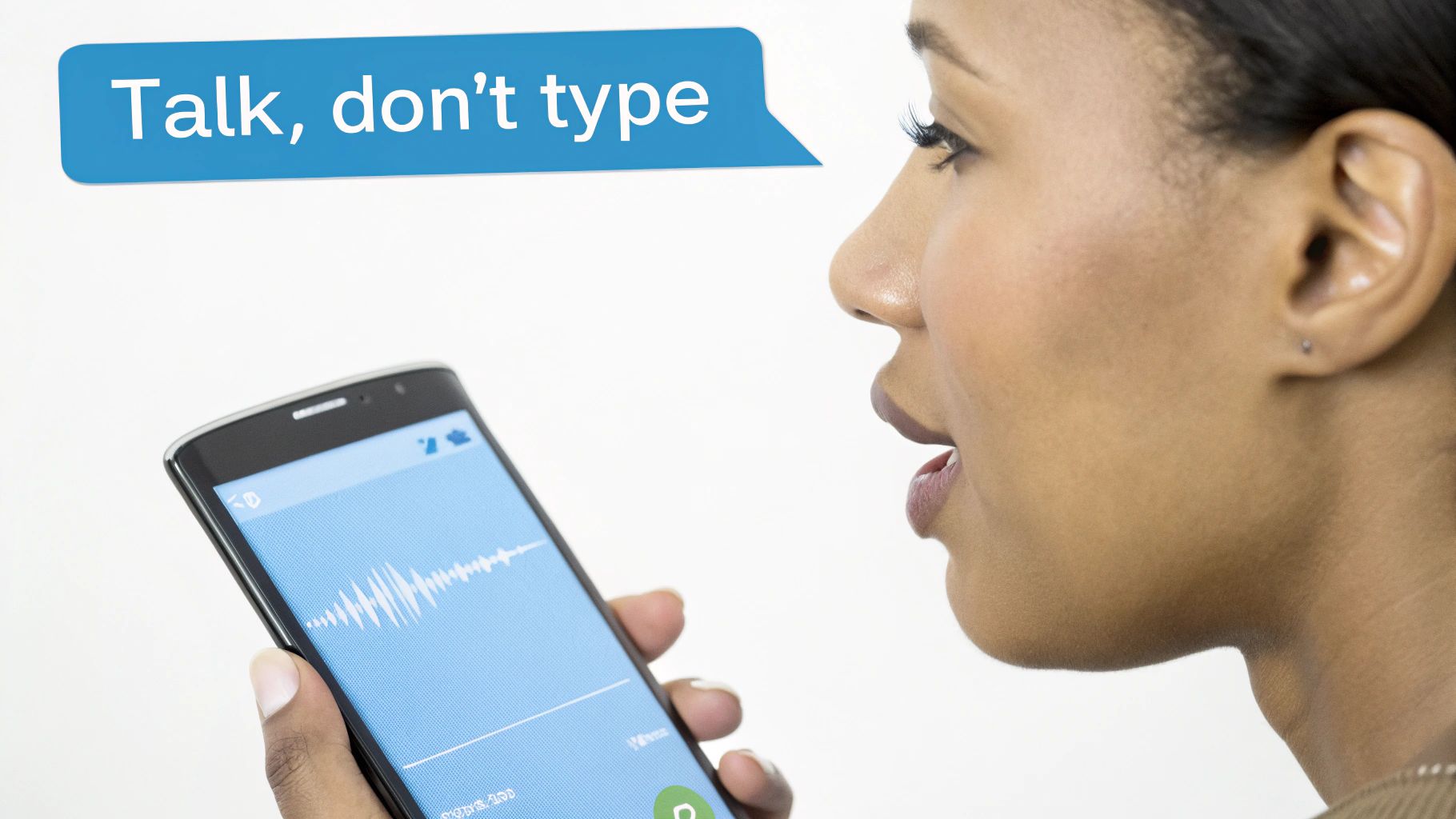
Sometimes your hands are full. You could be cooking, driving, or playing outside. What if you get a good idea? Instead of trying to type, you can just speak to your phone. It's a great way to get things done faster.
Most Android phones can do this right out of the box. They use a tool called Google Voice Typing. It's part of the normal keyboard on your phone. This guide will show you how to use it in just a few taps.
What You'll Learn in This Guide
We will learn how to turn on voice typing. We will also learn some cool tricks to make it work better. The goal is to help you talk more and type less.
Here is what we will learn:
- How to find and turn on the voice typing button on your phone.
- Easy tips to make sure your phone hears you right.
- How to fix problems, like when the microphone button disappears.
- When to use a special app like WriteVoice for important work.
Talking is easier than typing for most people. Using your voice to write on your phone feels like having a helper. It can save you time every day.
Think about a mom making a grocery list while putting food away. Or a student saving ideas for a story while walking home from school. These little time-savers help a lot.
This guide is for anyone who wants to work smarter. We will start with the tools you already have. Then, we will look at other apps that can help even more. Let's get started.
How to Turn On Voice Typing on Your Phone
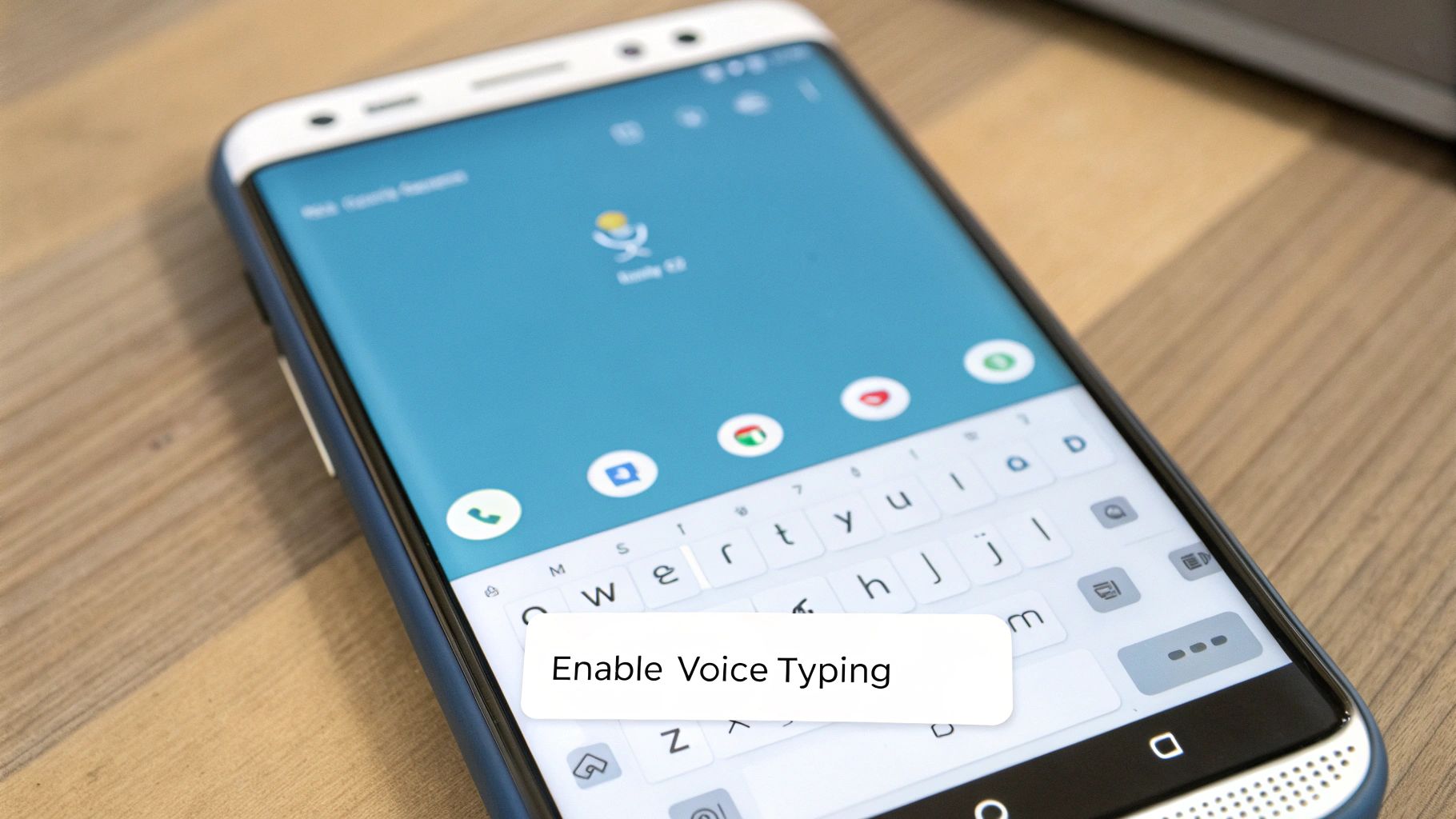
Your Android phone is a good listener. The tool that turns your words into text is called Google Voice Typing. It's already in your keyboard. You just have to turn it on.
It is very easy to get started. You do not need to download anything new. The magic of voice to text on Android is already on your phone.
Find Your Keyboard Settings
First, open your phone's Settings app. It's the one that looks like a little gear.
Scroll down and find "System." Tap on it, and then look for "Languages & input." Inside, you will see "On-screen keyboard."
This screen shows all the keyboards on your phone. Your phone probably uses Gboard.
- Choose Gboard from the list.
- Next, find the words Voice typing.
- Make sure the switch next to “Use voice typing” is turned on. If it is gray, tap it to make it blue or green.
That's it! Now when you see your keyboard, you should see a small microphone. Tap it to speak your words instead of typing them.
A Quick Tip: If you don't see the microphone, try turning your phone off and on again. This simple trick often makes it show up.
Giving Your Phone Permission to Listen
For voice typing to work, the keyboard needs to use your phone's microphone. The first time you tap the microphone button, your phone will ask for permission. It will say something like, "Allow Gboard to record audio?"
You need to choose "Allow" or "While using the app." This is to protect your privacy. It stops apps from listening when you don't want them to. If you tap "Deny" by mistake, you can fix it. Go to your phone's app settings, find Gboard, and change its permissions.
Using your voice to control phones is getting very popular. A report shows that Android phones will be used for more than half of all voice-to-text writing by 2025. This means the tools will keep getting better. You can see more about the growing voice technology market on Future Market Insights.
Once it is on, you can use your voice to type almost anywhere. You can write texts, emails, or search for things online. It is a simple change that makes using your phone much faster. For more help, you might be interested in our complete guide on enabling voice to text.
Simple Tricks for Better Voice Typing Accuracy
You turned on voice-to-text. Great! Now, let's make sure it understands you. You don't need to talk like a robot. You just need to make small changes in how you speak.
Think about talking in a loud room. You would speak more clearly. You would pause so people can hear you. Your phone likes this, too. It understands clear sentences better than one long, fast sentence.
Speak Clearly, Not Perfectly
The biggest problem is noise in the background. If a TV is on or a fan is running, your phone might get confused. Try to find a quiet spot. This will help your phone hear your voice better.
Also, don't talk too fast. If you rush, your words can get mixed up. Just talk at a normal, steady speed, like you are talking to a friend.
Here is a secret tip: Wait for a second before you start talking. Then, wait another second after you finish a sentence. This tells your phone when to start and stop listening. It helps make fewer mistakes.
Tell Your Phone What Punctuation to Use
Your phone is smart, but it can't read your mind. It does not know when to put a period or a question mark. You have to tell it. Just say the punctuation mark out loud.
For example, to write "Do you want to play outside?" you would say: "Do you want to play outside question mark."
Here are the words I use all the time:
- Period
- Comma
- Question mark
- Exclamation point
- New paragraph
It feels a little silly at first. But you will get used to it. It is the best way to make sure your text looks neat and is easy to read.
Teach Your Phone Special Words
Does your phone always spell your friend's name wrong? Or maybe it doesn't know the name of your favorite game. You can teach it these words. You can add them to your personal dictionary.
Go to your Gboard settings and tap on "Dictionary." Then, add your special words. Once a word is saved, your phone will spell it right every time. This is a big help for names, places, or special words you use a lot.
Fixing Common Voice-to-Text Problems
Sometimes technology does not work right. If your voice-to-text stops working, don't worry. The fix is usually very simple. You don't need to be a tech expert to fix it.
Let's look at the most common problems and how to fix them quickly.
Where Did My Microphone Icon Go?
This happens a lot. The microphone button is there one minute, and gone the next. This can happen after a phone update. Or you might have changed a setting by mistake.
It's easy to get it back. Go back into your Gboard settings. Make sure Voice typing is still turned on, just like we did at the start.
What if My Text Is Full of Errors?
Is your phone writing silly words instead of what you said? This is annoying, but we can fix it.
First, check if you are connected to the internet. Your phone can type what you say even when you're offline. But it works much better when it's online.
Next, listen to what's around you. Is there a lot of background noise, like a TV or people talking? Noise makes it hard for your phone to hear you. Go to a quiet place. Also, check if your hand or phone case is covering the tiny microphone hole on your phone.
When your phone makes mistakes, this simple checklist can help you find out why.
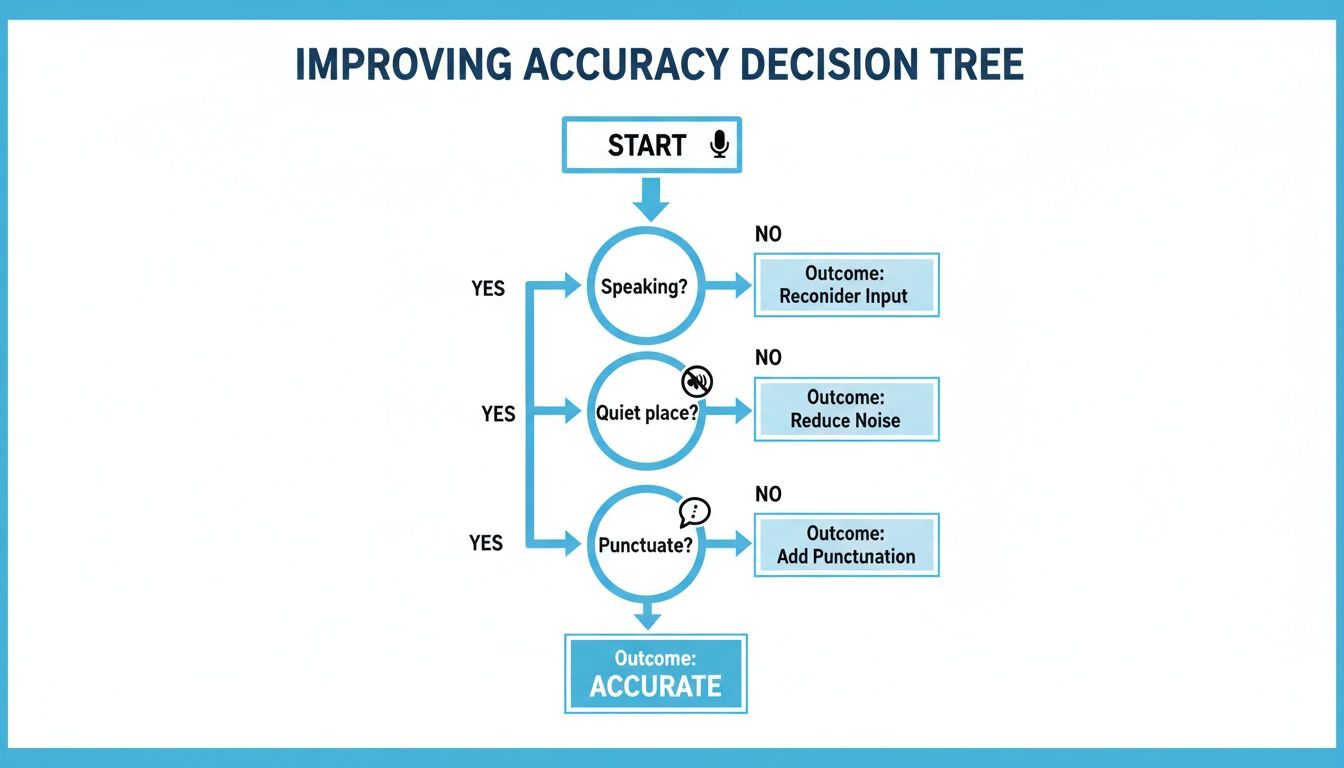
As you can see, small changes help a lot. Finding a quiet place and saying your punctuation are easy ways to get clear text.
When Voice Typing Stops Working Completely
If the microphone does not listen at all, it's time for a quick check. These easy steps fix the problem most of the time.
- Check App Permissions: Go to your phone's Settings. Find the Gboard app and tap on its permissions. Make sure it is allowed to use the microphone. If you said "no" before, voice typing will not work.
- Clear the Cache: Apps save old information that can cause problems. In Gboard's app settings, find the "Clear cache" button. Tapping this is safe. It will not delete your words or settings.
- Check Your Language: Is your phone set to the right language? If you speak American English but your phone is set to British English, it might get confused. Make sure the language is set correctly.
Don't forget the oldest trick in the book: restart your phone. Turning your phone off and on again can fix many small problems. It works more often than you think!
Taking Voice-to-Text to a Professional Level
The voice typing on your phone is great for sending a quick message. But what if you use your voice for work or school? For important things, you need a tool that is faster, better, and keeps your words private.
This is where special apps can help. Your phone's keyboard is good for fun stuff. But an app like WriteVoice is made for people who need the best. It is built to help you with your busy day.
Speed That Actually Keeps Up With You
Have you noticed how your phone sometimes pauses before the words show up? When you are working, that little pause can break your focus.
Special apps are made to be super fast. For example, WriteVoice turns your words into text in less than a second. The words appear on the screen as you say them. It feels like you are thinking right onto the page. This is a big help when you have a great idea and need to write it down fast.
For a grown-up at work, every second is important. A pro tool doesn't just write your words. It helps you get your ideas out without slowing you down.
This fast speed lets you write long reports or school papers without stopping. The best tools even make new paragraphs for you. This saves you a lot of time fixing your text later. We talk more about this in our guide on how to dictate in Google Docs with pro tools.
Keeping Your Secret Words Private
When you talk about private things, you want them to stay secret. Normal voice-to-text tools can send your voice to big companies. This is not safe for important information.
Special apps are much safer. For example, WriteVoice has a "no-store" rule. This means it never saves your voice or your text. Your words are turned into text and then disappear. This is a much safer way to write down private notes about work or school.
How This Works in the Real World
What does this look like for a real job? Imagine a boss who needs to write a long message to her team. Instead of typing with her thumbs, she can just say it. A professional voice to text on Android tool can help her finish four times faster.
Or think about a writer working on a story. They can speak their ideas for the story out loud. They don't have to stop and type. This mix of speed and safety is why so many people are starting to use their voice to get work done.
Common Questions About Voice-to-Text
You know the basics now. But you might still have a few questions. Let's answer some common questions people ask about talking to their Android phone.
Can I Use Voice-to-Text on Android Without an Internet Connection?
Yes, you can! But you have to set it up first. It's like downloading a movie before you get on a plane. You have to save the language to your phone.
On most Android phones with Gboard, you can download languages. Go to your Gboard settings and find the language you need, like ‘English (US)’. After you download it, your phone can turn your words into text even when you are offline.
Just know that it might not be as good when it's offline. It's great if you have no internet. But for the best results, tools like WriteVoice use the internet to work their magic.
Is It Safe to Dictate Private Information on My Phone?
That is a very important question. It depends on the tool you use. With the normal tool on your phone, your voice might be sent to a big company. For a quick text, this is okay.
But if you are talking about secret things, you need more safety. This is where special apps are better.
For example, WriteVoice was made to be private. It has a 'no-store' rule. This means it never saves your voice or your words. This makes it a safer choice for any secret information. Always check the privacy rules of any app you use.
How Can I Teach Voice-to-Text Special Names or Words?
It's annoying when your phone messes up a name. You can fix this in your phone's 'Personal dictionary.' You can find this in your keyboard settings.
When you add a special word, your phone will learn to spell it right. Here are some ideas:
- Names: Add a name like "Siobhan" so it is spelled right.
- Game Names: Put in a game name like "Minecraft" so it doesn't change it to "mine craft."
- Special Places: Save the name of a park or street with a funny spelling.
Once a word is in your dictionary, your phone will know it. For people who need more help, apps like WriteVoice have a 'custom vocabulary' list. You can add a whole list of special words at once. The app learns them all right away.
Can I Use Voice Typing in Different Languages on My Android Phone?
Yes! Android phones are great at using many languages. Go to your Gboard settings. You can add as many languages as you speak.
It is easy to switch between them. When you tap the microphone, the phone will listen for the language you have picked. Some phones are even smart enough to know which language you are speaking on their own.
This is a big help if you talk to people in different languages. Just set up your languages one time, and you're ready to go.
Ready to stop typing and start talking? WriteVoice can help you work up to four times faster with great accuracy and privacy. Try it for free today!