The 12 Best Dictation App Choices for 2026 (For Every User)
Think about writing a long email or a big school report just by talking. Dictation apps do that! They turn your voice into words on the screen. This is much faster than typing. Most people talk way faster than they can type. Using a good app helps you finish your work quicker. Your hands are free to do other things.
But finding the best dictation app for you can be tricky. A doctor who needs to keep patient notes secret needs something different from a student who is recording a class lesson. Things like how well it understands you, how fast it works, and if it keeps your words private are very important. The wrong app can make mistakes, waste your time fixing them, or even share things you wanted to keep secret.
This guide will help you pick the right one. We looked at 12 of the best apps that turn talk into text. We will show you what each one is good at, what it's not so good at, and who should use it. You'll see pictures and links to help you understand. We make it simple, so you can find the perfect app to turn your voice into words and save a lot of time.
1. WriteVoice
Best For: Grown-ups at work who need to keep their words private and want their talking to turn into perfect writing super fast.
WriteVoice is a top app that turns your talking into writing very quickly and safely. It does more than just type what you say. It helps make your words sound better. It can take out "um"s and "uh"s, fix mistakes, and even change how your words sound for different apps. For example, it can make an email sound more serious than a quick text to a friend.
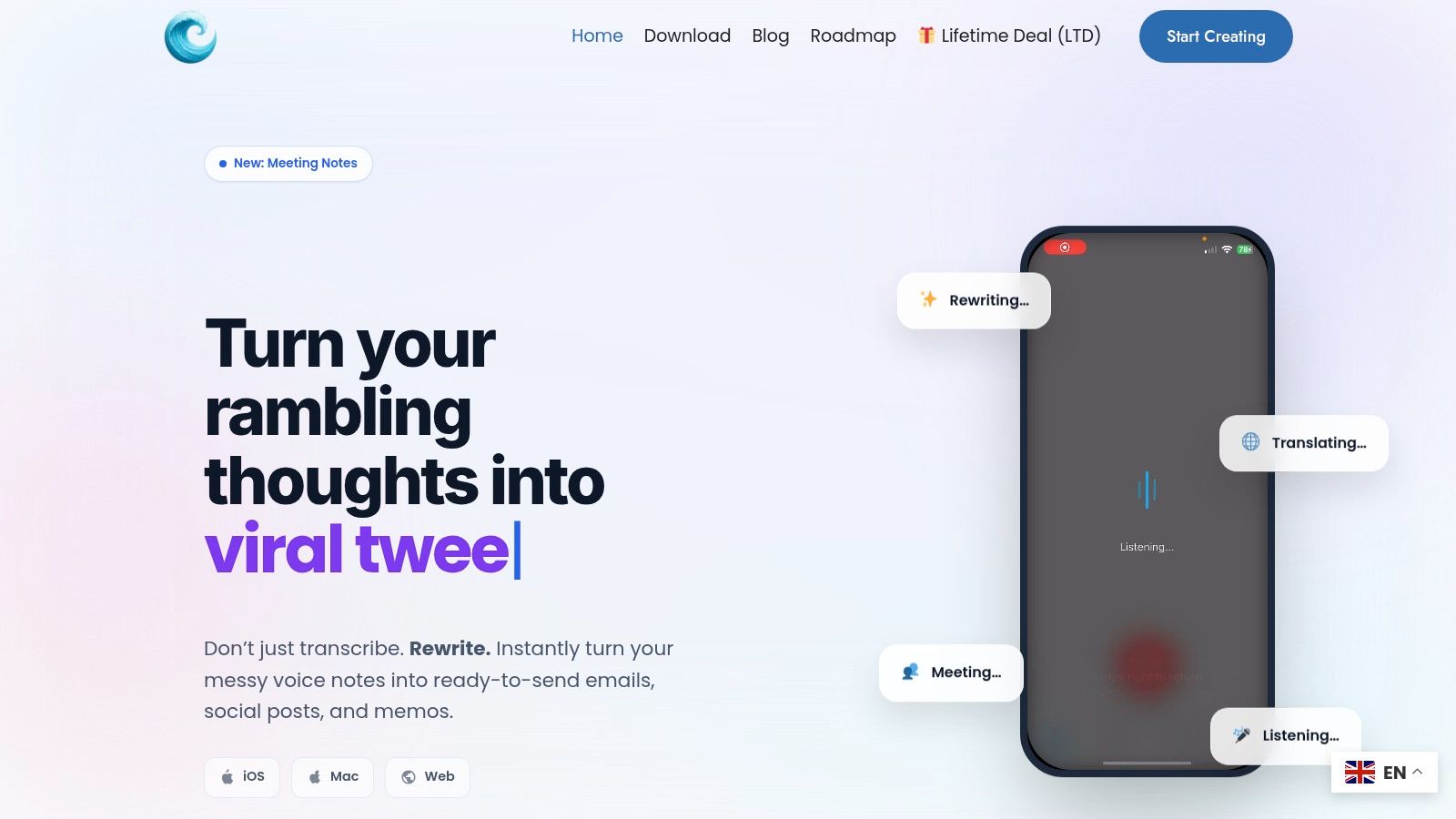
This app is great for people who talk about secret things, like lawyers or bosses. It turns your voice into words right away and doesn't save your voice. This means no one else can hear what you said.
Key Strengths & Use Cases
- Hears You Clearly: WriteVoice is very good at understanding what you say, even hard words. You can teach it special words you use for work, like for doctors or computer experts. This means you won't have to fix many mistakes.
- Smart Fixes: The app doesn't just write your words; it helps clean them up. It can turn a jumbled idea you say out loud into a clear note or email. This saves you from having to fix it yourself.
- Works Inside Your Other Apps: A cool trick is that it works like a keyboard. You can talk and have the perfect words show up right inside apps like Jira or WhatsApp. You don't have to copy and paste.
- Helps with Meetings: It can listen to a long meeting and write down everything that was said. It can also make a short list of the important parts and things people need to do. It can even change the words into other languages.
Practical Considerations
This app works best on iPhones, Macs, and on the web. If you use an Android phone or a Windows computer, there isn't a special app for you yet. The website offers a free try, but you might need to ask them how much it costs for a whole team.
Pros:
- Turns your voice into words in less than one second.
- Keeps your words private and doesn't save them.
- Uses smarts to fix your writing for you.
- Lets you talk directly into the apps you use for work.
- Great for meetings because it writes down what was said and picks out the important parts.
Cons:
- Doesn't have a special app for Android phones or Windows computers.
- It's not clear how much it costs just by looking at the website.
Website: https://www.writevoice.io
2. Apple App Store
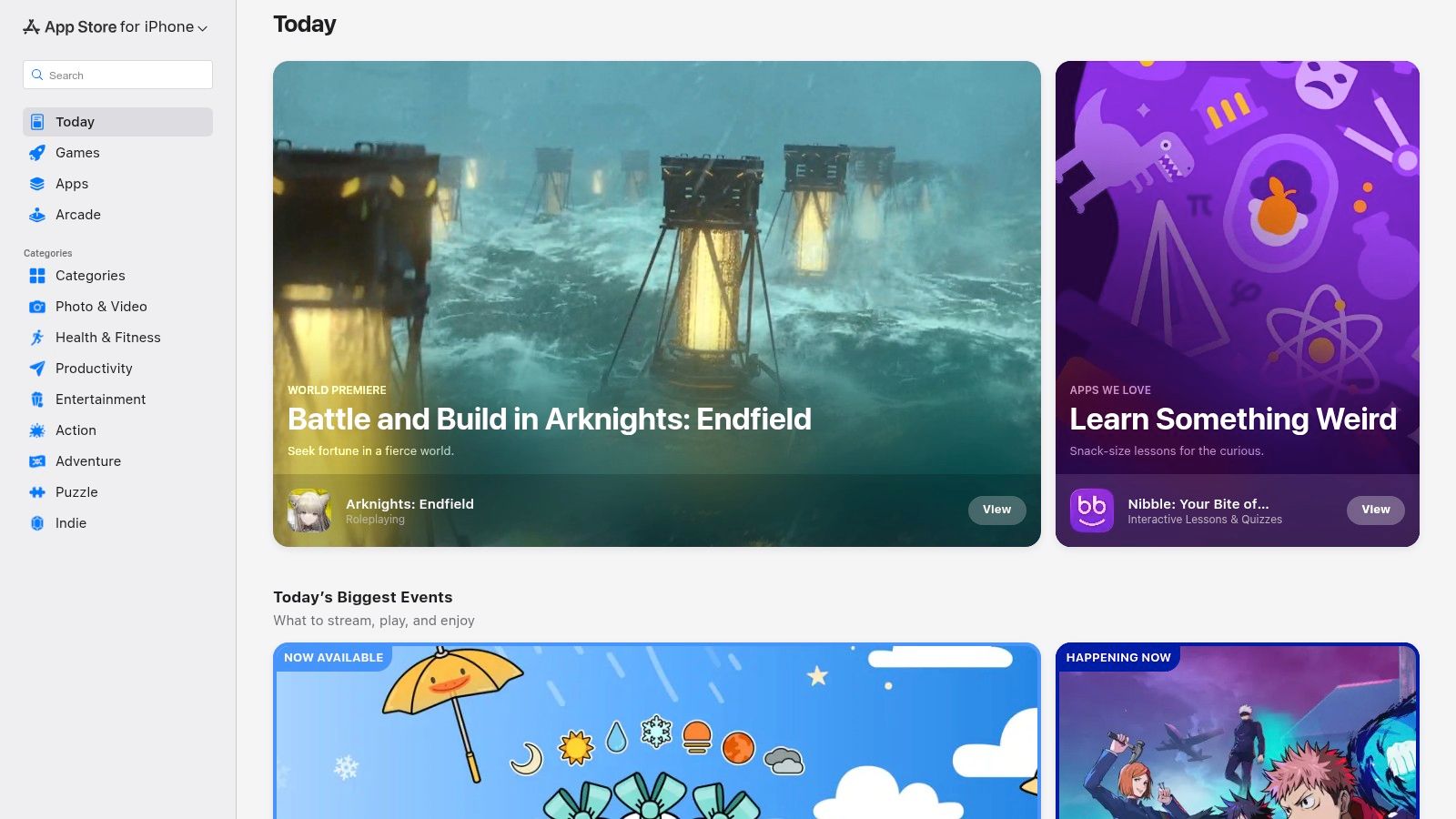
If you have an iPhone or an iPad, the Apple App Store is where you start. It's not one app, but a safe place to find lots of different dictation apps. You can look at them, see what other people think, and download the best one for you. It's the only official place to get apps for your Apple device.
The best part is that it's safe. Apple checks the apps to make sure they are not trying to trick you. When you buy something, Apple handles the money so it's secure. You can also read what other people wrote about an app to see if it's good before you download it.
Why It's a Top Resource
Having so many choices in one safe place is the main reason it's great. You can find special apps that do one thing really well, and you can see what real people think about them. It’s easy to download and try apps.
But having too many choices can also be confusing. If you search for "dictation app," you might see a lot of apps that look the same. It's important to read the newest reviews from people to pick a good one.
- Best For: People with iPhones and iPads who want to look for and try different dictation apps in a safe place.
- Key Feature: A safe store where you can find and buy apps, and Apple takes care of the money part.
- Pro Tip: When you search, try to sort the apps by the highest rating or the ones that were updated recently. This helps you find the best ones.
Website: https://apps.apple.com/us/
3. Google Play Store
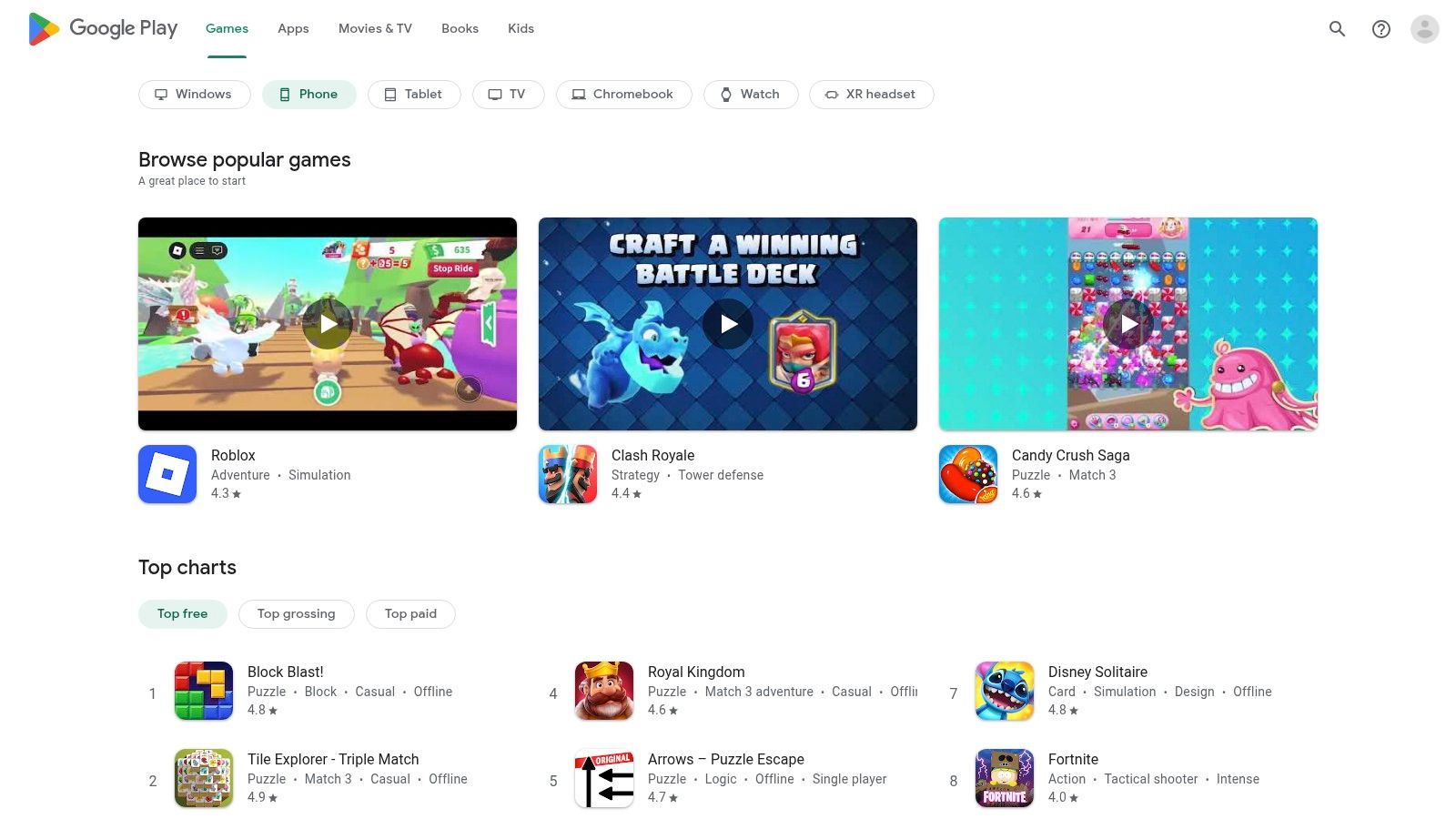
For anyone with an Android phone, the Google Play Store is the main place to find apps that turn your voice into words. It's a huge store where you can safely get everything from Google’s own talking keyboard to special apps from other companies. Your Google account keeps track of everything you download and buy.
The Play Store works perfectly with Android phones. Apps you get from here can easily ask to use your phone's microphone. The store also has Google's own great tools, like the Pixel Recorder, which is very good at turning talk into text. Reading what other people say in reviews helps you find the best dictation app that works on phones like yours.
Why It's a Top Resource
The best thing is the giant number of apps you can choose from in a place you can trust. You can find simple voice note apps or powerful ones that use smarts to write down what you say. It's also where you get Gboard, Google's keyboard, which has great voice typing for free.
But with so many apps, some are better than others. It's a good idea to check when an app was last updated and read new reviews. Some apps might not work well on newer phones.
- Best For: People with Android phones who want a lot of choices for dictation apps in a safe store.
- Key Feature: One place to safely manage all your app downloads and payments through your Google account.
- Pro Tip: Look for apps with a "Top developer" badge. It means Google thinks they are a good app maker.
Website: https://play.google.com/store
4. Nuance Dragon (Dragon Professional & Dragon Anywhere)
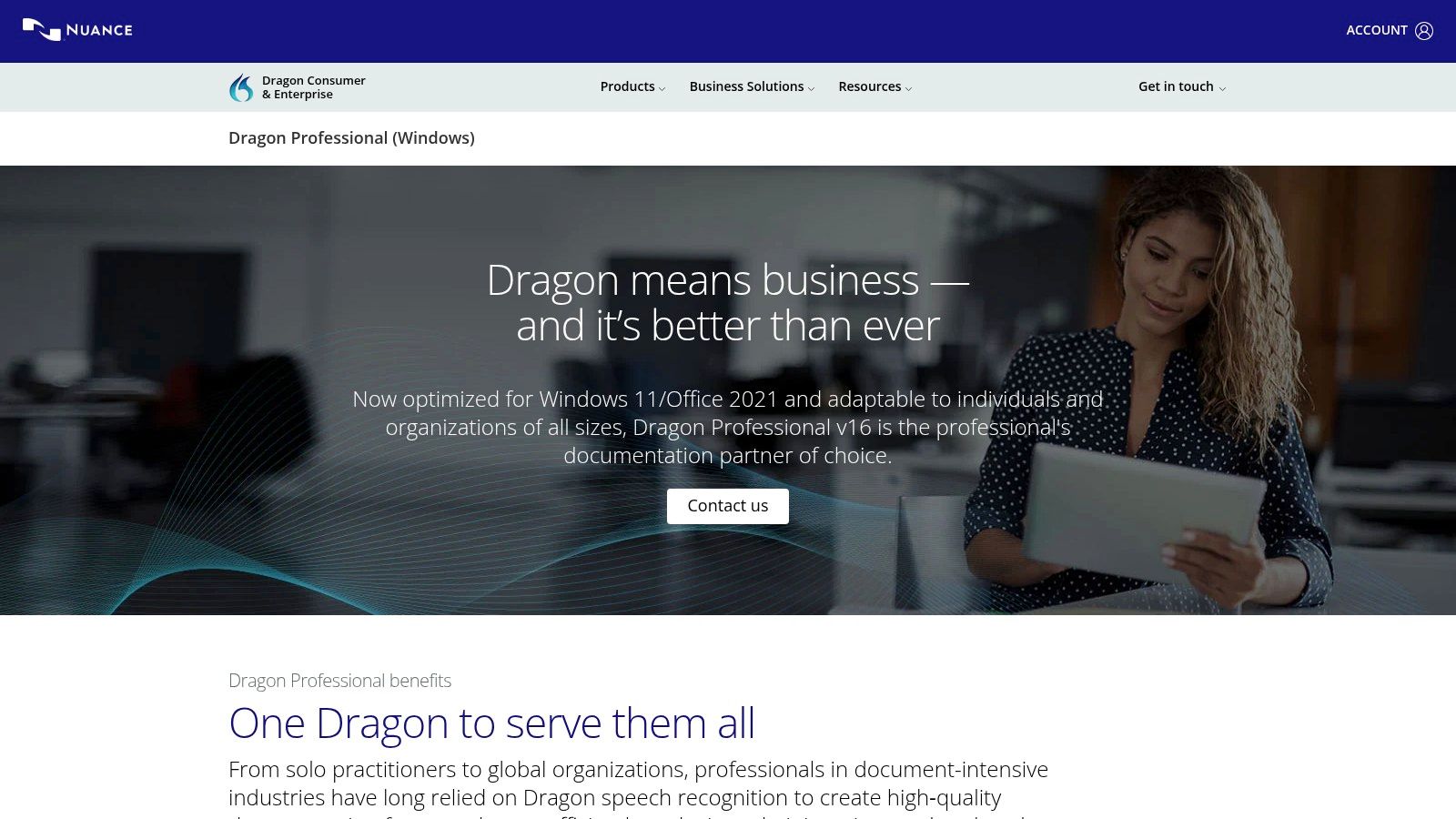
Nuance Dragon is a very strong tool for grown-ups at work who need their writing to be almost perfect. It is used a lot by doctors, lawyers, and other people who write important things. It's not just a simple app; it's a whole system for turning talk into text very, very well.
The cool thing about Dragon is that it learns your voice. The more you use it, the better it gets at understanding you. This is great if you use special words for your job. You can also make your own voice commands. For example, you could say "sign my name" and it will type out your full name and title. This saves a lot of time.
Why It's a Top Resource
Dragon's best feature is that you can teach it exactly what you need. You can add a list of special words so it always gets them right. You can also make voice shortcuts for things you do a lot. If you want to know more about how doctors use tools like this, you can read about voice recognition software for healthcare.
But this powerful tool costs more money than other apps. The computer version is a big one-time purchase, and the phone app has a monthly fee. Also, the computer software works best on Windows, so it's not a great choice for Mac users.
- Best For: Grown-ups in jobs like law or medicine who need perfect writing and special voice commands on their Windows computer and phone.
- Key Feature: It learns your voice and special words, and you can make voice shortcuts to do work faster.
- Pro Tip: Right when you get it, spend some time teaching it your voice and adding your special words. It makes it work much better later.
Website: https://dragon.nuance.com/en-us/dragon-professional
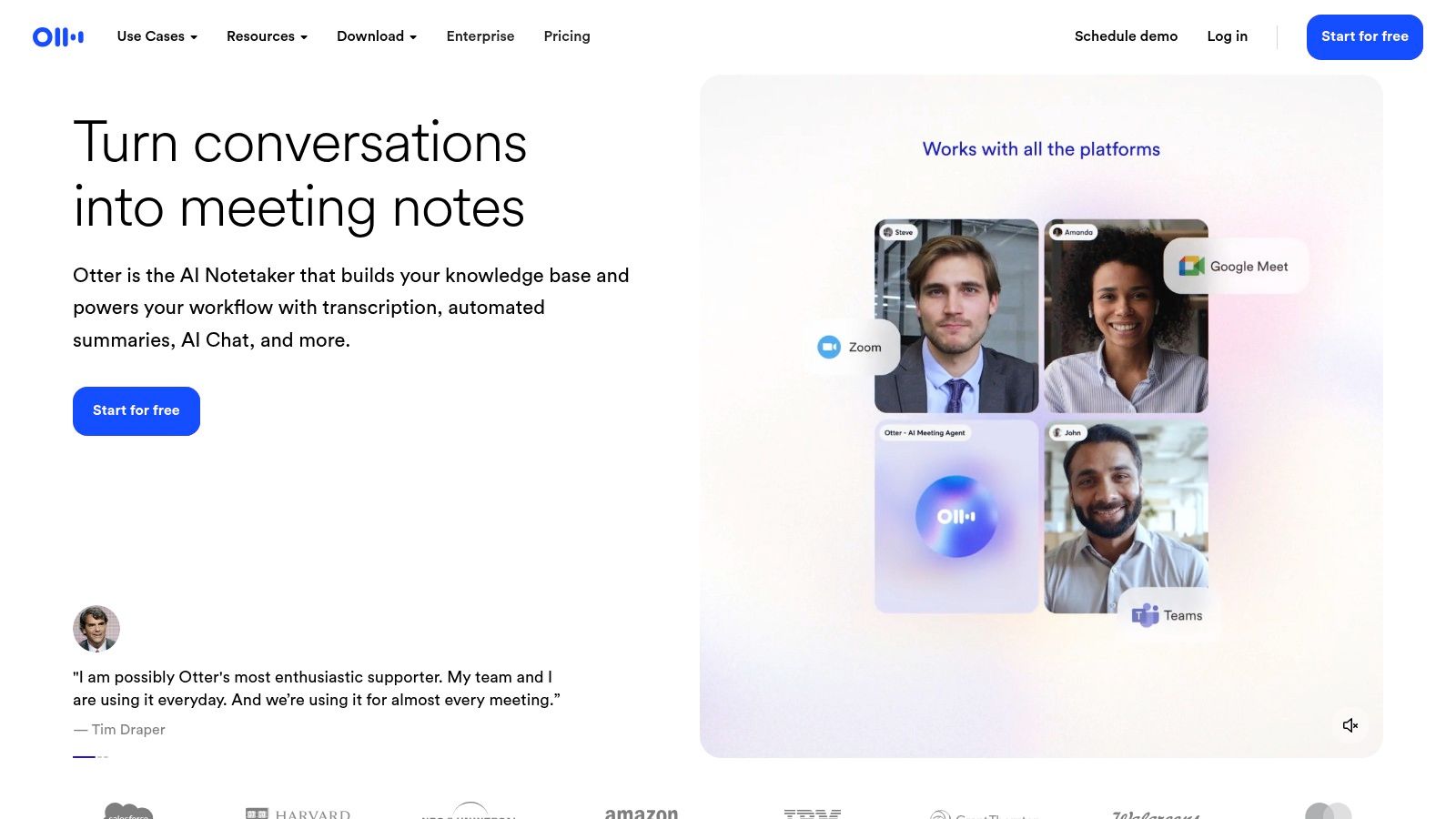
5. Otter.ai
Otter.ai is more than just a dictation app. It's like a smart helper for your meetings. It's great at writing down everything that is said in online meetings on Zoom or Google Meet. If you need a perfect record of what happened in a meeting, Otter.ai can even tell you who said what.
It’s really good at turning long talks into writing that you can use. Besides meetings, you can use it on your phone to record your own ideas. It can even make a short summary of a long talk, so you don't have to listen to the whole thing again.
Why It's a Top Resource
The best thing about Otter.ai is how well it works for team meetings. It can write down what everyone says in real time and even puts their names next to their words. This is super helpful for remembering what was decided. Its smart summaries turn messy talks into organized notes.
But, it's not made for writing papers or long documents with lots of special formatting. It’s built for listening to conversations, not for writing things from scratch. Also, the free version has limits on how long you can record, so teams will probably need to pay.
- Best For: Teams and workers who need a written record of their meetings and want a quick summary of what happened.
- Key Feature: Writes down what is said in meetings in real time and knows who is talking.
- Pro Tip: Connect Otter.ai to your calendar. It can automatically join your online meetings and start writing everything down for you.
Website: https://otter.ai/
6. Microsoft 365 (Word Dictation)
If you already use Microsoft programs like Word or Outlook, there is a dictation tool built right in. You don't have to buy or install anything extra. This makes it a great choice for people and companies that already use Microsoft 365 for their work.
This tool is good because it's part of something many people already trust. Since it's made by Microsoft, it's safe and keeps your information private. You can also use your voice to do things like "make that bold" or "start a list." This makes it easy to write and fix your work without using the keyboard.
Why It's a Top Resource
The best part is that it's already there if you have Microsoft 365. There's no extra cost or setup. You can use it on your computer, on the web, or on your phone, and all your work is saved together. This is much easier than using a different app where you have to copy and paste your text.
But, you do need to be paying for Microsoft 365 to use it. And while it's good, it might not have all the fancy features of an app that only does dictation. You can learn more about all the things it can do by reading a guide on dictating in Word.
- Best For: People who already pay for Microsoft 365 and want an easy, built-in way to write documents and emails with their voice.
- Key Feature: It's built right into programs like Word and is very safe and secure.
- Pro Tip: Learn a few voice commands like "new paragraph" or "delete last word." It will make you much faster at writing.
Website: https://www.microsoft.com/en-us/microsoft-365
7. Google Docs – Voice Typing
If you use Google Docs, there is a free tool inside called Voice Typing that turns your talking into writing. You don't need to install anything. If you have a Google account, you can just open a document and start talking. It's great for writing a first draft of a paper or taking quick notes.
This tool is great because it's so simple. As you talk, your words show up on the screen and are saved right away in your Google Drive. This means you can see them on any of your devices, like your phone or computer, and share them with friends. For a free tool, it understands you pretty well.
Why It's a Top Resource
The best thing about it is that it's free and easy to use. If you just need to turn your voice into words quickly, you can start in seconds. Because it's part of Google Docs, it's also easy to work on a document with other people at the same time.
But, being simple means it can't do everything. It works best on a computer using the Chrome web browser. It doesn't have its own special phone app for voice typing, you just use your phone's regular keyboard dictation. Also, it works better in Chrome than in other web browsers.
- Best For: Students, writers, and anyone who wants a free and easy way to write in Google Docs with their voice.
- Key Feature: It's built right into Google Docs, so your writing is saved instantly and is easy to share.
- Pro Tip: Have a list of voice commands nearby, like "new line" or "comma." This will help you write without needing to touch the keyboard.
Website: https://docs.google.com
8. Rev.com
Rev.com is special because it gives you two choices. You can use their app to record your voice and have a computer write it down right away, or you can choose to have a real person listen and type it for you. This is perfect for when you need your writing to be almost perfect, like for a news story or a court case.
It's really good when the sound is not clear, or when many people are talking, or if someone has a strong accent. In those cases, you can pay a little extra to have a person do the writing. This way, you can choose between fast and cheap with a computer, or perfect with a person.
Why It's a Top Resource
The best thing about Rev.com is that you can get perfect writing even when the recording is bad. A computer can't always do that, but a person can. You pay for each minute they work on, so you know how much it will cost. They can also add captions to videos.
But, paying for a person to type can get expensive if you have a lot to write down. The computer version is quick and cheaper, but the main reason to use Rev is for the perfect writing from a person. This also takes a few hours, it's not instant like an app.
- Best For: People in law, news, or school who need writing that is almost perfectly correct from an important recording.
- Key Feature: You can choose between a fast computer or a super-accurate person to write down what was said.
- Pro Tip: Use the free app to record and let the computer try first. Only pay for a person when the recording is really important or hard to understand.
Website: https://www.rev.com/
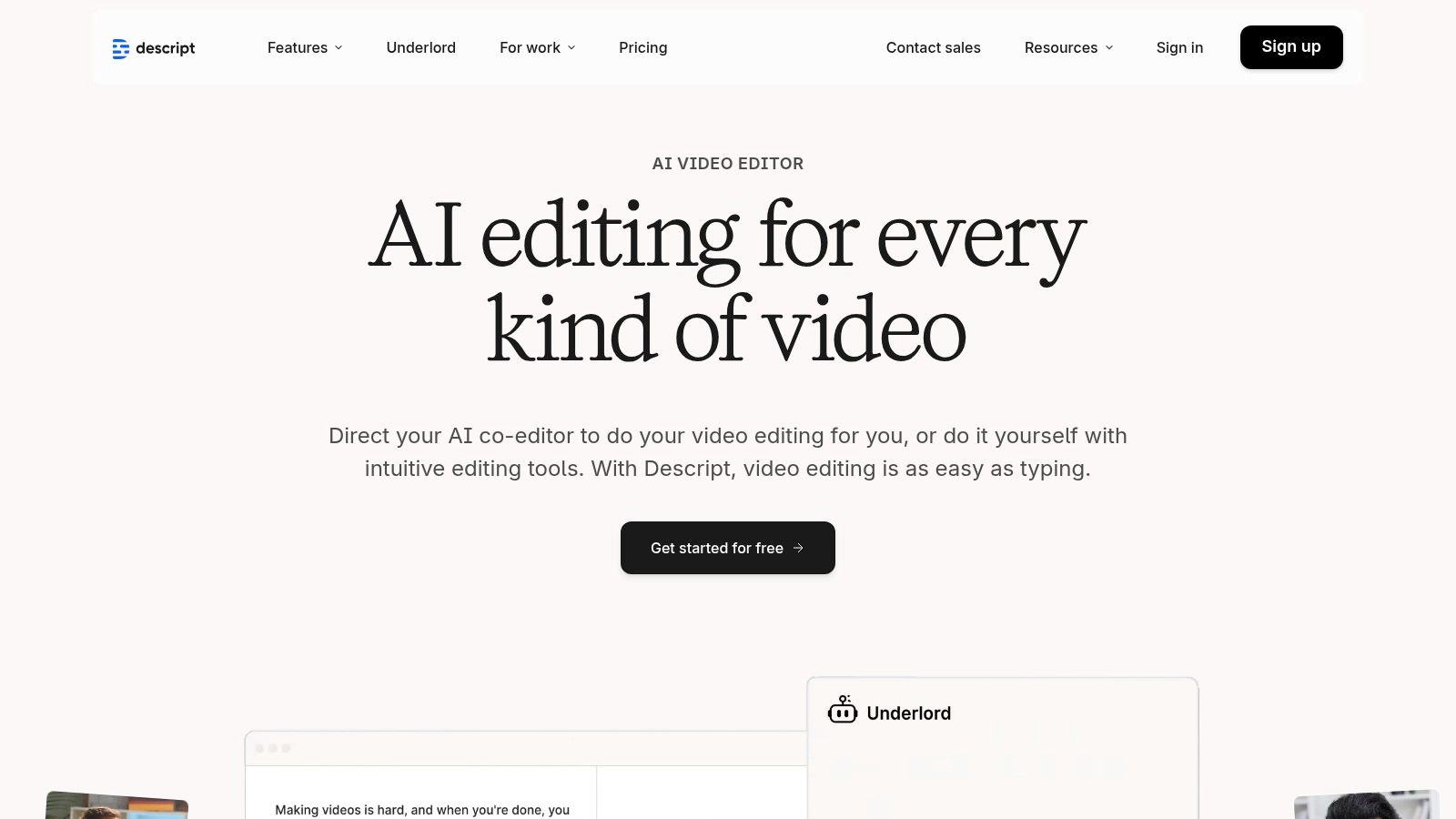
9. Descript
Descript is not just for turning talk into text. It's a powerful tool for people who make things like podcasts or YouTube videos. It writes down everything you say from a recording, and then lets you edit the sound or video by just changing the words. If you delete a word from the text, it gets cut from the recording.
Its best feature is how it connects the words to the recording. It can automatically take out filler words like "um" and "uh" for you. It can even tell when different people are talking. This helps you turn a simple recording into something that sounds professional, all in one app.
Why It's a Top Resource
Descript is amazing because it makes editing sound and video as easy as editing a text document. This saves a lot of time for people who make content. It's a top choice for creators because you get both the words and a way to make your final product perfect. You can also work on a project with your team at the same time.
But, if you just need a simple app to take notes, this one might be too much. It's a big program that takes time to learn. The free version has limits on how much you can do, so you will probably need to pay if you use it a lot.
- Best For: People who make podcasts, videos, and other content and need to edit their recordings.
- Key Feature: Lets you edit your sound or video by just editing the written words.
- Pro Tip: Use the "Studio Sound" button. With one click, it can make your voice sound much clearer and more professional, even if you used a cheap microphone.
Website: https://www.descript.com/
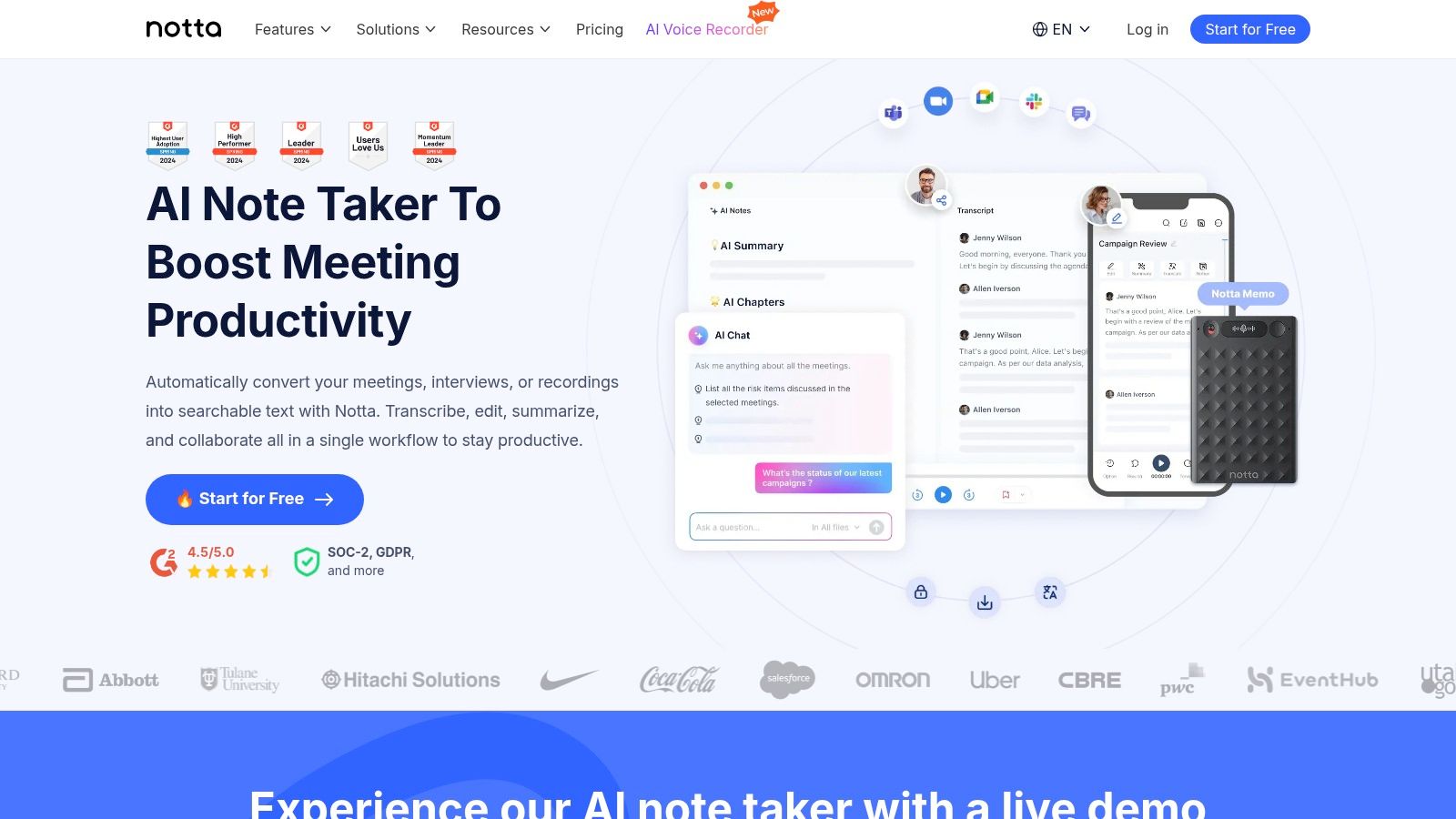
10. Notta.ai
Notta.ai is a useful tool that turns meetings, interviews, and voice notes into written text. It works on your computer and phone. It has smart features that help you organize and understand what was said. It's more than a dictation app; it helps you be more productive.
This tool is made for work. You can give it a sound or video file you already have, or you can use it to record a meeting right from your web browser. After it writes everything down, Notta.ai can figure out who was talking and make a short summary of the important parts. This turns a long talk into a short, easy-to-read note.
Why It's a Top Resource
Notta.ai is a good choice for people who do a lot of recording because its paid plans let you record for a long time. It also understands many languages. The smart summaries save a lot of time by picking out the key ideas from a long meeting. This is great for managers who need to tell their team what happened.
But, some of the best features, like the really smart summaries, are only in the more expensive plans. Also, each plan has a limit on how long a single recording can be. So if you need to record a very long event, you should check the limits first.
- Best For: Workers and teams who need to turn their meetings and interviews into text and get a quick summary.
- Key Feature: It writes down what is said in meetings and then uses smarts to make a short summary and list of what to do next.
- Pro Tip: Use the Chrome extension to record your online meetings. It's an easy way to capture everything without needing a separate program.
Website: https://www.notta.ai/
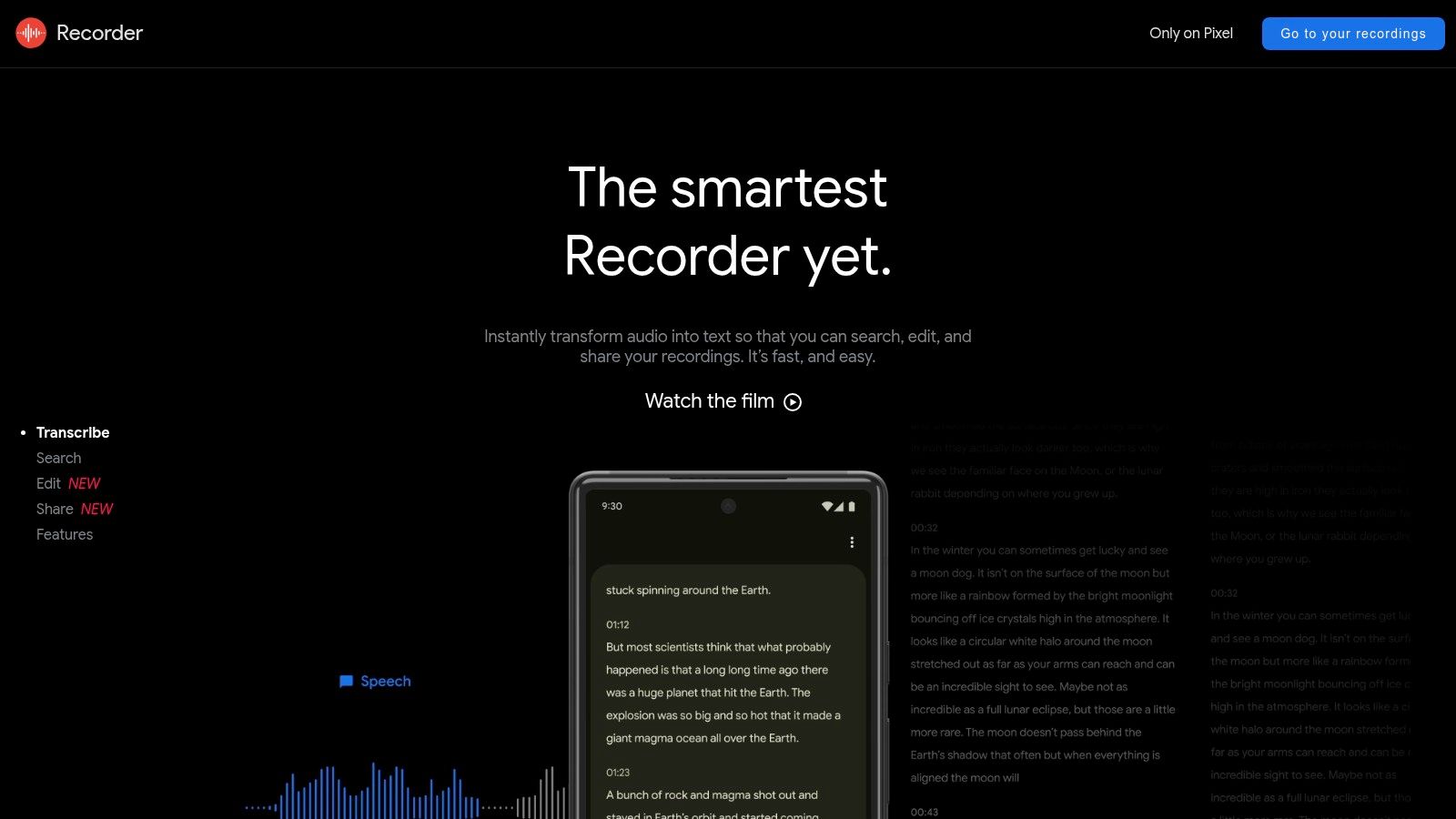
11. Google Recorder (Pixel / recorder.google.com)
If you own a Google Pixel phone, you have a super powerful tool called Google Recorder. It's also a great dictation app. It turns your voice into words right on your phone, which means your recordings are kept private. It's perfect for recording classes, interviews, or your own thoughts.
The best thing about this app is that it works without being connected to the internet. It writes down what you say almost instantly. It also has smart features that can make a short summary of a long recording and can even tell when different people are talking. You can see all your recordings on its website, recorder.google.com.
Why It's a Top Resource
This app is great because it is fast, private, and free for people with Pixel phones. It understands what you say very well for a free app. A cool trick is that you can search for a word, and it will find the exact spot in the recording where you said it. The smart summaries give you the main points of a long talk quickly.
But, the biggest problem is that you can only get this app on a Google Pixel phone. Other people can't use it. Also, some of the newest smart features might only work on the newest Pixel phones or only in English at first.
- Best For: People with a Pixel phone who want a fast, private, and free app to record and write down talks.
- Key Feature: Turns voice to text right on the phone, so it's private and fast. It also has smart summaries.
- Pro Tip: Use the search bar in the app. You can type a word and it will jump to the exact time in the recording where that word was said.
Website: https://recorder.google.com/
12. Amazon (Marketplace)
If you want to buy dictation software in a box or special tools like a good microphone, Amazon is a good place to look. You can find programs like Dragon Professional there, as well as things like foot pedals that help you control the recording with your feet. It's a place where you can buy everything you need all at once.
The good thing about Amazon is that it's easy and you can often get things delivered quickly. You can also read what other people think about the software and the tools before you buy. This is helpful if you need a special microphone to work with your dictation app.

Why It's a Top Resource
The best part about Amazon is you can buy the software and the tools you need together from one place. You can sometimes find good prices, and they deliver fast. It's a great place to get everything you need to set up a professional dictation station.
But, you have to be careful when you buy. Make sure the seller is real and that you are buying the right version of the software for your computer. Sometimes old versions are for sale that won't work on new computers, so always check before you buy.
- Best For: People who want to buy dictation software and tools like microphones all in one order.
- Key Feature: A huge store with lots of dictation software and tools, with good prices and buyer protection.
- Pro Tip: Always read the questions and answers section and the newest reviews for the product you want to buy. This helps you know if it will work and if the seller is good.
Website: https://www.amazon.com/
Top 12 Dictation Apps — Features & Pricing Comparison
| Product | Core features | Accuracy & UX | Target audience | Price & Value |
|---|---|---|---|---|
| WriteVoice | Super-fast talking to text, smart rewrite, auto-format, writes down meetings, 30+ languages, works like a keyboard | Very good at understanding; super fast, keeps words private | Grown-ups & teams (lawyers, doctors, business), creators who need perfect writing fast | Free try + different plans; good deal for how much time it saves |
| Apple App Store | Safe place to find iOS apps, ratings, Apple payments | Quality depends on the app; very safe for iPhones | iPhone users finding and trying dictation apps | Free to try; prices for apps are different |
| Google Play Store | Big store of Android apps & keyboards (Gboard) | Quality is different for each app; works well with Android | Android users looking for voice typing apps | Free & paid apps; payments through Google Play |
| Nuance Dragon | For computer/phone, learns special words, voice shortcuts | Very accurate; great for work; works best on Windows | Lawyers, doctors, people who write a lot for work | Costs a lot at first or has a monthly fee |
| Otter.ai | Writes down meetings, knows who's talking, makes summaries | Good for meetings; easy to share; gets meetings right | Teams who need notes and summaries from meetings | Monthly fee for each person; good price for teams |
| Microsoft 365 (Word Dictation) | Dictation in Word and other Office programs | Easy for Office users; very safe for businesses | People who pay for Microsoft 365 | Comes with your Microsoft 365 plan |
| Google Docs – Voice Typing | Free voice typing in Google Docs, basic commands | Pretty good for free; works best on a computer's web browser | Google users who need to write something down quickly | Free with a Google account |
| Rev.com | Computer + real person writing, adds words to videos | Person is almost perfect; computer is faster/cheaper | People who need perfect writing from a recording | Pay for each minute; cost is different for each service |
| Descript | Edit sound/video by editing text, removes "ums" | Great for creators; lots of editing tools | People who make podcasts and videos | Different plans; free plan has limits |
| Notta.ai | Writes down live talks, makes smart summaries | Understands many languages; paid plans have lots of minutes | Teams that need to write down what's said in meetings | Clear prices for different plans; limits on each plan |
| Google Recorder (Pixel) | Writes down talks on the phone, smart summaries, private | Fast, private, works on the phone; only on Pixel phones | Pixel phone owners who want private recording | Free with a Pixel phone |
| Amazon (Marketplace) | Sells software & tools (mics, foot pedals) | Easy to shop; check the seller and version before buying | People buying software and tools together | Good prices; fast shipping & safe to buy |
Finding Your Perfect Voice-to-Text Helper
We've looked at many different tools that turn your voice into words. We learned that the best dictation app is different for everyone. The perfect tool for you depends on what you need to do each day.
Some tools are simple and free, like the voice typing in Google Docs. Others are very powerful, like Nuance Dragon, which can learn special words for a job. Otter.ai is great for meetings, and Descript is perfect for making videos or podcasts. Each app is like a special tool for a different job.
Key Takeaways: From Choice to Action
To pick the right app, think about what you will use it for. Are you a writer whose hands get tired? Are you a student who needs to record a lesson? Or do you need to talk and have your words go right into a work program?
Think about these things before you decide:
- Does It Understand You?: How well does the app hear your special words, like names or work terms? A lawyer needs an app that understands law words.
- Is It Private?: Where do your words go? If you talk about secret things, you need an app like WriteVoice that keeps your words safe on your own device. Other apps might send your voice over the internet.
- Does It Work with Your Other Apps?: The best app should work easily with the programs you already use. If you have to copy and paste all the time, it's not saving you time.
- Is It Fast?: How quickly do your words show up? To feel natural, the words should appear almost right away. A slow app can mess up your thoughts.
Making Your Decision: A Practical Approach
Don't get confused by all the choices. Just follow these two simple steps.
First, decide what is most important to you. Is it keeping secrets safe? Or is it recording a meeting with many people? Figuring this out will help you narrow down your choices to just two or three good ones.
Second, try out your top choice by using it for a real task. Don't just read a practice sentence. Use it to write a real email or a note for school. This will show you if the app really helps you or if it just gets in the way.
In the end, using a dictation app is about saving your most important thing: time. It's about finding a new way to write and share your ideas. The right tool will help you get more done and free up your mind for more important things. The perfect helper for your voice is out there, ready to help you work smarter, not harder.
Ready to experience a dictation tool built for speed, privacy, and seamless integration? WriteVoice processes your voice locally, never sending it to the cloud, and works inside the apps you already love. Discover how much faster you can work by trying WriteVoice today.