How to Turn Your Apple Voice Memos Into Words
Did you ever say a great idea out loud and wish you could read it later? Lots of people do! The good news is you can turn your Apple Voice Memos into words on your iPhone or Mac. I will show you easy, free tricks to do this. I will also tell you when it is better to use a special tool to get the words just right.
Why Turn Your Voice Memos Into Words?
Let's be real, talking is faster than typing. It's great for sharing ideas when you are on a walk or remembering what someone said in a meeting. But looking for one small thing in a long recording takes a lot of time. When you turn your voice memos into words, you make them into something you can search and change.
This is not just a cool trick; it helps you get more done. Think about turning a long 10-minute voice note into a short email or a to-do list in just a few seconds. For students, it means turning a class recording into notes you can study. For grown-ups at work, it means making a perfect summary of a call with a client without listening to it all over again.
Finding the Best Way for You
Not all needs are the same. A quick, messy note for yourself is very different from a report you need to give your boss. Let's find the best way for what you want to do.
- Quick Notes for You: For short, personal notes, Apple's own tools work great and are often all you need.
- Big Projects: If you have long recordings or the words must be perfect, a special tool is the best way to go.
- Working with a Team: Need to share notes in apps like Slack or Jira? Special tools can help you do this without lots of copying and pasting.
The picture below helps you see which way is best for you. It can help if you are just writing down a quick thought or working on a big project.
The main idea is simple: pick the right tool for the job. Simple jobs can use simple tools. Harder jobs need something stronger.
Before we learn how, here are your choices. Each way is good for different things like speed, getting words right, and being easy to use.
Quick Ways to Turn Your Voice Memos into Words
| Way | Best For | Speed | How Right? |
|---|---|---|---|
| Talking to Your Phone | Short, clear notes for you. | Fast | Okay |
| Shortcuts App | Making it happen on its own. | Very Fast | Okay |
| Other Apps | Big projects, long files, talks. | Fast | Very Good |
| AirPlay/Loopback | Doing it just once without new apps. | Slow | Okay |
As you can see, there are trade-offs. The free ways are fast but might get some words wrong, especially if it's noisy. For work that needs to be perfect, a special tool is almost always better.
The Voice Memos app is on every iPhone. This means lots of people have a great recording tool. Apple has almost 57% of the phone market in the U.S., so over 150 million people could use this to turn their sound into words.
The best part is not just getting the words written down. It's making them easy to find, use, and share. Your best ideas should not be stuck in a sound file.
In this guide, we will show you the steps for each way. For more tips, you can also see our full guide on how to convert voice memos to text. By the end, you will know just what to do.
Using Apple’s Free Built-In Tool
Sometimes the best tool is the one you already have. You might not know it, but Apple put a good tool for turning voice to words right in the Voice Memos app on your iPhone and Mac. It’s free and works on its own. It's perfect for turning quick thoughts or meeting notes into words without any extra work.
Think about this: you just had a great idea session and recorded some thoughts. Instead of listening to it all again, the tool can make a text version for you fast. This makes it super easy to transcribe Apple Voice Memos right away and put the words into a report or an email.
Finding the Words on Your iPhone
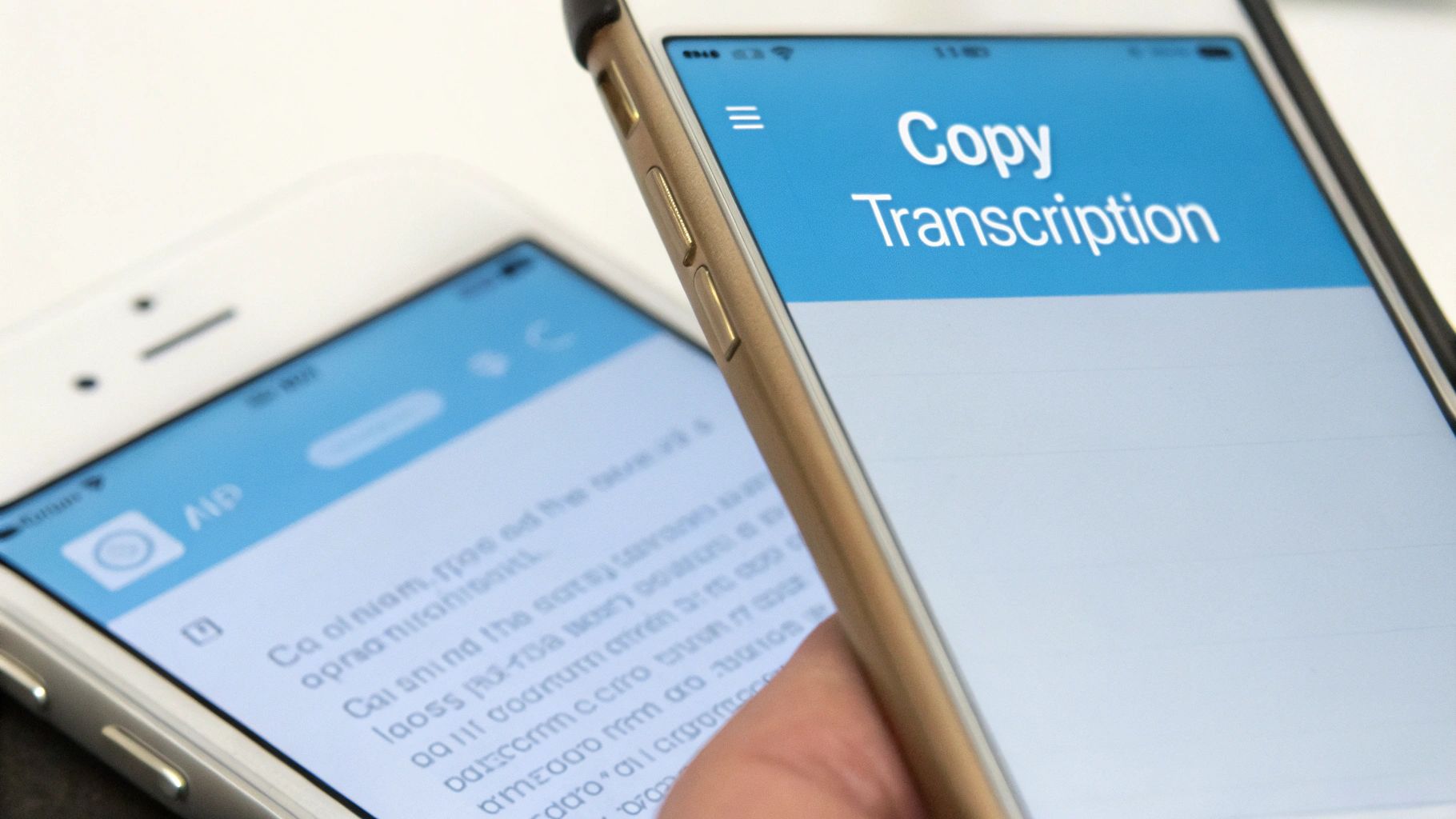
After you record something, the words might not show up right away. Your iPhone needs a few seconds (or minutes for long recordings) to work on the sound. When it’s ready, all the words will be right under the sound player.
Getting the text is easy. You have two main choices:
- Copy a Small Part: Just press and hold any word. This lets you pick a certain part. You can change how much you pick with the little blue handles.
- Copy All of It: Need everything? A quick double-tap on the words will show a "Copy" button. Tap it, and all the text is saved for you to paste.
Once you copy the text, you can paste it anywhere you want—a new note, a message to a friend, or even on social media. This tool uses the same thing that lets you talk instead of type on your keyboard. If you like this, you should learn how to enable dictation on an iPhone to talk in other apps too.
Why Your Words Aren't Always Perfect
You will see that the text is not always exactly what you said. This happens with tools that do this on their own. You might see weird words, mixed-up sentences, or even missing parts.
The biggest reason for mistakes is almost always noise in the background. Things like a loud coffee shop, street sounds, or people talking nearby make it hard for your iPhone’s microphone to hear just your voice.
To get the best words, find a quiet place to record. Speaking at a normal speed and clearly will also help a lot. Also, know that very long recordings will take longer to change into words. This free tool is great for quick jobs, but it's good to know what it can't do.
Better Ways to Get Words for Big Projects
When Apple’s built-in tools are not good enough for a big school project or an important work meeting, it's time to use something stronger. For jobs that really matter, getting every word right is a must. One mistake can change what an interview or a client's words mean, so you need the words to be very, very accurate.
This is where better tools are great. They're perfect when you need to transcribe Apple Voice Memos that are long, have more than one person talking, or have special words that free tools don't know. It's like going from a scooter to a fast car—both get you there, but one is made for long, hard trips.
A Smart Trick on Your Mac
Here’s a cool trick for Mac users: an "audio loopback." It sounds hard, but it’s just a way to tell your computer to listen to its own sound. You can play your voice memo on your Mac, and a special tool can "hear" that sound and write it down as it plays.
This is great because it lets you use strong, online tools without having to upload your sound file. For example, you could use a tool like WriteVoice to listen to the sound and get the words right away. It’s a good way to get great results without putting new programs on your computer.
To do this, you'll need a free tool that makes a pretend sound player on your Mac.
- First, you make this new pretend player your Mac's sound output.
- Next, you pick the same pretend player as the microphone in your word tool.
- Last, just hit play on your voice memo.
The sound goes from the Voice Memos app right into the tool, which types out the words as it "hears" them. This is a very helpful way to do a project where you need better words than the normal tools can give you.
Using Special Apps for Getting Words
For anyone who turns sound into words a lot, a special app is the best thing to get. These tools are made just for one thing: turning talking into text and getting it very right. Many of them can connect right to files on your computer or in the cloud, making it all very easy.
Instead of using your phone's power, these apps use big, strong computers to get your words back in minutes, not hours. For a 30-minute talk, you save a lot of time. You just upload your voice memo, and the app gives you a clean, right document.
Using a special app is a very smart idea for private or secret recordings. Good apps are built to be safe, so your important talks about work or clients stay just for you.
These apps also have parts that help a lot with big projects. They can tell who is talking, add timestamps to the words, and even let you make your own dictionary for special names or words. If you are looking at your choices, this list of the best free transcription software is a great place to begin. Picking the right tool makes a big difference in how good and fast your work is.
When a Special App Is the Best Choice
Apple’s built-in tool is okay for quick, simple notes, but sometimes "okay" is not good enough. When your words are very important, a special app to transcribe Apple Voice Memos is not just nice to have; you need it. These tools are made for one thing: turning your voice into very accurate words, fast.
Think of it like this: Apple’s tool is like a pocket knife. It's great for small, easy jobs. But for a big project, you would not use a pocket knife—you'd get your power tools. A special app is that toolbox, giving you the power and rightness you need for important work.
Get Your Words Back Faster
One of the biggest reasons to use a special app is speed. With some apps, you can see the words show up on your screen almost as you are talking. This is a huge help in fast meetings where you need to get every detail.
Instead of waiting for your iPhone to work on a long recording, a special app can do a 30-minute file in just a few minutes. That time you save adds up, especially when you need to finish fast.
The real win with a special app is getting right words back fast enough to use them right away. You spend less time waiting and more time doing.
When Every Single Word Must Be Right
For a note to yourself, a few wrong words are not a big deal. But for a doctor's note, a legal meeting, or a talk with a big client, the words must be perfect. Special apps are built with smart AI that is made to get the words right.
Many of these top apps can be over 99% right. They are great at understanding special words, from medical words to hard legal words. They can even tell when different people are talking and label who said what, something a simple tool just can't do.
Connecting to Your Other Tools
Where special apps are really great is how they can work with the other programs you use every day. This is where they are much better than the built-in tools. Imagine talking into your phone and seeing it show up as a task for your team to do.
Here are a few real things you can do:
- Say a task: Your spoken words can make a new to-do item in an app like Jira.
- Send a message: You could say a quick update and have it sent right to a friend at work in Slack.
- Write an email: Turn a voice memo into a nice email in Gmail without typing.
This kind of easy connection helps you do a lot more. It's no shock that more and more people want this. The voice tech world is set to grow from $17 billion to $83 billion by 2032. This big jump shows how many people want more than what simple, built-in tools can do. You can learn more about this growing trend in voice technology.
Fixing Common Problems with Getting Words
Sometimes, turning your voice into words does not go so well. You might get messy sentences or just see a blank screen, waiting for the words to show up. These are common problems, and most of them are easy to fix.
Think of it this way: to get the best words, you need to make it as easy as possible for the app to "hear" you. Just like you would talk clearly to a friend in a loud place, a few small changes can make your text much better.
Why Are My Words Slow or Not Showing Up?
Did you ever finish a recording, but the words are slow or not there at all? Most of the time, a bad internet connection is the problem. Apple's tool needs to send your sound file to its computers to work on it. A weak or slow Wi-Fi or phone signal can make this take a long time.
For longer recordings, like a 10-minute meeting recap, waiting a few minutes is normal. But if you're still waiting after that, try moving to a place with a stronger signal. It's a simple step that often works.
How to Get Cleaner, More Accurate Words
The saying "garbage in, garbage out" is very true here. A clean sound recording is the key to getting the words right. A few small changes to how you record can make a big difference.
Here are a few good tips I've learned:
- Find a Quiet Spot: Background noise is the biggest enemy of getting words right. TVs, people talking, or even a fan can confuse the app. If you can, go to a quieter room before you record.
- Speak Clearly: You don't have to talk like a robot, but mumbling or talking too fast will cause mistakes. Try to talk at a normal, steady speed.
- Don't Cover the Mic: It’s easy to cover the microphone at the bottom of your iPhone by accident. Hold your phone about six inches from your mouth, like you would on a phone call, to get the best sound.
Quick Tip: Try saying a simple phrase like "testing one two three" first in a noisy place and then in a quiet one. The difference in the words will show you how much a quiet place helps.
The Easiest Way to Fix Mistakes
No tool is 100% perfect, so you will have to fix a few things. You can't change the words right in the Voice Memos app, but there’s an easy way around it.
Just tap and hold the words to copy them, then paste them into an app like Notes, Messages, or your email. From there, you can easily fix any wrong words, add punctuation, and make it look nice. This quick copy-and-paste trick is the best way to transcribe Apple Voice Memos and make sure the final words are just what you need.
Got Questions? We've Got Answers
When you turn Apple Voice Memos into words, some questions come up a lot. Let's answer them now so you can pick the right way for you.
Is It Safe to Turn Secret Voice Memos into Words?
This is a very important question. If your memos have secret work stuff or personal thoughts, safety is key.
When you use Apple's own tool, the work happens on your phone. This is a good choice for your own ideas or private notes, as the info does not leave your phone or Mac.
But for very secret info—like talks about clients, patient notes, or legal stuff—you need something safer. This is where tools like WriteVoice are great. They are made to be private. They turn your sound into words without ever saving the sound file or the words on their computers. For people like doctors, lawyers, or bosses, this "process-and-forget" way is the only way to be sure it stays private.
What’s the Best Way to Get Words from a Really Long Voice Memo?
Did you record a 90-minute class or a long interview? You'll soon see that Apple's tool has limits. For long recordings, it can be very slow, sometimes taking forever or even stopping in the middle.
For anything longer than 15 minutes, your best choice is to use a special app. These apps are made to handle big files well. They can turn an hour-long recording into right words in just a few minutes. It's the difference between waiting and hoping, and getting back to your work.
Can I Get Words from Recordings in Different Languages?
Yes, you can. Apple's tool works okay with many languages, but there's a catch: it uses your phone's main language setting. For it to work right, your iPhone or Mac must be set to the language you spoke in the recording.
Pro Tip: To get the most accurate words in different languages, a special app is almost always the better choice. They have learned from much more sound from all over the world.
If you speak more than one language or work with people from other countries, always check the list of languages an app can do. This easy check makes sure you get the right words, whether you're speaking Spanish, Chinese, or German.
Ready to stop listening over and over and start reading your notes? WriteVoice turns your voice memos into perfect text in seconds, so you can do what's important. Try it for free and see how much time you can save.