A Simple Guide to Voice Notes on Your Android Phone
Do you ever have a great idea when you can't type? We all do. What if you could just talk to your phone to write it down? You can! It is easy to use voice notes on Android, especially with a smart tool like WriteVoice.
A Faster Way to Use Your Android Phone
Think about your day. You type a lot of emails and notes on your little phone screen. It takes a long time. A good idea can be forgotten before you finish typing it.
Now, think about this: you just talk, and your words show up as text. That's what a good voice-to-text app does. It helps you work as fast as you can think. Instead of slowly typing a long note in Jira, you can just say it. This is a big help for busy people.
Why Talking Is the New Typing
More and more people are talking instead of typing. It is a smarter way to work. Here’s why:
- It’s super fast. Most people talk much faster than they type. An app like WriteVoice can write down your ideas four times faster than typing. That saves a lot of time!
- It works anywhere. You don't have to sit at a desk. You can talk and write a note while you walk or between meetings.
- It helps you think. Saying an idea out loud can make it better. It helps you say what you mean clearly.
This is a big change. Lots of people use Android phones. The world has about 3.74 billion Android users. You can read about Android market trends to see how many people use them. This means more people want tools that make work easier.
The best part is being free. You are not stuck at your keyboard. You can save an idea just by saying it.
This guide will show you how to set this up on your Android phone. We will show you how to use WriteVoice, step by step. It will make your work much faster and easier.
Setting Up Your Android for Voice Notes
Making your Android phone a talking tool is easy. You just need one smart app that connects your voice to all your other apps. Let's get you set up so you can type less and do more.
First, go to the Google Play Store. Search for "WriteVoice" and tap install. It's just like getting any other app on your phone.
After it's installed, there is one important step. You need to connect WriteVoice to your phone's keyboard. This is the trick that lets you talk into any app. You can write an email in Gmail, update a job in Jira, or send a message on Slack. The app will show you how. You just pick WriteVoice in your phone's keyboard settings.
Connecting Your Keyboard for Easy Talking
Think of this like adding a new language to your keyboard. But instead of switching from English to Spanish, you switch to "voice." Your normal keyboard is still there. But now you will have a little microphone button for when you want to talk instead of type.
To do this, the app will ask for two things. It needs to use your microphone (so it can hear you). And it needs to be a keyboard. These are needed for the app to turn your words into text where you want it.
This one small change turns your phone from a typing phone into a talking phone. It is a whole new way to work.

As the picture shows, a lot of steps for typing become one easy step. Just talk, and you're done.
Why Talking Is Easier Than Typing
Here is a quick look at using voice notes with an app like WriteVoice instead of typing.
| What You Do | The Old Way (Typing) | The New Way (Voice Notes) |
|---|---|---|
| Speed | Slow, you type with your thumbs. | Much faster, you talk like you normally do. |
| Easy to Use | You need two hands and have to look at the screen. | You can use it with no hands. Great for when you are moving. |
| How it Works | Type, stop, fix mistakes, type again. | Talk, and the app adds dots and capital letters for you. |
| What You Think About | You think about hitting the right keys. | You think about your ideas, not typing. |
The difference is big. It is about working smarter, not harder. Let the app do the hard parts.
Why Simple Apps Are Best
People want things to be easy. They don't want hard tools. They want something like WriteVoice, which is right almost every time (99% accuracy) and very fast.
When you connect WriteVoice to your keyboard, you change how you use your phone. Any spot where you can type becomes a spot where you can talk.
Now that you are set up, you can try a faster, easier way to save your thoughts. For more help, you can check out our guide on the best voice-to-text app for Android. Your phone is now a real helper, ready to listen when you have an idea.
How to Use Voice Notes in Your Favorite Apps
Okay, your Android phone is ready. Now for the fun part: using your voice in the apps you use all the time. This is where you will really save time. You can stop using the tiny keyboard for big messages.
This is exactly what an app like WriteVoice is made for. It puts a microphone button on your keyboard. One tap, and you can talk right into your favorite apps, like Slack, Jira, and Gmail. It is very easy.
Send a Quick Update in Jira
Let's say you just finished a job. You need to write a long note in Jira before you forget. Instead of typing with your thumbs, you can just say your update.
Open the Jira ticket on your phone. Tap the spot to write a comment. Tap the microphone button on your keyboard. Then, just say what you did: "I finished checking the login page. Everything works. Now I will check the payment screen."
When you stop talking, your words show up as text. You just saved time and wrote down your thoughts better than if you typed them.
Write Emails in Seconds with Gmail
Let’s be real, writing long emails on a phone is hard. Using your voice changes everything.
Open Gmail and start a new email. When the keyboard pops up, tap the microphone. You can then say the whole email. Something like, "Hi Sarah, I just wanted to make sure we are still meeting tomorrow at 10 AM. I sent the plan for you to look at. Let me know if you have any questions. Thanks, John."
What's cool is that WriteVoice knows when you say "period" or "comma" and puts them in. The email looks good, and you barely typed at all. To get really good at this, our guide on using dictation for Gmail has more great tips.
The best part is how fast it is. You can get your thoughts out fast and clear. This is great when you are busy and not at your desk.
Answering Team Messages on Slack
Chats on Slack happen fast. To keep up, you need to be quick. Using your voice lets you give good answers without stopping what you are doing.
When a friend at work asks a question, you can tap the microphone and say a full answer instead of a short one. "Yes, that's a good idea. Let’s talk more about it on our call later," is much faster to say than to type. This keeps the chat going without taking you away from your work.
Using your voice is already a normal thing. People on WhatsApp send voice messages all the time. It is time to use that same easy way of talking for our work. Using voice notes on your Android for work is the next smart step.
Keeping Your Voice Notes Safe and Tidy
Talking your thoughts into apps like Slack or Jira is a great shortcut. But what happens to the voice notes android recordings? Where do they go? Your ideas are important. Let's see how to keep them tidy, easy to find, and private.
When you use an app like WriteVoice, your recordings don't just disappear. Every time you talk, the app saves the sound and the text. It saves them in its own special notes spot. This makes a safe, searchable list of everything you've said.
Think of it like a copy machine for your voice. If you need to remember an idea from a call two weeks ago, you don't have to look through all your old messages. Just open WriteVoice, and it's there.
Your Smart Diary for Spoken Ideas
I like to think of the notes part as a library for my spoken ideas. To keep it clean, it's a good idea to name your notes right after you make them. A name like "Voice Note 23" won't help you later.
Instead, try a name that tells you what it is, like "Marketing Ideas – October 15" or "Notes for Project Alpha." This small step helps a lot. When you need to find something, you can search for a word, and the app will find it fast. You are not just saving voice notes; you are building a book of your own ideas.
- One Spot: All your recordings are in one place inside the WriteVoice app.
- Good Names: Give each note a clear name so you can find it later.
- Quick Search: Use words to find any old recording or its text right away.
Keeping Your Personal Thoughts Personal
Now, let's talk about something very important: privacy. It's normal to worry about who can hear your private recordings, especially if you are talking about secret work stuff. For many people, this is the biggest reason they don't use voice tools.
This is where WriteVoice is different. It was made to be private. The app does not keep your sounds or text on its computers. Everything stays right on your Android phone.
This is a very good thing for anyone. If you are a lawyer talking about a case or a boss thinking about a new plan, your words never leave your phone. This keeps your private thoughts and important work information safe.
Simple Tricks for Super Clear Recordings
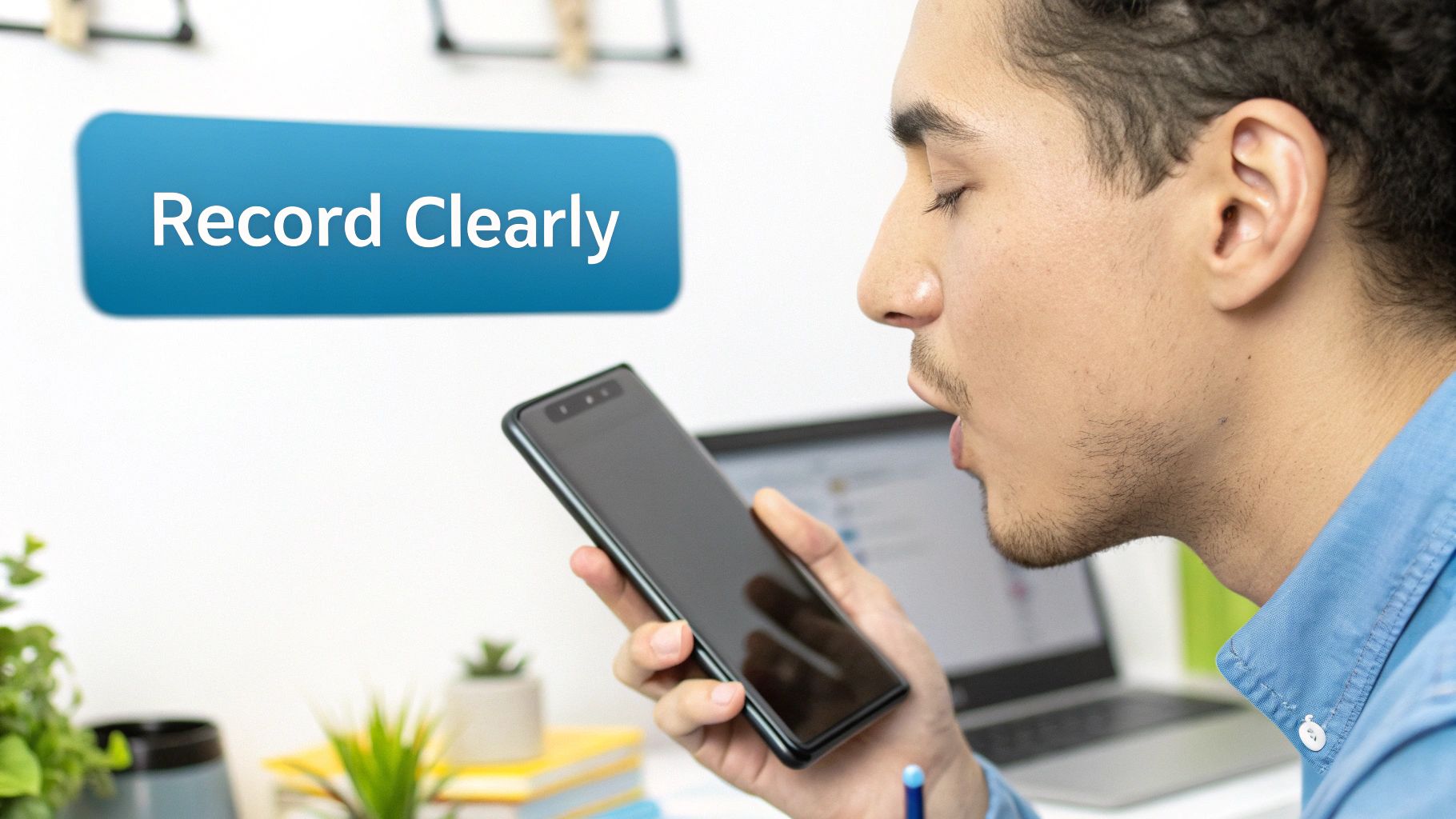
For an app like WriteVoice to work well, it needs to hear you clearly. Think of it like this: if you put junk in, you get junk out. Even a little noise in the background can mess up the words.
The good news is you don't need a special room or a fancy microphone. A few easy changes can make your voice notes on Android much better. This will make the written text much more accurate.
Where You Hold Your Phone Is Important
One common mistake is holding the phone wrong. If it's too close, your voice sounds fuzzy. If it's too far, the microphone picks up all the other sounds in the room.
The best spot is about six inches away from your mouth. This helps the microphone get your voice clearly without picking up the sound of your breathing. It is a small change that makes a big difference.
Holding your phone the right way is like tuning a radio. A small change can go from fuzzy sound to a clear song. It costs nothing but helps the app understand you better.
Also, know where your phone’s microphone is. On most Android phones, it is at the bottom. It is easy to cover it with your finger by accident. That will make your recording sound bad.
Find a Quiet Spot
Noise in the background is the enemy of good recordings. People talking nearby, a TV, or a loud fan can make it hard for the app to understand you. You don't need a perfectly quiet room, just a quiet spot.
If you are at work, a quiet corner or an empty room can help a lot. At home, maybe move away from a loud washing machine. For more ideas, our article on using a voice-activated recorder app has some other good tips.
Teach the App Your Special Words
What if you use special work words or names that are not common? Normal voice apps can get these wrong. They might turn the name "Priyanka" into "pre-anchor" or a project name like "Jira" into "gyro."
This is where the Custom Words part of WriteVoice is a huge help. You can make your own dictionary to teach the app the special words you use.
- Project Names: Add words like "Project Phoenix."
- Work Words: Put in special words for your job.
- Names: Make sure the app spells the names of your friends and clients right.
Taking a few minutes to add your own words teaches the app to understand you better. This one step can make your written notes almost perfect (99% right).
Answering Your Questions About Android Voice Notes
When you try a new way of working, you will have some questions. That is normal. Let's talk about the common questions people have when they start using voice notes on Android with an app like WriteVoice. Answering these will help you feel good about using it.
A big question is, "Do I need the internet for this to work?" That's a great question. While some special parts might need the internet, a good app like WriteVoice is made for the real world. You can record your ideas anytime, even with no internet.
Your recordings are saved on your phone. So, if you get an idea on a train or a plane, you can save it right away. The app can turn it into text later when you are online again.
What if I Get a Phone Call While I'm Talking?
Imagine you are in the middle of a great idea, talking to your phone, and then it rings. This is a common worry, but it is not a problem.
When your phone rings, the app will stop recording. You can answer the call and not lose anything you already said. When you are done with the call, just tap the record button again. You can start right where you stopped. It's made to work with real life.
Your voice note app should help your phone, not fight it. It knows calls happen and keeps your ideas safe until you are ready to come back to them.
This small feature is a big help for not losing your good ideas.
How Safe Is My Voice Data, Really?
We all want our private things to stay private. It is smart to ask where your information is going. We have a lot of important stuff on our phones. You need to know it is safe.
A good app like WriteVoice is made to be private. Many apps send your data to their computers. But WriteVoice does not save your sound or text on its computers. Everything happens right on your Android phone.
- Your Voice Stays on Your Phone: Your recordings are kept on your phone. Only you can get to them.
- Nothing Saved on a Server: Your private work ideas or personal notes are not on a computer somewhere else.
This means you are in control of your information. If you are talking about secret client notes or company plans, this keeps them safe and private.
Ready to stop typing and just talk? WriteVoice turns your spoken words into perfect text inside any app you use. It will save you hours of typing. Download WriteVoice and see how much more you can get done.