How to Talk to Your iPhone and Make It Type
You can talk to your iPhone and it will write down what you say. It's easy! Just tap the little microphone picture on your keyboard and start talking. This is called Dictation. It's already on your phone and works in most places where you can type. It's much faster than typing with your fingers.
Your iPhone’s Talking Secret
What if you could send a text, write an email, or make a list just by talking? You can! It’s a tool you already have. We'll start with the easiest way: the microphone on your keyboard. I'll show you where it is, how to turn it on, and how to use it.
The goal is to help you get good at it right away. You can stop poking at a tiny screen and just say what you mean. Learning this is the best way to be faster on your phone.
Three Ways to Talk to Your iPhone
Your iPhone has a few ways to turn your voice into words. Each one is for different times. This table shows you which one to use.
| Tool | Best For | How to Start |
|---|---|---|
| Keyboard Mike | Quick texts, notes, and short messages. | Tap the microphone picture on the keyboard. |
| Siri | Talking without hands, like sending a text or setting a timer. | Say "Hey Siri" or hold the side button. |
| Voice Control | Talking to your phone to do anything, like opening apps. | Say "Hey Siri, turn on Voice Control." |
The Keyboard Mike is what you'll use most of the time. Siri and Voice Control are for when your hands are busy.
Why Talking to Your Phone is So Cool
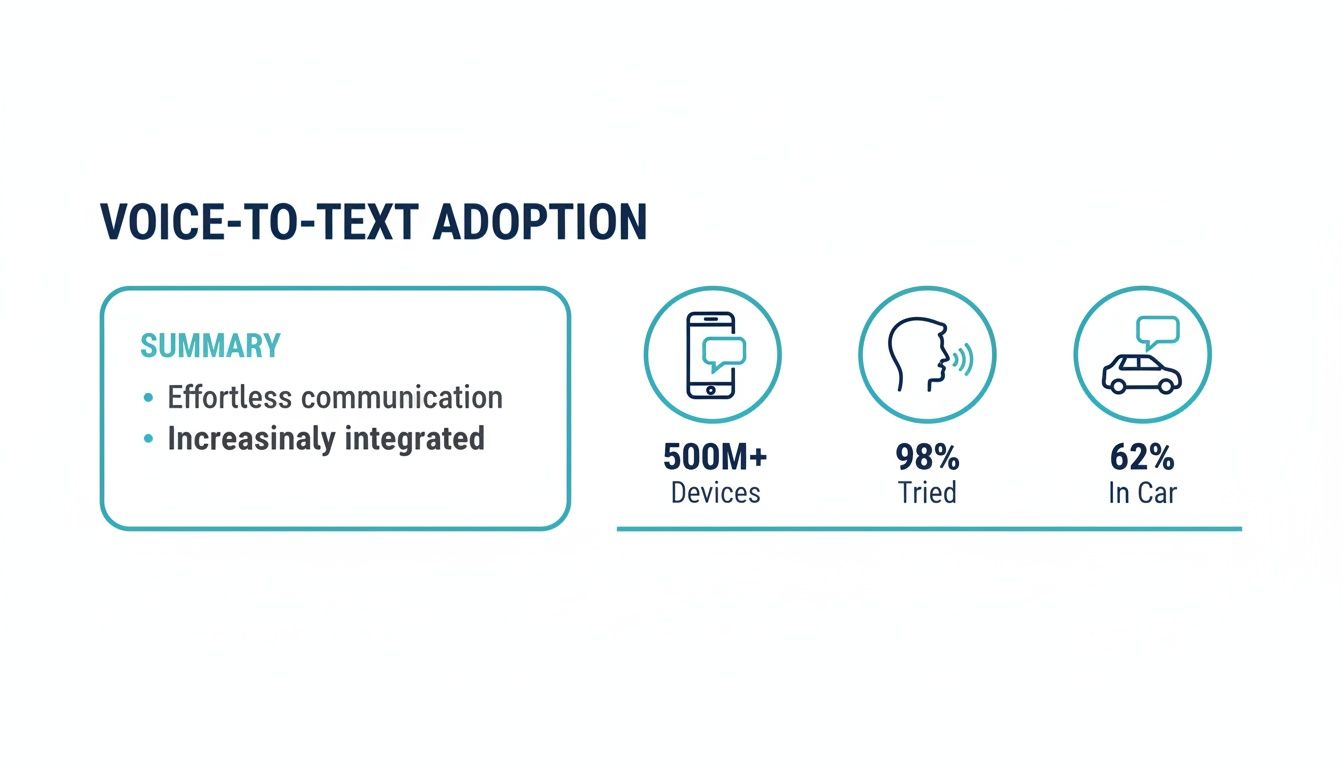
For most people, talking is way faster than typing. People type about 40 words in a minute on a phone. But we can talk more than 120 words a minute. That's a big deal! An email that takes five minutes to type can be spoken in less than one minute.
This is why so many people use helpers like Siri. Siri is on more than 500 million phones and gadgets. Almost everyone has tried it. Lots of people use it in the car because they don't have to use their hands.
The numbers show that talking to our phones is not just a trick. It's a normal way we use them, especially when we are busy doing other things.
How to Start Using the Keyboard Mike
The little microphone on your keyboard turns your words into text right away. It's great for short things, like a quick reply or a note. It's made to be super simple.
I use it all the time for things like this:
- Texting while I walk: I can look where I'm going, not at my phone.
- Saving a good idea: If I think of something, I can say it right away before I forget.
- Adding to my shopping list: It's easy to say "milk, bread, and eggs" to my list without stopping what I'm doing.
The best part about talking to your phone is not just being fast. It makes it easy to get your thoughts out. It helps you save ideas all through the day.
The keyboard mike is great for most things. But if you need to record for a long time, you might want a special transcription app for iPhone. These apps can be better at understanding you and can do more tricks. But for now, let's learn the words that will make you a pro at talking to your phone.
Words to Tell Your iPhone What to Do
Just tapping the microphone and talking is the first step. The real fun starts when you learn the words that fix your text for you. It’s like telling your iPhone how to write, without using your hands.
If you don't use these special words, your text will be one long sentence. To make it easy to read, you have to tell your iPhone where to put dots and spaces. This turns your words into a nice, clean message.
Easy Words for Dots and Spaces
First, let's learn how to add dots and commas. These are the words you'll use all the time. Instead of stopping to type a dot, you just say the word. It's a little weird at first, but you'll get used to it.
Imagine you're sending a quick email. You could say, "Hi Sam comma I finished the paper period it's ready for you to read exclamation point." Your iPhone will write: "Hi Sam, I finished the paper. It's ready for you to read!"
Here are the words you will use every day:
- Period: Puts a "." at the end of a sentence.
- Comma: Adds a "," where you take a little breath.
- Question mark: Puts a "?" at the end of a question.
- Exclamation point: Adds a "!" to show you're excited.
- New line: Moves down one line, like hitting the Return key once.
- New paragraph: Moves down two lines to start a new part.
Just learning these six words will make your messages so much better. They will look neat and be easy for people to read.
Add Fun Pictures (Emojis)
You can also add smiley faces and other pictures to your messages with your voice. Your iPhone knows the names of many emojis. This is great for showing how you feel in a text.
For example, saying "I am so happy winky face emoji" will put a 😉 in your message. It's a little thing, but it keeps the chat fun.
Try some easy ones:
- "Happy face emoji" for 🙂
- "Sad face emoji" for 🙁
- "Heart emoji" for ❤️
- "Laughing emoji" for 😂
This trick saves you from looking for the right picture. It makes talking to your phone feel more natural.
Fixing Mistakes as You Go
We all say the wrong thing sometimes. You don't have to stop talking to fix it. The iPhone has special words for fixing mistakes while you talk.
Let's say you said, "The party is at two," but you meant "three." Don't use the backspace button. Just say, "select two" and then say "three." Your iPhone will swap the word for you. It's a cool shortcut.
Here are some helpful fixing words I use a lot:
- Select [word]: Highlights the word you want to change.
- Select last word: A quick way to pick the last thing you said.
- Capitalize that: Makes the first letter a big letter, like changing "jen" to "Jen."
- All caps that: Makes the whole word big letters, like for USA.
- Delete that: Erases the word you highlighted.
When you learn these words for dots, emojis, and fixing things, you are not just talking—you are writing. You can make full messages and notes with just your voice.
Go Hands-Free with Voice Control
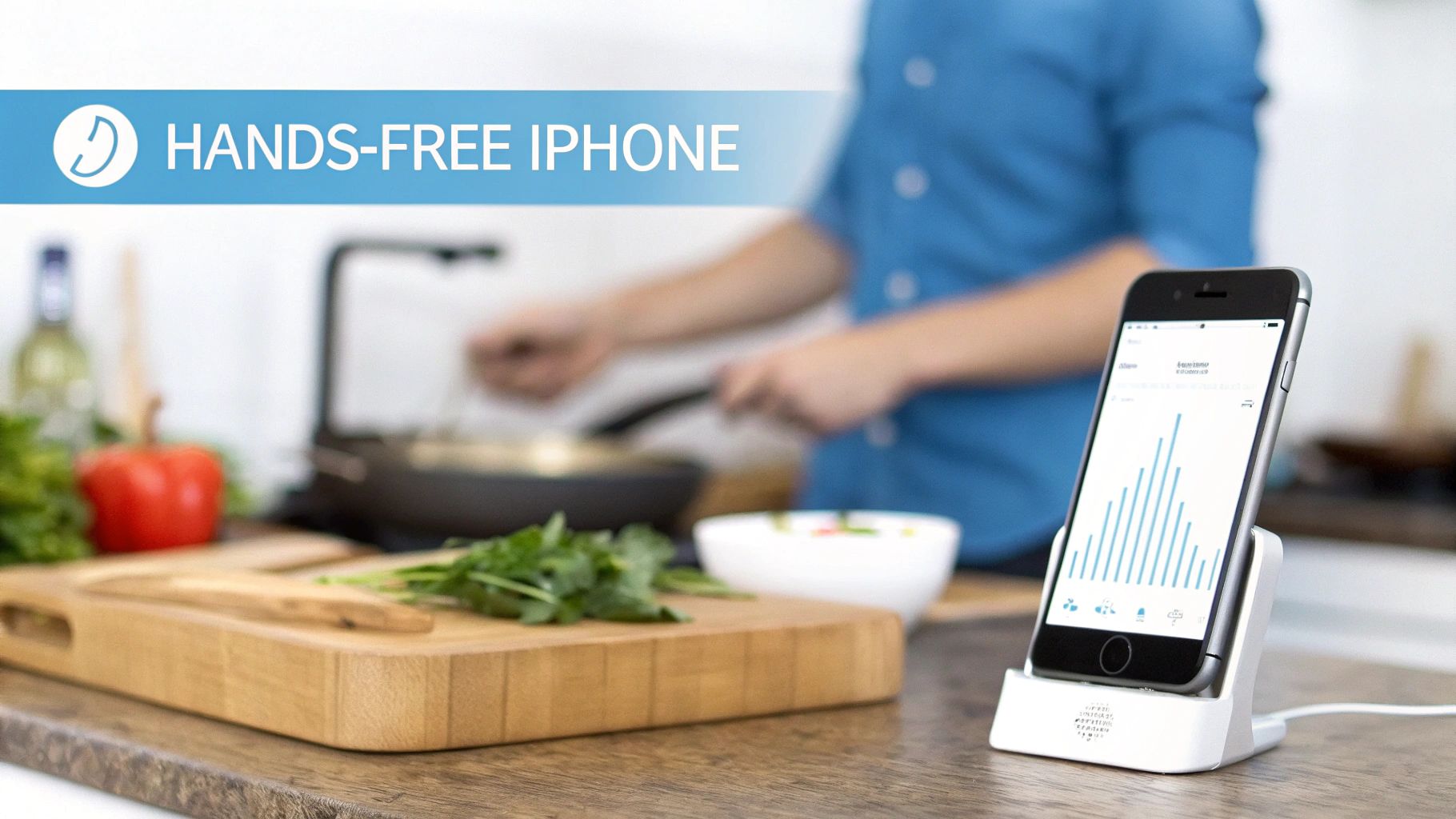
The keyboard mike is great for turning words into text. But Voice Control is even cooler. It lets you run your whole iPhone with your voice. You can open apps, tap buttons, and even swipe pages. Your phone becomes a real hands-free helper.
This is amazing when your hands are busy. Imagine you are cooking and your hands are messy. You need to scroll down on a recipe on your phone. Instead of touching the screen, you just say, "Scroll down." That's what Voice Control does.
Turning On Voice Control
It's easy to turn on this tool. You can find it in the Accessibility settings. It was first made to help people who have trouble using their hands. But it's a great tool for anyone.
Here is how to find it:
- Open the Settings app.
- Tap on Accessibility.
- Find Voice Control and tap it.
- Push the switch to turn it on.
The first time you turn it on, your phone will download a small file. This lets Voice Control work even if you're not online. This is good for your privacy and means it always works. You will see a little blue microphone at the top of your screen. This means Voice Control is on and listening for your words.
Using Your Voice to Get Around Your iPhone
With Voice Control on, you can start telling your phone what to do. It's easy to learn. You can say things like "Open Mail," "Go home," or "Swipe left." The phone understands words that are like the things you do with your fingers.
For example, if you wanted to check the weather without touching your phone, you could say:
- "Go home"
- "Swipe right"
- "Open Weather"
This makes lots of things easier. But the real magic is when you need to tap on something specific on the screen.
Voice Control is not just a neat trick. It helps you use your phone in a new way. It makes you more productive when you can't touch your screen.
Tapping with Grids and Numbers
What if you need to tap a button that doesn't have a name? Voice Control is very smart about this. You can say a simple word to put a grid or numbers on your screen. This lets you tap any spot you want.
The two main words are "Show numbers" and "Show grid."
Show Numbers: If you say this, a number will pop up next to everything you can tap. To tap something, just say its number. If your Music app has a "10" next to it, you just say, "Tap 10." Easy!
Show Grid: This word puts a numbered grid over your screen. You can say a number to zoom in on that square. You can do it again and again until a number is right over the spot you want to tap.
Think about being in your car (when you are safely parked). You could say, "Open Music," then "Show numbers." You see your favorite songs are next to the number 15. So you say, "Tap 15." Your music starts, and you never had to use your hands. This kind of control is what makes the voice to text iPhone tool truly hands-free.
Make Your Phone Understand You Better
It's no fun when your iPhone doesn't understand you. It's like a friend who keeps getting your name wrong. But you can teach your phone to be smarter. Changing a few hidden settings can make it understand you almost perfectly.
These settings help the voice-to-text iPhone tool learn your special words, names, and even how you talk. Let's start with a simple trick that helps a lot.
Teach Your iPhone Your Special Words
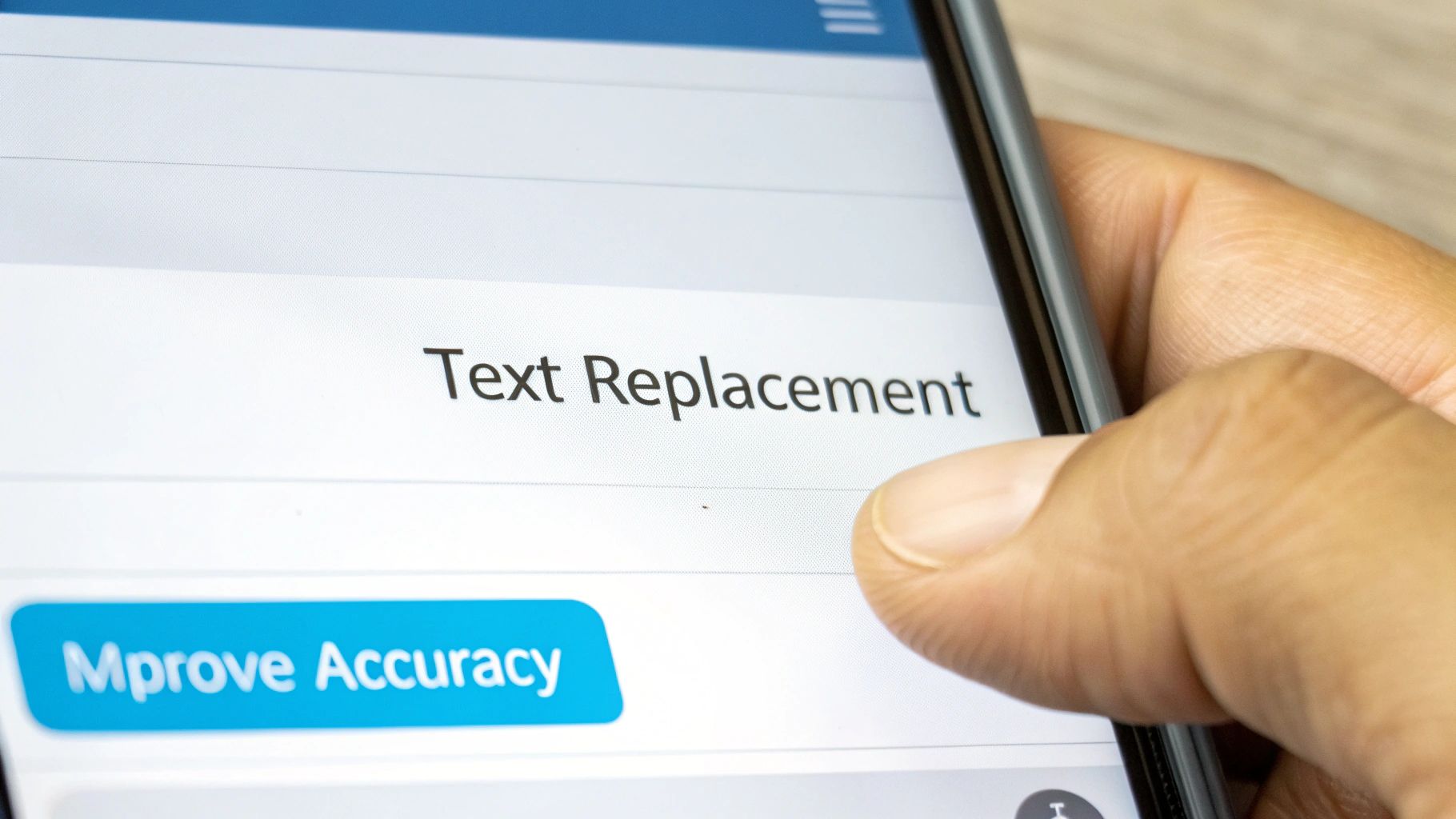
Does your iPhone mess up your friend's name, like "Shiobhan"? Or your work's name, like "FunCo"? You can fix this for good with a tool called Text Replacement. It's like making a special word list for your phone.
Here is how it works. Let's say your phone always types "fun co" when you say "FunCo." You can fix it.
- Go to Settings > General > Keyboard.
- Then, tap on Text Replacement.
- Tap the “+” sign at the top.
- In the box for “Phrase,” type the word the right way: FunCo.
- In the box for “Shortcut,” type how your phone hears it: funco.
That's it! Now, every time you say "funco," your phone will fix it to "FunCo." This saves you from having to go back and fix words all the time. It is great for names or work words.
You are teaching your iPhone new things. When you add your own words, it gets better at understanding you. You'll see fewer mistakes.
People love that phones are getting smarter. The world is spending more and more money on tools that turn speech into text. It shows how much we use this for everything, from quick texts to work stuff.
Pick Your Language and How You Talk
Your iPhone is smart, but it's not a mind reader. If you have it set to "English (US)" but you talk with an Australian accent, it will have a hard time. Make sure your language setting matches how you speak.
You can check this in Settings > General > Keyboard. Find "Dictation Languages." If you speak with a special accent, pick the one that is right for you, like "English (UK)" or "English (Australia)." This tells your iPhone how to listen, which makes it much better at understanding you. To learn more, you can read about the key factors affecting speech-to-text accuracy.
How Your Phone Keeps Your Words Private
Do you ever wonder where your words go when you talk to your phone? On new iPhones, your voice is turned into text right on the phone itself. It does not go to the internet. This is great for keeping your words private and making it fast.
This means when you talk about a secret work idea or a private note, the sound of your voice never leaves your phone. It is not sent to a computer somewhere else. This keeps your private thoughts safe. It also makes it super fast because it does not need the internet. Your thoughts stay yours.
Fixing Common Talking-to-Text Problems
We've all been there. You tap the microphone button, ready to talk, and… it doesn't work. Or the button is just gone! When your favorite tool stops working, it's a pain.
But don't worry, the fix is usually easy. Before you do anything else, try turning your iPhone off and on again. A quick restart can fix lots of weird problems and often gets your microphone working again.
The Missing Microphone Button
The biggest problem people have is the microphone picture disappearing from the keyboard. When this happens, it's usually because the talking tool was turned off by accident.
Here’s where to look first:
- Open your Settings app.
- Tap General, then go down and pick Keyboard.
- Look for the Enable Dictation switch and make sure it’s on (green).
If it was already on, try turning it off, wait a few seconds, and then turn it back on. This simple trick often makes the microphone button come back. For more help, our guide on how to turn on voice-to-text has all the steps.
When Your iPhone Won't Listen
What if the microphone button is there, but it's gray and you can't tap it? This usually means there's a problem with the microphone itself, not the talking tool. Your iPhone might be confused about which microphone to use.
This happens a lot if you use Bluetooth headphones or speakers.
Your iPhone likes to use the last microphone it was connected to. If you just got out of your car, it might still be trying to listen through your car's microphone, even if you're far away now.
Check your Bluetooth. Turn off any headphones, speakers, or car systems. The fastest way is to open the Control Center and tap the Bluetooth picture to turn it off for a second. Try talking to your phone again. If it works, you found the problem.
Internet and Hidden Rules
Even though new iPhones can work offline, a bad internet connection can still make the talking tool slow, especially on older phones. Look at your Wi-Fi or cell signal to see if that's the problem.
Another sneaky problem can be Screen Time rules. If you or a parent set up Screen Time, "Siri & Dictation" might be turned off. This can happen by accident on any phone.
You can check this in Settings > Screen Time > Content & Privacy Restrictions > Allowed Apps. Just make sure Siri & Dictation is turned on.
Problems and Quick Fixes
When your voice to text iPhone tool has a problem, this simple table can help you figure out what's wrong and fix it fast.
| Problem | What to Check First | What to Do Next |
|---|---|---|
| Microphone picture is gone | Go to Settings > General > Keyboard and turn "Enable Dictation" on. | Turn "Enable Dictation" off and then on again. |
| Microphone is gray | Turn off Bluetooth to unplug from headphones or your car. | Check for app updates. The app might have a problem. |
| It doesn't understand me | Don't hold the phone too close or too far from your mouth. | Go to Settings > Keyboard > Dictation Languages and pick how you talk (like UK or US English). |
| It stops listening | Check your Wi-Fi or cell signal. A bad signal can stop it. | Turn your iPhone off and on again to fix any small problems. |
By trying these fixes, you can solve most voice to text iPhone problems by yourself. Usually, it's not a big problem—just a simple setting that needs to be fixed.
Your Questions Answered
Even when a tool is easy to use, you might have questions. Here are quick answers to the most common questions about talking to your iPhone to make it type. Think of it as a cheat sheet to help you fix problems.
Learning to talk to your phone should be easy. The goal is to make it feel just as simple as typing, so you can use it whenever you need it.
Can I Talk to My Phone Without Internet?
Yes, you can. On most new iPhones (like the iPhone XR/XS or newer), talking to your phone works just fine even if you're offline or in airplane mode. Your phone is strong enough to turn your voice into words all by itself.
This is great for being fast and keeping your words private. Just make sure the tool is turned on. Go to Settings > General > Keyboard and turn on 'Enable Dictation'. After that, you can talk to your phone anywhere, with no internet needed.
Being able to talk to your phone offline is a big deal. It means your private thoughts, like a secret idea or a diary note, stay on your phone and are not sent over the internet.
How Do I Add a Comma with My Voice?
Learning to add dots and commas with your voice is a very helpful trick. It's easy: just say the name of the punctuation mark where you want it to go. It feels a little funny at first, but you'll get used to it.
For example, if you wanted to type, "Wait, what was that?" you would just say:
"Wait comma what was that question mark"
This works for all the common punctuation marks you need.
- Say "period" to end a sentence.
- Say "exclamation point" to show you're excited!
- Say "new line" to start on the next line down.
Using these voice words is how you make your text look neat and easy to read.
Are My Spoken Words Kept Private?
Apple cares a lot about keeping your stuff private, and your voice is part of that. When you use the microphone on the keyboard, your voice is turned into text right on your iPhone. This means your voice is never sent to Apple's computers.
This is a big plus for keeping your information safe. It's great for talking about secret work notes or private thoughts without worrying about them leaving your phone. When you ask Siri a question (like "what's the weather?"), some information is sent to Apple to get the answer, but it is not saved with your name. For the most privacy, use the microphone on the keyboard.
Why Is the Microphone Button Gone from My Keyboard?
If you see that the microphone picture is gone from your keyboard, don't worry. It's almost always an easy fix. It usually just means that the talking tool got turned off by mistake.
First, check your settings. Go to Settings > General > Keyboard and make sure the 'Enable Dictation' switch is on.
If it's already on, the problem might be the app you are in. Some apps, like banking apps, turn off the talking tool to keep your passwords safe. A quick way to check is to go to a different app, like Notes or Messages, and see if the microphone button is back.
Talking out your ideas should be easy. WriteVoice turns your spoken words into perfect text in less than a second, helping you work four times faster. Get your ideas down in any app, from Slack to Jira, with over 99% accuracy. Save time and do more by visiting https://www.writevoice.io to start your free trial.