Top 12 Dictation Software for Mac Tools in 2025
Typing takes time. Dictation software for Mac writes your words when you talk. It helps you work faster and keeps your hands free.
In this list you will see:
- Easy steps to start
- Key features for each tool
- Simple tips to get better results
- Links to learn more or download
We cover:
- Free tools built into macOS
- Apps you can add or buy
- Browser extensions for web typing
This guide is for anyone who wants to talk instead of type.
1. WriteVoice
WriteVoice turns talking into text in less than a second. It works on Mac, iPhone, and any web page. It also keeps your words private on your device.

Key Features
| Feature | Benefit |
|---|---|
| Fast (0.5s) | Starts as soon as you talk |
| Very accurate | Fewer mistakes to fix |
| App-aware style | Writes like email or chat |
| On-device privacy | No audio leaves your Mac |
Use Cases
- Write an email while walking
- Take notes in a meeting
- Make a to-do list by voice
- Speak in another language
Pricing & Access
- Free plan for basic use
- Paid plan for more features
- Try it with no credit card
Learn more about WriteVoice on writevoice.io:
Learn more about WriteVoice on writevoice.io
Pros & Cons
Pros
- Very fast text from voice
- Works in chat apps and docs
- Keeps data on your Mac
Cons
- Some tools need paid plan
- Enterprise setup needs extra steps
Tips
- Say “new line” to start a new paragraph
- Train the mic by talking clearly
- Use the same voice tone for similar tasks
WriteVoice is a top choice in dictation software for Mac because it is fast, accurate, and private.
2. Apple — macOS Dictation (built in)
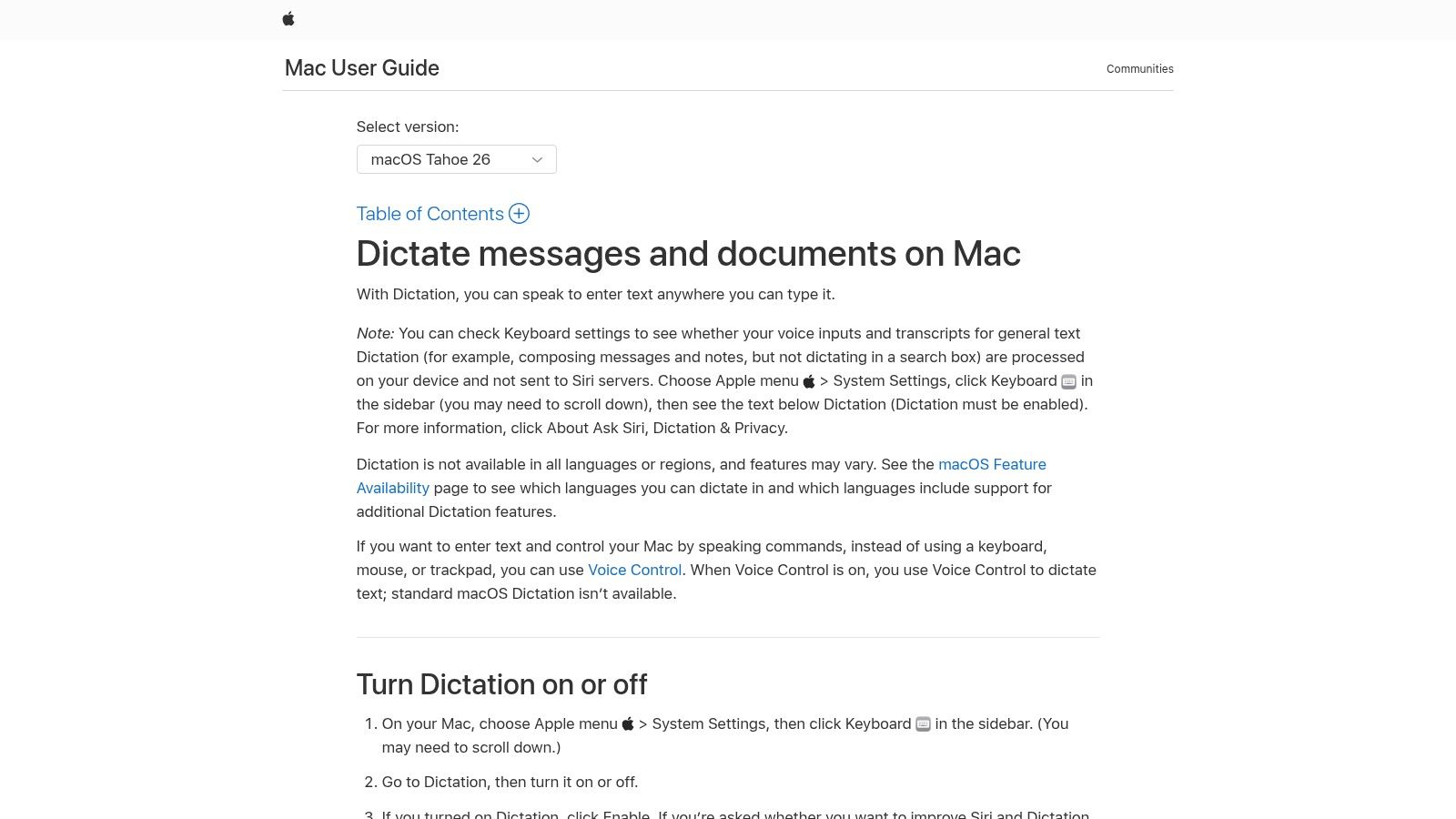
macOS Dictation is free and already on your Mac. It types what you say in most apps. You can even use it without internet in some languages.
Key Features
- Speak anywhere to type
- Auto punctuation
- Emoji by voice
- Works offline in some languages
- Shortcut to start/stop
Use Cases
- Write quick emails in Mail
- Send chat messages
- Take quick notes in Notes
- Make a shopping list by talking
Pros & Cons
Pros
- Free and easy
- No extra install
- Keeps speech on your Mac
Cons
- Few editing commands
- Offline works only in certain languages
Tips
- Use a clear mic for fewer mistakes
- Speak in short phrases
- Add extra languages in Settings
Learn more about Apple — macOS Dictation (built in) on writevoice.io
3. Apple – Voice Control (built in)
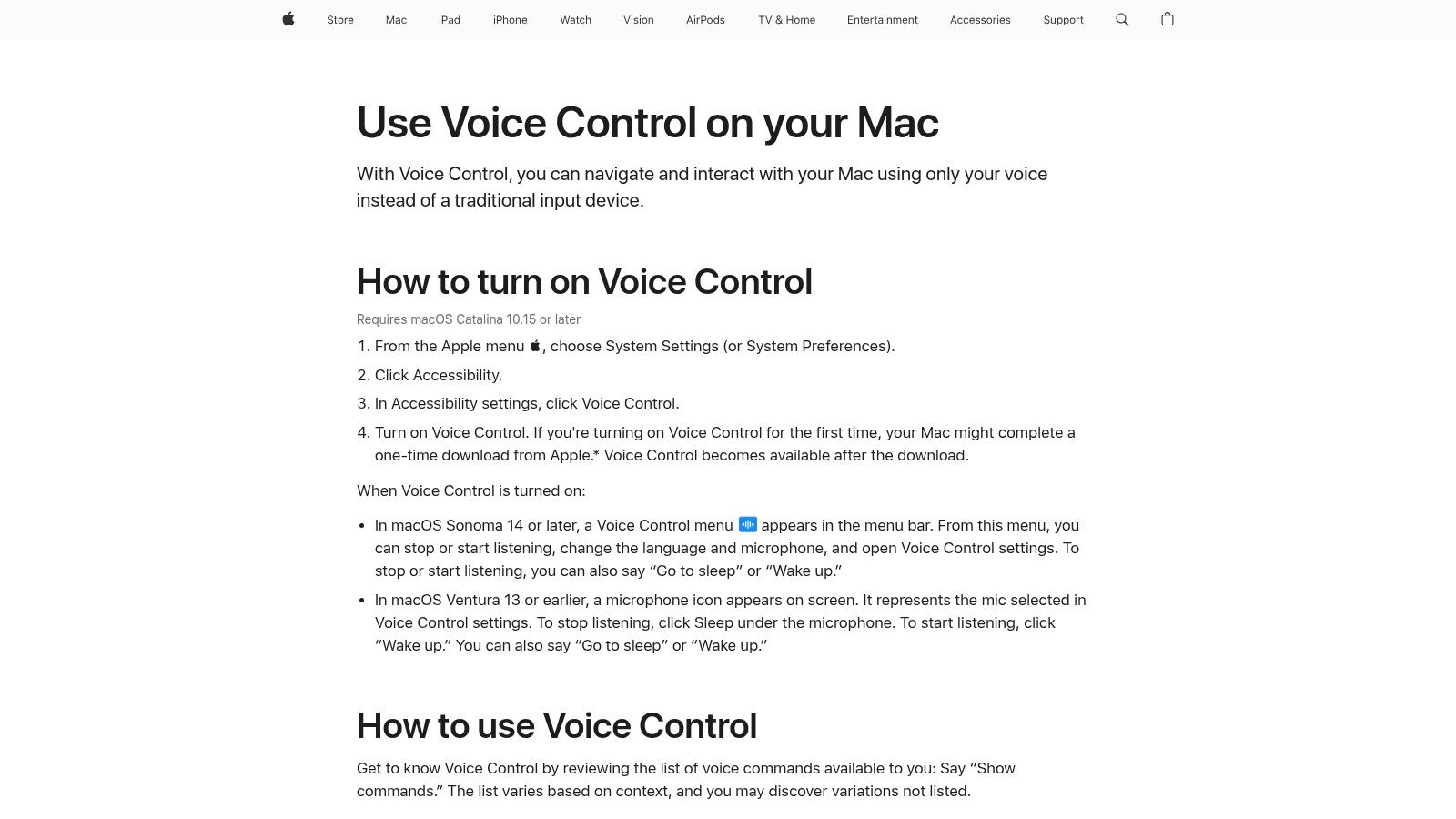
Voice Control lets you use your voice for typing and clicking. It works on your Mac and keeps data local for privacy.
Key Features
- Continuous dictation
- Say app names to open them
- Spell words letter by letter
- Add your own voice commands
- On-device processing
Use Cases
- Write emails hands-free
- Click buttons by name
- Fill web forms by voice
- Control numbers in tables
Pros & Cons
Pros
- Full Mac control by voice
- Keeps all audio on your device
Cons
- Takes time to learn commands
- Standard dictation pauses when active
Tips
- Read Apple’s command list first
- Use a USB mic for clear sound
- Add your project names to custom commands
Learn more at https://support.apple.com/en-us/HT210539?utm_source=openai
4. Microsoft Word (Microsoft 365) – Dictate for Word on Mac
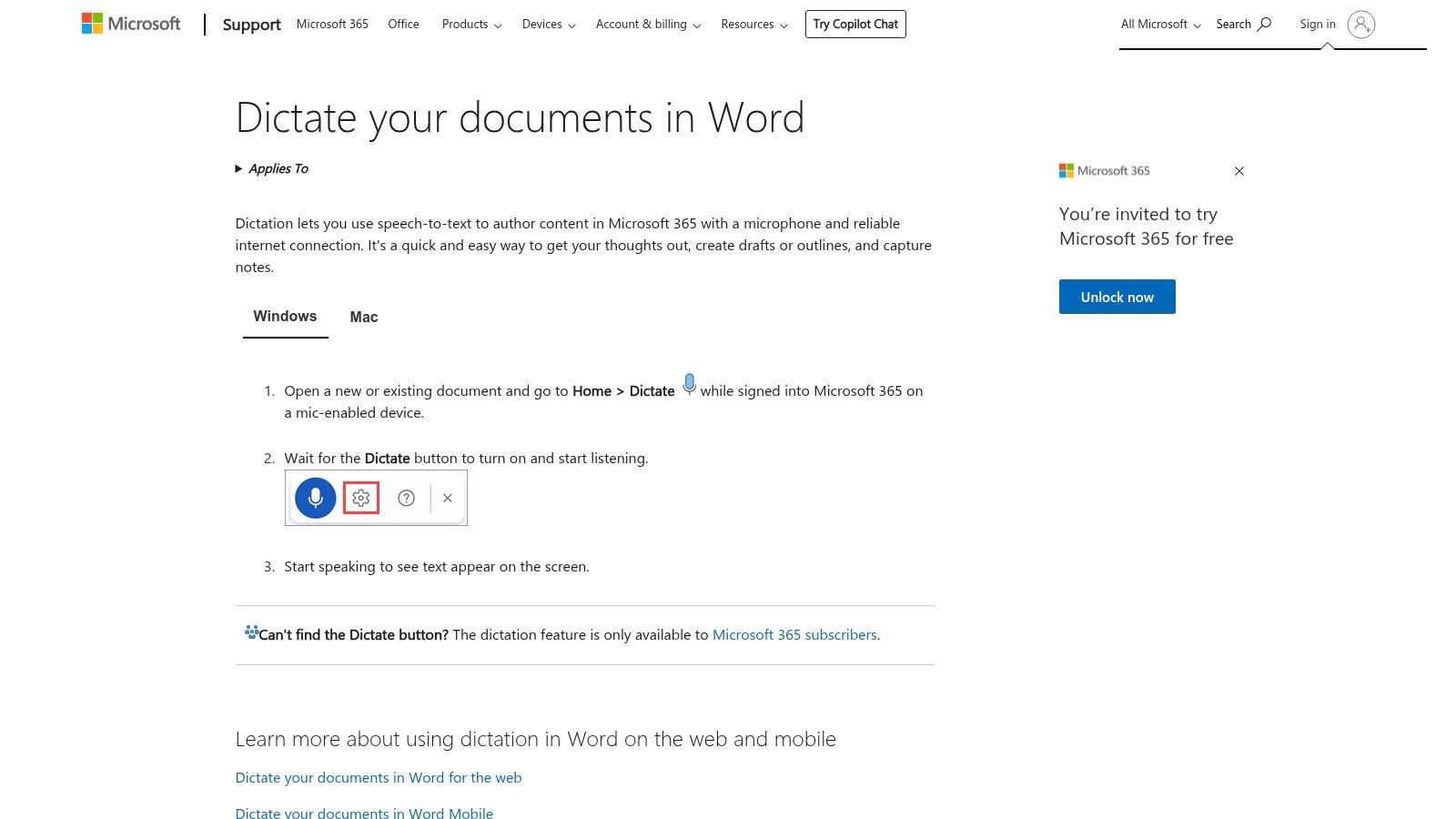
Dictate is built into Word and Outlook. You talk and it types your text and punctuation. It uses internet AI for strong results.
Key Features
- Talks to text in Word, Outlook
- Punctuation and line breaks by voice
- Always up to date in cloud
- Enterprise safety settings
Use Cases
- Write reports in Word
- Reply to emails in Outlook
- Make slides by voice
- Take notes in OneNote
Pros & Cons
Pros
- Works inside Office apps
- Many editing voice commands
Cons
- Needs Microsoft 365 plan
- Must be online
Tips
- Use a headset mic
- Speak in short chunks
- Pause a moment for commands
Learn more about Microsoft Word (Microsoft 365) – Dictate for Word on Mac on writevoice.io
5. Google Docs – Voice Typing
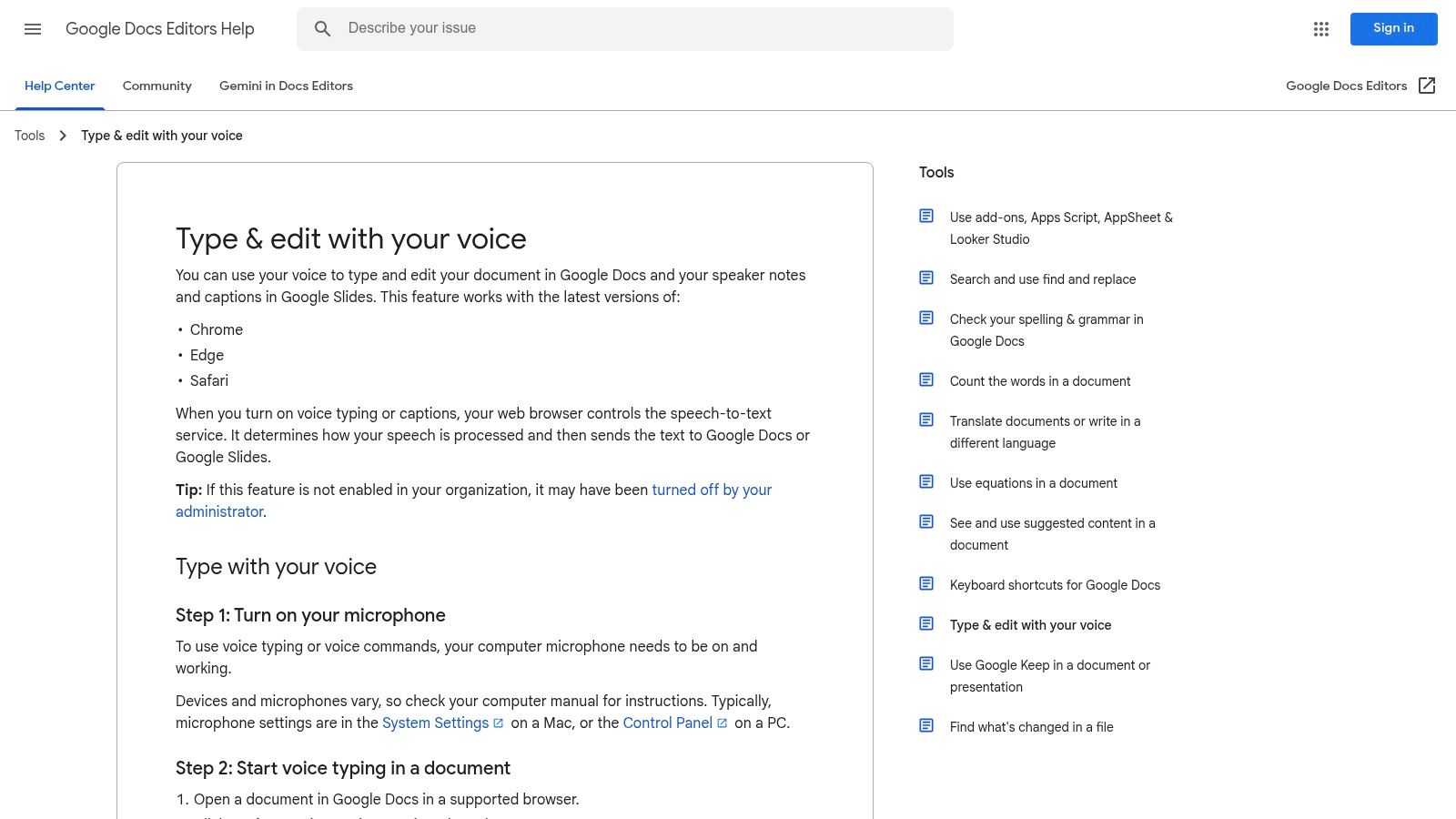
Google Docs Voice Typing works in Chrome and other browsers. Click the mic icon and speak. It also works for Google Slides captions.
Key Features
- Type by talking
- 100+ languages
- Format with voice commands
- No install, runs in browser
Use Cases
- Share notes in Docs
- Add live captions in Slides
- Copy text into email
- Format report by voice
Pros & Cons
Pros
- Free with Google account
- Team editing in real time
Cons
- Needs internet
- Works only in Google apps
Tips
- Use a quiet room
- Speak clearly
- Learn common voice commands
6. Otter.ai – AI meeting notes and live transcription
Otter.ai makes a live transcript and a short summary. It runs on your Mac or in a browser. You can search old talks and share notes.
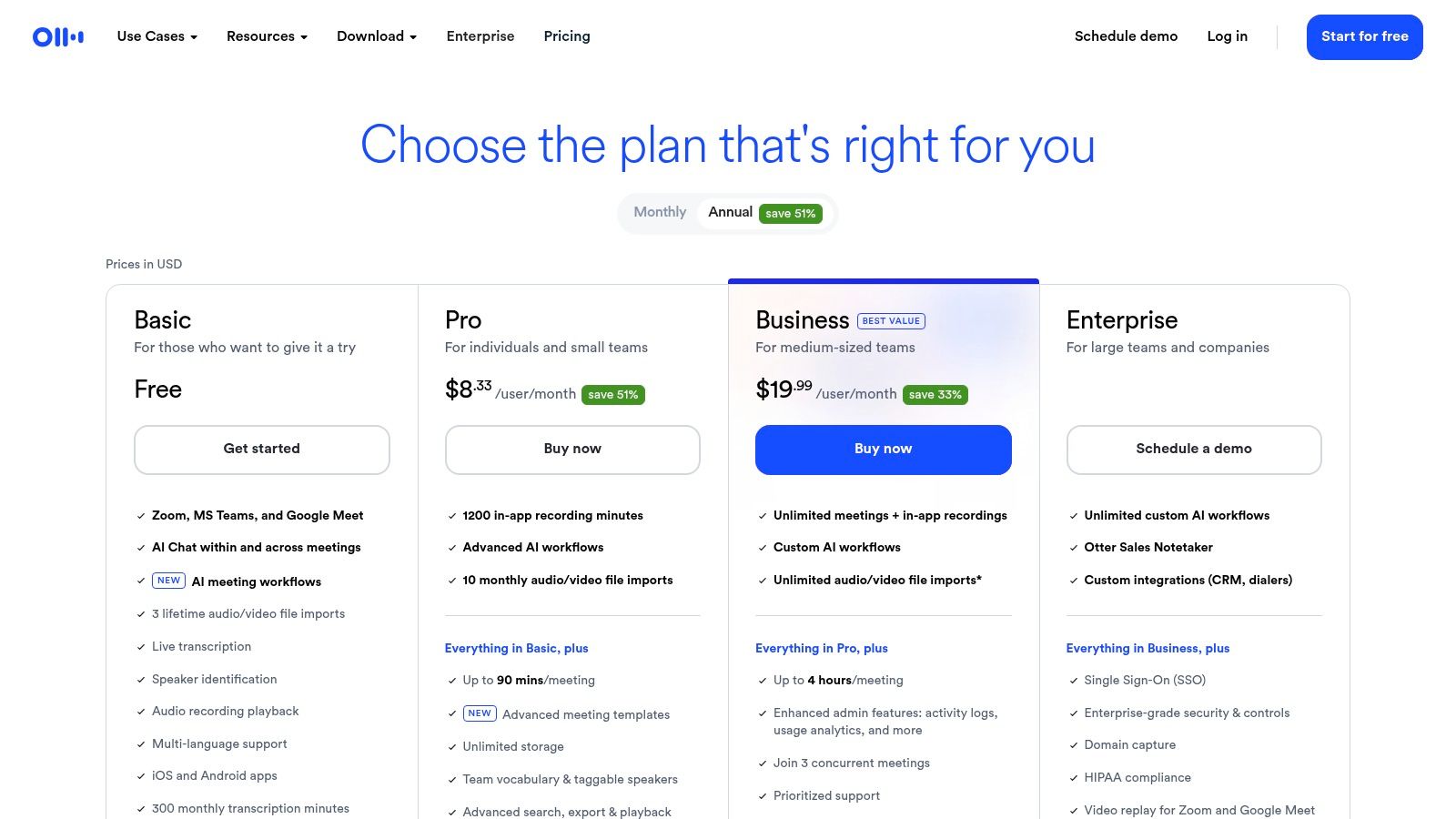
Key Features
- Live transcript as you talk
- AI summary after recording
- Works on Mac and web
- Syncs across devices
- Zoom and Teams links
Use Cases
- Auto notes for Zoom calls
- Share summaries in chat
- Search past meetings
- Export text for reports
Pros & Cons
Pros
- Fast setup
- Labels speakers clearly
Cons
- Needs constant internet
- Free plan has limits
Tips
- Link your calendar for auto-join
- Talk in clear segments
- Use comments to mark tasks
Learn more about Otter.ai – AI meeting notes and live transcription on otter.ai
7. Descript – Recorder, transcription and text-based editing
Descript records audio or video and makes a transcript you can edit like text. Delete words to remove them from audio.
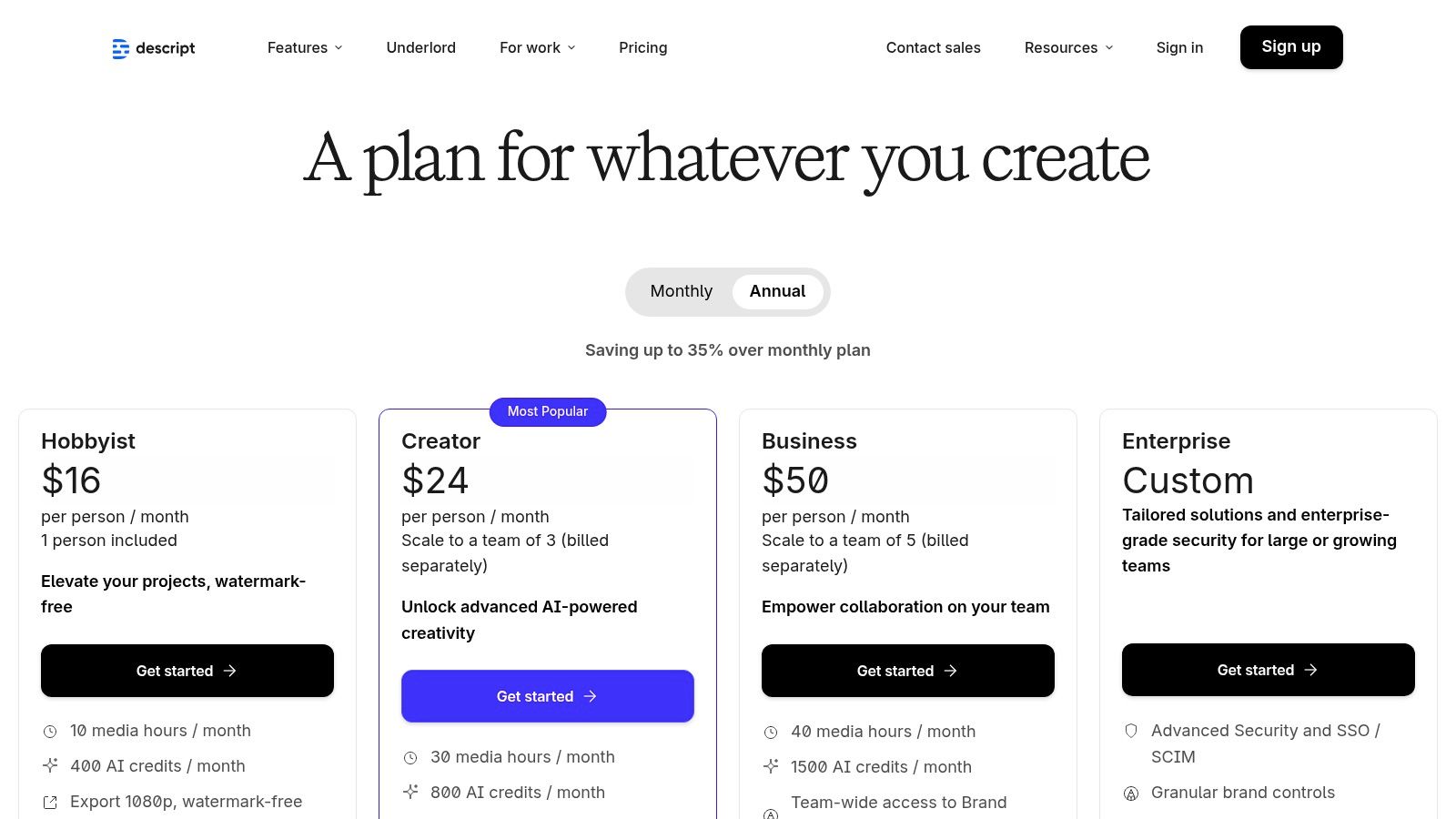
Key Features
- Auto transcription each month
- Edit audio by editing text
- Remove filler words
- Team work in browser and app
Use Cases
- Podcasters cutting out “ums”
- Video makers fixing scripts
- Teams editing meeting recordings
- Reporters transcribing interviews
Pros & Cons
Pros
- All-in-one tool
- Easy text editing
Cons
- More than simple dictation
- Monthly limits on free plan
Tips
- Record in a quiet room
- Label speakers early
- Remove filler words last
8. Notta.ai – Dictation and transcription for web and Mac
Notta.ai types your speech live in browser or Mac app. It can also label speakers and translate text.
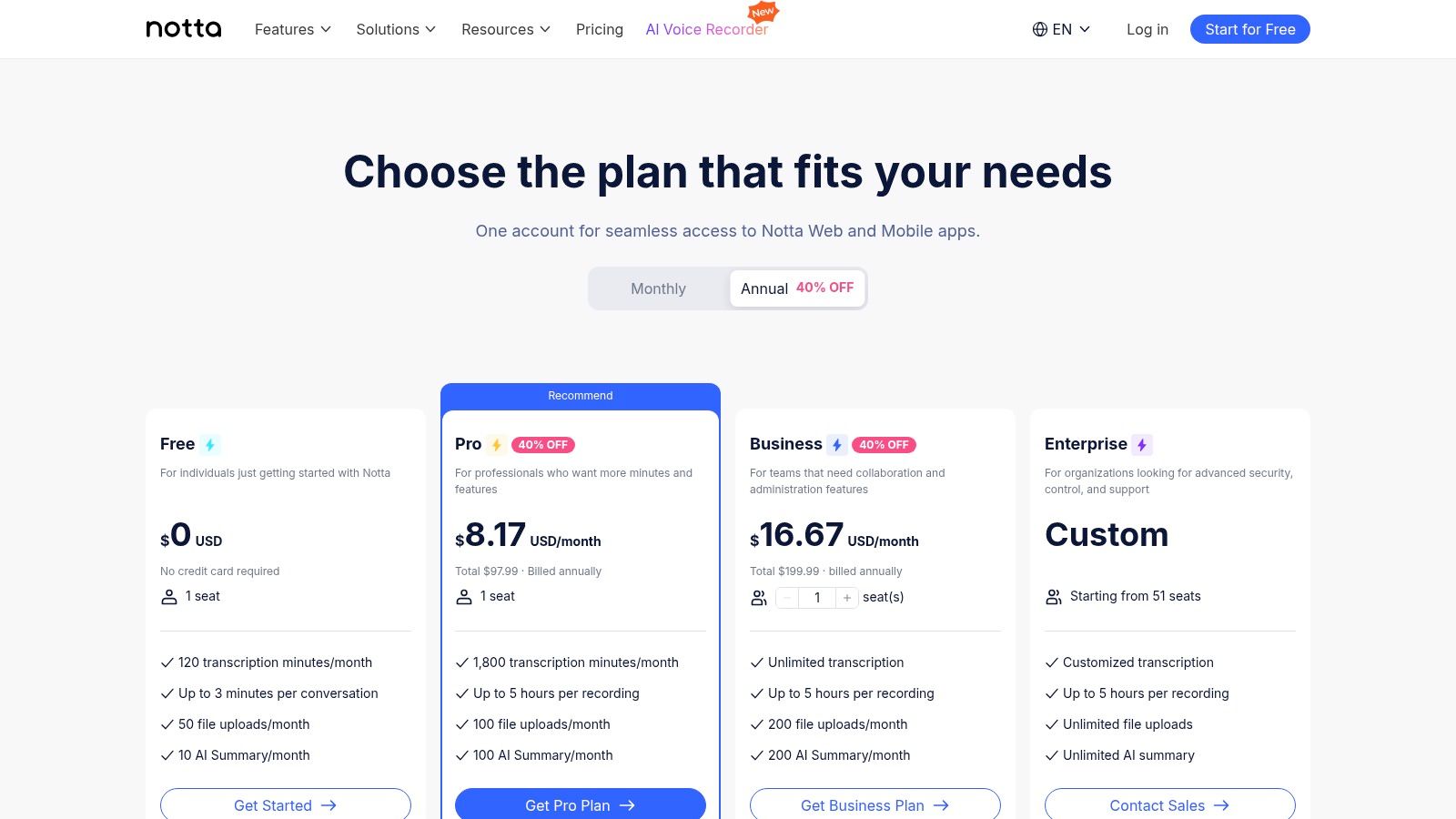
Key Features
- Live typing in app or browser
- Speaker labels
- Translate and summarize
- Chrome extension
Use Cases
- Notes in online meetings
- Edit voice memos
- Translate calls
- Add captions to videos
Pros & Cons
Pros
- Lots of minutes on paid plans
- Easy export to text and SRT
Cons
- Paid plan for top features
- Mac app needs newer Macs
Tips
- Use a headset mic
- Label speakers soon after recording
9. MacWhisper (direct purchase)
MacWhisper uses local models to type your speech offline. You press a hotkey and talk into any box.
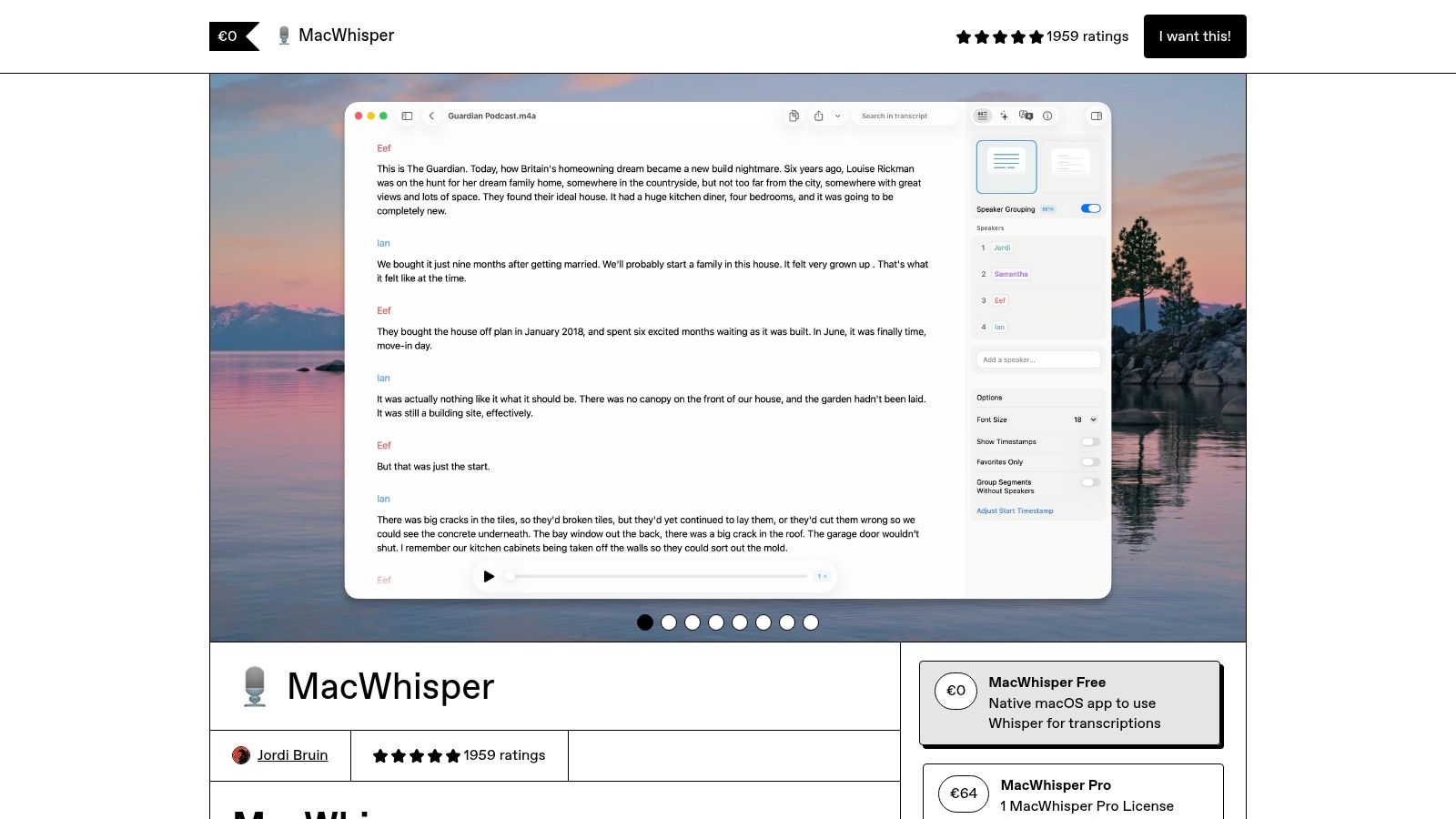
Key Features
- Works without internet
- Hotkey to start anywhere
- Translate in many languages
- One-time purchase
Use Cases
- Email in Mail by voice
- Make notes in Slack
- Create tasks by talk
- Transcribe recordings offline
Pros & Cons
Pros
- No monthly fees
- Data stays on your Mac
Cons
- Needs good RAM and Apple chip
- App Store version is limited
Tips
- Choose the direct download for full features
- Use a clear mic for best results
10. Whisper Transcription (App Store version of MacWhisper)
Whisper Transcription is the App Store version of MacWhisper. It updates like any app and keeps models on your Mac.
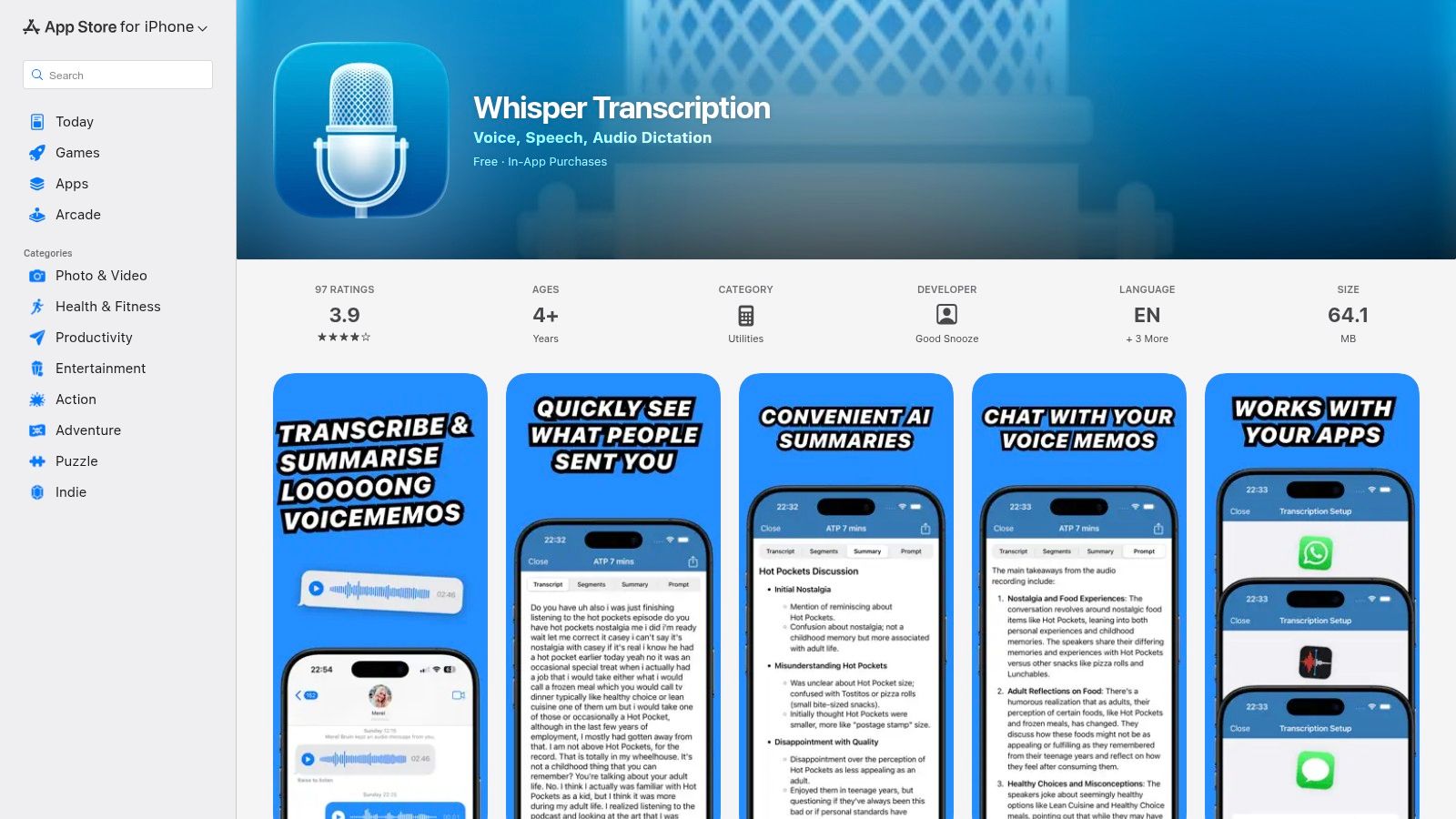
Key Features
- App Store install and update
- Transcribe offline on M1/M2
- Optional cloud boost for long files
Use Cases
- Transcribe private calls
- Speak blog sections offline
- Take notes without internet
Pros & Cons
Pros
- Easy install and updates
- Keeps models local
Cons
- No system-wide hotkey
- Some features need in-app purchase
Tips
- Use USB mic for clear sound
- Keep recordings under 30 minutes
11. Voice In – Speech-to-Text Dictation (Chrome extension)
Voice In adds dictation to web pages in Chrome. You can talk in Gmail, Docs, and any text box.
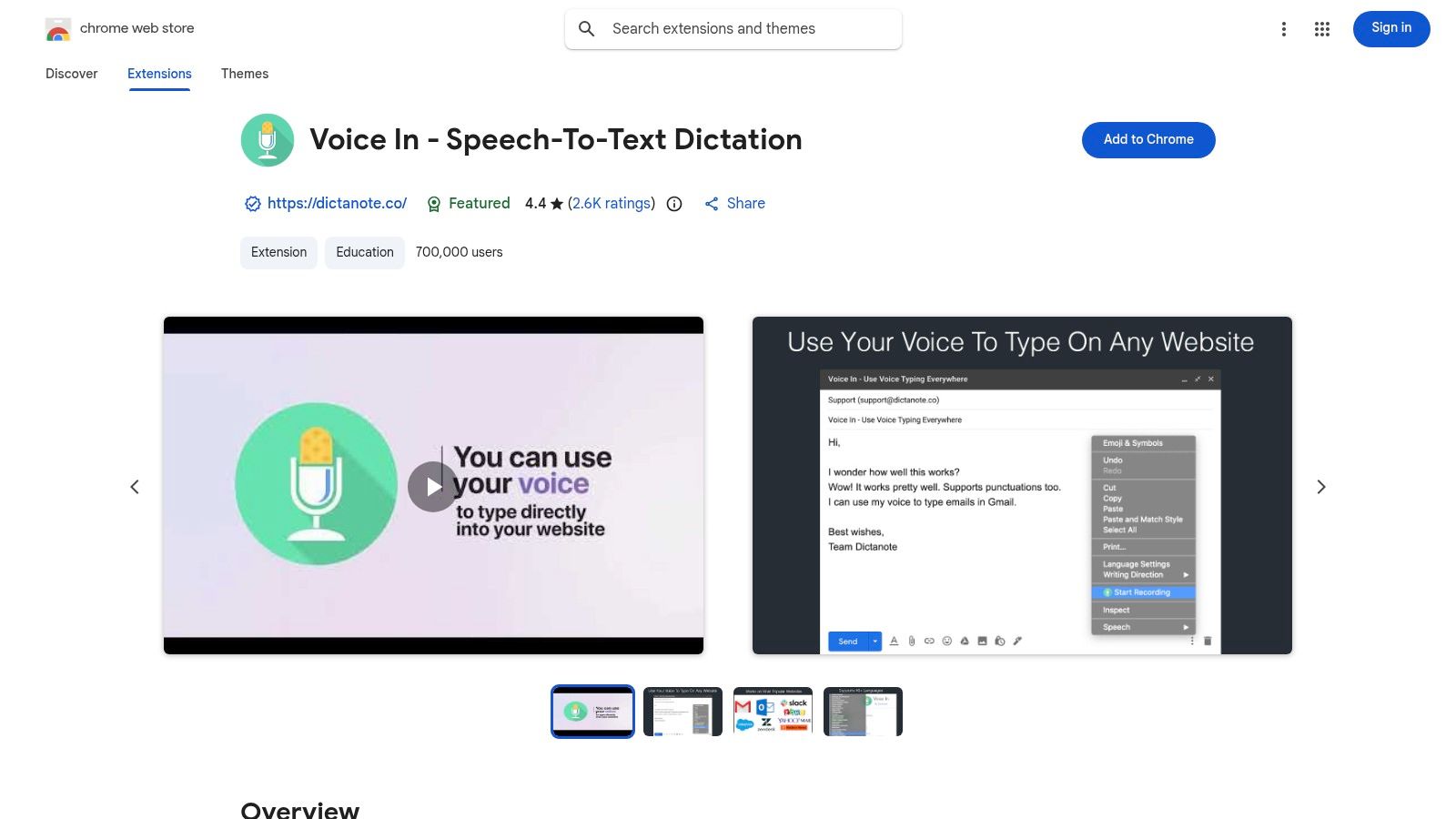
Key Features
- Works on 10,000+ sites
- 40+ languages
- Punctuation and emoji by voice
Use Cases
- Email in Gmail by voice
- Notes in Jira or Asana web
- Fill out forms hands-free
Pros & Cons
Pros
- No install outside Chrome
- Fast web typing
Cons
- Only in Chrome
- Free needs internet
Tips
- Allow mic in Chrome settings
- Use a good headset for clear audio
12. Rev.com — AI and human transcription services
Rev.com uses AI or real people to turn audio into text. You upload files in any browser. No install needed.

Key Features
- AI transcription by minute
- Human transcription for 99% accuracy
- Built-in editor
- Export captions
Use Cases
- Transcribe Zoom recordings
- Add subtitles to videos
- Share notes from interviews
Pros & Cons
Pros
- No app install
- Human option for top accuracy
Cons
- Not live dictation
- Costs add up with heavy use
Tips
- Check AI text before sharing
- Use human service for legal notes
Learn more about Rev.com — AI and human transcription services on writevoice.io
Top 12 Mac Dictation Tools Comparison
| Tool | Speed | Accuracy | Privacy | Cost |
|---|---|---|---|---|
| WriteVoice | Very fast | Very high | Local device | Free+paid |
| macOS Dictation | Fast | High | Local device | Free |
| Voice Control | Fast | High | Local device | Free |
| Word Dictate | Medium | High | Cloud | Paid |
| Google Docs Voice Typing | Fast | High | Cloud | Free |
| Otter.ai | Medium | High | Cloud | Free+paid |
| Descript | Medium | High | Cloud+local | Free+paid |
| Notta.ai | Fast | High | Cloud | Free+paid |
| MacWhisper (direct) | Fast | High | Local device | One-time |
| Whisper Transcription | Fast | High | Local device | Free+IAP |
| Voice In (Chrome) | Fast | High | Depends | Free+paid |
| Rev.com | Slow | Very high | Cloud | Pay-per |
Your Next Steps
- Pick one tool to try this week.
- Use a clear mic or headset.
- Say “new line” or “comma” to add punctuation.
- Test short talks, then check for errors.
- Switch to another tool for special tasks.
“Try one app for a week, and your typing time will shrink fast.”