How Do I Turn On Talk To Text A Simple Guide for Any Device
Do you want to write with your voice instead of your fingers? It's easy! This is called talk-to-text. Just look for the little microphone picture on your phone's keyboard. On a computer, you can press two keys at the same time. It's a big help when your hands are busy.
Talk, Don't Type: A Faster Way to Do Things
Think about when you are making a snack and you remember you need milk. Don't stop and wash your hands to type! Just say, "Add milk to my list." Or when you have a great idea while walking your dog, you can say it out loud and your phone will write it down. Using your voice is a smart way to get things done.
But it's not just about being fast. This tool helps many people talk and share their ideas.
Why It's More Than Just a Shortcut
- It's Quick: Most people can talk a lot faster than they can type.
- It's Hands-Free: You can write messages or notes while you do other things, like cooking or playing.
- It Helps Everyone: For people who find it hard to type, this is a super important tool.
Some people find reading and writing tricky. For them, using their voice to type can make writing much easier. Tools like the one in Google Docs can be turned on with one tap. This helps everyone share their thoughts. If you want to learn more, you can read about it on Expert Market Research.
The best part about talk-to-text is that your ideas can become words right away. There's no stopping to type, so your thoughts can just flow out.
This picture shows you how to start using your voice to type on your favorite gadgets.
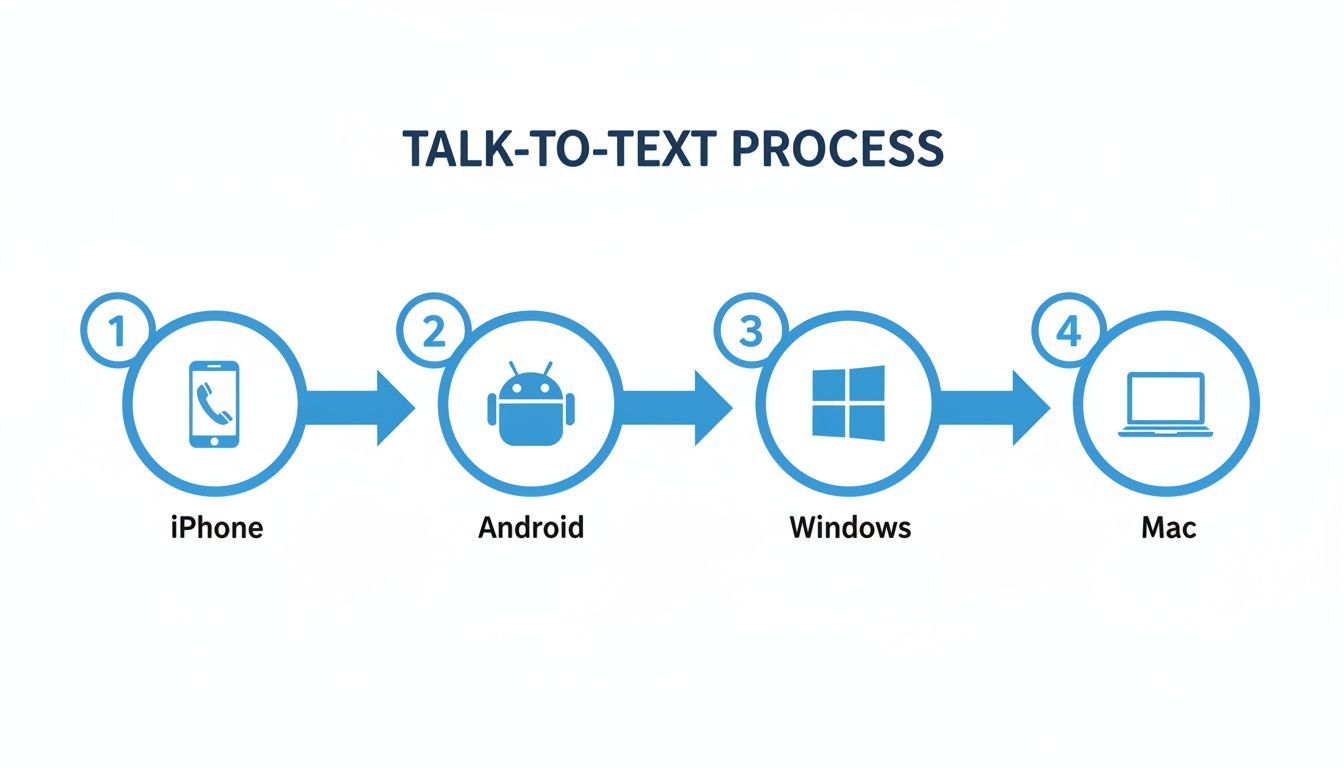
As you can see, every phone and computer has a simple way to let you talk instead of type.
Getting Voice Typing to Work on Your Phone
Your phone is always with you. That makes it a great tool for talking to write a quick message or note. Setting it up is simple, but it's a little different for iPhones and Androids.
On an iPhone
Apple calls this Dictation. It should already be turned on when you get a new iPhone. If you tap the microphone picture on your keyboard and nothing happens, it might be off.
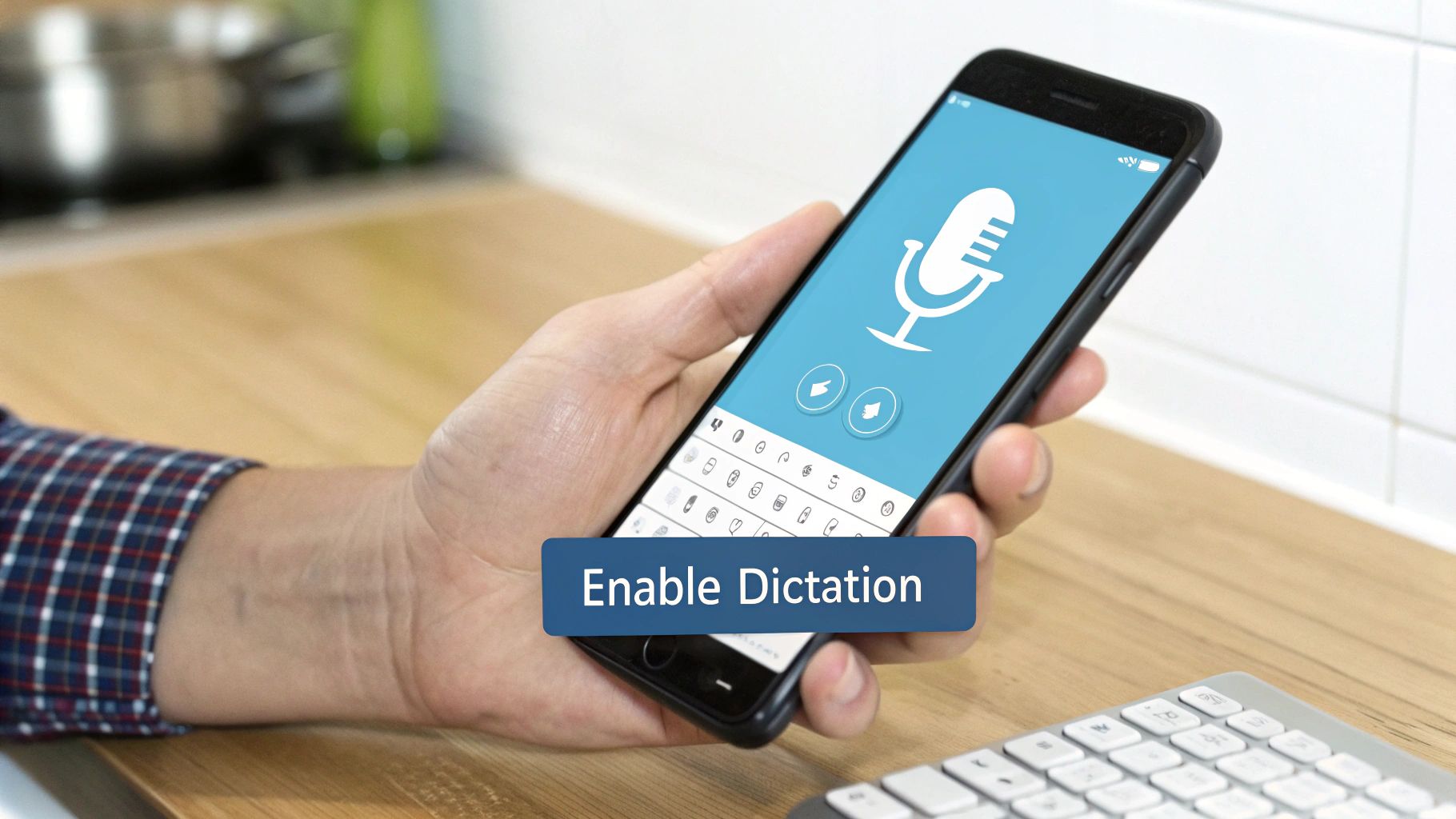
It's easy to fix. Go to your Settings app. Tap General, then tap Keyboard. Find the switch that says Enable Dictation and make sure it is green. That's it!
For more help, you can read our guide on how to turn on voice to text for your iPhone.
For Android Phones
Most Android phones use a keyboard from Google called Gboard. The tool here is called Voice typing. You can find its settings by tapping the little gear picture on the keyboard.
The biggest reason it might not work is that the keyboard needs your permission to use the microphone. This is a small step people often forget.
I see people get stuck on this a lot. If the microphone picture is gray or doesn't do anything, it's almost always because of permissions. You need to tell your phone it's okay for the keyboard to listen.
This is what Gboard looks like. The microphone picture is the button you need to tap.
If you checked the settings and it's still not working, go into your phone's main settings. Look for your Apps list. Find Gboard and give it Microphone permission.
Now you are ready to talk instead of type!
How To Use Your Voice To Type On A Computer
Talking to your computer to write is amazing, especially for long things like school papers. It's a good way to get your thoughts onto the page fast, without making your fingers tired.
Talking to a Windows Computer
On a Windows computer, it is very easy to start voice typing. All you do is press two keys at the same time: the Windows key and the H key.
A small box with a microphone picture will show up. Then, just start talking. Your words will show up in whatever you have open, like a paper, an email, or a search box.
You can also tell it what to do with your voice:
- Say "delete that" to erase the last thing you said.
- Say "new line" to start a new line, just like hitting the Enter key.
- Say "stop dictation" to turn the microphone off.
It's a really good way to write a whole story using just your voice.
The best thing about computer dictation is how fast it is. You can speak much faster than you can type. You can finish a school paper in way less time. Just talk, check your work, and fix any mistakes.
Talking to a Mac
Mac computers have something just like this called Dictation. If you've never used it, you might have to turn it on first. Go to System Settings, find Keyboard, and turn it on there.
Once it's ready, you can start by pressing the Function (fn) key twice. A microphone picture will pop up to show you it's listening. For more help, we have a guide on how to do speech to text on a Mac.
The computers are very good at understanding what you say, even if it's a little noisy. This makes talking to your computer a great way to write.
Troubleshooting Common Talk-to-Text Issues
It can be annoying when voice typing stops working. But don't worry, the fix is usually simple. Most of the time, the problem is that your phone or computer can't hear you.
This usually happens because of a setting called permissions. Go to your settings and look for the 'Microphone'. Make sure the app you're using, like your keyboard, is allowed to use it. If that switch is off, the app can't hear anything.
What to Do When Your Words Get Mixed Up
What if the words show up all wrong? This is a different problem, but it's also easy to fix. The first thing to try is to speak a little slower and clearer. You don't have to talk like a robot. But speaking clearly and being close to the microphone helps a lot.
Another problem could be your internet. Many talk-to-text tools send your voice over the internet to understand it. If your Wi-Fi is weak, words can get lost or mixed up.
A quick check of your Wi-Fi should be one of the first things you do. A strong internet connection helps your voice typing be right and fast.
If you're still stuck, here are a few other tricks that usually work:
- Restart the App: It sounds simple, but closing and opening the app again often fixes small problems.
- Check for Updates: An old app or phone software can act weird. Make sure everything is up to date.
- Find a Quiet Spot: Noise from a TV, other people, or even a fan can make it hard for the computer to understand you.
Small changes often make the biggest difference. To learn more about getting your words right, check out our guide on what affects speech-to-text accuracy.
This tool is getting better all the time. One study by Straits Research says that soon, lots more people will be using it. This shows how important talking to our gadgets is becoming.
Simple Tricks For Better Voice Typing
Once you know how to turn on talk-to-text, a few simple tricks can make you even better at it. It's all about learning to speak the punctuation, like periods and commas.
For example, you can say, "I am going to the store period." Your phone will type, "I am going to the store." You can also do this for other marks. "Is it raining outside question mark" or "Wow exclamation point" will become sentences with the right marks at the end. It feels funny at first, but you'll get used to it fast.
This little trick saves a lot of time. You don't have to stop talking to go back and add periods.
Go Beyond Basic Punctuation
You can also use your voice to set up your page. Saying "new paragraph" is like hitting the Enter key twice. This is great for starting a new idea without touching the keyboard. It's a simple command, but it helps a lot when you're writing something long.
To make your voice typing even better, it helps to learn how to master iPhone auto-correction tools and tips. Knowing how to use auto-correct can help fix any small mistakes the computer makes.
Talking to our gadgets is becoming a big part of how we use them. This is not just for fun; it's changing how we work and talk to each other.
My number one tip is to find a quiet place. If there is less noise in the background, the microphone can hear you better. This will make your writing much more accurate.
If you are writing something private, like a diary, you might want to use a special tool like WriteVoice. Apps like this are made to keep your words safe and often don't save what you say. Learning these simple tricks will help you write a lot, without ever typing a word.
Frequently Asked Questions About Talk-to-Text
Trying voice typing for the first time can bring up some questions. I've heard most of them before, so let's answer the most common ones.
Does Talk-to-Text Work Without Internet?
It depends on your gadget. Many new phones can understand what you say without being online. This is great for when you don't have Wi-Fi. It's called on-device dictation.
But, older phones and most computers need to use the internet to figure out your words. If your voice typing suddenly stops, the first thing to check is your Wi-Fi or internet connection.
Can I Use Voice Typing in Any App?
Almost always, yes! Voice typing is built into the keyboard on your phone or computer. So, anywhere you can type—like in a message, on a website, or in a game—you should be able to talk instead.
Just tap where you want to write to make the keyboard show up. Then look for the little microphone picture. That's how you start talking to type.
A good rule to remember is: if you can type there, you can talk there. The microphone picture on the keyboard works in almost every app on your phone or computer.
Is It Safe to Dictate Private Information?
This is a very important question. When you use the normal talk-to-text on your phone, your voice is often sent to a big computer owned by companies like Google or Apple. They use it to understand your words.
They promise to keep your words safe, but some people worry about sending private information over the internet. If you are saying secret things, like passwords or private thoughts, you might want a special tool. Some apps are made to keep your words extra safe by never sending them anywhere.
For talking to type that is fast, correct, and also very private, check out WriteVoice. It keeps all your words on your own device, so everything you say stays safe with you.