Using Voice to Text on Android for Fun and Fast Typing
Do you get tired of typing on your phone's little keyboard? There's an easier way! Using voice to text on Android lets you talk instead of type. Your phone listens to your words and writes them down for you. It's like magic! It helps when your hands are busy or you just have a lot to say.
Why Talking Is Better Than Typing
Your Android phone has a secret helper inside. This helper can write down everything you say. Instead of tapping tiny keys and fixing mistakes, you just talk. Your words show up on the screen right away.
This is great for more than just sending a quick text. You can use it to write long school emails, take notes in class, or make a shopping list while you are putting away groceries. It saves a lot of time and makes using your phone easier, especially if you don't like typing.
An Easier Way to Talk and Write
Talking is how we share ideas the best. Voice to text just brings that easy feeling to our phones. Once you try it, you'll see why it's so good.
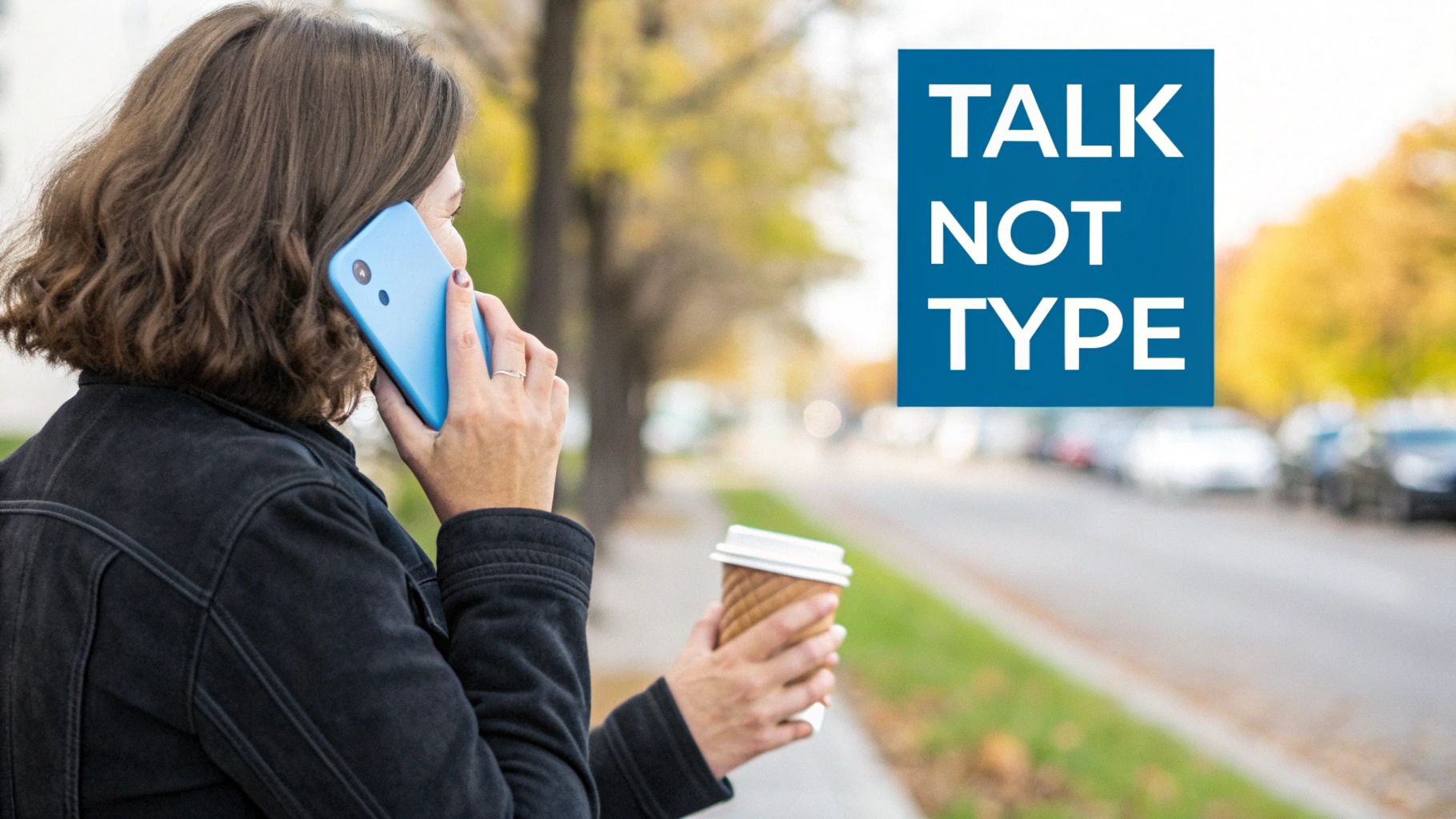
- It's Super Fast: Most people can talk way faster than they can type on a phone. Talking your message can be twice as fast as typing it.
- Keeps Your Hands Free: This is the best part! You can use it while walking your dog, cooking dinner, or riding in a car. You can get things done without stopping.
- Helps Everyone: For people who have a hard time using small keyboards, voice typing is a huge help. It's not just cool, it's necessary.
Think of voice to text like a friend who writes down what you say. It changes typing from a chore into a simple chat. It makes your phone feel smarter and easier to use.
More and more people are talking to their phones. Soon, there will be billions of gadgets that listen to our voices. We already see people using their voice to search for things online.
To see how good this helper has become, you can check out the best speech to text software options. These tools are very good at understanding what we say. If you want to get straight to messaging, you can learn more here: https://www.writevoice.io/blog/voice-to-text-messaging-android/.
How to Find and Turn On the Microphone
Your Android phone is ready to listen, but first, you have to turn on this special feature. The tool that listens is part of your phone's keyboard. Once you turn it on, you will see a little microphone button on your keyboard.
Getting this set up is the most important step. It's like putting the key in the car. Without it, you can't go anywhere.
Where to Find the Voice Typing Switch
The switch you need is usually in your keyboard's settings. Every phone is a little different, but you can usually find it by going to your phone's main settings, then looking for your keyboard.
Don't worry if you can't find it right away. Look for the name of your keyboard. It's probably Gboard (from Google) or Samsung Keyboard if you have a Samsung phone.
Once you find your keyboard's menu, look for a switch that says "Voice typing" and make sure it is on.
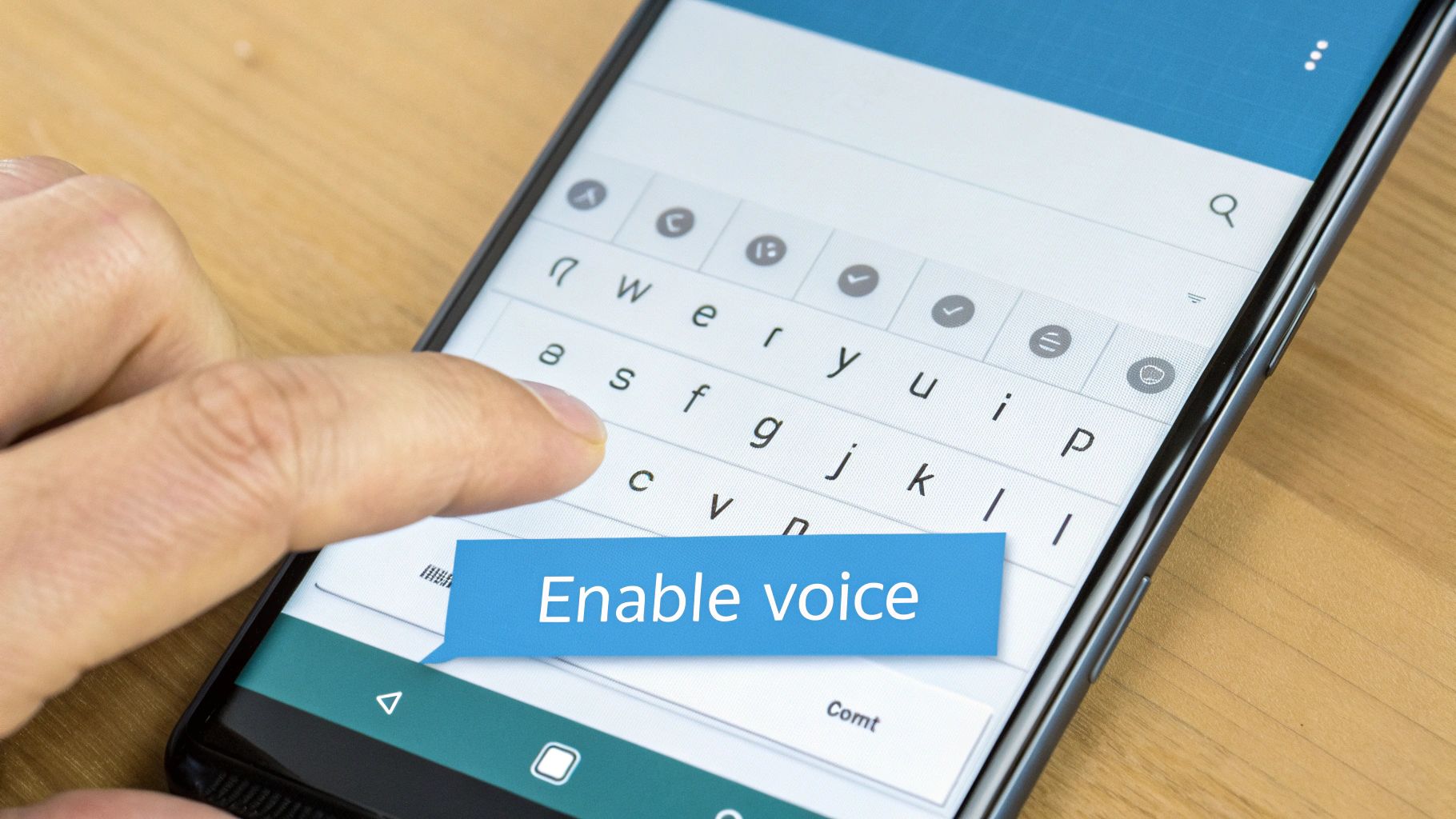
Flipping this switch just tells your keyboard that you want to be able to talk instead of type.
Let Your Keyboard Hear You
The first time you use voice typing, your phone might ask if it's okay for the keyboard to use the microphone. This is to keep you safe and make sure apps aren't listening when they shouldn't be.
If you see a pop-up box, make sure you choose "Allow" or "While using the app." If you say no, the keyboard can't hear you, and the microphone button won't work.
Think of it like this: Letting the keyboard use the microphone is like giving a pencil to your friend who is writing for you. Without the pencil, they can't write anything down.
Many people who think their voice typing is broken just forgot this one step. It's a quick check that can save you trouble.
Here are the steps to get it working:
- Go to your phone’s Settings (the little gear picture).
- Go to System > Languages & input > On-screen keyboard.
- Pick your keyboard (like Gboard).
- Find "Voice typing" and turn it on.
Now, the microphone button should be on your keyboard, and you're ready to start talking!
How to Add Punctuation with Your Voice
You tapped the microphone, and your phone is ready to write. But how do you add things like periods and question marks? It's not just about turning your talk into words; it's also about making it easy to read.
It's very simple. You just say the name of the punctuation mark you want. For example, to write "Hey there, how are you doing?", you would say, "Hey there comma how are you doing question mark". Your phone is smart enough to hear those words and put in the right marks.
This is a really cool trick. You can talk out a whole email or a story with all the right punctuation without ever touching the screen. It's a small thing that makes a big difference.
Talk Like You Normally Do
To get the best results, your phone needs to hear you well. The secret is to talk at a normal speed, like you're talking to a friend. Don't talk too fast, but don't take long pauses in the middle of a sentence either.
If you talk too fast, your words can get mixed up. If you talk too slow, the phone might think you're done talking. Just find a nice, easy speed, and your phone will understand you much better.
Easy Voice Commands for Punctuation
Knowing the right words to say makes voice typing very powerful. You can control how your writing looks just by talking. This is a big reason why using voice to text on Android is so popular. To learn more about how many people use this, you can look at this voice-to-text market analysis.
Here are the most important commands you'll use all the time.
Easy Voice Commands for Punctuation
Say these words out loud to add marks while you talk.
| To Add This Mark | Say This Word |
|---|---|
| Period (.) | "Period" |
| Comma (,) | "Comma" |
| Question Mark (?) | "Question mark" |
| Exclamation Point (!) | "Exclamation point" |
| Start a New Paragraph | "New paragraph" |
| Go to the Next Line | "New line" |
Learning just these few words will change how you write on your phone.
Fixing Mistakes the Easy Way
What if your phone writes down the wrong word? Don't use the backspace button! There's a faster way to fix it that most people don't know about.
Secret Tip: Instead of deleting the wrong word, just tap on it. The word will be highlighted. Then, say the right word, and your phone will swap it out for you.
This is a great trick because you don't have to stop talking. You can fix mistakes quickly without going back to typing with your fingers.
Using Voice Typing in Your Favorite Apps
Now for the fun part! The best thing about voice to text is that it works in the apps you use every day. Instead of slowly typing out messages, you can just talk.
Think about writing a long email in Gmail. Tapping on a small screen is no fun. A better way is to open a new email, tap the microphone button, and just start talking. Your phone does all the hard work.
It also works great for quick chats. Replying to friends in WhatsApp or Slack is much faster. Let's say a friend asks a long question. Instead of typing a big answer, you can talk out a clear reply in just a few seconds.
Making Everyday Things Easier
Voice typing is for more than just messages. It's a great tool for getting organized and doing things faster.
Here are a few ways it can help in real life:
- Shopping Lists: You're in the kitchen and see you're out of milk. Just open a notes app like Google Keep, tap the microphone, and say, "Add milk to my shopping list." Easy! You don't have to stop what you're doing.
- Quick Searches: Need to find a video on YouTube? Instead of typing "how to make slime," just tap the microphone in the search bar and say it. The videos will show up right away.
- Homework Notes: You can add notes to your school projects in apps like Trello just by talking. It's a fast way to remember ideas without having to type.
When you use your voice, your phone becomes more like a helper that listens. It understands what you want to do in different apps, which makes everything feel easier.
Try It in Other Apps
The voice typing that comes with your Android phone is really good. But some apps are made just for talking and writing. They might have extra features, like special ways to organize your notes. If you use voice to text a lot, you might want to try a special voice to text app for Android.
You can also look at some of the best speech to text apps for Android if you want to do even more with your voice.
The best way to learn is to just try it. The next time you see a place to type in an app, look for that little microphone button. Tap it and see what happens. You'll be surprised how many things you can do without using your hands.
Fixing Voice Typing Problems
Voice typing on Android usually works great. But sometimes, things can go wrong. If your voice to text stops working, don't worry. It's usually an easy fix.
Most problems, like a missing microphone button or jumbled words, have simple answers. Let's find out what's going on and how to fix it.
My Microphone Button Disappeared!
This is a common problem. You want to talk, but the little microphone button on your keyboard is gone! This can happen after a phone update or if you accidentally turn off a setting.
The good news is that it's easy to get it back. You just have to turn it on again in your keyboard's settings.
- Go to your phone’s main Settings.
- Find System > Languages & input.
- Tap On-screen keyboard and pick your keyboard (it's probably Gboard).
- Look for Voice typing and make sure the switch is "On."
After you do that, the microphone should show up on your keyboard again.
Why Are My Words All Wrong?
Is your phone writing "I like to eat clocks" when you said, "I like to eat snacks"? When your phone doesn't understand you, it's often because of your surroundings.
Your phone's microphone is like a person's ear. It has a hard time hearing in a noisy place. A loud TV, a noisy room, or even the wind can make it hard for your phone to hear you correctly. How far the phone is from your mouth also matters.
The best thing you can do is talk clearly in a quiet place. Hold the phone a little bit away from your mouth, about the length of a new pencil. You will be amazed at how much better it works.
Talking at a normal speed also helps. You don't have to talk like a robot, but talking too fast can make the phone miss some words. To learn more about getting clear results, this guide on speech-to-text accuracy can help.
Voice Typing Works in One App, But Not Another
Have you ever seen voice typing work great in WhatsApp but not at all in another app, like a game or a school app? This isn't a keyboard problem. It's usually about permissions for that one app.
Your phone lets you choose which apps can use your microphone. This is to keep you safe. If an app doesn't have permission, voice typing won't work inside it.
Here’s how to check and fix it:
- Open your phone’s Settings and go to Apps.
- Find the app where voice typing isn't working and tap on it.
- Choose Permissions.
- Find Microphone and make sure it is set to "Allow only while using the app."
By checking these things—your keyboard settings, where you are, and app permissions—you can fix most voice typing problems and get back to talking.
Your Top Questions About Voice Typing
Once you start using voice typing, you might have some questions. It's an easy tool, but knowing a few extra things can help a lot. Here are answers to some common questions.
Let's look at what's happening when you talk to your phone.
Does Voice Typing Use My Internet Data?
Yes, most of the time it uses a little bit of your internet data. When you talk, your phone sends a small sound file of your voice to Google. Their big computers figure out what you said and send the words back to your screen.
But what if you're on a plane or somewhere with no internet? The good news is you can set it up to work offline. Keyboards like Gboard let you do this.
- Find the Setting: Look in your keyboard’s settings for something called "Offline voice typing."
- Download Your Language: You can download the languages you speak, like English.
- Talk Anywhere: This is great for saving data or making sure voice typing always works, even with no internet.
Once you download a language, you can keep talking to your phone without being connected.
Think of it like this: Online mode is like having a super-smart helper on the phone. Offline mode is like having a dictionary in your pocket. It works well, even if it's not quite as smart as the online helper.
Can I Talk in Other Languages?
Of course! Android's voice typing works with hundreds of languages. If you speak more than one language, you can add them all in your keyboard settings.
Gboard is really smart about this. If you add both English and Spanish, it can often tell which one you are speaking without you having to switch anything.
This is a great feature for people who talk to friends and family in different languages. You can just start talking.
Should I Say My Passwords or Credit Card Numbers?
No, you should not do this. For your safety, never say private things like passwords, credit card numbers, or your address. Always type those with your fingers.
Remember, when you use voice typing, your voice is sent over the internet. It is much safer to keep your secrets off the internet. Use your voice for emails and messages, but use your fingers for important things.
Why Does It Keep Getting My Words Wrong?
It can be annoying when your phone hears "I scream" instead of "ice cream." This usually happens for a few reasons.
A noisy room is the biggest problem. A TV, a dog barking, or wind can mix up the microphone. Talking too fast, too quiet, or mumbling can also cause mistakes. For the best results, find a quiet spot and talk clearly at a normal speed.
Ready to stop typing? WriteVoice makes talking and writing even better. It turns your voice into text right away and works in any app. Save time and write four times faster. Try it for free at WriteVoice.io.