The 12 Best Free Tools to Turn Talking into Writing (2025)
Turning talking into writing is hard work. Imagine trying to write down everything your teacher says in class. It takes a long, long time! This is called transcription. Tools can do this for you, so you can play or do other things. But finding the best free transcription software is tricky.
This guide will help you. We will look at the best free tools. We will show you which one is good for what you need. Some tools are great for writing down what people say in online meetings. Others are good for turning a recorded voice into words.
We will show you pictures of how each tool works. We will give you links to try them. This will help you find the perfect tool to turn talking into writing for you.
1. Otter.ai
Otter.ai is a very popular tool. It is a top choice for the best free transcription software if you have a lot of online meetings for school or work. It can join your Zoom or Google Meet calls all by itself. It's like having a little robot friend who takes notes for you while you listen. It can even write a short summary of the meeting, so you know the most important parts.
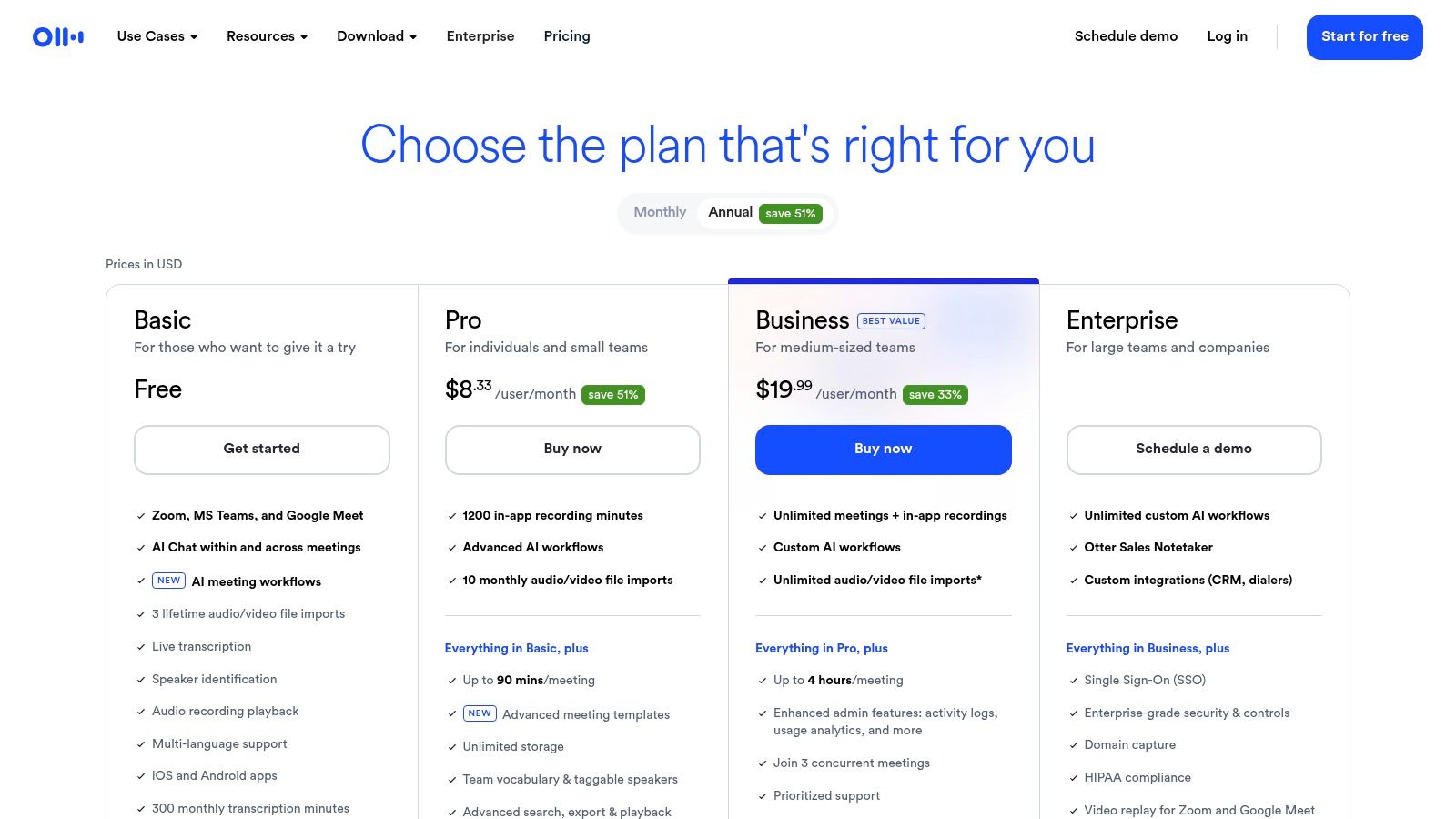
This tool is made for working with friends. You can point out parts of the writing, add notes, and share it with others. It's really good at telling who is talking. This helps you remember who said what in a group chat. For example, if you're planning a group project, Otter can show you that "Maria said she will draw the pictures" and "Leo said he will write the story."
What's Good & What's Not
The free plan is great for live meetings, but it has rules. You get 300 minutes of writing time each month. But each meeting can only be 30 minutes long. The biggest rule is you can only upload three of your own voice files ever. So, it's not great for old recordings, but it is perfect for taking notes in live meetings.
Best for: People who need good notes from their live online meetings and want a summary of what was said.
| What It Does | Free Plan Rules |
|---|---|
| Writing Time | 300 minutes a month (30 minutes per meeting) |
| Writes Live Talking | Yes (for Zoom, Teams, Google Meet) |
| Upload Your Files | Only 3 files in your whole life |
| Knows Who Is Talking | Yes |
Website: https://otter.ai/pricing
2. OpenAI Whisper
OpenAI Whisper is for people who know about computers and want the best quality. This is not a website. It is a smart tool that you put on your own computer. This means your voice files stay with you and are not sent to anyone else. It is super good at turning talking into writing, even if someone has a funny accent or there is noise in the room.
Because it's a tool, not a service, you can use it as much as you want for free. But, you have to know how to set it up using computer code. It works best if you have a powerful computer. For people who can set it up, it is the best free transcription software for getting the words just right. You can learn more about how this audio-to-text AI model works.
What's Good & What's Not
Whisper is totally free, but you "pay" with your time to set it up. It doesn't have a screen where you can fix the words or share them with friends. It just gives you the words in a plain file. Its best trick is that it understands many languages and can even translate them for you. For example, you can give it a file of someone speaking Spanish, and it will give you the English words.
Best for: Computer experts and secret keepers who need the most correct writing and want to keep their voice files private.
| What It Does | Free Plan Rules |
|---|---|
| Writing Time | All you want (depends on your computer) |
| Writes Live Talking | No (only for recorded files) |
| Upload Your Files | All you want |
| Knows Who Is Talking | No |
Website: https://github.com/openai/whisper
3. whisper.cpp
If you want to keep your voice recordings super private, whisper.cpp is a great choice. It is a special version of OpenAI's Whisper that runs on your computer, not on the internet. This means your files never leave your room. It is one of the best free transcription software options because it works fast even on a normal laptop, not just on big, powerful computers.
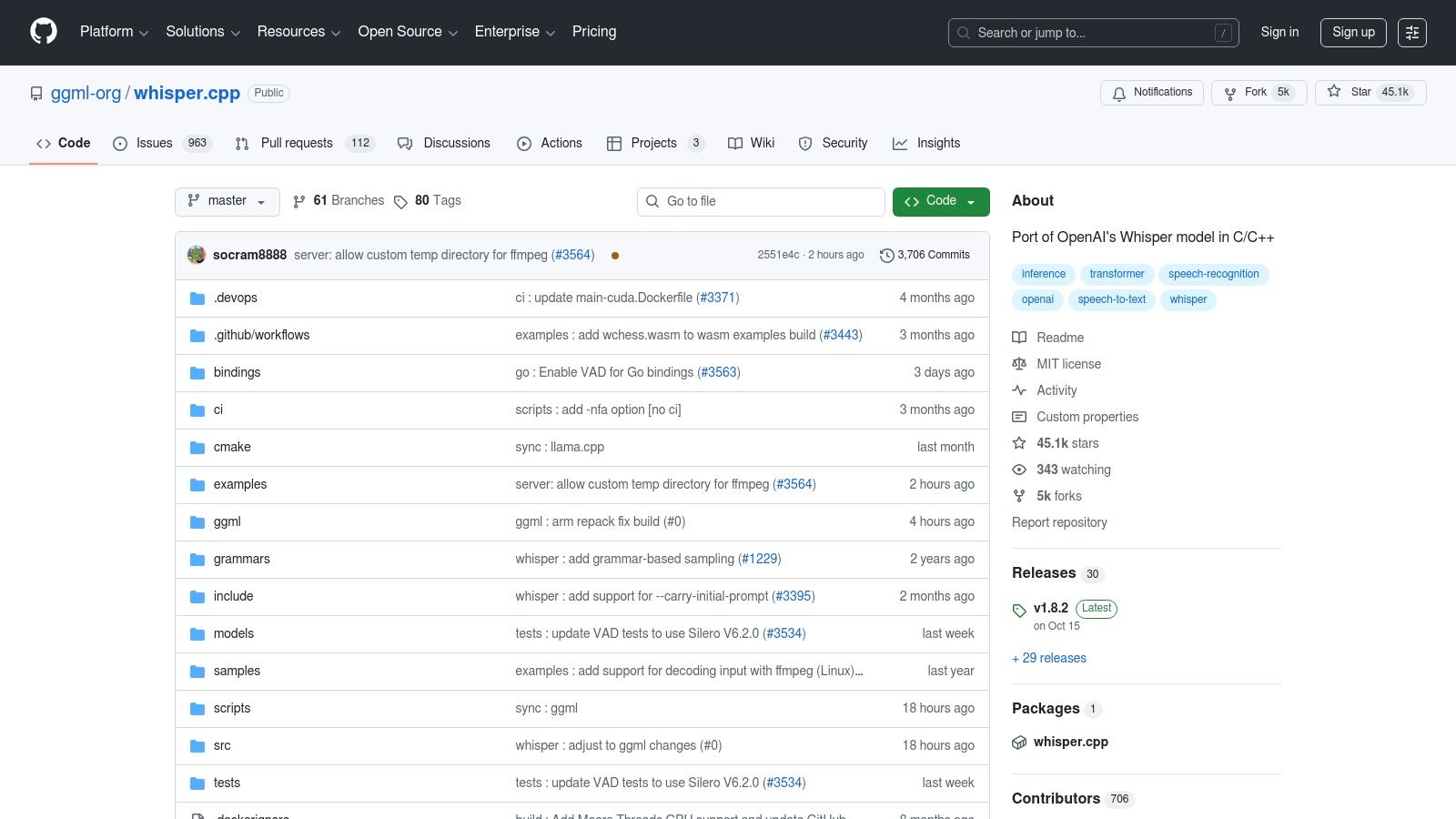
You have to use computer commands to make it work, so it's mostly for people who like tech stuff. But if you can set it up, you get free, fast writing that never stops. It's like having your own secret note-taking machine. For example, a writer could record story ideas on their phone all day and use whisper.cpp at night to turn them into a document without anyone else ever hearing them.
What's Good & What's Not
The best part is that it is free forever. You can write down as much talking as you want. The hard part is that you need to be comfortable with computer code to get it started. It’s like getting a super powerful race car engine for free, but you have to build the car around it yourself.
Best for: People who love computers, care a lot about privacy, and want to turn talking into writing on their own machine.
| What It Does | Free Plan Rules |
|---|---|
| Writing Time | All you want (it's free) |
| Writes Live Talking | No (for recorded files) |
| Upload Your Files | All you want from your computer |
| Knows Who Is Talking | No |
Website: https://github.com/ggml-org/whisper.cpp
4. Faster‑Whisper
Faster-Whisper is like a race car version of OpenAI's Whisper. It's for people who know about computers and want to get their writing done super fast. It's not a simple app you can click on. It's a special tool that makes the writing part happen quicker and uses less computer power. This makes it one of the best free transcription software choices for building your own tools.
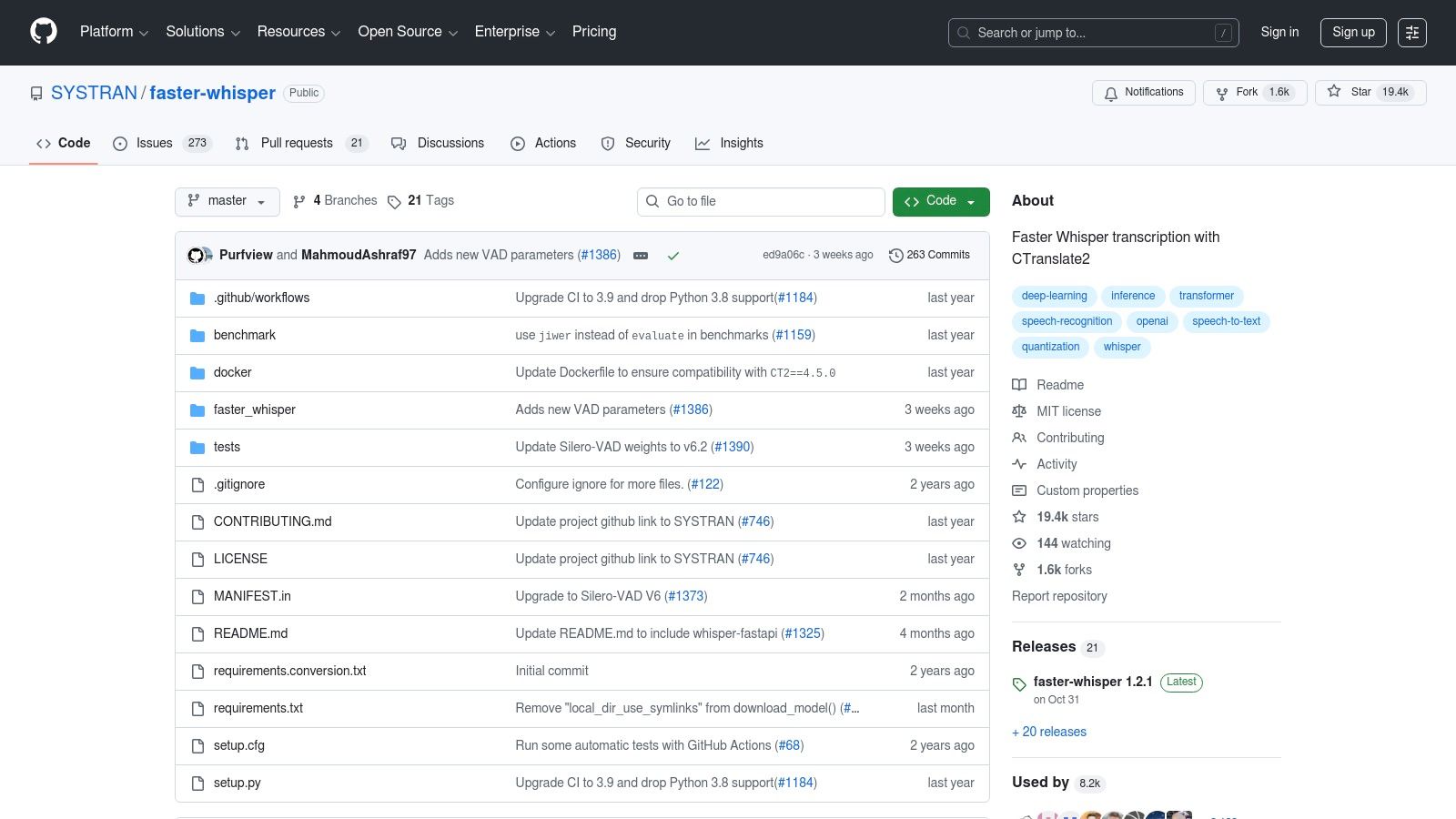
Because you run it on your own computer, it's very private. No one sees your secret files. But you need to know how to use computer code to get it working. The words it gives you are very correct, and you can use it as much as you want for free. A person making a podcast could use it to get a written copy of their show in minutes instead of hours.
What's Good & What's Not
Faster-Whisper is totally free, but the "cost" is needing to be a computer whiz. It does not have any buttons or screens. You have to use code to tell it what to do. This makes it super flexible for experts but not for someone who just wants to click a button and get their writing.
Best for: Computer programmers and tech experts who want to build their own tools with a very fast and private writing engine.
| What It Does | Free Plan Rules |
|---|---|
| Writing Time | All you want (depends on your computer) |
| Writes Live Talking | No (for recorded files) |
| Upload Your Files | All you want |
| Knows Who Is Talking | No (not without extra code) |
Website: https://github.com/SYSTRAN/faster-whisper
5. MacWhisper
If you have an Apple computer, MacWhisper is a fantastic choice. It takes the super smart Whisper tool and puts it inside a simple app that's easy to use. All the work happens on your Mac, so your voice files are kept safe and private. You don't even need the internet to use it. This makes it a great pick if you are writing about secret things.

You just drag your voice or video file into the app, and it starts writing. It works fast and understands lots of different languages. You can save the words as a plain text file or as a special file for movie subtitles. Because it works so well on Apple computers, it is a top choice for transcription software for Mac. A student could record a lecture, drop the file into MacWhisper, and have notes to study from without ever connecting to Wi-Fi.
What's Good & What's Not
The free version of MacWhisper is good for clear talking. But to get the very best quality or to understand other languages, you need to pay for the Pro version. The free plan has no time limits, but how fast it works depends on how powerful your Mac is.
Best for: Mac users, writers, and students who want an easy, private way to turn their recorded talking into writing.
| What It Does | Free Plan Rules |
|---|---|
| Writing Time | All you want (on your computer) |
| Works Offline | Yes (all writing is done on your Mac) |
| Upload Your Files | Yes (voice or video) |
| Knows Who Is Talking | No (only in the paid version) |
Website: https://goodsnooze.gumroad.com/l/macwhisper
6. Notta
Notta is a handy tool that works on your computer, your phone, and even as a helper for your web browser. This makes it a great choice for the best free transcription software if you need to write down lots of short voice clips. For example, if you make short videos for TikTok, you could use Notta to quickly get the words for your captions.
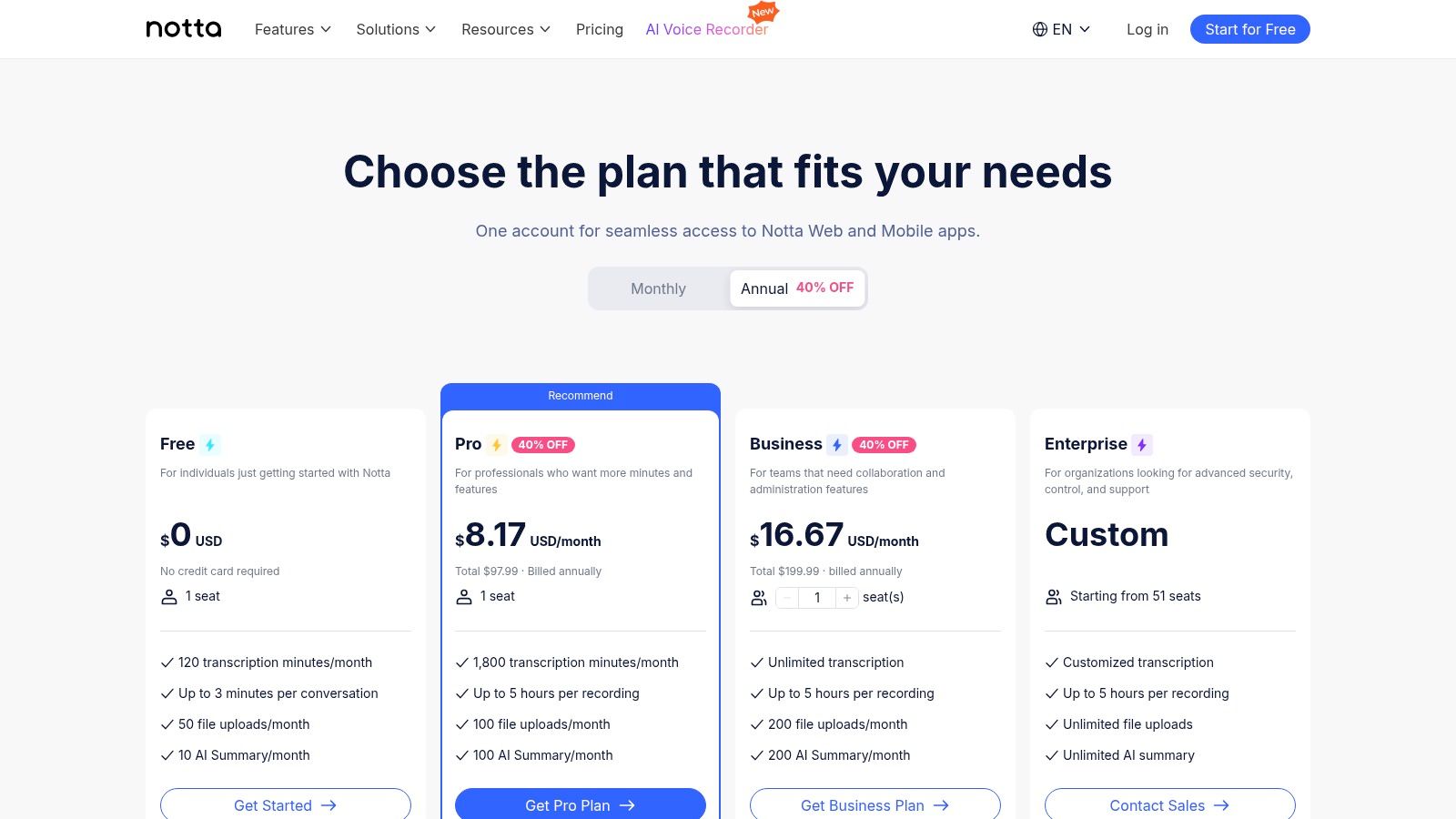
The tool is made to be fast. You can upload a file, record your voice, or even have a robot join your online meeting to take notes. Notta can also tell who is speaking and make a short summary of the important parts. This helps you understand everything without reading all the words.
What's Good & What's Not
The free plan gives you 120 minutes of writing time each month, which is a lot. But there's a catch: each voice file can only be 3 minutes long. This makes it perfect for short voice notes or video clips but not for long talks or classes. You can upload up to 50 files a month, which is very nice.
Best for: People who make online content, manage social media, or need to write down many short voice clips on different devices.
| What It Does | Free Plan Rules |
|---|---|
| Writing Time | 120 minutes a month (3 minutes per file) |
| Writes Live Talking | Yes |
| Upload Your Files | Up to 50 a month |
| Knows Who Is Talking | Yes |
Website: https://www.notta.ai/en/pricing
7. Google Docs Voice Typing
If you use Google Docs to write stories or homework, you already have a great free tool! It is called Voice Typing, and it is hidden inside Google Docs. It does not work on recorded files. Instead, it turns your talking into writing as you speak. It is perfect for when you want to talk out your ideas instead of typing them.
It is totally free and works best on the Chrome web browser. You can even say "period" or "new line" to add punctuation and make new paragraphs. It is simple, but because it is so easy to use, it is one of the best free transcription software choices for writing drafts. You can learn more if you read a detailed guide on how to dictate in Google Docs. It's like having a magic pen that writes what you say.
What's Good & What's Not
The biggest downside is that you cannot upload a recorded voice file. It only works when you talk to it live. But it understands many different languages, which is a big plus. It is very good at writing what one person says but can get confused if many people are talking or if it is noisy.
Best for: Writers, students, and anyone who wants a simple, free way to write documents by talking to their computer.
| What It Does | Free Plan Rules |
|---|---|
| Writing Time | All you want (for live talking) |
| Writes Live Talking | Yes (only inside Google Docs) |
| Upload Your Files | No |
| Knows Who Is Talking | No |
Website: https://docs.google.com
8. Google Recorder (recorder.google.com)
If you have a Google Pixel phone, you have a secret superpower! The Google Recorder app is one of the best free transcription software tools you can get. It turns talking into writing right on your phone, even without the internet. This makes it very fast and private. It's perfect for recording a talk with someone, a class, or just your own ideas. You can even search your recordings for a word you said.
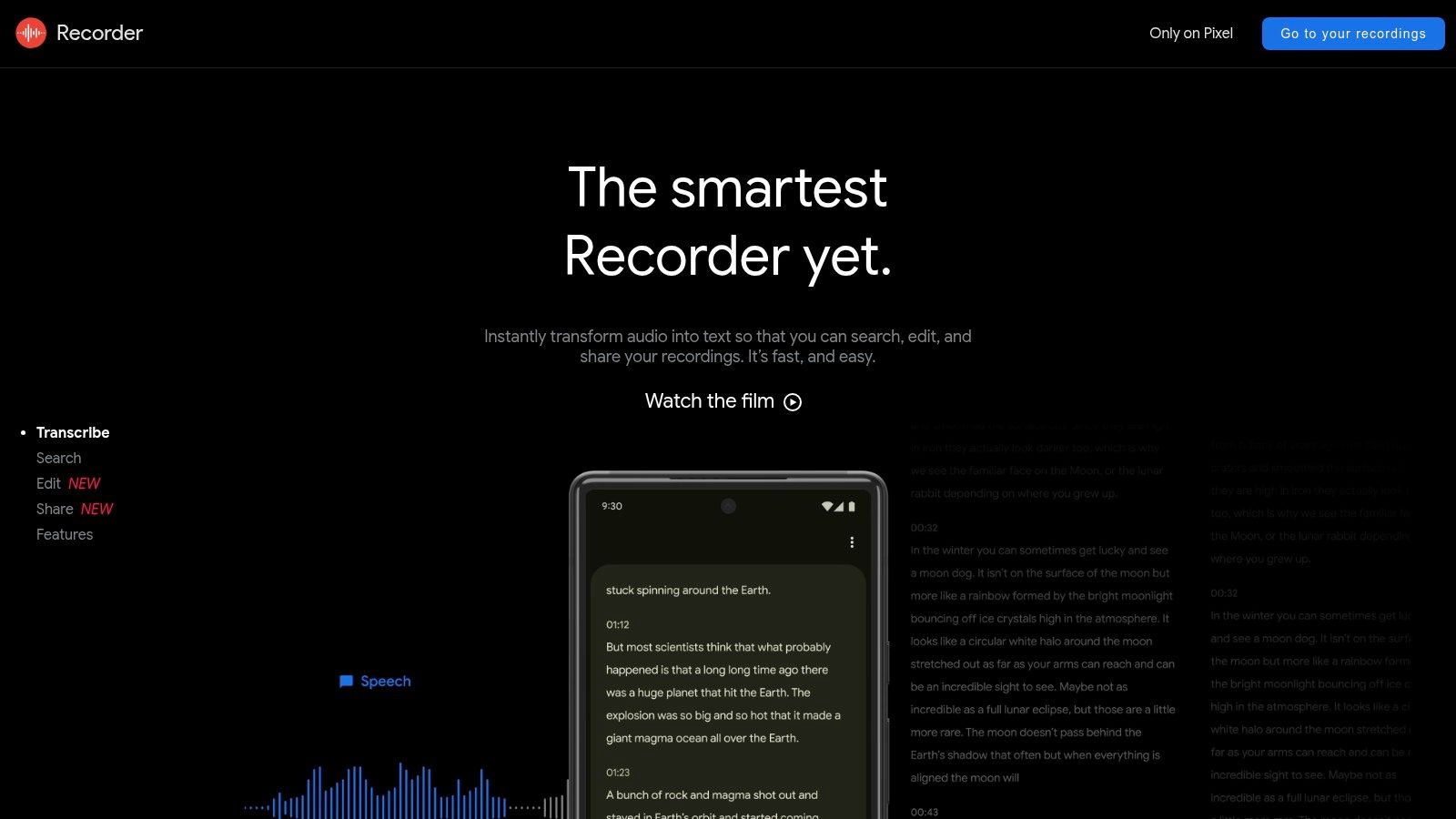
The coolest part is that your recordings can show up on a website. At recorder.google.com, you can read and listen to everything you recorded. New Pixel phones can even tell when different people are talking and give them labels. This makes it easy to read a long talk. For example, it can label "Speaker 1" and "Speaker 2" for you in an interview.
What's Good & What's Not
The best thing about Google Recorder is how well it works on the phone. But that's also its biggest problem. It only works on Google Pixel phones. If you have an iPhone or a different Android phone, you can't use it.
Best for: People with Google Pixel phones who want a fast, private, and smart way to record and write down talks on the go.
| What It Does | Free Plan Rules |
|---|---|
| Writing Time | All you want (as much as your phone can hold) |
| Writes Live Talking | Yes (only on the phone) |
| Upload Your Files | No |
| Knows Who Is Talking | Yes (on new Pixel phones) |
Website: https://recorder.google.com
9. Android Live Transcribe
Android Live Transcribe is a special app on Android phones that helps people who have trouble hearing. It is great at turning live talking into words on your screen right away. It's not for old recordings. It's for what is happening right now. It can understand over 70 languages and can even show two languages at once.
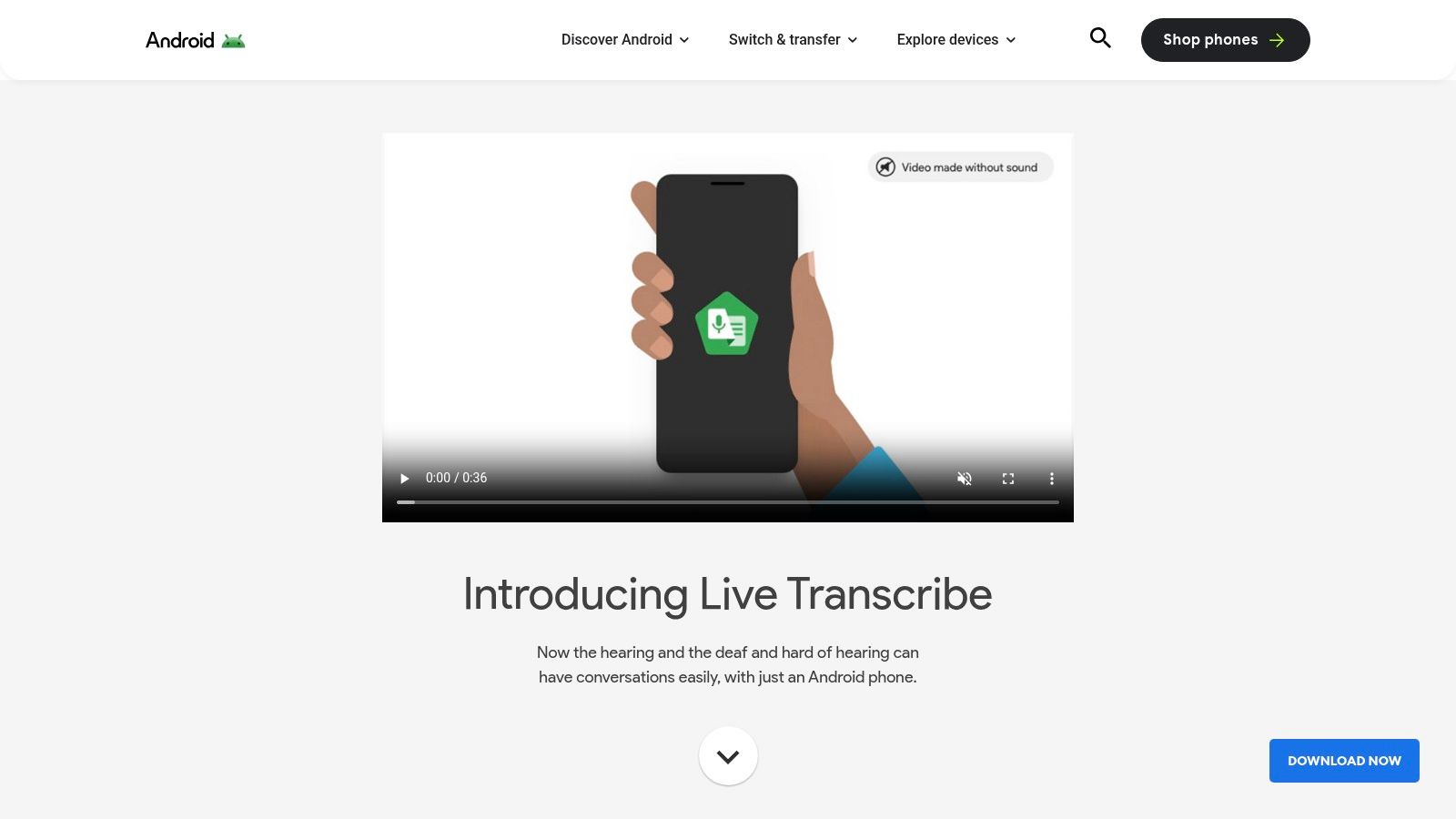
The app is very simple, with big words that are easy to read. A cool trick is that it can see sounds. It will show a message on the screen if a dog barks or a fire alarm goes off. This is a big help for people who can't hear those sounds. This focus on helping people makes it a very special tool.
What's Good & What's Not
This tool is totally free. But it is made for one job: writing down live talking. You cannot upload files or find out who is talking. You can save the words for three days, but it is hard to get them out of the app. This makes it one of the best free transcription software tools for understanding live talks, but not for other jobs.
Best for: People who need help hearing, students in class, or anyone who wants to see words for what people are saying right now.
| What It Does | Free Plan Rules |
|---|---|
| Writing Time | All you want |
| Writes Live Talking | Yes (only in real time) |
| Upload Your Files | No |
| Knows Who Is Talking | No |
Website: https://www.android.com/accessibility/live-transcribe/
10. IBM Watson Speech to Text
For computer experts, IBM Watson is a very powerful tool. It is not a simple app. It is a smart brain in the cloud that you can add to your own apps. It is one of the best free transcription software choices because it is very good at getting words right, even for big companies. It can also tell when different people are talking.

This tool understands more than 38 languages, so it can be used all over the world. You need to know computer code to use it. But its free plan is very nice. It gives you enough minutes every month to build and test your own ideas. For example, a person making a new game could use Watson to let players talk to characters in the game.
What's Good & What's Not
The free plan gives you 500 minutes every month, and it resets. That's great for small projects. But the hard part is that you must be a programmer to use it. You can't just upload a file on a website. You have to write code to make it work.
Best for: Programmers and tech companies that want to add a powerful voice-to-text brain to their own apps.
| What It Does | Free Plan Rules |
|---|---|
| Writing Time | 500 minutes a month |
| Writes Live Talking | Yes (with code) |
| Upload Your Files | Yes (with code) |
| Knows Who Is Talking | Yes |
Website: https://www.ibm.com/products/speech-to-text
11. Deepgram
Deepgram is another choice for computer experts who want to build things. It's like a box of very fast LEGO bricks for turning talking into writing. You use these bricks to build transcription into your own apps. It is a top choice for people who need to handle a lot of voice files very, very quickly.
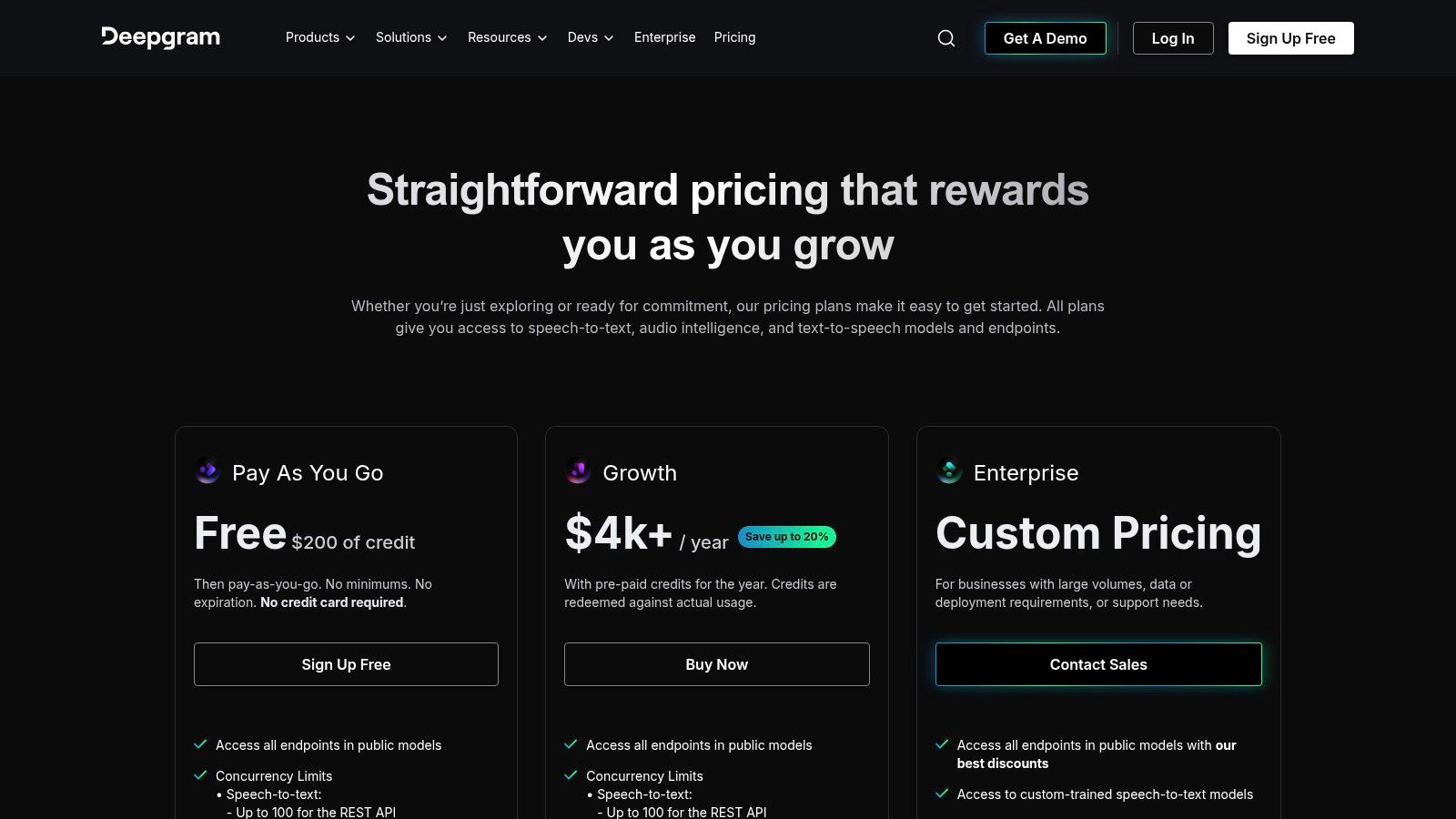
Deepgram is made to be changed to fit what you need. You can teach it special words for a certain job, like names of medicines for a doctor's app. This makes it super correct for special tasks. It has tools to tell who is talking and find important words.
What's Good & What's Not
Deepgram gives new people a $200 credit to try it out. This is a lot of free testing time. But, like IBM Watson, it is for people who know how to code. It is not a simple website for everyday use. A company that makes a phone call recording service could use Deepgram to give written copies of all those calls to its customers.
Best for: Programmers and companies that are building apps that need very fast and correct writing.
| What It Does | Free Plan Rules |
|---|---|
| Writing Time | You get $200 in free credits to start |
| Writes Live Talking | Yes (with code) |
| Upload Your Files | Yes (with code) |
| Knows Who Is Talking | Yes |
Website: https://deepgram.com/pricing?utm_source=openai
12. Subtitle Edit
Subtitle Edit is a super tool for anyone who makes videos. It is some of the best free transcription software for making the words you see at the bottom of a movie screen. It is a program for your computer that gives you total control over the words and when they appear. This is perfect for making sure everything looks just right.
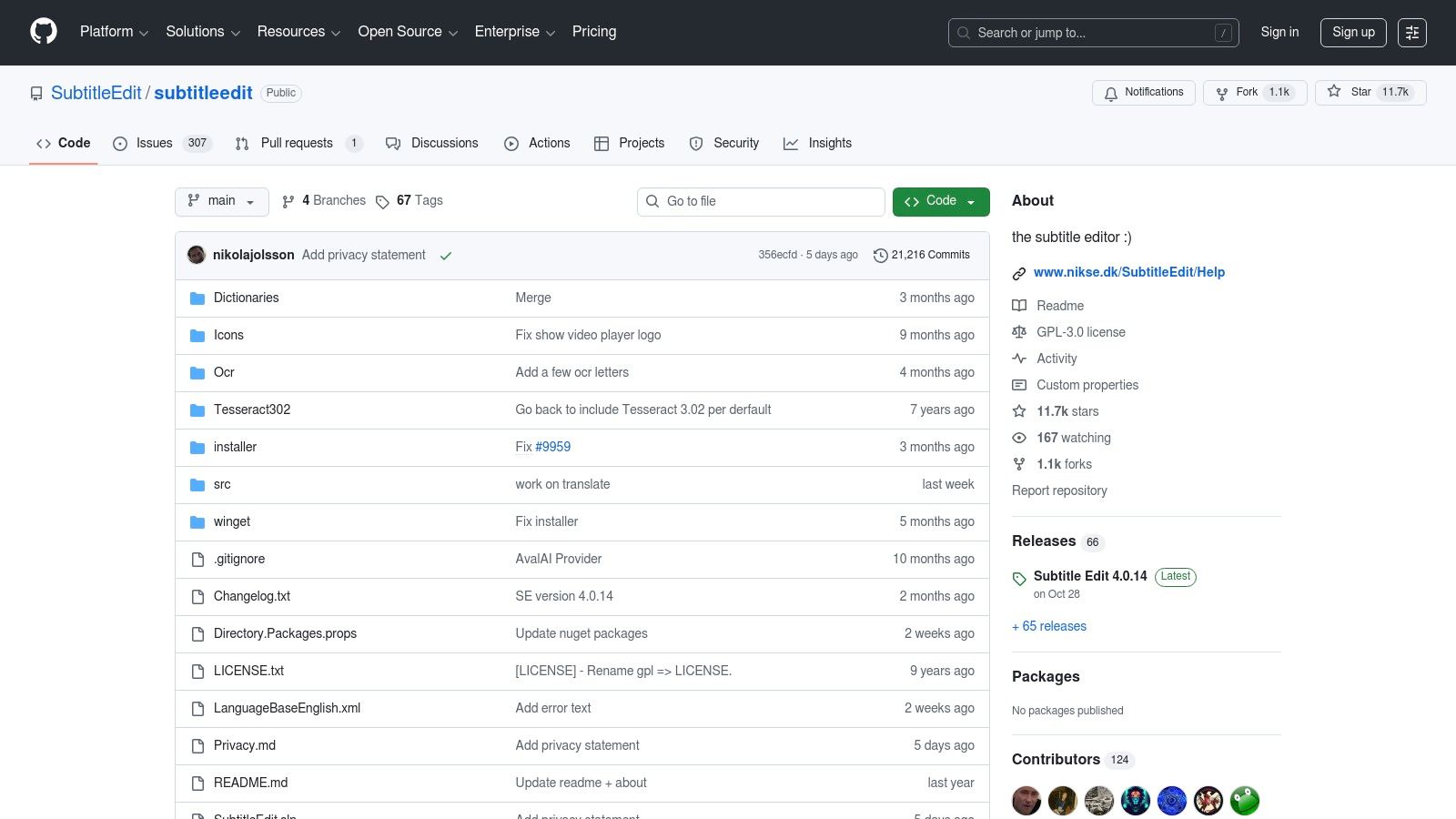
The tool can use other smart brains, like Whisper, to make the first draft of the words for you. Then, you can see the sound waves of the video to match the words perfectly. It knows how to save the words in almost any format you can think of. A YouTuber could use this to add correct captions to their videos so more people can enjoy them.
What's Good & What's Not
This tool is totally free and has no limits. But it's not a simple one-click tool. You have to set it up to work with other tools, which can be a bit tricky. It is made for people who want to spend time getting their subtitles perfect, not for people who just want a fast, messy copy of the words.
Best for: People who edit videos, make online content, or anyone who needs to make perfect subtitles for videos.
| What It Does | Free Plan Rules |
|---|---|
| Writing Time | All you want (you have to set it up) |
| Writes Live Talking | No |
| Upload Your Files | All you want from your computer |
| Knows Who Is Talking | You do it by hand |
Website: https://github.com/SubtitleEdit/subtitleedit
Top 12 Free Transcription Tools Comparison
| Product | What It Does Best | How Good Is It? | Who Should Use It? | Free Plan Rules |
|---|---|---|---|---|
| Otter.ai | Writes down live meetings, knows who talks | Good for clear talking in meetings | People in teams who have online meetings | Free for 300 minutes a month (30 min per meeting) |
| OpenAI Whisper | Super correct writing in many languages, very private | Gets the words very right | Computer experts who want privacy | Free, but hard to set up |
| whisper.cpp | Fast, private writing on your own computer | Works fast even on normal laptops | People who want fast, offline writing | Free, but you need to know computer commands |
| Faster-Whisper | Super-fast version of Whisper for programmers | Faster than normal Whisper | Programmers who need speed | Free, but you have to build it into an app |
| MacWhisper | Easy-to-use writing tool for Mac computers | Good on Apple computers, private | Mac users who want an easy, private tool | Free, but best features cost money |
| Notta | Writes down short voice clips on many devices | Good for everyday use | People who need to write down short clips | Free for 120 min/month (3 min per clip) |
| Google Docs Voice Typing | Turns your talking into writing inside Google Docs | Good when talking to it live | People who use Google Docs and want to talk, not type | Free, but only works live and in Chrome |
| Google Recorder | Records and writes on Pixel phones, very private | Fast and correct on Pixel phones | People with Pixel phones who want private notes | Free, but only works on Pixel phones |
| Android Live Transcribe | Shows words for live talking on Android phones | Good for understanding live talks | People who need help hearing | Free, but not for recorded files |
| IBM Watson STT | A smart brain for programmers to use in apps | Very correct, for big companies | Programmers and businesses | Free for 500 minutes a month |
| Deepgram | Super fast writing for programmers to build with | Very fast and correct | Programmers building apps that need writing | Free $200 credit to start |
| Subtitle Edit | A tool for making perfect video subtitles | You control everything to make it perfect | People who edit videos and need perfect captions | Free, but you have to set it up |
Final Thoughts
We have looked at many different free tools for turning talking into writing. Some, like Otter.ai, are great for school or work meetings. Others, like OpenAI Whisper, are for computer experts who want the very best quality. The most important thing to remember is that the "best" tool is the one that is best for you.
The right choice depends on what you need. If you want something easy for meetings, try Notta or Google's tools. If you are a computer whiz and need to keep things secret, use a tool like whisper.cpp.
How to Pick Your Tool
Ask yourself these three questions:
- What will I use it for? Are you writing down a meeting, making video captions, or saving secret notes? Your answer will point you to the right kind of tool.
- Am I good with computers? If you just want to click a button, pick an easy app like MacWhisper. If you love to code, try a powerful tool like Deepgram.
- Where will I use it? If you are always on the move, an app on your phone like Google Recorder is best. If you are at your desk, a computer program is better.
Using Your New Tool
After you pick a tool, remember that even smart computers can make mistakes. They have trouble hearing when it's noisy or when many people talk at once. To get the best words, always try to record the best sound. Using a real microphone is much better than the one in your laptop.
The goal is to find a tool that saves you time and work. The right free tool can be like a helpful friend, turning spoken words into writing so you can think about the big ideas. If you want to see what other smart tools can do, you can look at services like Parakeet AI. Your perfect helper is out there. Now it's time to go and try one!
If you need a tool that lets you talk instead of type in any app on your computer, check out WriteVoice. It puts the power of Whisper into an easy-to-use app for Windows and Mac. See how it can change the way you work at WriteVoice.