7 Best Talk-to-Type Programs for Mac in 2025
Think about writing emails or stories just by talking. Talk-to-type programs for Mac change your voice into words. This saves time and helps you get your ideas down fast. It's a big help for busy people, writers, and anyone who wants to work faster. But there are many choices. Some are simple tools that come with your Mac. Others are powerful helpers that use smart computers. How do you pick the right one? The best one for you depends on what you need it for. Maybe you need to write secret notes, turn a meeting into words, or just make documents faster.
This guide will help you see the differences. We will look at the top dictation programs for Mac and show what makes each one special. We'll talk about what they can do, how much they cost, and who they are best for. This will help you find the perfect tool. For each program, you will see easy words, pictures, and links to try them. If you manage big projects, run a company, or just love to write, this guide will show you how to let your voice do the typing.
1. WriteVoice
WriteVoice is a top choice for talking to your Mac. It's more than a simple tool. It's like a smart helper that writes for you. It was made for people who need to turn spoken ideas into clean text very fast. It's great for busy bosses, lawyers, and teams who need to work quickly and keep things private.
The best thing about it is that it works in less than one second. It can take your rambling thoughts and make them neat and tidy right away. It doesn't just turn voice to words. WriteVoice also fixes mistakes and can make your sentences shorter or longer if you ask. Because it's so smart, you don't have to spend much time fixing the words later.

Key Features and Use Cases
WriteVoice works inside the apps you already use. You can add it as a special keyboard on your iPhone to talk in any app, like Slack or Gmail. A very cool trick is that it knows where you are writing. It will sound serious for a work message or friendly for a text to a friend.
- Make Meetings Easy: It can listen to a whole meeting and give you a short summary with a to-do list. This makes it easy to remember what to do next.
- Keep Secrets Safe: It has a "private first" rule. Your voice is used and then thrown away right after. This makes it safe for doctors and lawyers who talk about private things.
- Works in Many Languages: The program understands over 50 languages and can change your words into 30 other languages. This helps people from all over the world talk to each other.
- Work Quietly: A "Whisper Mode" lets you talk very softly. This is great for quiet offices or public places where you don't want to be loud.
Why It Excels
What makes WriteVoice so special is that it is very good at understanding you (even if you have an accent) and it works inside your other apps. You are not just turning talk into text; you are making good writing right where you need it. You can even teach it special words for your job, like science words or company names.
You have to pay for the best parts, but there is a free version to try. For Mac users who want a smart, private, and easy way to write with their voice, WriteVoice is a great choice.
Website: https://www.writevoice.io
2. Apple — Built‑in Dictation and Voice Control (macOS)
For many people with a Mac, the best place to start talking to your computer is already on it. Apple's own Dictation and Voice Control tools are strong, private, and free. This makes them a great choice. They are built right into your Mac. This lets you talk to type anywhere you can write, like in an email or a to-do list.
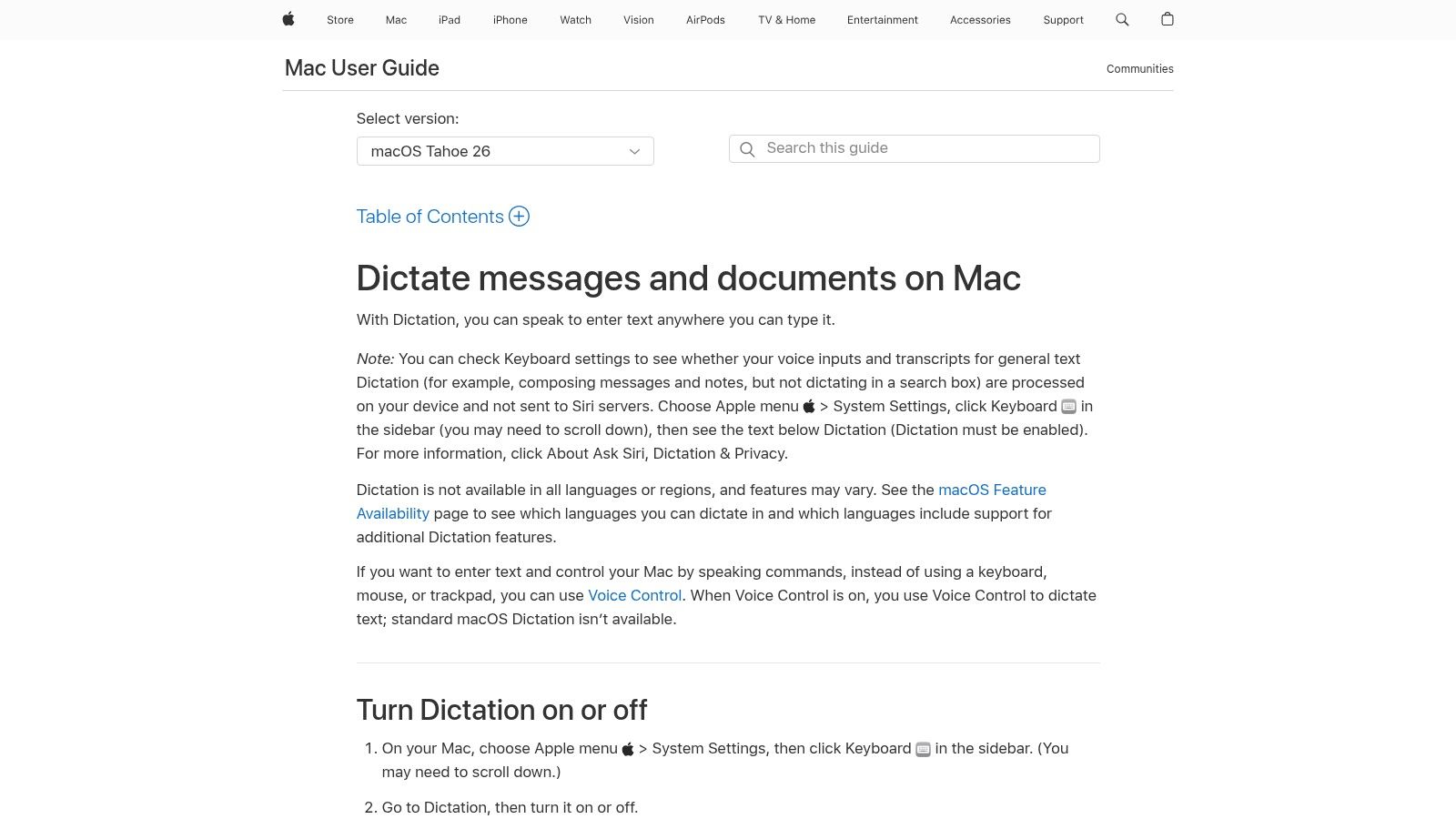
The best part is that it's easy, works everywhere on your Mac, and keeps your words private. You can choose to have your voice stay on your computer, which is important for people who work with secret information. The simple Dictation is good for short bits of text. Voice Control lets you talk for a long time and even control your whole Mac with your voice.
Key Features and User Experience
Apple gives you two tools that are a bit different. Knowing how they work helps you use them better.
- Standard Dictation: You turn this on with a key on your keyboard (like pressing the little microphone key). It's perfect for turning a few words or sentences into text. It's fast and easy.
- Voice Control: This is a bigger tool. It lets you talk without stopping. You can also tell your Mac what to do, like "Open Mail," "Scroll down," or "Click Send." For a good guide on how to use it, you can learn more about using speech-to-text on macOS.
You can even teach it new words, like special job words or people's names, so it gets them right.
Good Tip: To make it better, go to
System Settings > Keyboard > Dictationand turn on "Auto-punctuation." This will add periods and commas for you as you talk. This makes your writing sound more normal without you having to say "period."
Pros and Cons
| Pros | Cons |
|---|---|
| It's Free: You don't have to pay anything. | Not Always Perfect: It might make more mistakes than tools you pay for. |
| Works Everywhere on Mac: You can use it in almost any app. | Can't Use Both at Once: You have to choose between simple Dictation and the bigger Voice Control. |
| Keeps Your Words Private: You can set it so your voice never leaves your Mac. | Hard to Learn: The commands for Voice Control take time to remember. |
Website: https://support.apple.com/guide/mac-help/use-dictation-mh40584/mac
3. Mac App Store — Mac‑native dictation apps marketplace
If you need something more than what your Mac comes with, the Mac App Store is a great place to look. It's like a big, safe store where you can find, buy, and manage many different talk-to-type programs for your Mac. Here, you can find simple tools and very smart ones that work closely with your computer.
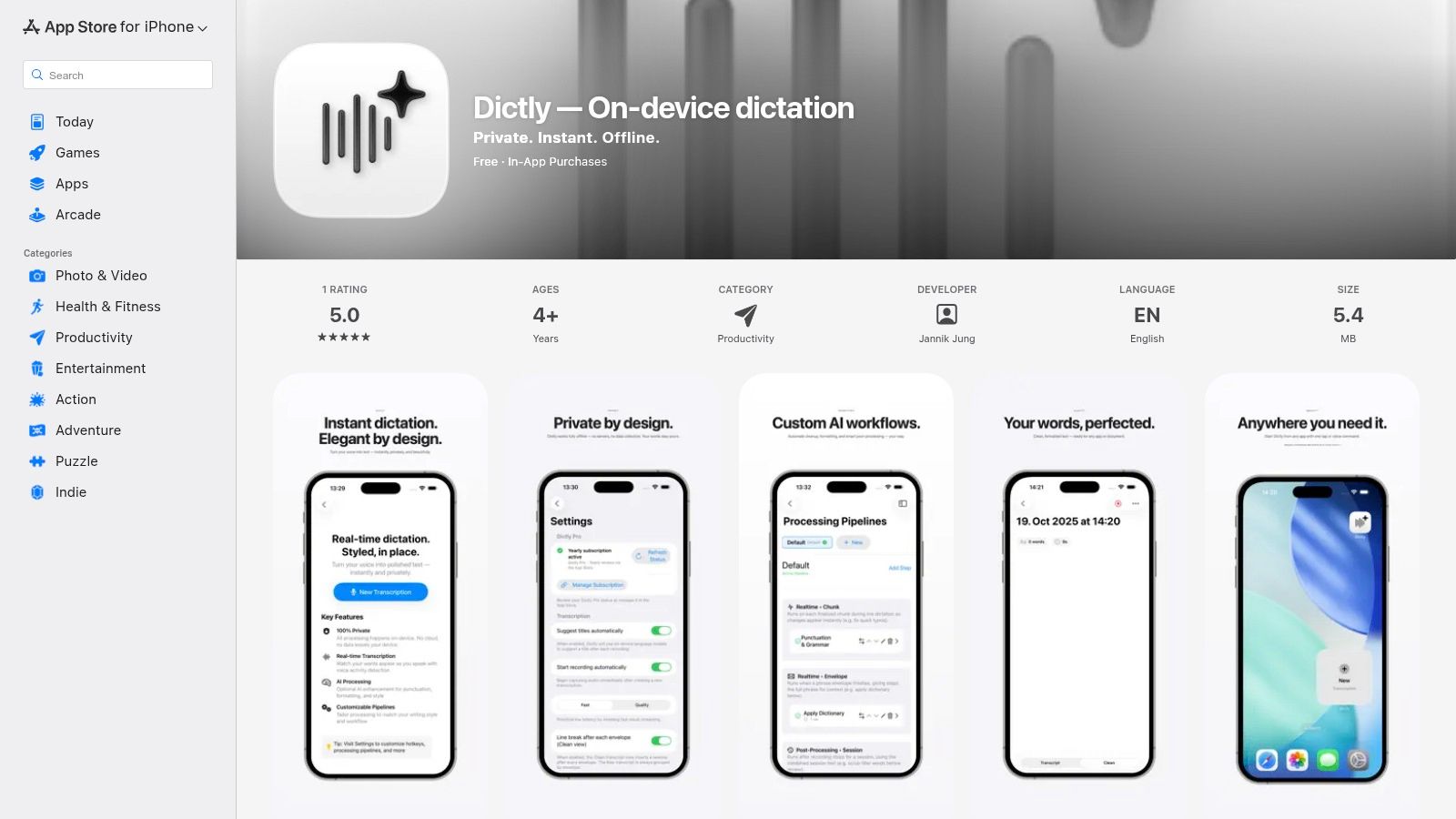
The best thing about the App Store is that you can trust it. Apple checks every app, and it's easy to pay for things with your Apple ID. This makes it simple to find good tools. You can read what other people say about them to help you choose the best one.
Key Features and User Experience
The Mac App Store is not one app, but a place with many apps. This variety is what makes it so good.
- Lots of Choices: The store has all kinds of apps. Some are very smart and listen very well. You can find apps that you pay for once, apps you pay for every month, or apps you can try for free.
- Easy to Get and Update: Getting an app is just one click. The App Store will also keep your apps updated for you, so they always work well and are safe.
- Reviews from People: Before you buy, you can read what other people think. This helps you know if an app is good at listening and easy to use.
Many apps in the store let you use a special key to start talking in any program, just like the tools from Apple, but often they listen even better.
Good Tip: When you look for an app, find one that lets you try it for free. Test it out with the words you use at work or in a noisy room. This helps you make sure it's good enough before you pay for it.
Pros and Cons
| Pros | Cons |
|---|---|
| Safe to Use: Apple checks all the apps and payments. | Might Be Different: Some apps might have different features if you get them from the App Store or from the maker's website. |
| Many Choices: You can find a tool for any need or price. | Some are Not Great: Not all apps are good. You need to read reviews and test them to find the best one. |
| Easy to Find Things: Reading what other people say helps you pick the best one. | May Cost a Little More: Apps might cost more because Apple takes a small part of the money. |
Website: https://apps.apple.com/us/app/dictly-no-keys-just-clarity/id6752733596?utm_source=openai
4. Otter.ai — Live dictation and meeting transcription (Mac app + web)
Otter.ai is more than just a talk-to-type tool. It's a smart meeting helper made for people who need to remember and share what was said in talks. It can listen to you in real-time and make a written copy of the conversation. It works on a Mac app or on the web. This makes it one of the best programs for Mac users who go to a lot of meetings or do interviews.
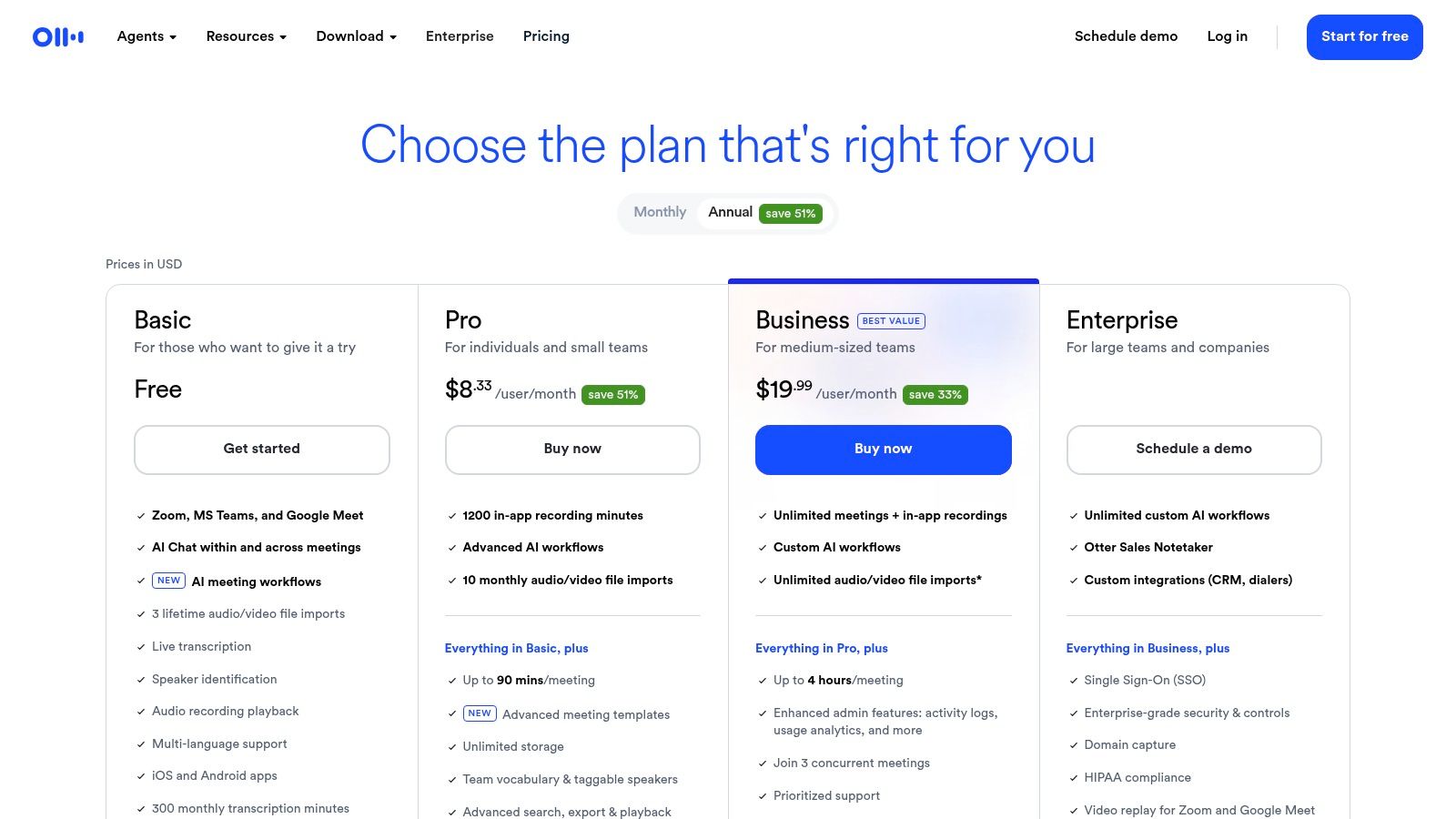
The best thing about Otter.ai is that it not only writes down what is said, but it also knows who is talking. This creates a clear record of any talk. It can connect to meeting apps like Zoom and Google Meet. It will join your meetings by itself and take notes for you. If you are looking at other tools, you can read a comparison of Whisprai versus Otter.ai to see how they are different.
Key Features and User Experience
Otter.ai has features that make meeting notes easy to use. It helps you get work done after a meeting.
- Knows Who is Talking: As people talk, Otter.ai writes it down and puts the person's name next to their words. This way, you always know who said what.
- Joins Your Meetings: A helper called "OtterPilot" can join meetings from your calendar and record them for you. You get a full written copy after, without having to do anything. You can learn more about taking meeting notes effectively to use this well.
- Find and Share Notes: All your notes are saved in your account. You can look for key words, mark important parts, and share the notes with your team.
- Use it Anywhere: You can see your notes and use the talk-to-type tool on your Mac, on the web, or on your phone.
Good Tip: Before a meeting, add the names of the people who will be there and any special project words to the "Custom Vocabulary." This helps it understand your team's talks much better.
Pros and Cons
| Pros | Cons |
|---|---|
| Good at Listening: It is very good at turning talks with many people into words. | Needs the Internet: It only works if you are connected to the internet. |
| Made for Teams: It is built for sharing and working on notes together. | Time Limits: The free and paid plans have a limit on how many minutes you can record each month. |
| Works on Any Device: You can easily switch between your Mac, the web, and your phone. | Not Fully Private: Your talks are sent to Otter.ai's computers to be turned into words. |
Website: https://otter.ai/pricing/?utm_source=openai
5. Descript — Mac app for dictation/transcription with text‑based editing
Descript does things in a different way. It's not just for talking to type. It's a strong tool for fixing audio and video by editing the words it writes down for you. This makes it one of the best programs for Mac users who make things like podcasts or videos. Instead of just turning your voice into words, Descript lets you change the audio or video by just changing the text.
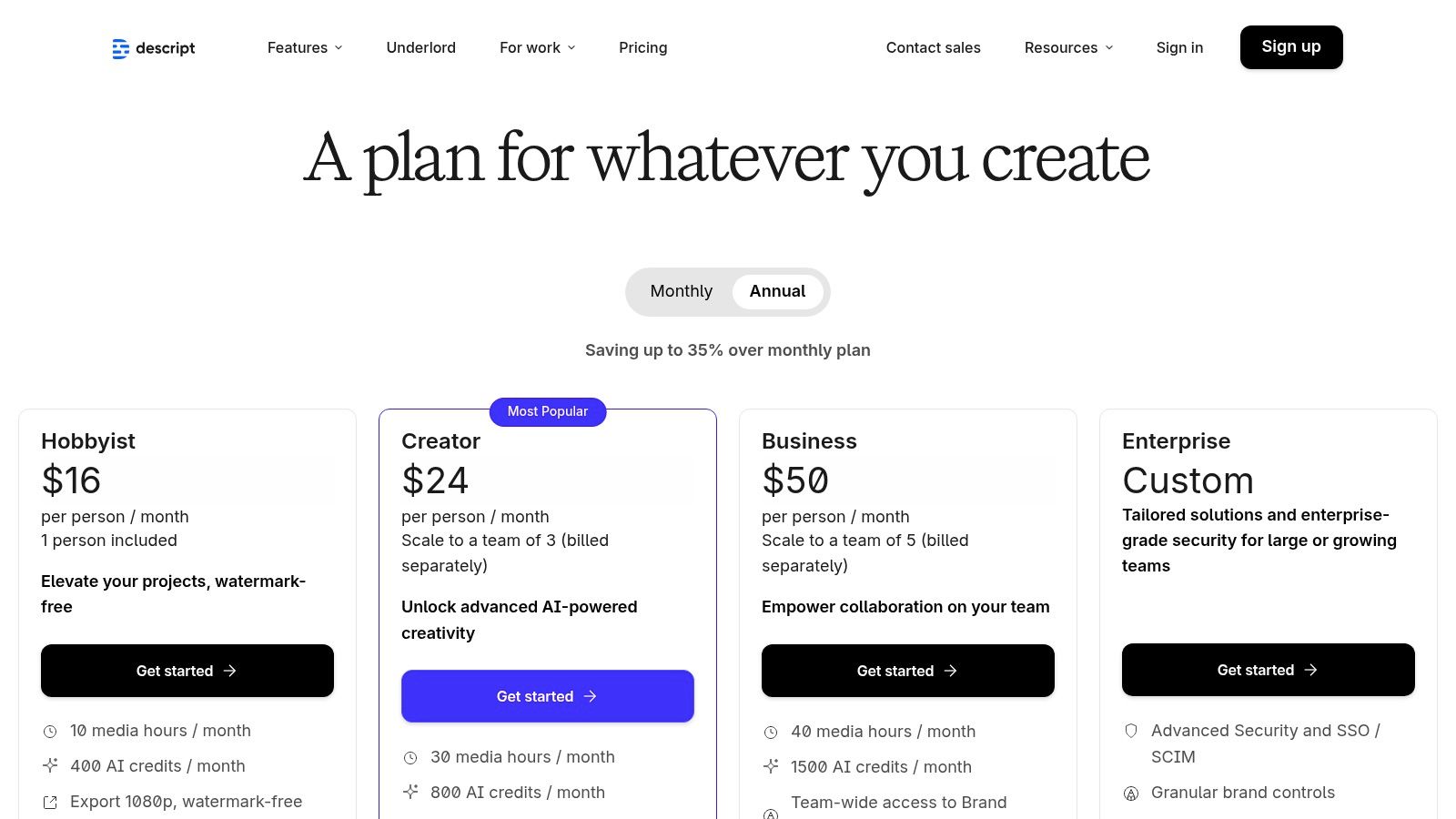
The best part of this tool is its new way of working. You can record your voice right in Descript or bring in a sound file. It quickly writes down all the words. Then, if you delete a word from the text, it also cuts out that sound. This makes editing as easy as using a word program. It's a huge help for anyone who works with spoken words and needs to make them perfect.
Key Features and User Experience
Descript's tools are all about this new idea of editing with text. It makes the whole process of fixing audio much easier.
- Writes Down Words for You: It quickly and correctly turns your audio into text. This text is what you use to edit.
- Edit by Changing Text: Just select and delete words in the text to cut them from the sound or video. You can also copy and paste parts to move them around.
- Smart Sound Cleaner: Tools like "Studio Sound" can get rid of background noise and make voices sound better with one click. It can also find and remove filler words like "um" and "uh" for you.
- Work with a Team: Like a Google Doc, Descript lets many people work on a project at the same time. This is great for teams making podcasts or videos.
If you are looking at different tools, you can explore other transcription software for Mac to see how Descript's editing idea compares.
Good Tip: Use the "Find and Replace" tool for sound, not just words. If you said a name wrong many times in a recording, you can fix it once, and Descript will change it everywhere with the right sound.
Pros and Cons
| Pros | Cons |
|---|---|
| Great for Creators: It's a full tool for recording, writing down, and editing. | Too Much for Simple Talking: It has too many features if you just want to type with your voice. |
| Good for Teams: It works well for one person or a big team. | Needs the Internet: It works in the cloud, so you need to be online. |
| Clear Prices: The prices are easy to understand, and you can buy more time if you need it. | Hard to Learn: The editing tools are strong but take time to learn how to use well. |
Website: https://www.descript.com/price?utm_source=openai
6. Microsoft 365 (Word for Mac) — Built‑in Dictate for subscribers
For people who use Microsoft tools a lot, the best talk-to-type program for Mac might already be there. Microsoft's Dictate tool is part of a Microsoft 365 plan. It's built right into Word for Mac. This gives you an easy and strong way to write documents, take notes, and write emails without leaving Word.
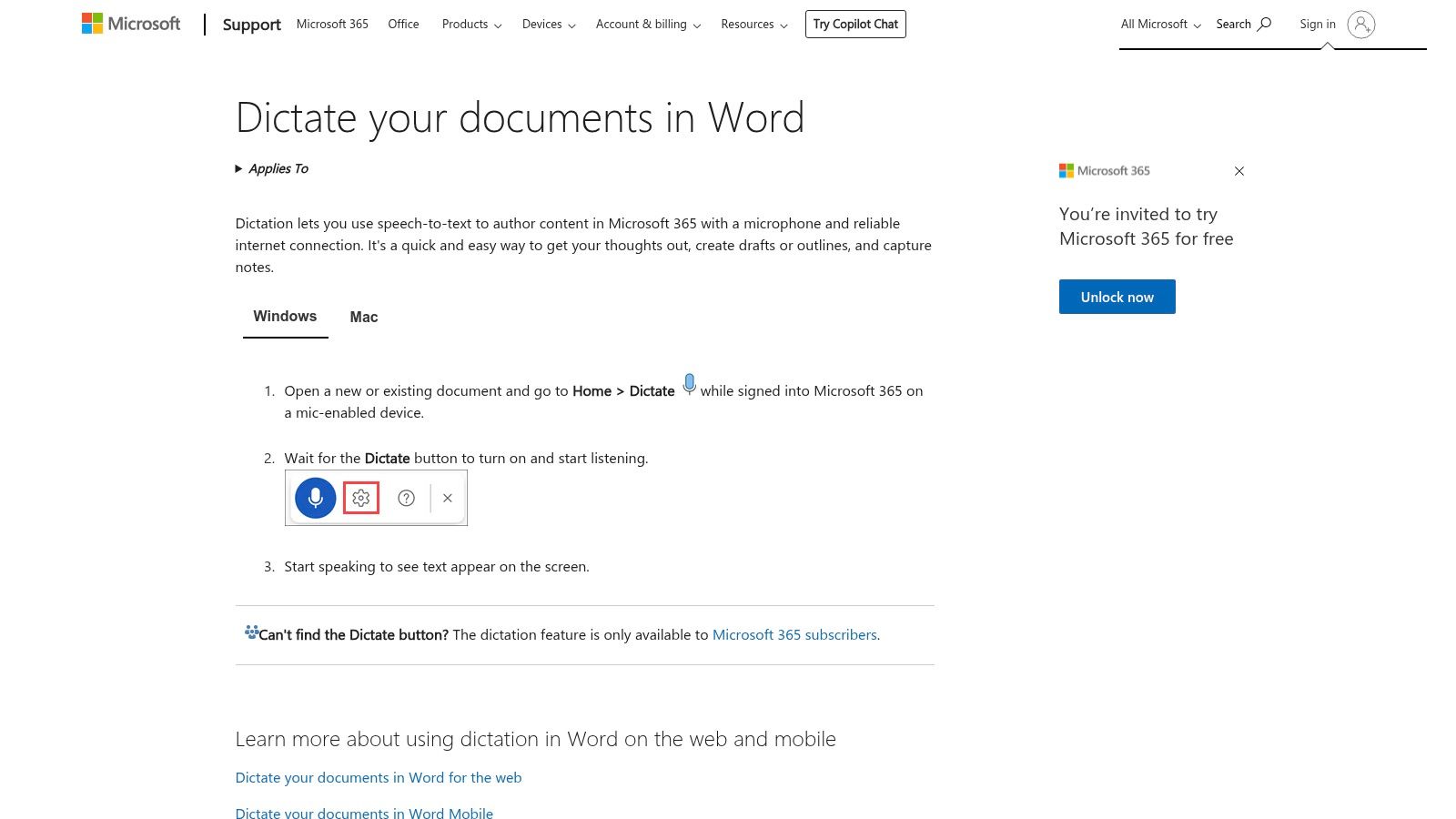
The best thing about Dictate is that it's easy for people who already have Microsoft 365. You don't need to get a new program or learn a new tool. It uses Microsoft's smart computer brain to listen very well. It also understands commands to change how your document looks, making it a fast tool for writing.
Key Features and User Experience
Microsoft Dictate is made to be simple to use inside its own apps. It's easy to find. You just click the "Dictate" button in Word.
- Change How It Looks with Your Voice: You can do more than just write words. You can say things like "bold that," "start numbered list," or "add a table" to fix up your document as you talk.
- Adds Punctuation for You: The tool is smart enough to add commas and periods as you talk. This makes your writing sound natural without you having to say "period" all the time.
- Works in Many Languages: You can easily change languages from the Dictate menu. This is great for people who speak more than one language.
- Hides Bad Words: A simple switch lets you choose if the tool should block out bad words. This is helpful for keeping work documents professional.
It's very easy to use. You click the microphone button to start talking, and the settings are simple to change.
Good Tip: To work faster, use your voice to edit. For example, say "delete last sentence" or "underline the last paragraph" to make fast changes without using your mouse or keyboard.
Pros and Cons
| Pros | Cons |
|---|---|
| Easy for Microsoft Users: You don't need to buy or install anything extra if you have a plan. | You Have to Pay for a Plan: It's not free. You need to have a Microsoft 365 plan. |
| Inside Word: It works perfectly inside Microsoft apps. | Only for Microsoft Apps: It mostly only works in programs like Word and Outlook. |
| Good for Big Companies: It uses Microsoft's strong safety and control features. | Needs the Internet: Your voice is sent to Microsoft's computers, so you need to be online. |
7. MacWhisper (direct) — On‑device Whisper‑based dictation for Mac
For people who want something that listens very well and is completely private, MacWhisper is a great tool. It uses a smart technology called Whisper from OpenAI. This Mac app does all the work on your computer. This means your voice never goes on the internet. This makes it a top choice, especially for people who work with secret information.
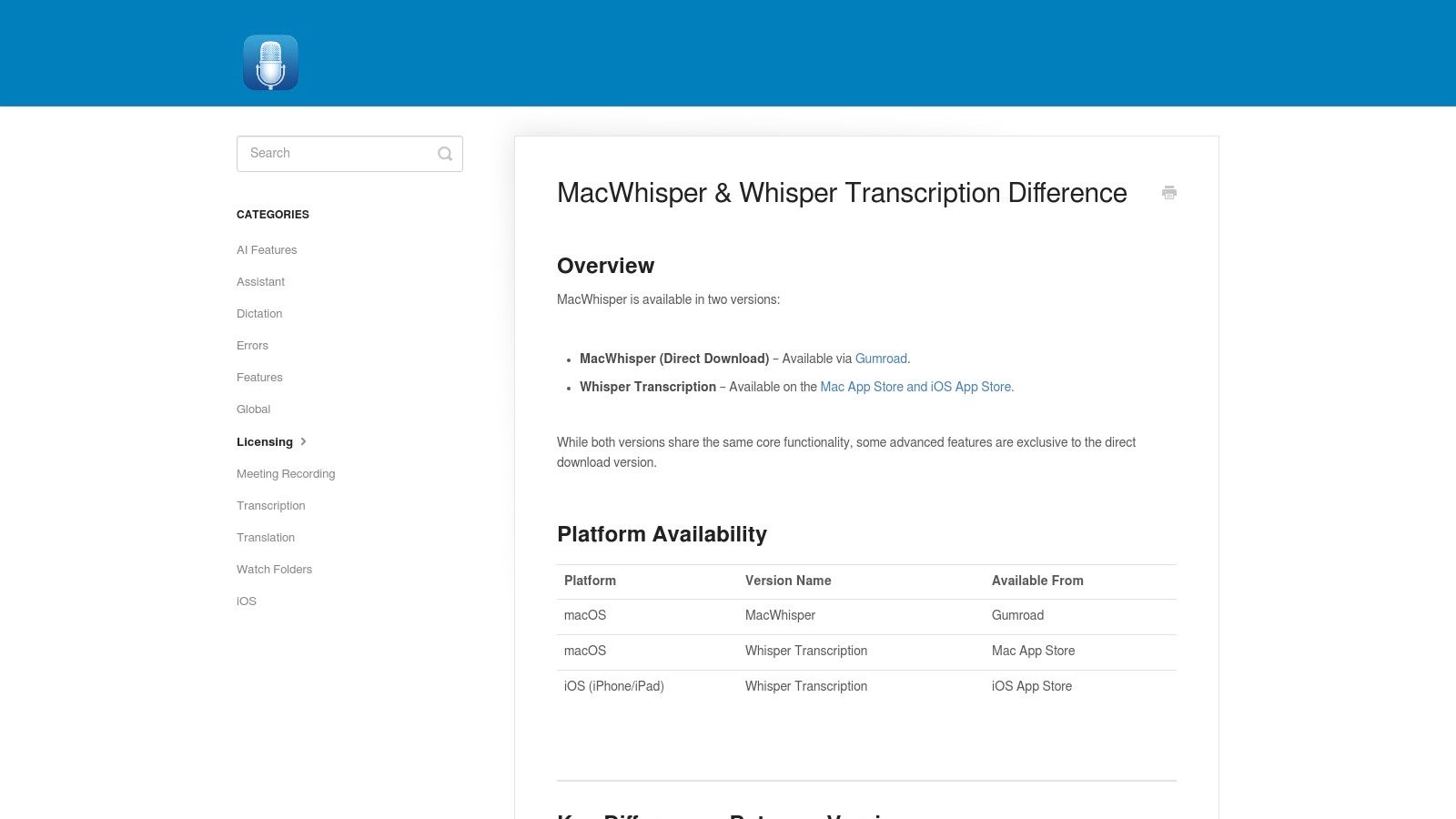
The best thing about MacWhisper is that it's great at listening and keeps everything private. It runs on your Mac and works very fast on new Macs with M-series chips. You can set a special keyboard shortcut to talk and then paste the words into any app. This works well if you are writing, sending a message, or working on a project.
Key Features and User Experience
MacWhisper is more than a talk-to-type tool. It's a full program for turning audio into text that you control.
- Smart Brains on Your Mac: You can download different sizes of the Whisper "brain." Smaller ones are faster. Bigger ones are better at listening. You can pick what you need.
- Talk Anywhere on Your Mac: A key feature is setting a keyboard shortcut. You press the keys to start talking and press them again to stop. The words are copied, so you can paste them anywhere.
- Pay Once: You can buy it from the maker's website and pay just one time to use it forever.
- Extra Cloud Tools: If you want, you can connect it to other tools like ChatGPT to get summaries of your text. You are in control of these connections.
Good Tip: For everyday talking, start with a smaller, faster "brain." To turn an important meeting or a long recording into text, switch to a bigger, smarter one. This choice is a great part of the app.
Pros and Cons
| Pros | Cons |
|---|---|
| Private and Works Offline: All the work happens on your Mac, so your words are safe. | Different Versions: The one you buy from the maker might be different from the one on the App Store. |
| Pay Just Once: You can buy it for life and not pay every month. | Better Listening Needs More Space: The best "brains" are big and take up more room on your computer. |
| Fast on New Macs: It works very fast on Macs with M-series chips. | A Good Microphone Helps: How well it listens depends a lot on your microphone. |
7-Tool Comparison: Mac Dictation Programs
| Product | How Hard to Set Up? | What Does it Need? | What Can You Expect? | Best For | Best Things About It |
|---|---|---|---|---|---|
| WriteVoice | Easy–Medium — install app; it's on the internet | Needs internet; free to try; pay for more | Writes down words in under 1 second, very good listening (98–99% right), neat text & meeting notes | Busy people, bosses, lawyers, doctors needing fast, smart talking-to-text | Super fast, private (doesn't save your voice), works in many apps, knows how to sound |
| Apple — Built‑in Dictation & Voice Control (macOS) | Very Easy — turn it on in settings | On your Mac or on the internet; free; uses your Mac's power | Basic talking-to-text and controlling your Mac with your voice; keeps things private | People who want privacy, need help using their Mac, or just talk-to-type sometimes | Free, works everywhere on Mac, keeps your words safe |
| Mac App Store — Mac‑native dictation apps marketplace | Easy — find and install from the App Store | Varies by app; pay through App Store | Find many talk-to-type apps with easy setup and free trials | People who want safe apps from a trusted store | Trusted store, read what others say, easy to update apps |
| Otter.ai — Live dictation and meeting transcription | Medium — make an account; use app or website | Needs internet; pay per month with time limits | Turns meetings into text as they happen, knows who is talking, easy to search and share | Teams, meetings, interviews, and working on notes together | Good for many speakers, knows who is talking, good for teams |
| Descript — Text‑based audio/video editing plus transcription | Medium–Hard — install and learn how to edit with text | Needs a plan with time limits; has editing tools | Turns voice into text and lets you edit sound/video by changing the words | Creators, people who make podcasts or videos | Edit by changing text, makes sound clearer, good for teams |
| Microsoft 365 (Word for Mac) — Dictate | Easy — it's inside Word if you have a plan | You need a Microsoft 365 plan; uses the internet | Talk-to-type in your document, use your voice to change how it looks | People who use Microsoft Word a lot for work | Works right inside Word, voice commands for how it looks, good for big companies |
| MacWhisper (direct) — On‑device Whisper‑based dictation | Medium — install it, pick a "brain" size | Works on your Mac (fast on new ones); pay one time; can add internet tools | Private, offline talking-to-text; how well it listens depends on the "brain" you pick | People who need to work offline or want to keep talks private | Private on your Mac, pay once for life, fast on new Macs |
Picking the Right Voice-to-Text Tool for You
We have looked at many great talk-to-type programs for Mac. Each one is good for different things. Some are simple, like Apple's free tools. Some are smart for meetings, like Otter.ai. And some are for making creative things, like Descript. The right one is out there for you. Your choice depends on what you need to do.
Instead of looking for the one "best" tool, think about your daily work. Do you need to quickly write notes for a project? A tool like WriteVoice might be great. Do you need to record long school classes? Otter.ai or MacWhisper could be perfect. If you just want to answer emails faster, Apple's free tool or Microsoft's tool might be all you need.
How to Choose Your Ideal Dictation Tool
To find the best fit, ask yourself these three easy questions:
- What is my main goal? Do I want to write long papers, take short notes, or get a written copy of meetings? What you do most is the most important thing to think about.
- Where will I use it? Do I need a tool that works without the internet, like MacWhisper? Or one that works with websites? Do I need to be quiet when I use it in an open office?
- How much can I spend? Start with a free tool like Apple's Dictation to see if it works for you. Then, if you need more, you can think about paying. Many paid tools let you try them for free. This is a great way to test them.
Getting the Best Results
Remember, any of these programs work better if you have a good microphone. If your voice is clear, the program will make fewer mistakes. A good microphone can make even a simple tool feel like a great one. For people who really need it to be right, it's a good idea to think about finding the best microphones for dictation. A good microphone can block out noise and help the program hear every word you say.
The goal is to find a tool that feels easy and fits into your day. The right program will not just take the place of typing. It will help you work in a faster, easier, and more fun way. Try a few from this list. You will soon see how powerful it is to speak your ideas instead of typing them.
Ready to get more done with notes that are made for you in a flash? WriteVoice is for busy people who need to get ideas down and finish work in tools like Jira and Slack without using the keyboard. Find the fastest way to turn your talk into action by trying WriteVoice today.