A Guide to Apps That Turn Your Voice Into Words
Think of an app that turns your voice into words like a magic helper. It listens to you talk and types out everything you say. With an app like WriteVoice, you can say your ideas, things to remember, or notes for school. Then, you can watch them turn into words on your screen.
Why Turning Voice Memos into Words Is a Big Deal
Did you ever have a great idea while you were playing outside? You think you will remember it. But when you get inside to write it down, you forget what it was. This is where an app that turns your voice into words helps a lot. It is like having a little helper in your pocket, always ready to write down your ideas.
You don't have to type on a tiny keyboard. You just talk. This saves time and helps you remember your cool idea.
Making Spoken Words Useful
The best part is how this app takes your jumbled thoughts and makes them neat and useful. Let's say you talk for a long time about a new game you want to make. An app like WriteVoice doesn't just give you a big block of words. It gives you a clean list you can use.
This is not just a special tool anymore. Lots of people use it every day. In 2024, people spent USD 3.81 billion on this kind of app. That number is going to get even bigger. This shows how helpful it is for everyone.
This tool is not just about being fast. It's about saving your idea exactly as you think of it, so you don't forget any parts.
Let's see how it works.
How WriteVoice Turns Your Voice into Words
Here is a quick look at how your talking becomes neat words.
| You Do This | WriteVoice Does This | You Get This |
|---|---|---|
| Talk into your phone. | Listens and writes down your words using a smart computer brain. | A list of words of everything you said. |
| Talk like you normally do. | Cleans up the words, takes out "ums," and makes it look nice. | A neat paper with sentences and maybe even a list with bullet points. |
| Say something like "add to my list." | Sees the special words and talks to your other apps. | Your idea is sent to the right place, like a new item on your list. |
The goal is to go from a quick thought in your head to something you can see and use.
Who Can Use an App That Turns Voice into Words?
The cool thing is that anyone can use it. It's not just for grown-ups at work.
- Students: You can record what your teacher says and get the words to study later.
- Busy Parents: You can say your grocery list out loud when your hands are full.
- Creative Kids: You can save ideas for a song, a story, or a drawing when you think of them.
- Grown-ups at Work: They can take notes in a meeting without looking at a computer.
This has also helped in special jobs. For doctors, special medical transcription software helps them a lot. It turns what they say about a patient into words. This saves time and helps them make fewer mistakes. It's a simple idea that does a very important job.
Getting WriteVoice Ready on Your Phone
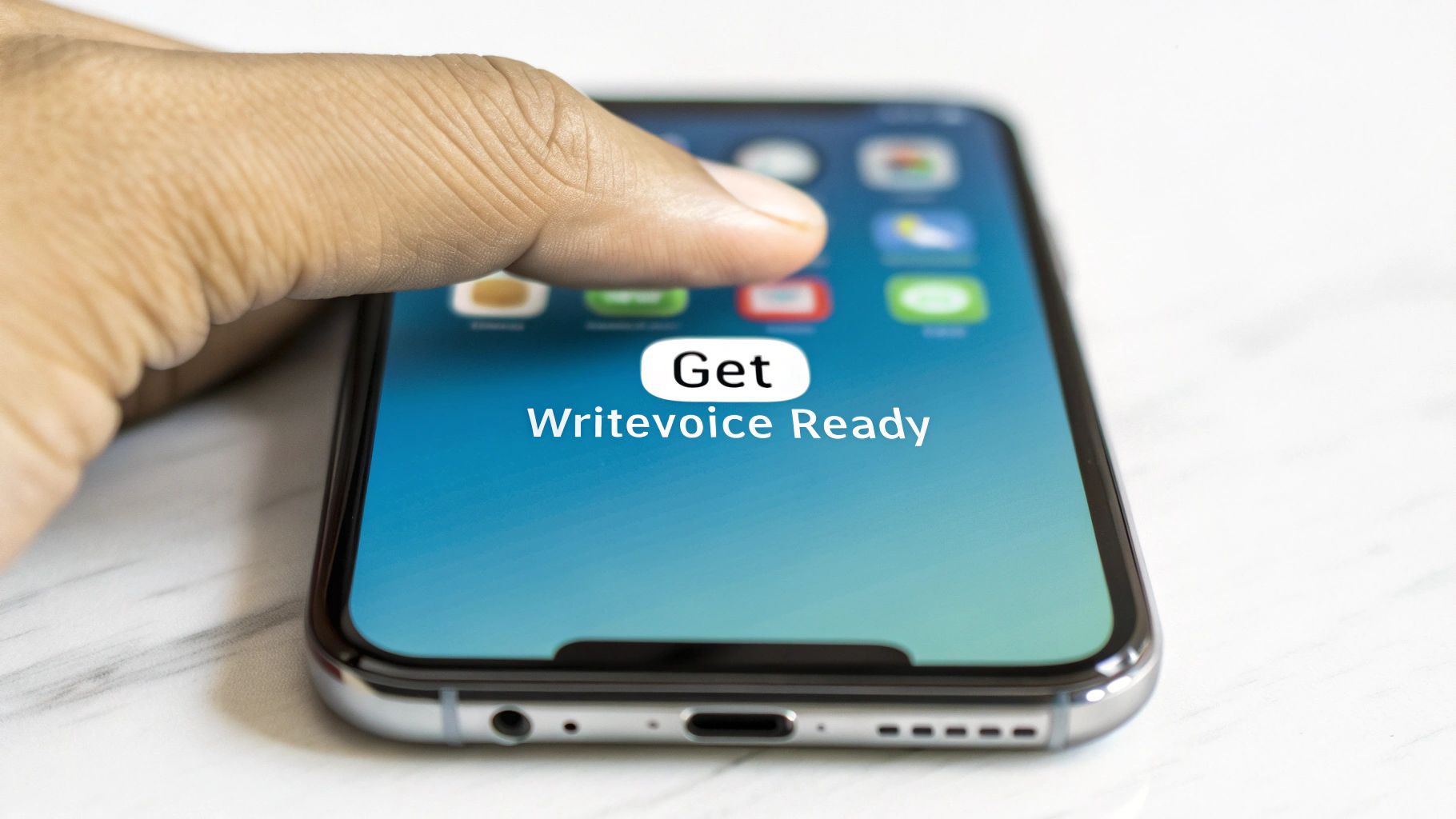
Before you can turn your ideas into words, you need to get WriteVoice on your phone. The good news is, it's very easy and takes just a minute. There are no hard buttons to figure out.
Think of it like getting a new coloring book. The first step is to open it. With WriteVoice, you go to your phone's app store. You can get it for iPhone or Android. Search for "WriteVoice" and tap install. You're almost done!
After it's on your phone, find the picture for the app and tap it to open. The app will help you get it set up the first time.
First Time Setup and Rules
The most important step is to let WriteVoice use your phone's microphone. The microphone is like the phone's ear. It's how the app hears you. When the phone asks if it can use the microphone, tap "Allow." Without this, the app can't be a voice memo to text converter.
Don't worry, the app will only ask you this one time. This just makes sure the app is ready to listen when you need it.
You can leave the other settings alone for now. The app works great right away. After you say "Allow," you are ready to start talking. If you want to know how the app works, we have a story that shows you how an app can turn your voice into words.
Make a One-Tap Button
Here is a cool trick to make saving ideas even faster. Put a WriteVoice button right on your main phone screen. When you have a great idea, you don't want to look for the app. You want to save the idea right now. A button lets you do that with one tap.
It's easy to make one:
- For iPhone: Touch an empty spot on your screen and hold it. The apps will start to wiggle. Tap the "+" at the top, find the WriteVoice button, and pull it where you want it.
- For Android: Touch the WriteVoice app picture and hold it. A small menu will show up. Pick "Add to Home" or just pull the picture to a spot you like.
This may seem like a small thing, but it helps a lot. You are always just one tap away from saving your next great idea before it floats away.
Your First Time Turning Voice into Words
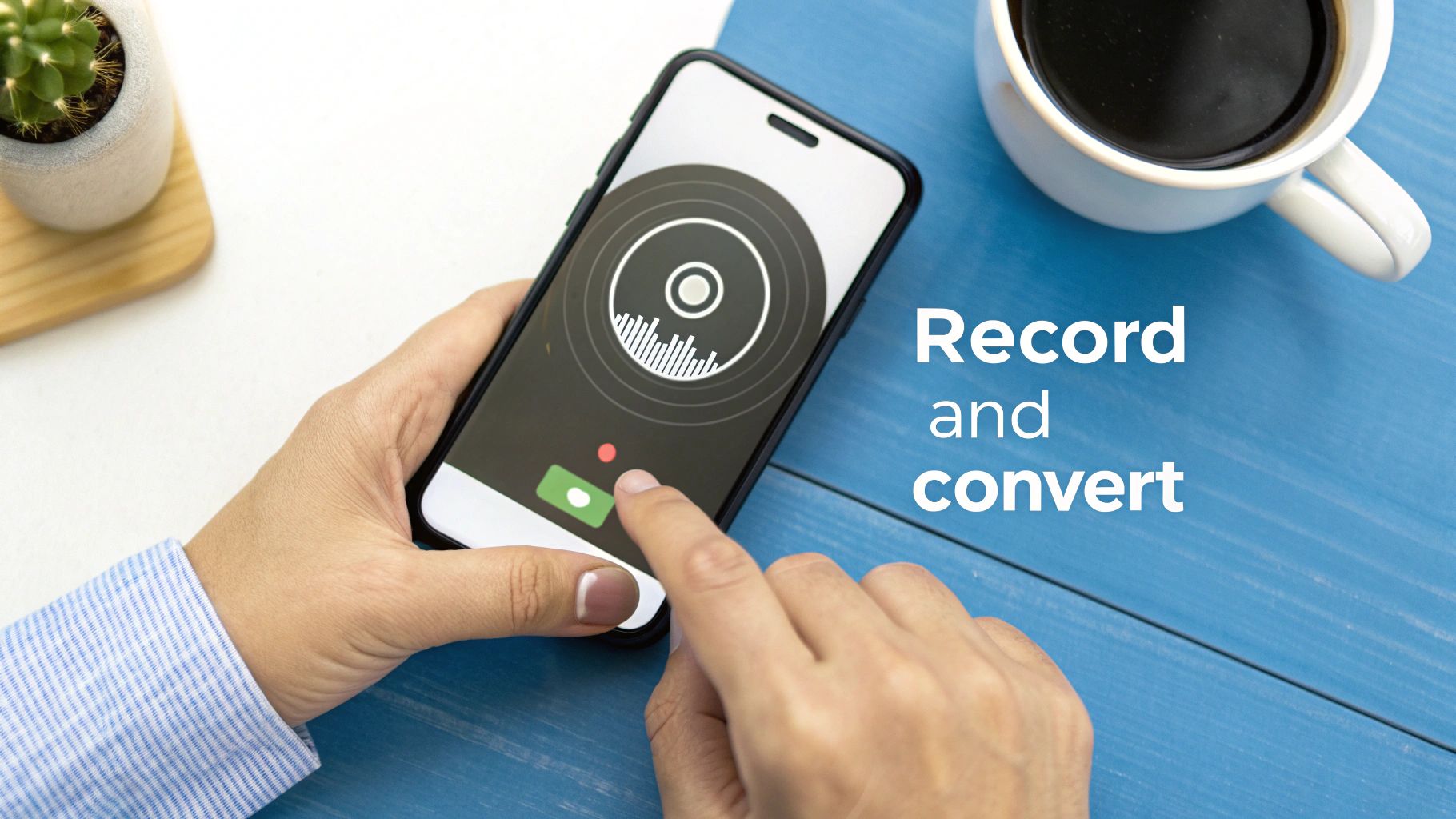
Okay, let's try the app. Seeing your spoken words turn into neat text is the fun part. It's super easy, and we'll do it together.
Let's try a simple job. Picture this: you're about to leave the house and you remember you need three snacks. Instead of looking for paper, just open WriteVoice. You'll see a big button ready for you to press.
When you tap it, just talk. Talk in your normal voice, not too fast or too slow. The voice memo to text converter starts listening to every word you say.
How to Make a Clear Recording
The secret to getting good words is to make a clear recording. You don't need a special microphone, but a few small things can help. It's like taking a good picture. You need good light to see things clearly.
For your voice, this just means try to be in a quiet place. Talking next to a loud TV can make it hard for the app to hear you.
Here are a few tips I use to make a good recording:
- Speak Clearly: You don't have to yell. Just use your normal voice and say your words clearly.
- Find a Quiet Spot: If you can, move away from loud noises. Going to another room can help a lot.
- Don't Rush: Talk at a normal speed. Give the app time to hear what you are saying.
When you are done, tap the stop button. You will see your list—"get chips, cookies, and juice"—pop up as words on the screen. It's pretty cool.
What Happens After You Talk
It looks easy, but there is some powerful computer magic happening. The number of people using voice apps is growing super fast. In 2024, people spent USD 3.14 billion on them. By 2034, that could be USD 47.5 billion! That big jump shows how helpful these tools are.
This is because the apps are getting smarter and more useful. They are changing how we use our phones, making it easy to save our thoughts.
The first time you see it work, it's like "Wow!" You see that saving an idea is as easy as saying it out loud, anywhere you are.
If you have an iPhone, having a good tool is important. We have a guide to help you find the best transcription app for iPhone.
Your first try might just be a snack list. But soon you'll be talking about your homework, ideas for games, and important things to remember. You are learning how to save your thoughts right away.
Making Your New Text Easy to Read
So, WriteVoice turned your talking into words. Great! But sometimes, the words look like one big block. It's not easy to read. The next step is to make it look neat so you can use it.
Think of it like this: the first words are like a messy drawing. Now it's time to color it in and make it look nice.
Even the best voice memo to text converter can get a word wrong, especially if it's noisy. Maybe you said "find my red sock" and it heard "find my red rock." Fixing it is easy. Just tap the word and use your phone's keyboard to change it, just like fixing a mistake in a text.
Giving Your Ideas a Shape
A long, jumbled thought is much more useful when you make it neat. Breaking up a big pile of words helps you see the important parts. It makes your notes look like a real paper, not just a bunch of words.
Let's say you are planning a sleepover and you say: "Okay for the sleepover we need to remember to bring pillows and blankets and also popcorn for movies don't forget flashlights and a fun game."
All the ideas are there, but it's messy. Time to make it neat.
The goal is to turn a river of words into a useful list. A few simple changes can make your notes way better when you look at them later.
By adding a title or making a list, you make a big difference. It's worth the little bit of work.
Simple Tools to Make It Look Good
Making your words look good is not just about being pretty. It's about being clear. WriteVoice gives you a few easy tools to help. You don't have to be an expert to use them.
Here is how you could quickly fix that sleepover note:
- Add a Title: Put "Sleepover List" at the very top. Now your note has a name.
- Make Bullet Points: Turn that long sentence into a clean list. This is great for looking at later.
- Use Bold Words: For things you really can't forget, make them bold. Your eyes will see them right away.
It's fun to watch your note change from a block of words to a neat plan. A great tool doesn't just write your words; it helps you shape them. Getting the words right is important, and you can learn how to get better speech to text accuracy. But making them look good is what makes them truly useful.
Let's look at the sleepover note before and after.
Before FixingOkay for the sleepover we need to remember to bring pillows and blankets and also popcorn for movies don't forget flashlights and a fun game.
After FixingSleepover List- Pillows- Blankets- Popcorn for movies- **Flashlights**- **A fun game**
See the difference? The second one is a clear plan. With just a few taps, you went from a jumbled thought to a helpful list. This is how you make your new words work for you.
Sharing and Saving Your New Notes

Okay, your voice memo is now neat text. But a note is only helpful if it goes to the right place. Let's send those great ideas where they need to go.
WriteVoice makes this super easy. You can send your text to other apps with just one tap. It's all about making your words do work for you, right away.
Think about it. You just finished talking about a school project. Instead of typing it all up, you can send the words right to an email. Or maybe you had a cool idea for a drawing. You can send it right to your notes app.
Sending Your Notes to Other Apps
This is the really cool part, where your spoken thoughts become real actions. A good voice memo to text converter should be like a bridge from your ideas to the apps you use every day. The whole point is to make things easier.
Once your words are on the screen, you can do almost anything. You could use your notes for things like creating and sending emails from Notion, which saves a lot of time.
It's no wonder these tools are so popular. These apps can now get the words right over 90% of the time if you are in a quiet place. This makes them good enough for both work and fun.
The big win is going from an idea in your head to a finished job with almost no work. You talk, it writes, and you share. It's that easy.
So, where should your notes go? It depends on what you want to do.
Where Your New Notes Can Go
Here are a few easy ways to share or save your text.
| What You Want to Do | Best App to Send To | Why It's a Good Choice |
|---|---|---|
| Write an email | Gmail or Outlook | It starts an email with your words, ready for you to send. |
| Make a to-do list | Things 3 or Todoist | It turns your spoken list into a checklist to keep you on track. |
| Save notes for a project | Notion or Evernote | It sends all your words to a spot where you can find them later. |
| Share an idea with a friend | Slack or Microsoft Teams | It quickly sends your thoughts to a friend in a message. |
Picking the right place to send your note makes everything feel easy.
Saving Your Ideas in the Cloud
What about saving your thoughts for a long time? You don't want to lose a great idea if you lose your phone. That's where saving to the cloud can be your best friend. The cloud is like a magic storage box on the internet.
WriteVoice lets you connect to places like Google Drive or Dropbox. After you connect them, your new notes can be saved there all by themselves. It's like a safety net for your thoughts. It makes sure they are always safe and you can get to them from any computer or phone.
The best part? You only have to set it up once. After that, WriteVoice does all the work. Every note you make is saved safely. Your ideas are important, so you should keep them safe.
Common Questions About Voice-to-Text Apps
When you try something new, you might have questions. Here are some common questions people ask about these apps.
The first thing people ask is, "Do I need to talk in a special way?" The simple answer is no. You don't need a special radio voice or a fancy microphone.
Just talk like you normally do. Pretend you are leaving a message for a friend. It helps to be in a quiet place, but it doesn't have to be totally silent. A little noise is okay. But the less noise the app has to hear, the better it will write your words.
The great thing about these tools is they learn how people really talk, not like an actor in a movie.
Does It Understand How Different People Talk?
Yes, it does. A good app is made to understand many kinds of voices and accents. It learns how people talk in different places.
Most new apps, like WriteVoice, also work for different languages. When you set up the app, you can tell it what language you speak. This helps the app listen for the right sounds and words. This one step helps a lot.
The main thing to remember is that you don't have to change how you talk. These tools are made for real people with real voices.
This is what makes it a helpful tool for people all over the world.
What if It Writes the Wrong Word?
It can happen. Even the smartest app can sometimes hear the wrong word. For example, you might say, "I have to go," and the app might write, "I have two go." Words that sound the same can be tricky!
Luckily, fixing these small mistakes is very easy.
After your voice is turned into words, you can see them on your screen. If you see a word that is wrong, just tap on it. Your keyboard will pop up, and you can fix it. It's just like fixing a mistake in a text message. WriteVoice has easy tools to help you change words or add dots and commas.
Is It Safe for My Private Thoughts?
This is a very important question. When you are talking about your own ideas or secrets, you want to know they are safe. Good apps like WriteVoice care a lot about keeping your thoughts private.
Here is what you should look for:
- You Own Your Words: Your words should always be yours. Good apps will never sell your notes or listen to your voice for other reasons.
- Clear Rules: A good app will have easy-to-read rules that tell you how they keep your stuff safe.
A good rule is to not say super secret things like passwords into any app. But for your ideas, lists, and notes, a safe app is a private place for your thoughts.
Ready to stop typing and start talking? With WriteVoice, you can turn your spoken ideas into clean, organized text in seconds. Try WriteVoice for free and see how much time you can save!